
1. Увод
Thank you for choosing the ORGSTA S001 Portable Bluetooth Thermal Label Maker. This compact and efficient device is designed to simplify your labeling needs for home, office, and school organization. Utilizing direct thermal printing technology, it offers high-resolution labels without the need for ink or toner. Its portable design and user-friendly app make it an ideal tool for creating custom labels on the go.
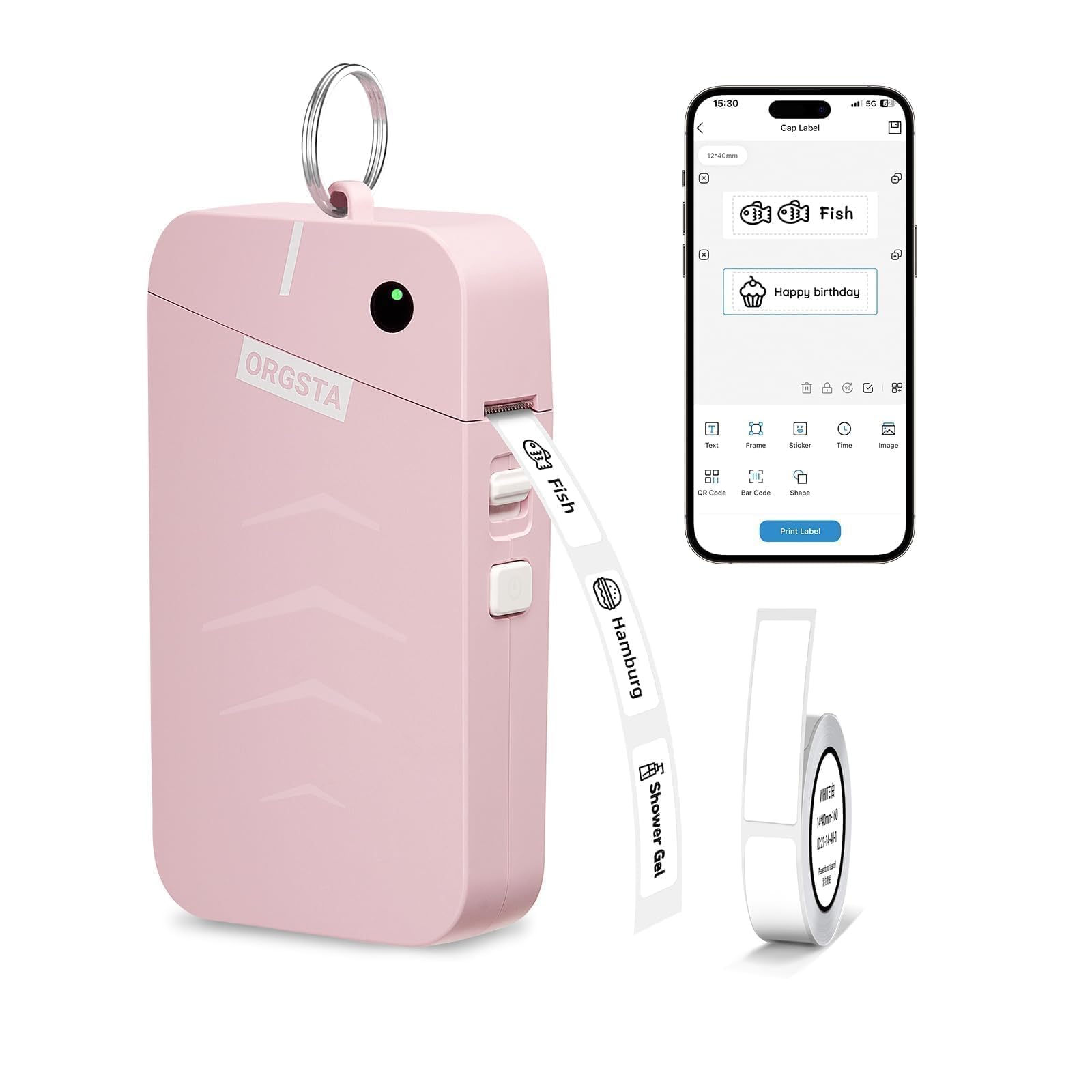
Image: The ORGSTA S001 Portable Bluetooth Thermal Label Maker in pink, showcasinг његов компактни дизајн.
2. Шта је у кутији
Upon unboxing your ORGSTA S001 Label Maker, please ensure all the following items are included:
- С001 Лабел Макер
- 1 x Roll Label Tape
- 1 к Привезак за кључеве
- 1 к кабл типа Ц
- 1 к Упутство за употребу

Image: A visual representation of all items included in the ORGSTA S001 Label Maker package.
3. Производ је готовview
The ORGSTA S001 features a minimalist design with essential controls for ease of use.
Buttons & Indicator Light
- Дугме за напајање: Press and hold for 1.5 seconds to power on/off. Double-press to print the device's QR code for Bluetooth connection. Triple-press to print the device SN.
- Дугме за поклопац: Slide down to open the label compartment.
- ЛЕД индикатор:
- Green (Steady): Режим приправности.
- Зелено (трепће): Штампање је у току.
- Red (Steady): Нема папира.
- Црвено (трепери): Low battery (less than 5%).
- Порт за пуњење: Type-C USB port for charging.
- Ресет тастер: Insert a pin into the reset hole and press firmly for a few seconds to reset the device if it's functioning abnormally.
4. Подешавање
4.1. Преузимање апликације
To utilize the full functionality of your ORGSTA S001 Label Maker, download the "Snap & Tag" app on your smartphone. You can find the app by:
- Scanning the QR code provided in the user manual or on the device packaging.
- Searching for "Snap & Tag" in your phone's app store (available for Android and iOS).
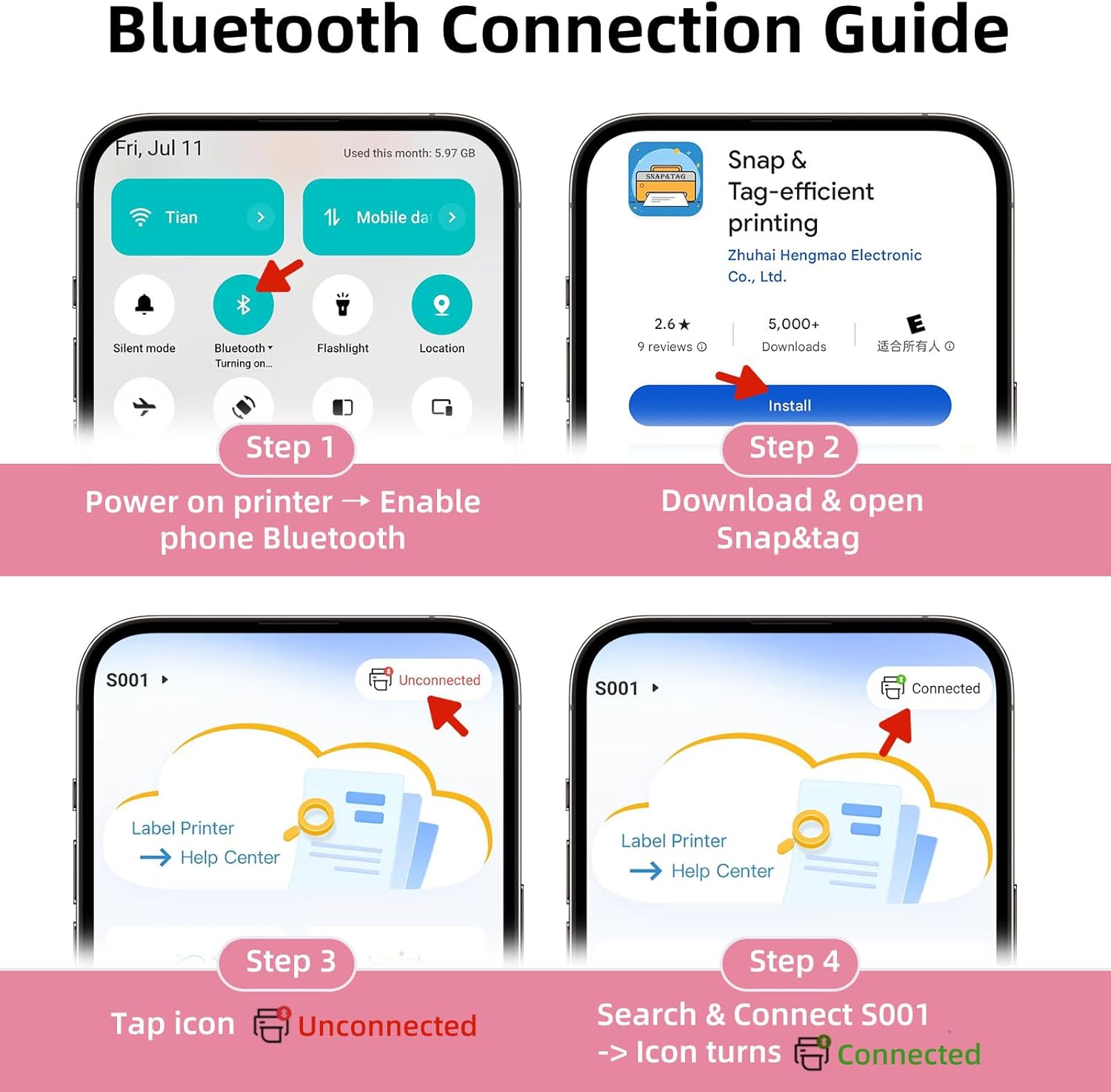
Image: A visual guide to downloading and opening the Snap & Tag апп.
4.2. App Connection (Bluetooth)
Connect your label maker to your smartphone via Bluetooth:
- Укључите уређај притиском и држањем дугмета за напајање док се не упали индикаторска лампица.
- Open the "Snap & Tag" app and enable Bluetooth on your phone.
- In the top left corner of the app, tap "Unconnected". Select your device from the list that appears. The app will then pair with your device. Once connected, you're ready to print!

Image: Steps for connecting the label maker to the app via Bluetooth.
4.3. Consumable Installation (Loading Label Tape)
Properly loading the label tape ensures optimal printing quality:
- Slide down the cover button to open the cover of the label maker.
- Load the paper roll with the printed side facing up. Ensure it is inserted correctly.
- Unroll the label paper so that it slightly extends beyond the print slot.
- Close the cover, then press and hold the power button to power on.

Image: Detailed steps for installing the label tape.
5. Упутство за употребу
The "Snap & Tag" app offers multiple creative functions to design and print your labels.
5.1. Креирање етикете
From the app's home screen, select "Create a New Label" to begin designing. You can add:
- Текст: Customize fonts, sizes, and styles.
- Оквири: Choose from over 100 decorative frames.
- налепнице: Select from over 550 stickers to enhance your labels.
- Време/Датум: Automatically insert current time or date.
- слике: Upload your own images.
- QR Codes/Barcodes: Generate and print QR codes or barcodes.
- Облици: Add various shapes to your design.
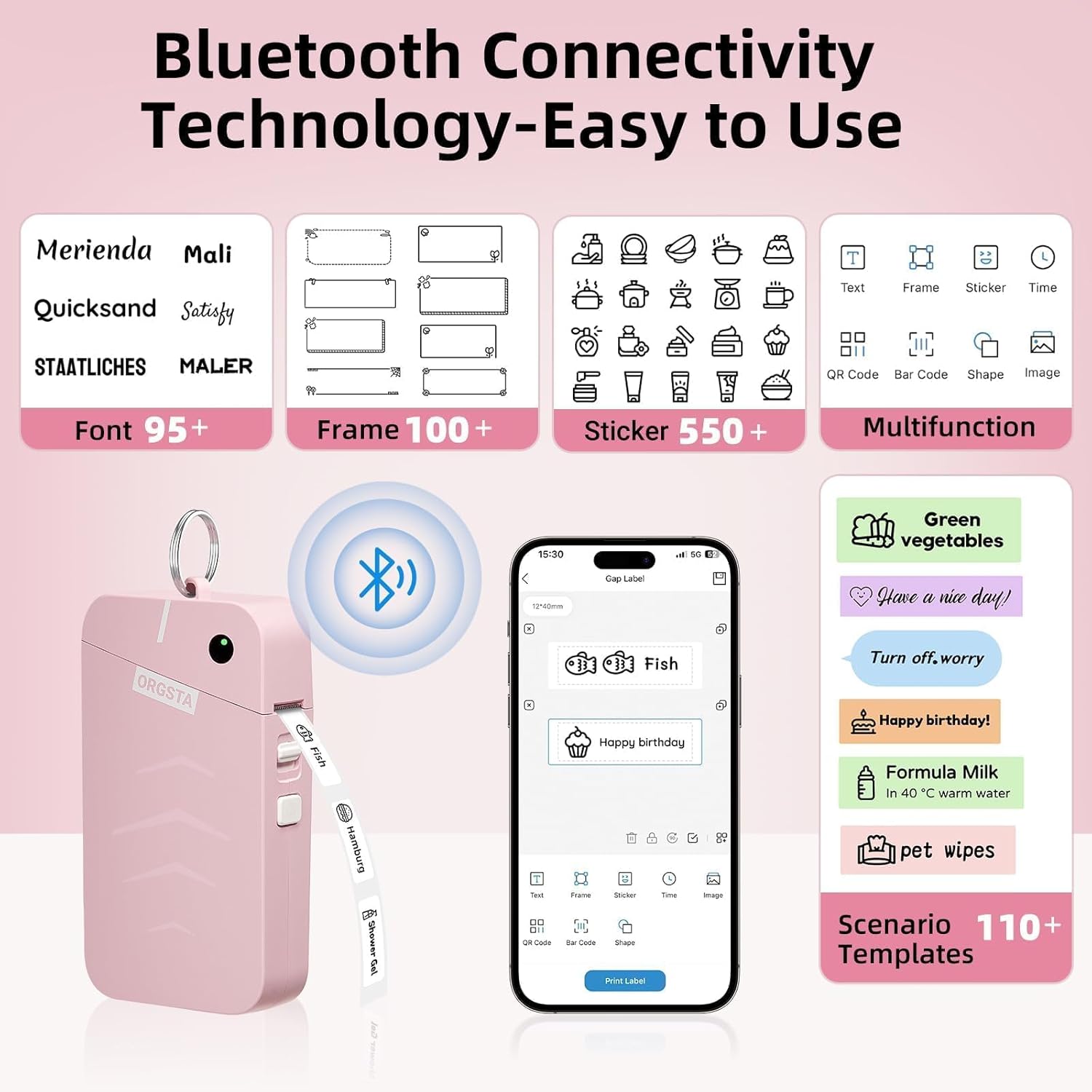
Image: The Snap & Tag app interface highlighting various customization features.
5.2. Штампање етикете
Када је дизајн ваше етикете завршен:
- Tap the "Print Label" button in the app.
- Adjust the quantity if you need multiple copies of the same label.
- You can also adjust the print density for darker or lighter prints.
- Confirm your settings and tap "Print Label" again to send the job to the printer.
5.3. Label Types and Sizes
The ORGSTA S001 supports various label types and sizes, including gap labels and continuous length tape. You can customize label lengths with continuous tape or use fixed-size labels for batch printing.

Слика: прamples of different label types and sizes, including gap labels and continuous tape.
5.4. Широка примена
The ORGSTA S001 is versatile for various organizational tasks:
- Почетна: Organize clothes, food storage, cosmetics, and mail.
- Канцеларија: Manage notebook tags, price tags, reminder tags, and other supplies.
- школа: Label classroom items, personal belongings, and name tags.

Слика: прamples of the label maker's wide application in home and office settings.
6. Одржавање
To ensure the longevity and optimal performance of your ORGSTA S001 Label Maker:
- Чишћење: Regularly clean the print head with a soft, lint-free cloth. Do not use harsh chemicals or abrasive materials.
- Складиштење: Уређај чувајте на хладном и сувом месту, даље од директне сунчеве светлости и екстремних температура.
- Одржавање батерије: For optimal battery health, we recommend charging your lithium battery every three months, even if it's not fully drained.
- Ролне етикета: Use only genuine ORGSTA label rolls to prevent damage to the print head and ensure print quality.
КСНУМКС. Решавање проблема
If you encounter issues with your ORGSTA S001 Label Maker, please refer to the following common solutions:
- Нема напајања: Уверите се да је уређај потпуно напуњен. Повежите га са извором напајања помоћу приложеног Type-C кабла.
- Printing Issues (Faint/Blank): Check if the label roll is inserted correctly with the printed side facing up. Ensure the label tape is not exhausted. Clean the print head.
- Bluetooth Connection Failure: Ensure Bluetooth is enabled on your phone and within the "Snap & Tag" app settings. Try restarting both the label maker and your phone. If the device is not listed, double-press the power button on your device; it will print a QR code. Use the scanner button at the bottom of the device list screen to scan the QR code to connect.
- Заглављени папир: Open the cover, carefully remove any jammed paper, and re-insert the label roll correctly.
- Квар уређаја: If the device is functioning abnormally, insert a pin into the reset hole and press firmly for a few seconds to reset it.
8. Спецификације
| Феатуре | Спецификација |
|---|---|
| Бранд | ОРГСТА |
| Модел | С001 |
| Технологија повезивања | Блуетоотх |
| Технологија штампе | Тхермал |
| Максимална резолуција штампања | 203 дпи |
| Максимална брзина штампања (монохроматско) | 15 mm/s (35 inches per minute) |
| Капацитет батерије | Литијум-јонска батерија од 2000 mAh (укључена) |
| Улаз за пуњење | 5В - 1А |
| Порт за пуњење | Типе-Ц |
| Димензије производа | 29 x 72.5 x 135.5 mm |
| Компатибилни уређаји | Smartphones (Android/iOS) |
| Принт Медиа | Labels (Gap / Continuous) |
| Тежина артикла | 0.32 унци |
9. Гаранција и подршка
ORGSTA is committed to providing quality products and customer satisfaction. Your ORGSTA S001 Label Maker comes with a limited warranty.
- Гарантни период: Please refer to the warranty card included in your package for specific details regarding the warranty period and terms.
- Корисничка подршка: If you have any quality problems or suggestions, please contact us promptly through the after-sales service email provided in the warranty card or user manual.
- Емаил: orgsta_service@outlook.com
Please note that returns and exchanges require that the goods are intact and do not affect the sale. We will provide you with service as soon as possible after receiving the product.
10. Званични видео снимци производа
Watch these official videos for more information and usage tips:
ORGSTA S001 Label Maker: Your Secret Weapon for a Neat Home
Video: This video demonstrates how the ORGSTA S001 Label Maker can help organize your home efficiently.
The Story of S001 Label Maker
Video: A short video highlighting the features and benefits of the S001 Label Maker.