
ACASIS AC-DM0203
ACASIS 14-in-1 Triple Display USB-C Docking Station User Manual
Model: AC-DM0203 | Brand: ACASIS
1. Производ је готовview
The ACASIS 14-in-1 Triple Display USB-C Docking Station (Model: AC-DM0203) is a versatile connectivity solution designed to expand the capabilities of your laptop. It provides a wide array of ports, including multiple USB ports, HDMI outputs for triple display setups, Ethernet, and card readers, all while delivering power to your device. This docking station is ideal for enhancing productivity in various environments, from office work to home entertainment.
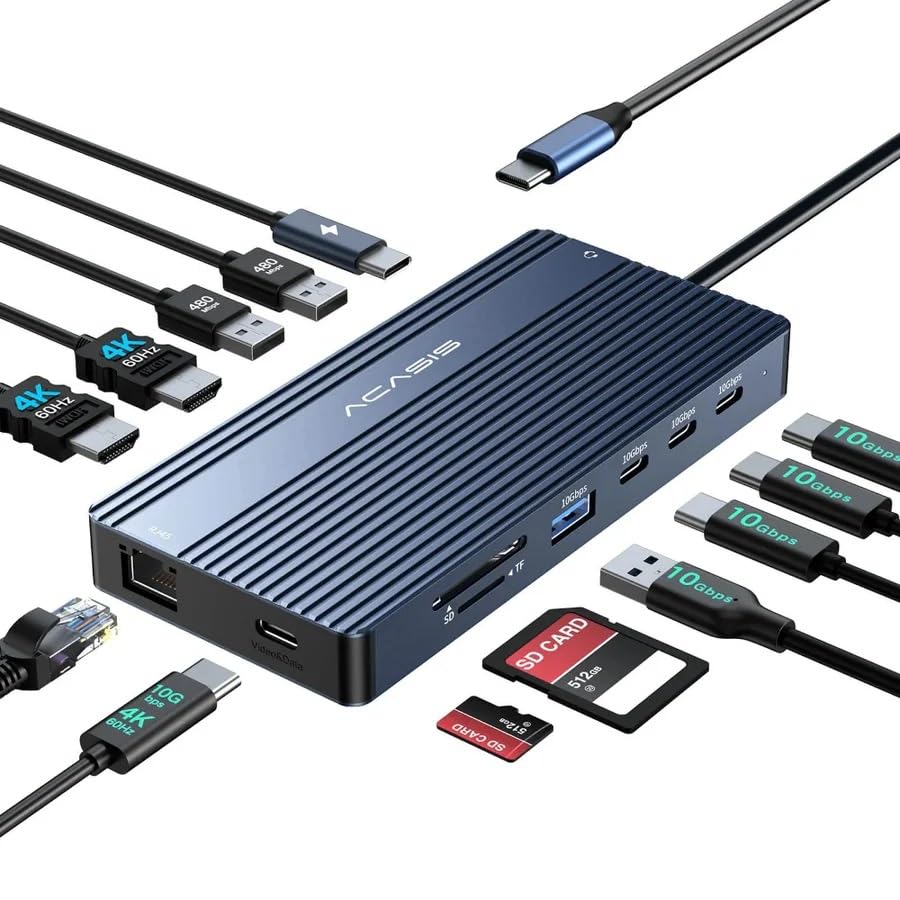
Image: The ACASIS 14-in-1 docking station, showcasing its compact design and the array of connectivity options it provides, including USB, HDMI, and Ethernet cables.
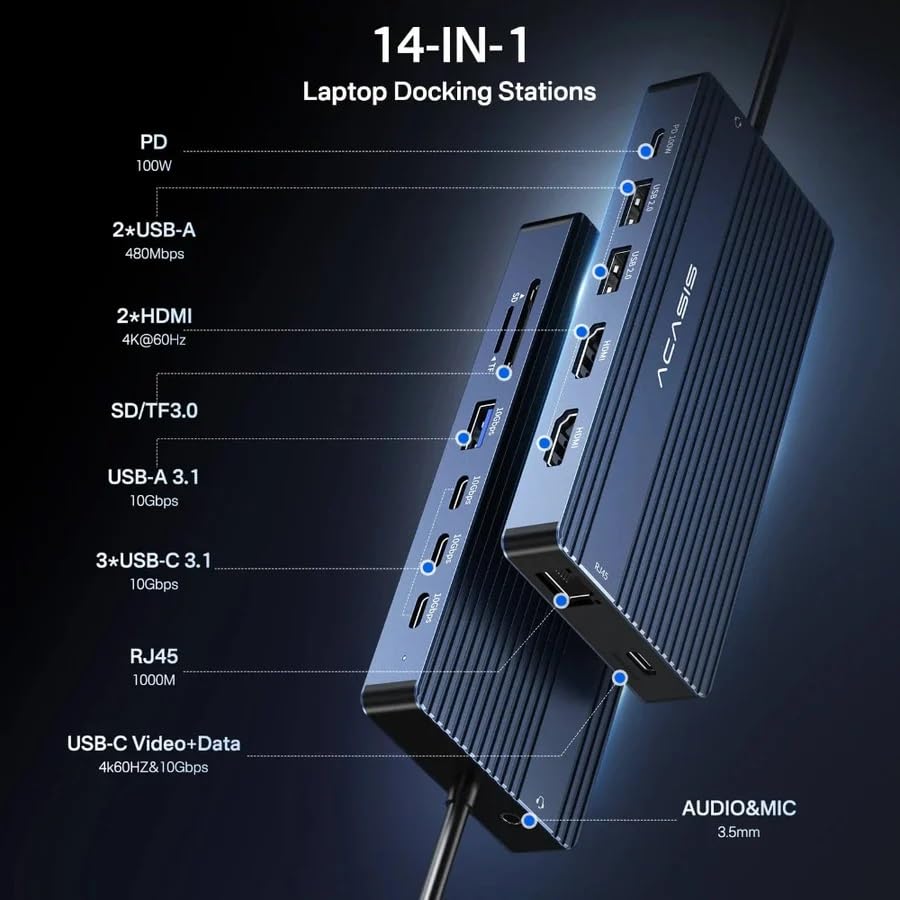
Image: A detailed diagram illustrating the location and type of each of the 14 ports on the ACASIS docking station, including PD, USB-A, HDMI, SD/TF, USB-C, RJ45, and Audio/Mic ports.
2. Карактеристике
The ACASIS 14-in-1 Docking Station offers comprehensive connectivity with the following features:
- 1 x USB-C Video+Data Port: Supports 4K@60Hz video output and 10Gbps data transfer.
- 2 x HDMI 2.0 порта: Supports 4K@60Hz video output for dual or triple display setups.
- 3 x USB-C 3.1 Ports: Provides 10Gbps high-speed data transmission.
- 1 x USB-A 3.1 Port: Offers 10Gbps high-speed data transmission.
- 2 x USB-A порта: Provides 5Gbps data transmission.
- 1 x USB-C PD 100W Port: Supports up to 100W power delivery to charge your laptop (85W pass-through charging).
- 1 x Gigabit Ethernet (RJ45) Port: Ensures stable and fast wired network connection up to 1000MB/s.
- 1 x SD 3.0 Card Reader: Supports UHS-I speeds up to 104MB/s.
- 1 x Micro SD 3.0 Card Reader: Supports UHS-I speeds up to 104MB/s.
- 1 x Audio In & Out (3.5mm TRRS) Port: За слушалице или микрофоне.

Слика: Детаљна view of the ACASIS docking station from top and bottom, highlighting the placement of all ports.
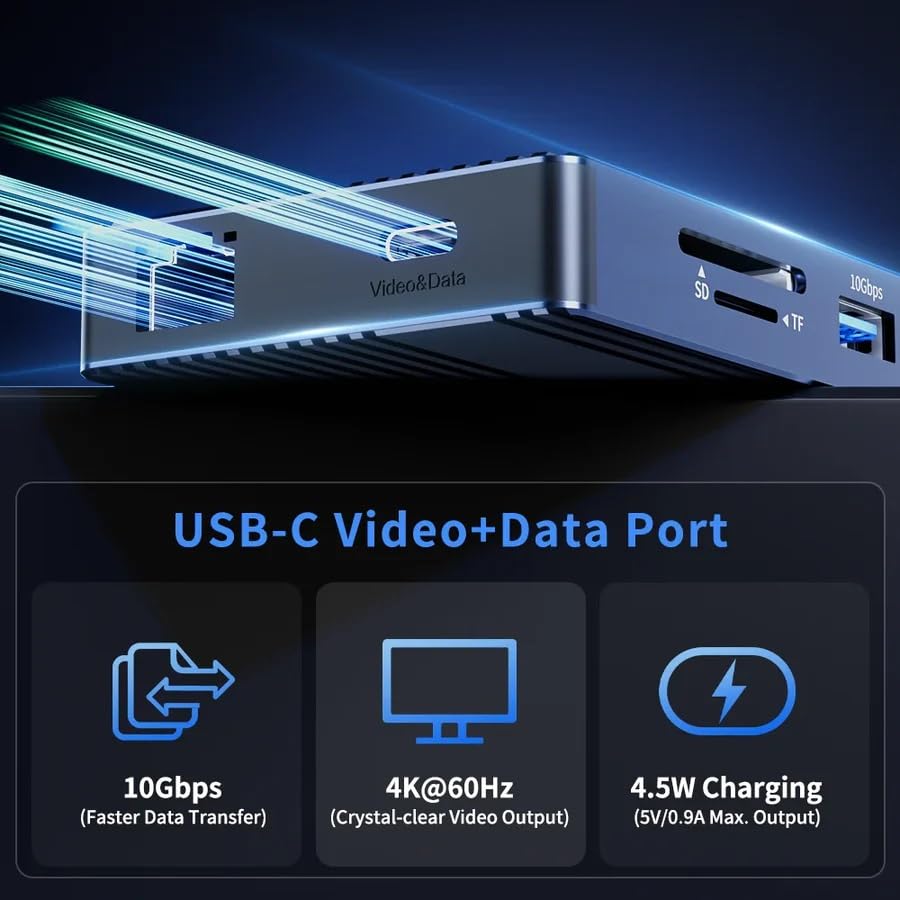
Image: A graphic detailing the capabilities of the USB-C Video+Data port, showing 10Gbps data transfer, 4K@60Hz video output, and 4.5W charging.
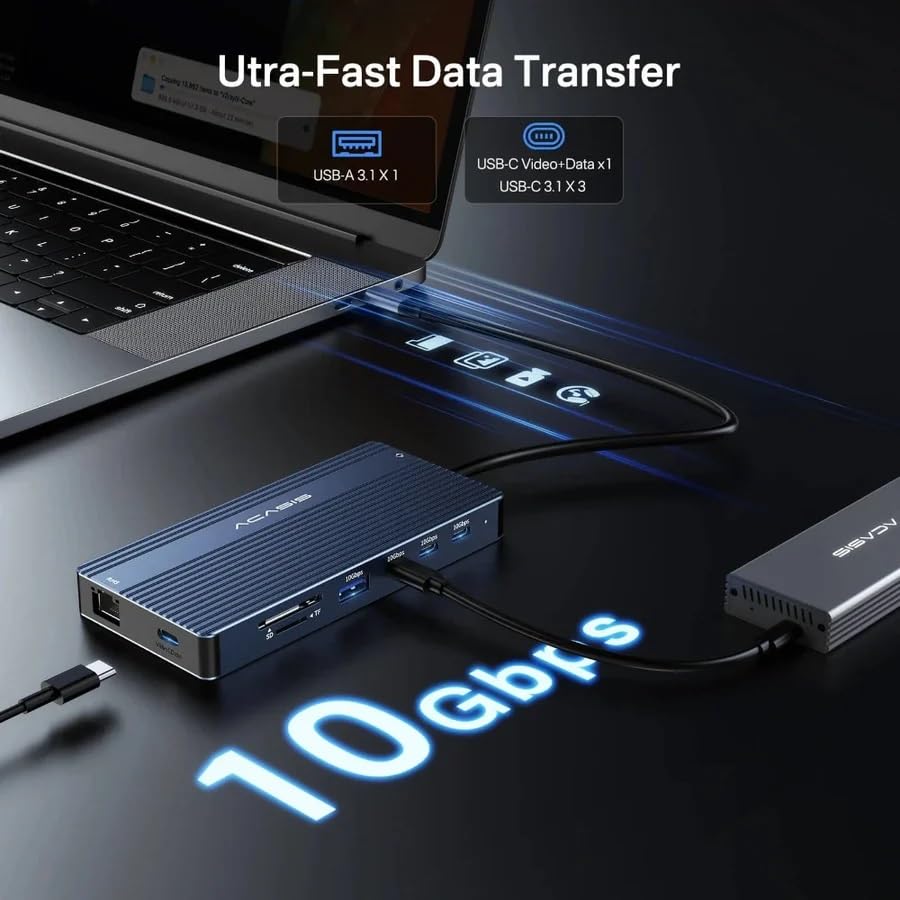
Image: A visual representation of the 10Gbps ultra-fast data transfer capability, showing data flowing from the laptop through the docking station.
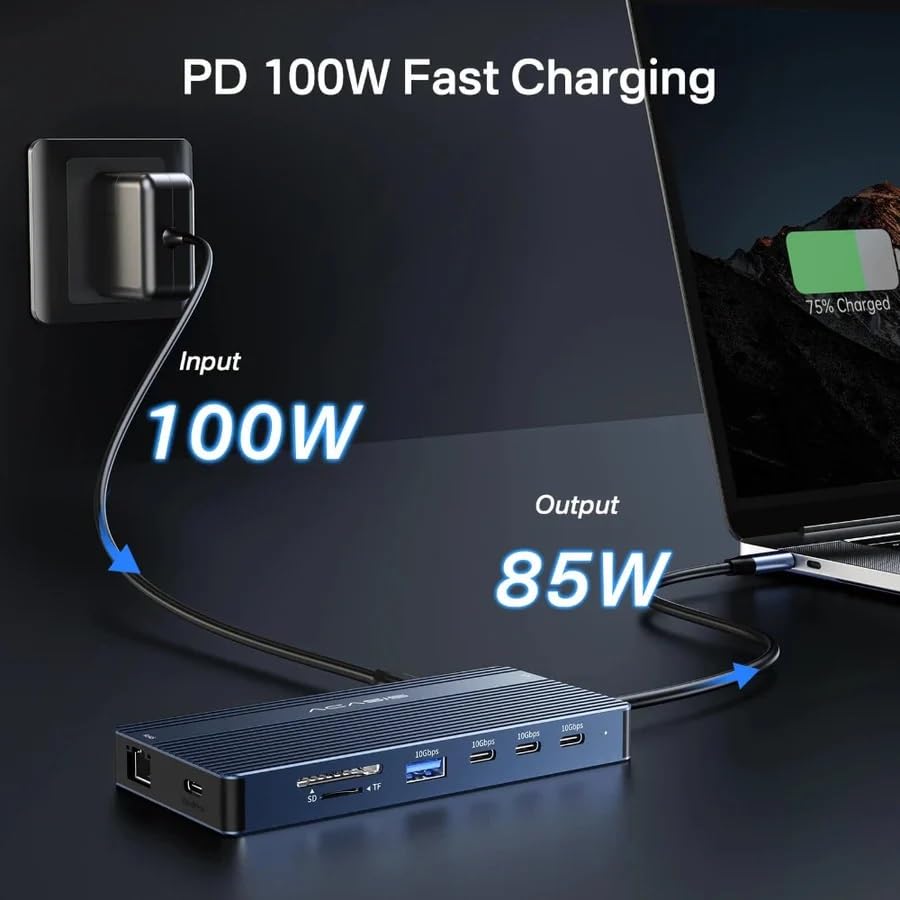
Image: A diagram illustrating the 100W Power Delivery input and 85W output charging capability of the docking station, connected to a laptop.
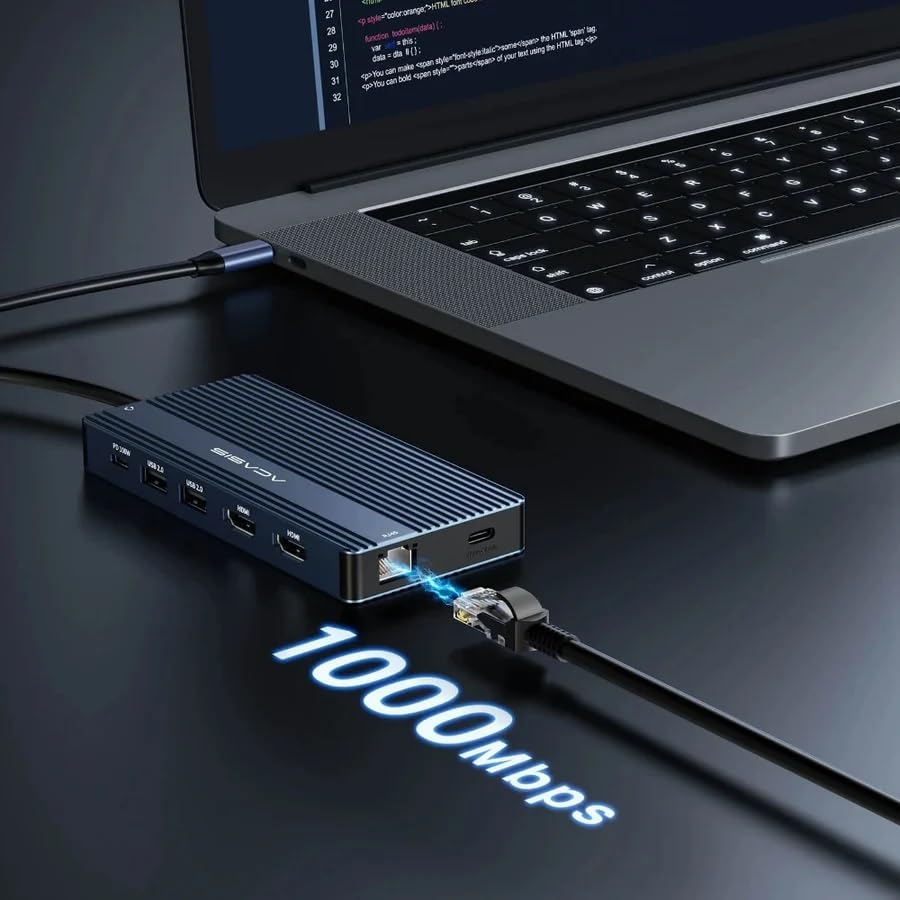
Image: The docking station connected to a laptop and an Ethernet cable, highlighting the 1000Mbps Gigabit Ethernet speed.

Слика: Бивши/аample of a laptop connected to an external monitor via the docking station, displaying a crisp 4K@60Hz resolution.
3. Спецификације
| Бранд | АЦАСИС |
| Модел | AC-DM0203 |
| Димензије производа | 10 к 10 к 3 цм |
| Тежина артикла | 150 г |
| Компатибилност оперативног система | Windows, macOS, ChromeOS, iPadOS, Android |
| Хардверски интерфејс | Thunderbolt 4, USB-C |
| Компатибилни уређаји | Gaming Console, Personal Computer, Tablet |
| Број портова | 14 |
| Укупно УСБ портова | 7 (3x USB-C 3.1, 1x USB-A 3.1, 2x USB-A 5Gbps, 1x USB-C Video+Data) |
| Укупни ХДМИ портови | 2 |
| Повер Деливери | Up to 100W (85W pass-through) |
| Земља порекла | Кина |

Image: A graphic displaying various compatible laptop brands and operating systems, including Apple, HP, Lenovo, Dell, ASUS, Microsoft, Windows, macOS, ChromeOS, iPadOS, and Android.

Image: A visual guide explaining different types of USB-C ports and their functionalities, distinguishing between Thunderbolt/Full Function, Data Transfer + DP Alt Mode, Data Transfer Only, and Charging Only ports.
4. Водич за подешавање
Follow these steps to set up your ACASIS docking station:
- Прикључите напајање: If your laptop requires charging via the dock, connect a USB-C power adapter (not included) to the "PD 100W" USB-C port on the docking station.
- Повезивање са лаптопом: Connect the integrated USB-C cable from the docking station to a compatible USB-C port on your laptop. Ensure your laptop's USB-C port supports video output (DisplayPort Alt Mode) and power delivery for full functionality.
- Повежите екране: Connect your external monitors to the HDMI 2.0 ports and/or the USB-C Video+Data port on the docking station using appropriate cables.
- Повежите периферне уређаје: Plug in your USB devices (keyboard, mouse, external drives), Ethernet cable, SD/Micro SD cards, and audio devices into the corresponding ports on the docking station.
- Инсталација драјвера: In most cases, the docking station is plug-and-play. If prompted, allow your operating system to install any necessary drivers automatically.
5. Упутство за употребу
Once set up, the docking station operates automatically. Here are key operational aspects:
- Аутоматско откривање: The docking station will automatically detect connected devices and displays.
- Испорука струје: If a power adapter is connected to the PD port, your laptop will receive power through the docking station.
- Пренос података: USB 3.1 and USB-C 3.1 ports support high-speed data transfer for connected storage devices.
- Мрежна повезаност: The Gigabit Ethernet port provides a stable wired internet connection, bypassing Wi-Fi limitations.
- Читање картице: Insert SD or Micro SD cards into the dedicated slots for quick data access.
6. Конфигурација екрана
The ACASIS docking station supports various display modes for both Windows and macOS systems. Ensure your laptop's USB-C port supports DisplayPort Alt Mode for video output.
6.1. Windows Display Modes
For Windows laptops, the docking station supports both Mirror and Extended display modes, allowing for up to three external 4K@60Hz displays.
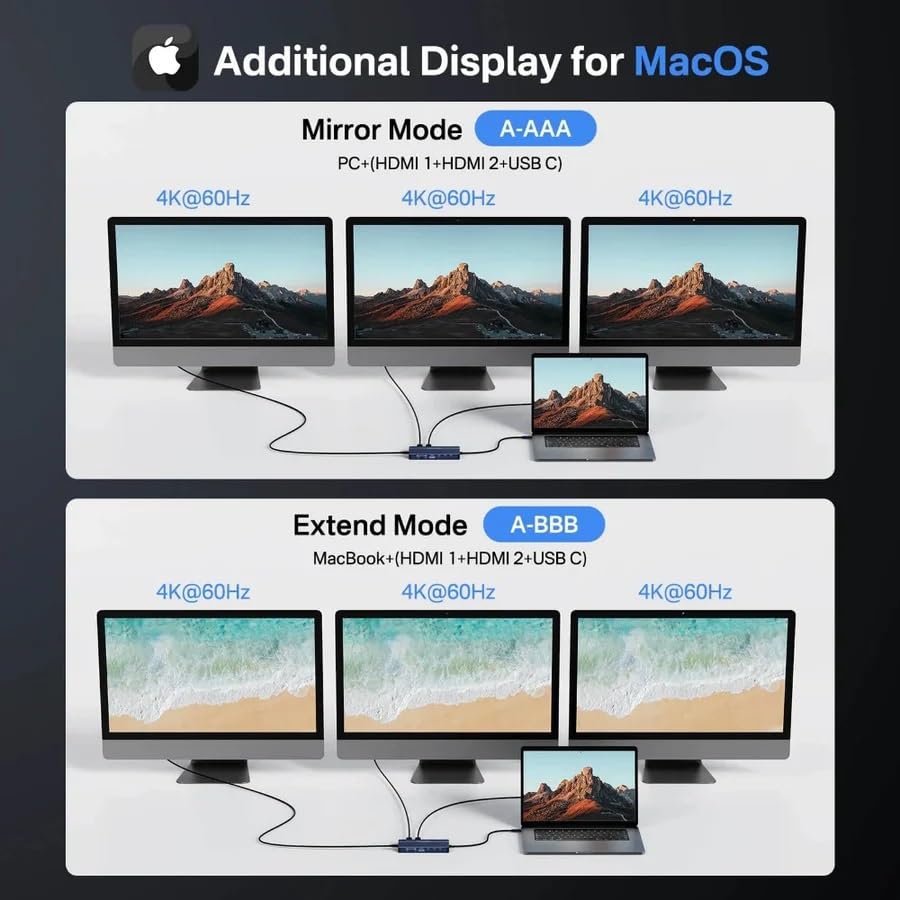
Image: A graphic illustrating various display configurations for Windows, including Mirror Mode (A-BBB) and Extended Mode (A-BCD, ABC), showing how multiple 4K@60Hz monitors can be connected.
- Mirror Mode (A-BBB): Your laptop screen is duplicated across all connected external displays.
- Extended Mode (A-BCD): Each external display shows a different desktop, extending your workspace. This mode supports up to three distinct 4K@60Hz displays.
- Конфигурација: Access display settings in Windows (Right-click on Desktop > Display settings) to arrange and configure your monitors.
6.2. macOS Display Modes
For macOS laptops, the docking station supports Mirror and Extended display modes. Please note that macOS typically supports a limited number of extended displays depending on the Mac model and chip (e.g., M1/M2 Macs may have limitations on external display count for extended mode).
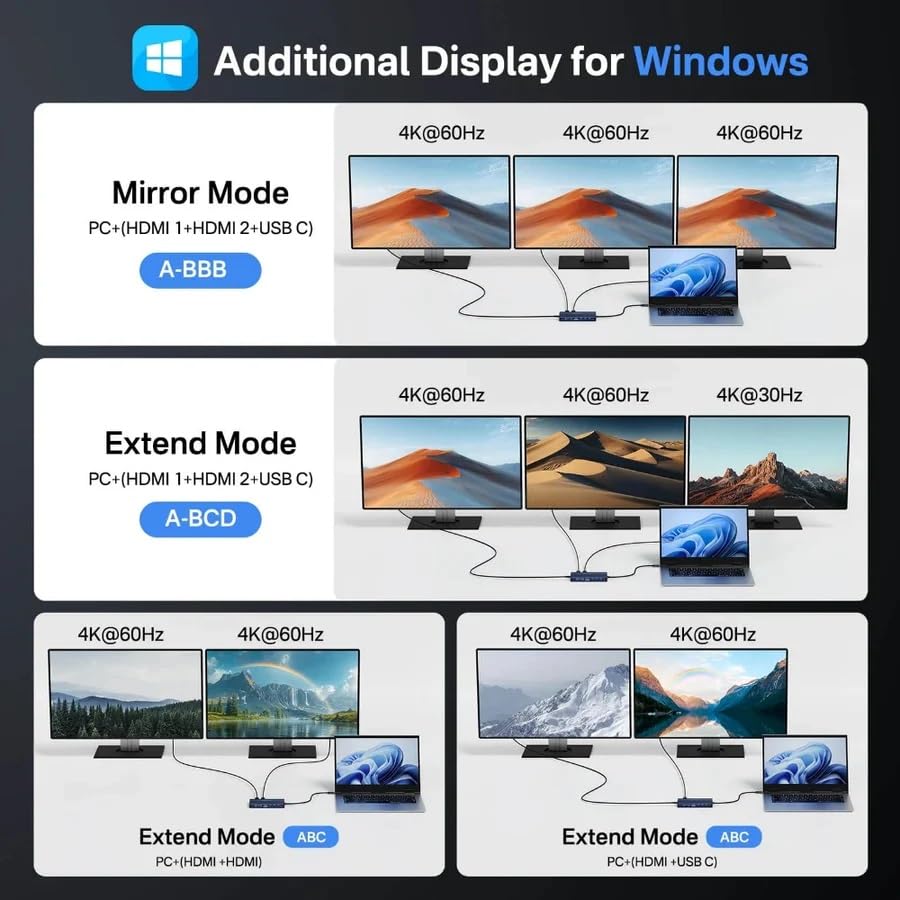
Image: A graphic illustrating display configurations for macOS, including Mirror Mode (A-AAA) and Extended Mode (A-BBB), showing how multiple 4K@60Hz monitors can be connected.
- Mirror Mode (A-AAA): Your MacBook screen is duplicated across all connected external displays.
- Extended Mode (A-BBB): Each external display shows a different desktop, extending your workspace.
- Конфигурација: Access display settings in macOS (System Settings > Displays) to arrange and configure your monitors.
- Important Note for M1/M2/M3 MacBooks: Some Apple Silicon Macs (e.g., M1/M2 MacBook Air/Pro) natively support only one external display in extended mode. This docking station utilizes MST (Multi-Stream Transport) technology, which is primarily supported by Windows for multiple extended displays. For macOS, while it can mirror multiple displays, achieving multiple продужени displays beyond Apple's native support may require specific drivers or software (DisplayLink, not included with this product) or may not be possible. Please verify your MacBook's external display capabilities.
7. Одржавање
To ensure the longevity and optimal performance of your ACASIS docking station, follow these maintenance guidelines:
- Чишћење: Use a soft, dry, lint-free cloth to clean the surface of the docking station. Avoid using liquid cleaners, aerosols, or abrasive materials.
- Складиштење: Чувајте докинг станицу на хладном и сувом месту, даље од директне сунчеве светлости и екстремних температура.
- Руковање: Пажљиво рукујте уређајем. Избегавајте да га испустите или изложите јаким ударцима.
- вентилација: Ensure the docking station has adequate ventilation to prevent overheating, especially during prolonged use.
- Управљање кабловима: Избегавајте прекомерно савијање или кримповање каблова, јер то може да их оштети током времена.
КСНУМКС. Решавање проблема
If you encounter issues with your ACASIS docking station, refer to the following common solutions:
- Нема излаза на екран:
- Ensure your laptop's USB-C port supports DisplayPort Alt Mode. Not all USB-C ports support video output.
- Check all cable connections (USB-C from dock to laptop, HDMI/USB-C to monitors).
- Try a different HDMI cable or monitor.
- Ажурирајте графичке драјвере вашег лаптопа.
- For macOS users, be aware of native external display limitations, especially with M1/M2/M3 series chips. This dock primarily uses MST, which is better supported by Windows for multiple extended displays.
- Devices Not Recognized (USB, SD Card):
- Уверите се да је докинг станица безбедно повезана са вашим лаптопом.
- Try connecting the device to a different port on the dock.
- Поново покрените лаптоп.
- Check Device Manager (Windows) or System Information (macOS) to see if the device is detected.
- Нема мрежне везе:
- Verify the Ethernet cable is securely connected to both the dock and your router/modem.
- Check your network settings on your laptop.
- Уверите се да ваш рутер/модем исправно функционише.
- Лаптоп се не пуни:
- Ensure a compatible USB-C power adapter is connected to the PD 100W port on the docking station.
- Verify your laptop supports charging via its USB-C port.
- Проверите да ли су адаптер за напајање и кабл оштећени.
- Повремено повезивање:
- Уверите се да су сви спојеви чврсти.
- Avoid placing the dock near strong electromagnetic interference sources.
- Reduce the number of high-power devices connected to the dock if experiencing issues.
9. Гаранција и подршка
The ACASIS 14-in-1 Triple Display USB-C Docking Station comes with a standard warranty to cover manufacturing defects.
- Гарантни период: This product typically includes a 1-year warranty from the date of purchase. Please refer to your purchase documentation for exact terms.
- Продужена гаранција: An optional 1-Year Extended Warranty may be available for purchase.
- Произвођач: АЦАСИС
- Увозник/Паковач (Индија): KSP ELECTRONICS, info@kspelectronics.com, +91-6124512443
- Корисничка подршка: For technical assistance, troubleshooting, or warranty claims, please contact ACASIS customer support or the authorized reseller from whom you purchased the product.
- Онлине ресурси: Visit the official ACASIS website for updated drivers, FAQs, and additional support resources.
10. Сценарији коришћења
The ACASIS docking station is designed to enhance your experience in various settings:

Image: A collage depicting different environments where the docking station can be used, including an office setup with multiple monitors, a casual setting for yoga, a home theater projection, and a gaming setup.
- Канцеларија: Create a powerful workstation with multiple displays, wired internet, and all your peripherals connected through a single USB-C cable.
- Кућни биоскоп: Connect your laptop to a large screen or projector for movies and presentations.
- Играње: Enhance your gaming setup with stable network and multiple display options.
- Креативни рад: Ideal for designers and video editors needing high-resolution external displays and fast data transfer for external storage.
Ask a question about this manual
Ask about setup, troubleshooting, compatibility, parts, safety, or missing instructions. Manuals+ will review the question and use this page’s manual context to help answer it.