
1. Производ је готовview
The WisFox 2.4G Wireless Mouse is designed for comfortable and efficient use with laptops, desktops, PCs, and MacBooks. It features an ergonomic design, adjustable DPI settings, and a stable wireless connection.

Image: The WisFox 2.4G Wireless Mouse in mint green, shown alongside its USB receiver and Type-C adapter.
Садржај пакета:
- WisFox 2.4G Wireless Mouse
- УСБ пријемник (чува се унутар миша)
- Адаптер типа Ц
- Кориснички приручник (овај документ)
2. Водич за подешавање
2.1 Инсталација батерије
- Пронађите одељак за батерију на доњој страни миша.
- Отворите поклопац батерије.
- Уметните једну (1) АА батерију, водећи рачуна о исправном поларитету (+/-).
- Добро затворите поклопац батерије.

Image: The bottom of the mouse, illustrating the battery slot and the dedicated storage for the USB receiver.
2.2 Повезивање пријемника
- Remove the USB receiver from its storage slot within the battery compartment of the mouse.
- For standard USB-A ports: Plug the USB receiver directly into an available USB-A port on your computer.
- For Type-C ports: Attach the Type-C adapter to the USB receiver, then plug the combined unit into an available Type-C port on your computer.
- Turn on the mouse using the ON/OFF switch located on the underside.
- The mouse should automatically connect to your computer. No additional drivers are typically required.
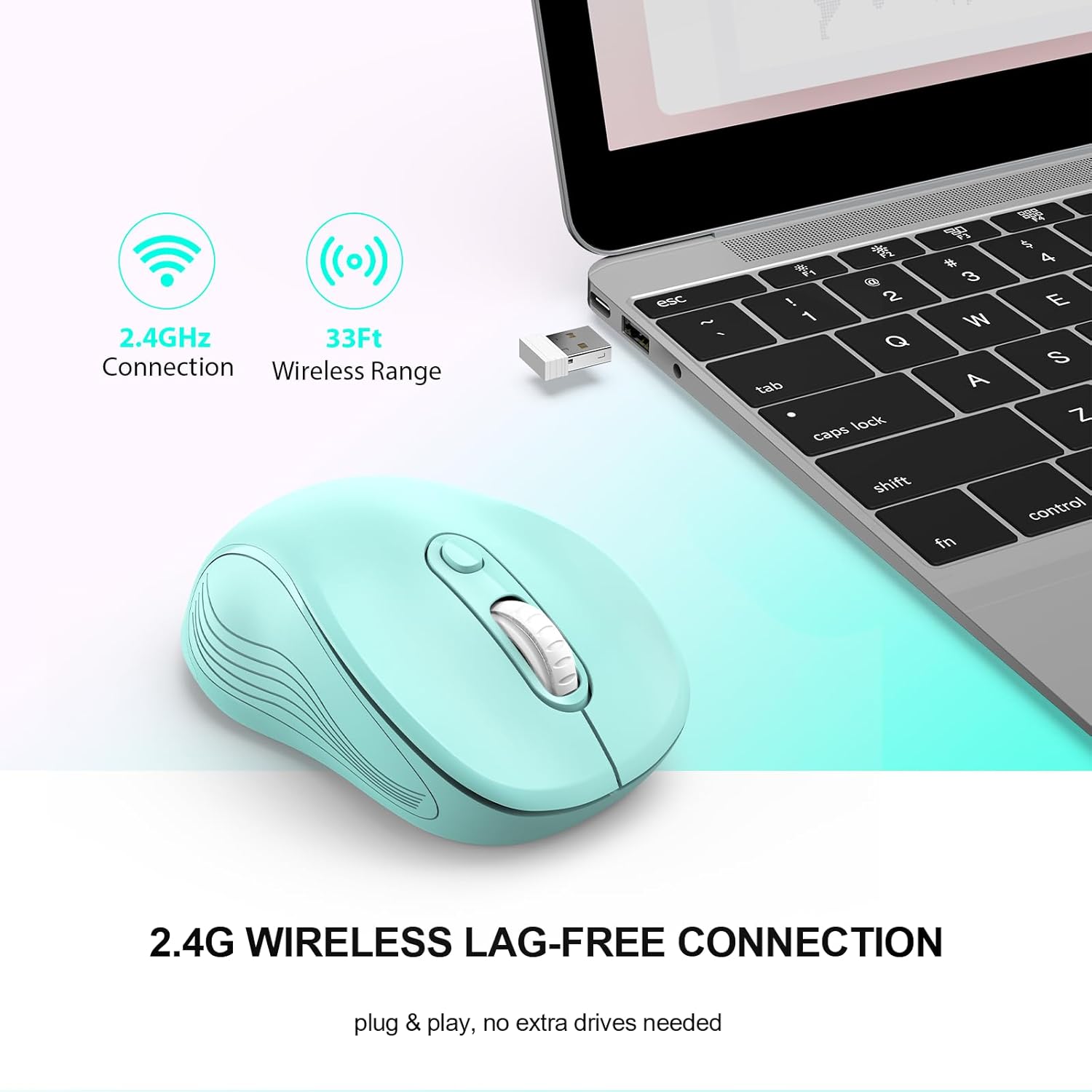
Image: The mouse in use with a laptop, demonstrating the 2.4GHz wireless connection and 33ft wireless range.
3. Упутство за употребу
3.1 Основне функције
- Лево дугме: Примарна функција клика.
- Десно дугме: Функција секундарног клика, обично за контекстне меније.
- Точак за померање: Померајте се горе или доле кроз документе и web странице. Такође се може кликнути за функционалност клика средњим тастером миша.
- Page Up/Page Down Buttons: Located on the side, these buttons facilitate quick navigation in documents or web читачи.
Image: A detailed diagram highlighting the six buttons of the WisFox wireless mouse, including the DPI switch, scroll wheel, and side buttons.
3.2 Подешавање DPI (осетљивости)
The mouse features 3 adjustable DPI levels to control cursor speed and precision.
- Притисните тастер Дугме за ДПИ прекидач (located below the scroll wheel) to cycle through the available DPI settings: 800, 1200 (default), and 1600.
- Select the DPI level that best suits your task, whether for precise work or fast navigation.

Image: A visual representation of the three adjustable DPI settings (800, 1200, 1600) and how to change them using the DPI button.
3.3 Ергономски дизајн
The contoured shape and sweat-resistant coating are designed for maximum hand comfort during extended use, reducing strain and fatigue.

Image: A hand comfortably gripping the WisFox wireless mouse, highlighting its ergonomic design for prolonged use.
4. Одржавање
4.1 Чишћење миша
- Да бисте очистили миш, нежно обришите његову површину меком,amp тканина.
- Избегавајте употребу јаких хемикалија или абразивних материјала, јер могу оштетити површину.
- Ensure the mouse is turned off before cleaning.
4.2 Замена батерије
Replace the AA battery when the mouse performance degrades or it stops responding. Refer to Section 2.1 for battery installation steps.
4.3 Ауто Слееп Моде
The mouse is designed with an energy-saving feature. It will enter auto power-saving mode after 1 minute of idling and a deeper sleep mode after 8 minutes of idling. To wake the mouse, simply double-click any button.

Image: A graphic explaining the low power consumption feature, indicating the mouse enters sleep mode after 10 minutes of inactivity.
КСНУМКС. Решавање проблема
| Проблем | Могући узрок | Решење |
|---|---|---|
| Миш не реагује | Low battery; Receiver not connected; Mouse is off; Mouse in sleep mode. | Replace battery; Ensure receiver is firmly plugged in; Turn mouse ON; Double-click to wake mouse. |
| Кашњење или повремена веза | Too far from receiver; Wireless interference. | Move mouse closer to receiver (within 33 feet); Avoid placing receiver near other wireless devices. |
| Cursor movement is too fast/slow | DPI setting is not optimal. | Press the DPI Switch Button to adjust sensitivity (800/1200/1600 DPI). |
| Бочна дугмад не раде | Software conflict or specific application does not support. | Ensure the application supports forward/backward navigation; Check for any conflicting mouse software. |
6. Спецификације
- Бренд: WisFox
- Модел: B0DKDVB4D2
- Боја: Минт Греен
- Технологија повезивања: 2.4Ghz RF Wireless Technology
- Технологија детекције покрета: Оптицал
- Нивои ДПИ: 800, 1200, 1600 (Подесиво)
- Дугмад: 6 (Left, Right, Scroll Wheel, DPI Switch, Page Up, Page Down)
- Тип батерије: 1 АА батерије (нису укључене)
- Тежина артикла: 2.4 унци
- Димензије пакета: 7.17 к 2.68 к 1.73 инча
- Посебна карактеристика: Soundless clicks, Auto Sleep Mode
- Компатибилност: Windows 7/8/10/11/XP, Vista 7/8, Linux, Mac OS (V10.4 or higher)

Image: A graphic illustrating the wide compatibility of the WisFox wireless mouse with various operating systems, including Windows, Mac, and Linux.
7. Гаранција и подршка
WisFox products are manufactured to high quality standards. For specific warranty information, please refer to the product packaging or contact the seller directly through your purchase platform.
If you encounter any issues or have questions regarding your WisFox 2.4G Wireless Mouse, please contact WisFox customer support for assistance. Contact details can typically be found on the product packaging or the official WisFox webсајту.