
1. Увод
Thank you for choosing the LOFREE Zero ARTZ Mechanical Keyboard and Terrazzo Mouse combo. This manual provides essential information for setting up, operating, and maintaining your new devices. The Zero ARTZ keyboard features a 75% layout, hot-swappable switches, and versatile connectivity options including Bluetooth, 2.4GHz wireless, and USB-C. The accompanying Terrazzo Mouse offers dual-mode connectivity and adjustable DPI settings for enhanced productivity.

Image: The LOFREE Terrazzo Mouse, featuring its unique speckled design.
2. Садржај пакета
Молимо вас да се уверите да су све ставке присутне у вашем пакету:
- LOFREE Zero ARTZ Mechanical Keyboard
- LOFREE Terrazzo Mouse
- УСБ-Ц на УСБ-А кабл
- 2.4ГХз бежични пријемник
- Извлачење капица тастера (за прекидаче који се могу брзо заменити)
- Извлачење прекидача (за прекидаче који се могу брзо заменити)
- Кориснички приручник (овај документ)
3. Подешавање
3.1 Пуњење уређаја
Both the keyboard and mouse are equipped with rechargeable batteries. Before first use, it is recommended to fully charge both devices.
- Connect the provided USB-C cable to the charging port on the keyboard and mouse.
- Повежите други крај USB-C кабла са USB адаптером за напајање (није укључен) или USB портом рачунара.
- Индикаторска лампица пуњења ће светлети током пуњења и искључиће се или променити боју када се потпуно напуни.
3.2 Keyboard Connectivity
The Zero ARTZ keyboard supports three connection modes: Bluetooth, 2.4GHz Wireless, and USB-C wired.
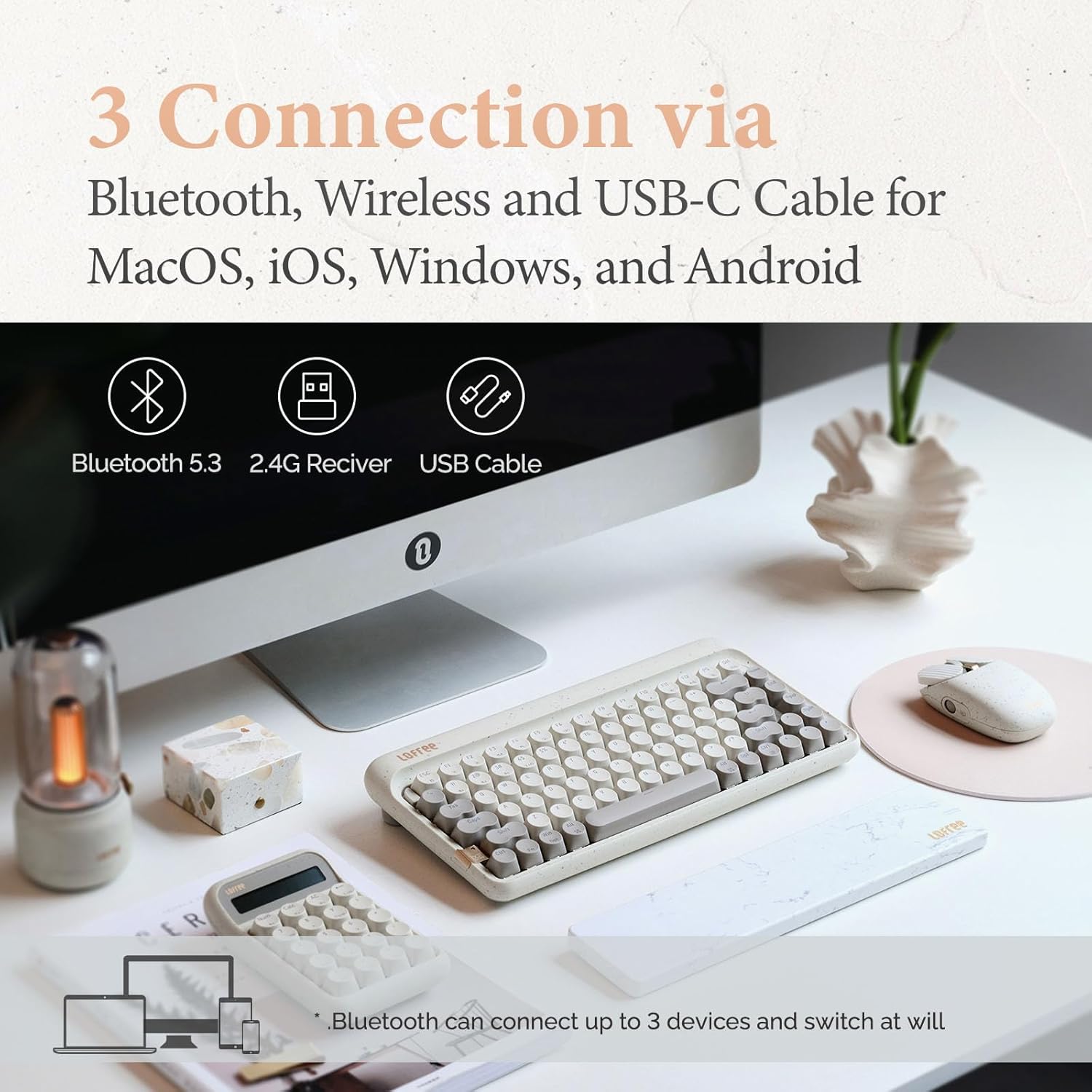
Image: Illustration showing the three connection methods: Bluetooth 5.3, 2.4G Receiver, and USB Cable, compatible with MacOS, iOS, Windows, and Android.
3.2.1 Блуетоотх веза
- Locate the mode switch on the keyboard and set it to 'BT' (Bluetooth).
- Притисните и држите Фн + КСНУМКС, Фн + КСНУМКС, или Фн + КСНУМКС for 3-5 seconds until the indicator light flashes rapidly, indicating pairing mode. The keyboard can store up to three Bluetooth devices.
- On your device (computer, tablet, smartphone), enable Bluetooth and search for 'LOFREE Zero ARTZ'.
- Изаберите тастатуру за упаривање. Индикаторска лампица ће престати да трепери када се повеже.
- Да бисте пребацивали између упарених Bluetooth уређаја, притисните Фн + КСНУМКС, Фн + КСНУМКС, или Фн + КСНУМКС укратко.
3.2.2 Бежична веза од 2.4 GHz
- Locate the mode switch on the keyboard and set it to '2.4G'.
- Уметните бежични пријемник од 2.4 GHz у слободан USB порт на рачунару.
- Тастатура би требало аутоматски да се повеже. Ако се не повеже, притисните Фн + КСНУМКС да започне упаривање.
3.2.3 Жична веза преко USB-C кабла
- Locate the mode switch on the keyboard and set it to 'USB'.
- Повежите приложени USB-C кабл са тастатуре на USB порт рачунара.
- The keyboard will be recognized as a standard USB device and is ready for use.
3.3 Mouse Connectivity
The Terrazzo Mouse supports dual-mode connection: Bluetooth and 2.4GHz Wireless.
3.3.1 Блуетоотх веза
- Locate the mode switch on the bottom of the mouse and set it to 'BT'.
- Press and hold the Bluetooth pairing button (usually near the mode switch) for 3-5 seconds until the indicator light flashes.
- On your device, enable Bluetooth and search for 'LOFREE Terrazzo Mouse'.
- Select the mouse to pair. The indicator light will stop flashing once connected.
- The mouse can connect to 2 devices simultaneously. Use the pairing button to switch between them.
3.3.2 Бежична веза од 2.4 GHz
- Locate the mode switch on the bottom of the mouse and set it to '2.4G'.
- Уметните бежични пријемник од 2.4 GHz у слободан USB порт на рачунару.
- Миш би требало аутоматски да се повеже.
4. Упутство за употребу
4.1 Функције тастатуре
The Zero ARTZ keyboard is designed for optimal typing experience with a gasket mount structure and 1000Hz polling rate.

Слика: Експлодирана view of the LOFREE keyboard showing the Gasket Mount, Keycaps, Switches, Gasket Pad, Poron, PCBA IXPE Foam, EVA Foam, EVA Pad, Upper Case, and Bottom Case layers.
4.1.1 Function Key Combinations (Fn)
Користите Fn key in combination with other keys to access special functions:
- Фн + 1/2/3: Пребацивање између Bluetooth уређаја.
- Фн + КСНУМКС: Activate 2.4GHz wireless pairing.
- Fn + Q/W/E/R: (Specific to some models) Switch between operating system layouts (e.g., Mac/Windows). Refer to the keycap legends for specific OS modes.
- Фн + Ф1-Ф12: Multimedia and system control keys (e.g., volume, playback, screen brightness). The specific functions are indicated by icons on the keycaps.
4.1.2 Компатибилност оперативног система
The keyboard is compatible with MacOS, iOS, Windows, and Android. Ensure the correct operating system mode is selected if available, typically via a switch or Fn key combination, to ensure proper key mapping.

Image: A user typing on the LOFREE keyboard, highlighting the 1000Hz Polling Rate for responsive input.
4.2 Функције миша
The Terrazzo Mouse features an ergonomic design and adjustable sensitivity.

Image: A hand comfortably resting on the LOFREE Terrazzo Mouse, demonstrating its ergonomic design.
4.2.1 ДПИ подешавање
The mouse offers 5 adjustable DPI levels to suit different preferences and tasks. Press the DPI button (usually located on the top or bottom of the mouse) to cycle through the available DPI settings. The indicator light may change color or flash to indicate the current DPI level.
4.2.2 Thumb Wheel and Button
The mouse includes a thumb wheel and an additional button for multi-gesture use, enhancing navigation and productivity. Refer to your operating system's mouse settings for customization options.
5. Одржавање
5.1 Чишћење
Да бисте одржали изглед и функционалност својих уређаја:
- Користите меку, суву крпу која не оставља влакна да бисте обрисали површине тастатуре и миша.
- За тврдокорну прљавштину, благо дampОперите крпу водом или благим, неабразивним средством за чишћење. Избегавајте прекомерну влагу.
- To clean between keycaps, use compressed air or a small brush.
5.2 Прекидачи са могућношћу замене током рада
The Zero ARTZ keyboard features hot-swappable switches, allowing for easy replacement without soldering.
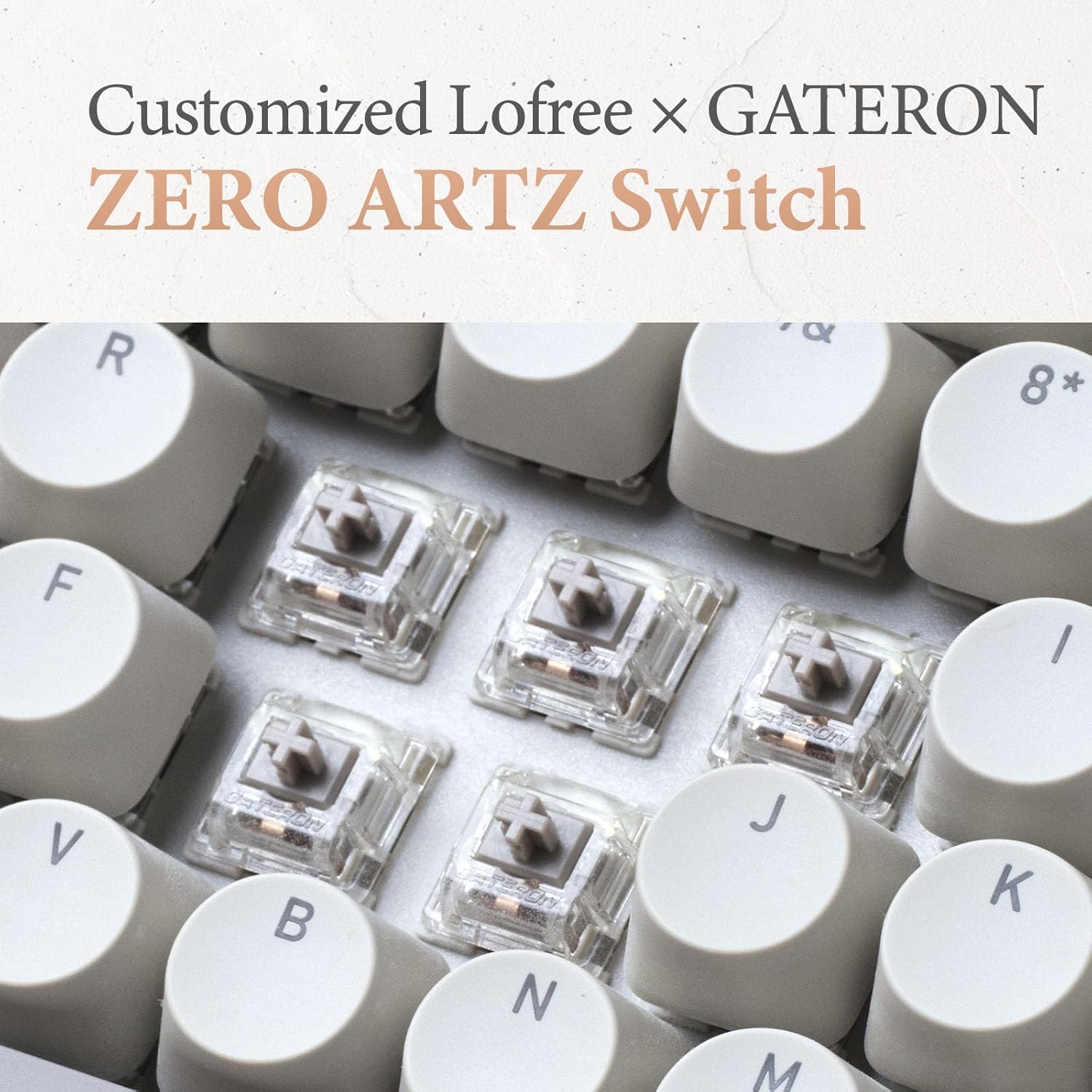
Image: Close-up of the customized LOFREE x GATERON ZERO ARTZ switches installed in the keyboard.
- Користите приложену алатку за извлачење капица тастера да бисте пажљиво уклонили жељену капицу тастера.
- Use the provided switch puller to gently grip the switch from its top and bottom clips, then pull it straight up to remove.
- Align the pins of the new switch with the holes on the PCB and press it down firmly until it clicks into place. Ensure the pins are not bent.
- Замените поклопац тастера.
5.3 Одржавање батерије
Да бисте продужили век трајања батерије:
- Избегавајте често потпуно пражњење батерије.
- Чувајте уређаје на хладном и сувом месту када се не користе дуже време.
- Recharge the devices when the low battery indicator appears. The mouse has an approximate 50-day battery life on a single charge, depending on usage.
КСНУМКС. Решавање проблема
6.1 Проблеми са повезивањем
- Уређај се не повезује преко Bluetooth-а: Ensure the keyboard/mouse is in pairing mode. Check your device's Bluetooth settings and try re-pairing. Ensure no other devices are interfering.
- 2.4GHz wireless not working: Ensure the 2.4GHz receiver is securely plugged into a USB port. Try a different USB port. Ensure the keyboard/mouse is set to 2.4G mode.
- Wired connection issues: Ensure the USB-C cable is properly connected to both the keyboard and the computer. Try a different USB-C cable or port.
6.2 Keyboard/Mouse Not Responding
- Проверите нивое батерије и напуните ако је потребно.
- Ensure the correct connection mode (Bluetooth, 2.4G, USB) is selected on the device.
- Поново покрените рачунар или уређај.
- For the keyboard, ensure the correct operating system mode (Mac/Windows) is selected.
6.3 DPI Adjustment Not Working (Mouse)
- Ensure the mouse is powered on and connected.
- Press the DPI button firmly. If there's no visual indicator, try moving the mouse after each press to feel the change in sensitivity.
7. Спецификације
| Феатуре | Детаљ |
|---|---|
| Бранд | LOFREE |
| Модел | Zero ARTZ |
| Распоред тастатуре | 75% QWERTY |
| Технологија повезивања | Bluetooth 5.3, бежични 2.4GHz, USB-C жични |
| Компатибилни уређаји | Laptop, Personal Computer, Smartphone, Tablet (Windows, Mac OS, iOS, Android) |
| Извор напајања | Напајање на батерије (пуњиво) |
| Брзина анкетирања тастатуре | 1000Хз |
| Прекидачи тастатуре | Customized LOFREE x GATERON ZERO ARTZ (Linear) |
| Тастери на тастатури | Dual Color PBT |
| Нивои DPI миша | 5 подесива нивоа |
| Трајање батерије миша | Приближно 50 дана (у зависности од употребе) |
| ASIN | B0DKJB48FR |
| Датум првог доступног | 22. октобра 2024. године |
8. Гаранција и подршка
LOFREE products are covered by a limited warranty. For detailed warranty information, please refer to the warranty card included with your product or visit the official LOFREE website. If you encounter any issues or require technical assistance, please contact LOFREE customer support through their official channels.
- Official LOFREE Webсајт: ввв.лофрее.цо
- Е -пошта за корисничку подршку: Погледајте паковање производа или webсајт за актуелне контакт информације.