
VEILZOR KG812D
VEILZOR ергономска тастатура са позадинским осветљењем, упутство за употребу
Model: KG812D
Увод
This manual provides detailed instructions for the VEILZOR Ergonomic Backlit Keyboard, Model KG812D. This keyboard is designed to enhance typing comfort and efficiency with its wave-shaped key layout and integrated wrist rest. It features customizable backlighting and broad compatibility with various operating systems.

Слика 1: Завршеноview of the VEILZOR Ergonomic Backlit Keyboard, showcasing its wave-shaped design, integrated wrist rest, and vibrant RGB backlighting.
Карактеристике производа
- Ергономски дизајн таласа: Features a wave-shaped key layout that aligns with natural hand positions, reducing strain during extended use. UV-coated keycaps enhance durability.
- Интегрисани ослонац за зглоб: A comfortable leather wrist rest provides essential support, minimizing wrist fatigue.
- Прилагодљиво РГБ позадинско осветљење: Offers 7 distinct colors and 4 brightness levels, allowing users to personalize their typing environment.
- Уграђени држач уређаја: A convenient groove accommodates phones, tablets, or other devices, aiding in multitasking.
- Wired USB-A Connection: Ensures a stable and lag-free connection with a 5.2 ft braided cable, eliminating battery concerns.
- Multifunctional Keys & Dual System Compatibility: Supports FN key combinations and multimedia shortcuts. Seamlessly switches between Windows and Mac operating systems.

Figure 2: The keyboard's wave ergonomic design, shown with a tablet positioned in the integrated holder, illustrating how it keeps fingers comfortable and natural.

Слика 3: Детаљно view of the wrist rest construction, highlighting its comfort leather surface, high-density foam support, and strong plastic base, designed to relieve pressure on the wrist.
Сетуп
- Распакујте тастатуру: Пажљиво извадите тастатуру из паковања.
- Повежите се са рачунаром: Locate the USB-A connector at the end of the keyboard's braided cable. Insert the USB-A connector into an available USB port on your computer (PC or Mac).
- Препознавање система: The keyboard is plug-and-play and should be automatically recognized by your operating system. No additional drivers are typically required.
- Initial Backlight Check: Upon connection, the backlight should illuminate. If not, refer to the "Operating Instructions" section for backlight control.

Figure 4: The keyboard's dimensions and its 5.2ft USB wired connection, illustrating its compact yet full-sized design for easy setup.
Упутство за употребу
Контрола позадинског осветљења
- Укључивање/искључивање позадинског осветљења: Притисните ФН + Дел to toggle the backlight on or off.
- Промена режима позадинског осветљења: Притисните FN + M1/M2/M3 to cycle through the 3 available light modes:
- M1: RGB Rainbow Wave Effect
- M2: Solid Color Static Backlit
- M3: Cycle Ripple Backlit
- Подесите осветљеност: Притисните ФН + ↑ to increase brightness or ФН + ↓ to decrease brightness. There are 4 levels of lighting.

Figure 5: Visual guide to backlight control, showing key combinations for turning the backlight on/off, changing modes, and adjusting brightness levels.

Figure 6: Illustration of the three distinct light modes: RGB Rainbow Wave Effect (M1), Solid Color Static Backlit (M2), and Cycle Ripple Backlit (M3).
Двоструко пребацивање система
The keyboard supports seamless switching between Windows and Mac operating systems.
- Switch to Windows System: Притисните ФН + А.
- Switch to Mac System: Притисните ФН + С.
- Напомена: Pressing the Win key opens the Start menu on Windows systems; the opposite is true for Mac systems.
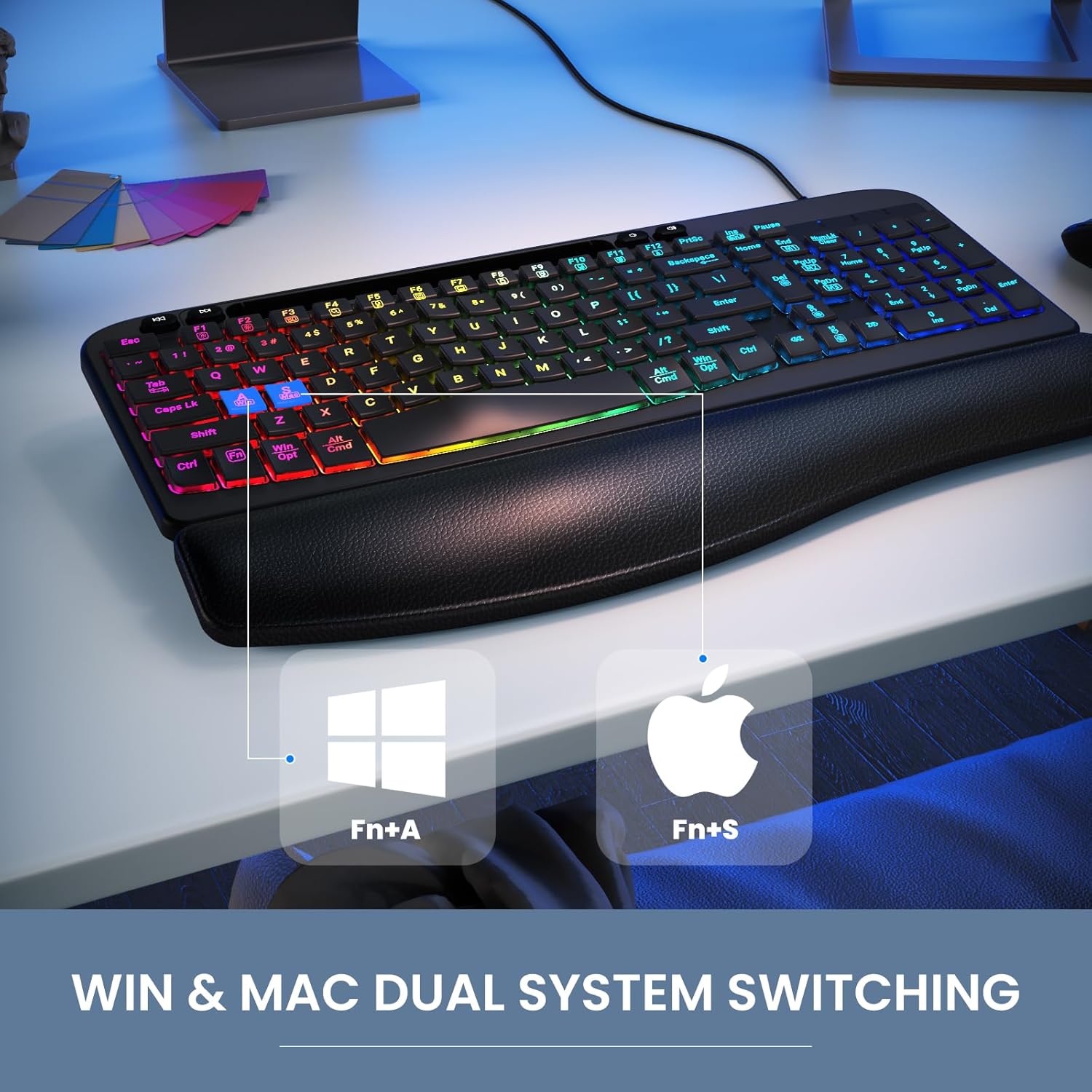
Figure 7: The keyboard's capability for dual system switching between Windows and Mac, activated by specific FN key combinations.
Мултимедијални и функционални тастери
The keyboard includes 4 independent multimedia keys and 12 FN combination keys for enhanced functionality. Refer to the table below for common multimedia functions:
| Функција | Windows Key Combination | Mac Key Combination |
|---|---|---|
| Смањење осветљености екрана | ФН + Ф1 | ФН + Ф1 |
| Повећање осветљености екрана | ФН + Ф2 | ФН + Ф2 |
| Цонверт Виндов | ФН + Ф3 | ФН + Ф3 |
| Pretraga | ФН + Ф4 | ФН + Ф4 |
| Микрофон | ФН + Ф5 | FN + F5 (Exhale Siri) |
| Затворите програм | ФН + Ф6 | FN + F6 (Exit program) |
| Мој компјутер | ФН + Ф7 | ФН + Ф7 |
| Закључавање екрана | ФН + Ф8 | FN + F8 (Lock screen) |
| Изаберите Све | ФН + Ф9 | FN + F9 (Select All) |
| Копирај | ФН + Ф10 | FN + F10 (Copy) |
| Залепите | ФН + Ф11 | FN + F11 (Paste) |
| Схаре | ФН + Ф12 | FN + F12 (Share) |

Figure 8: A diagram highlighting the 4 independent multimedia keys, 12 FN combination keys, and 4 navigation keys for various functions.
Using the Device Holder
The keyboard features a built-in groove at the top to securely hold your smartphone or tablet, allowing for convenient viewинг и мултитаскинг.

Слика 9: Крупни план view of the integrated phone/tablet holder, indicating its dimensions (7.28 in x 0.59 in) and the presence of 2 foldable stands and 6 non-slip rubber pads for stability.
Одржавање
To ensure the longevity and optimal performance of your VEILZOR keyboard, follow these maintenance guidelines:
- Редовно чишћење: Користите меку крпу која не оставља длачицеampened with water or a mild cleaning solution to wipe down the keycaps and surfaces. Avoid harsh chemicals or abrasive materials.
- Уклањање прашине: Користите компримовани ваздух да уклоните прашину и остатке између тастера.
- Wrist Rest Care: The leather wrist rest can be wiped clean with a damp cloth. Avoid prolonged exposure to direct sunlight or extreme temperatures.
- Управљање кабловима: Избегавајте оштра савијања или прекомерно повлачење USB кабла како бисте спречили оштећења.
- Складиштење: When not in use for extended periods, store the keyboard in a clean, dry environment away from direct sunlight.
Решавање проблема
If you encounter any issues with your keyboard, please refer to the common problems and solutions below:
- Позадинско осветљење не ради:
Please check whether the light switch is turned on. Press ФН + Дел keys to turn on the backlight switch. If the backlight is too dim, press ФН + ↑/↓ keys to adjust the brightness of the light.
- Number Keys on Right Side Not Working:
Please try pressing the Нум Лоцк key (alphabetic lock key) to activate the number pad.
- Keyboard Not Recognized by Computer:
Ensure the USB cable is securely plugged into both the keyboard and the computer. Try plugging the keyboard into a different USB port. Restart your computer.
- Keys Not Responding or Sticky:
Clean the keyboard thoroughly, especially around the affected keys, to remove any debris or spills. Avoid eating or drinking directly over the keyboard.
If you encounter other problems and cannot solve them, please contact our customer service. We will provide assistance and do our best to reply within 24 hours.
Спецификације
| Феатуре | Детаљ |
|---|---|
| Бранд | ВЕИЛЗОР |
| Модел | KG812D |
| Технологија повезивања | УСБ-А жичани |
| Компатибилни уређаји | Laptop, PC (Windows & Mac) |
| Опис тастатуре | Вишенаменски |
| Посебне карактеристике | Backlit, Ergonomic, Hotkeys and Media Keys, Wave Keys Design, Wrist Rest |
| Боја | Црно |
| Број кључева | 107 |
| Подршка бојама позадинског осветљења тастатуре | RGB (7 боја) |
| Тежина артикла | 2.33 фунти |
| Димензије пакета | 17.28 к 10.87 к 1.61 инча |
Гаранција и подршка
VEILZOR offers a one-year unconditional return and exchange policy for this product. Additionally, you will receive lifetime after-sales service.
For any inquiries, technical support, or warranty claims, please contact our customer service team:
- Емаил: veilzorcustomer@gmail.com
We are committed to providing prompt assistance and will do our best to reply within 24 hours.
Ask a question about this manual
Ask about setup, troubleshooting, compatibility, parts, safety, or missing instructions. Manuals+ will review the question and use this page’s manual context to help answer it.