
1. Увод
Thank you for choosing the FMOUSE Dual Mode Wireless Mouse M101. This mouse offers versatile connectivity options, a comfortable ergonomic design, and quiet operation, making it ideal for various computing environments. This manual provides detailed instructions for setup, operation, and maintenance to ensure optimal performance.
2. Кључне карактеристике
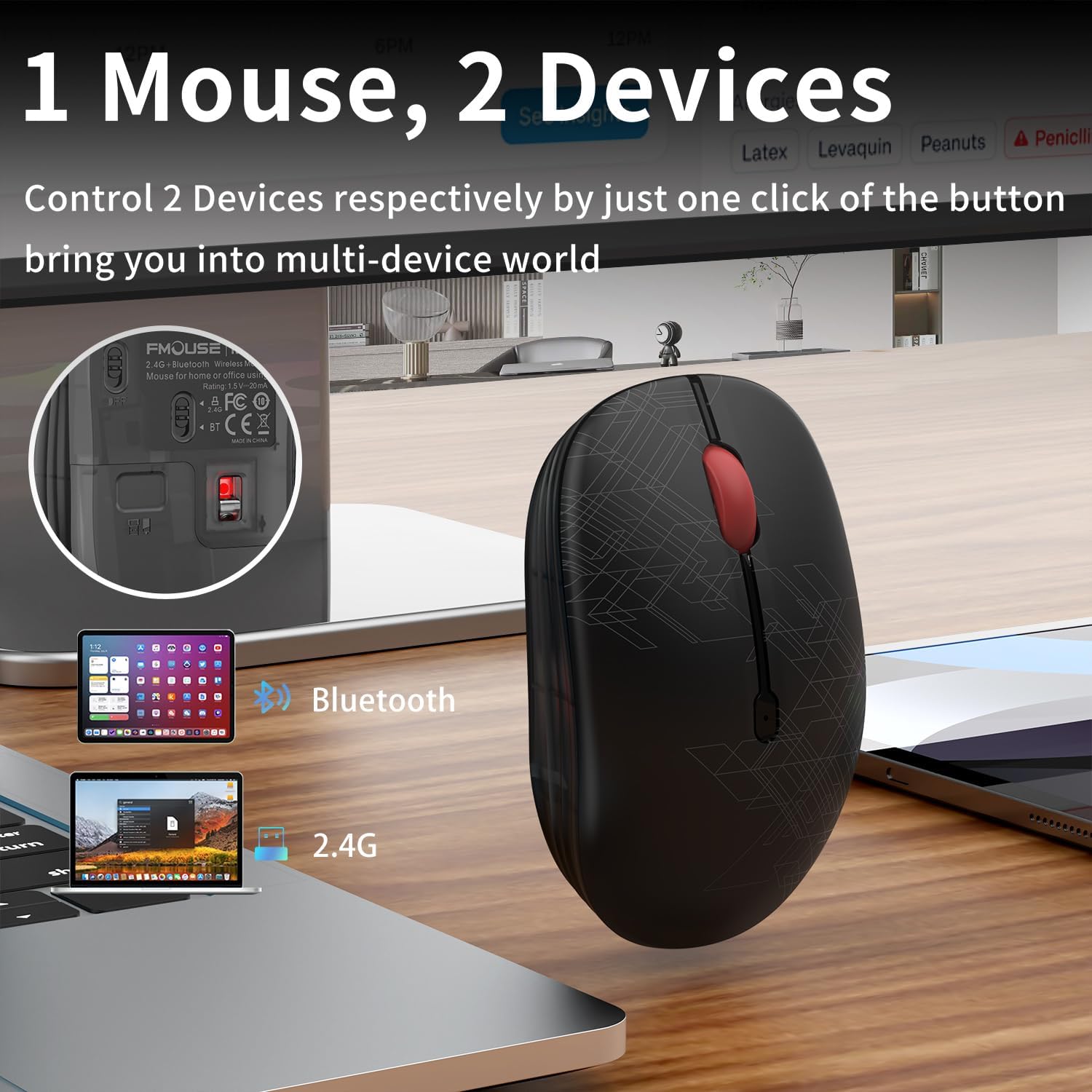
- Двоструки режим повезивања: Seamlessly switch between 2.4GHz USB receiver and Bluetooth connections for use with two different devices.
- Дизајн тихог клика: Specially engineered buttons provide quiet clicks, minimizing disturbance in shared environments.
- Ергономска удобност: Designed for a comfortable grip, suitable for extended use by students and business professionals.
- Енергетски ефикасан: Features an intelligent power-saving mode that activates after 10 minutes of inactivity, extending battery life.
- Универзална компатибилност: Connects easily with MacBook, iPad, Laptops, and Desktop devices across Windows, MacOS, iPadOS, and Android systems.
- Преносиви дизајн: Компактан и лаган за лак транспорт.
3. Садржај пакета
Молимо вас да се уверите да су све ставке присутне у вашем пакету:
- FMOUSE Dual Mode Wireless Mouse M101
- 2.4ГХз УСБ пријемник
- Кориснички приручник (овај документ)
Напомена: Потребна је 1 АА батерија и није укључена у пакет.
4. Водич за подешавање
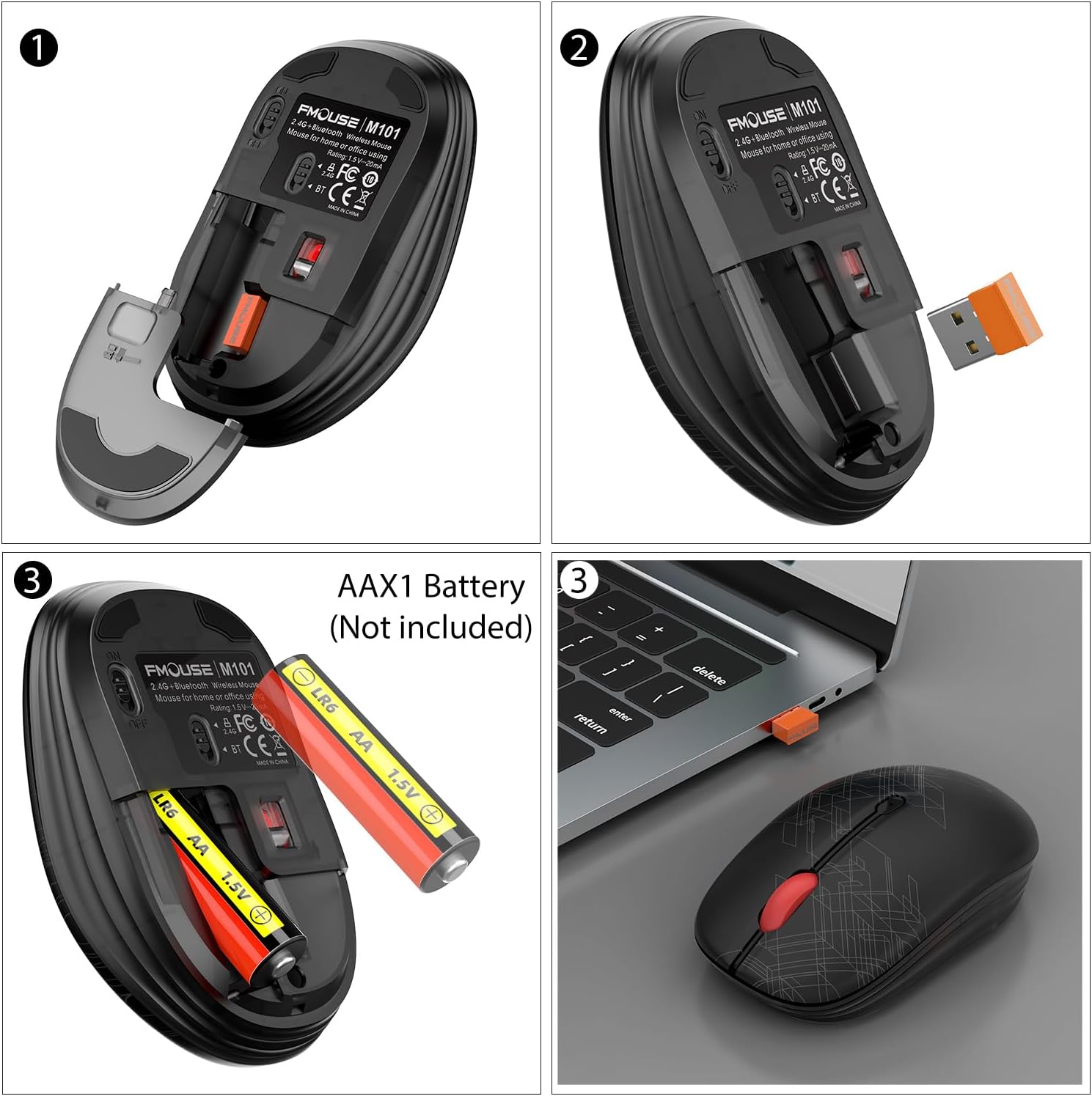
4.1. Инсталација батерије
- Пажљиво подигните горњи поклопац миша са задње стране да бисте открили одељак за батерију.
- Insert one AA battery into the compartment, ensuring correct polarity (+/-).
- Вратите горњи поклопац, водећи рачуна да се сигурно закачи на своје место.
4.2. Connecting via 2.4GHz USB Receiver
- Locate the 2.4GHz USB receiver stored inside the mouse's battery compartment.
- Укључите УСБ пријемник у слободан УСБ порт на рачунару.
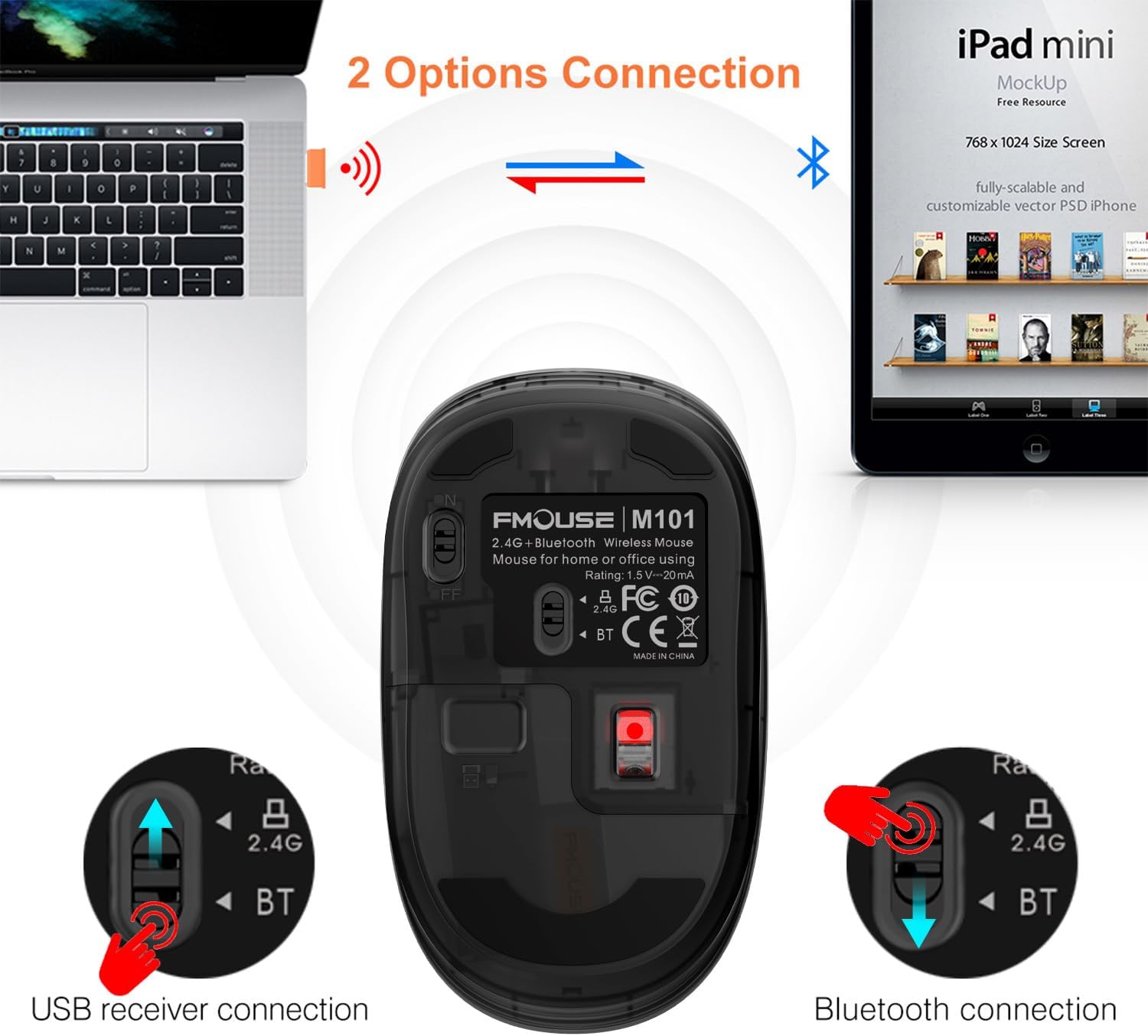
- Slide the switch on the bottom of the mouse to the '2.4G' position. The indicator light will flash green.
- Миш би требало аутоматски да се повеже са рачунаром.
4.3. Повезивање преко Блуетоотх-а
- Slide the switch on the bottom of the mouse to the 'BT' (Bluetooth) position. The indicator light will flash blue.
- On your device (laptop, tablet, etc.), go to Bluetooth settings and enable Bluetooth.
- Тражи available devices and select 'FMOUSE M101' from the list.
- Пратите сва упутства на екрану да бисте довршили процес упаривања.

5. Упутство за употребу
5.1. Пребацивање двоструког режима
The FMOUSE M101 allows you to switch between two connected devices using the mode switch on the bottom of the mouse. Simply slide the switch to the desired connection type (2.4G or BT) to instantly connect to the corresponding device.
5.2. Silent Click Operation
The mouse features silent click buttons, ensuring a quiet working environment. This is particularly beneficial in libraries, offices, or during late-night use to avoid disturbing others.

6. Управљање напајањем
The FMOUSE M101 is designed for energy efficiency. It enters a sleep mode after 10 minutes of inactivity to conserve battery life. To wake the mouse, simply click any button.
The mouse is powered by one AA battery. When the battery is low, the scroll wheel will flash red as an alert.
7. Компатибилност
The FMOUSE M101 is compatible with a wide range of operating systems and devices, including:
- Виндовс
- МацОС
- иПадОС
- Андроид
- MacBook, iPad, Laptops, Desktop devices
8. Спецификације
| Феатуре | Детаљ |
|---|---|
| Број модела | М101 |
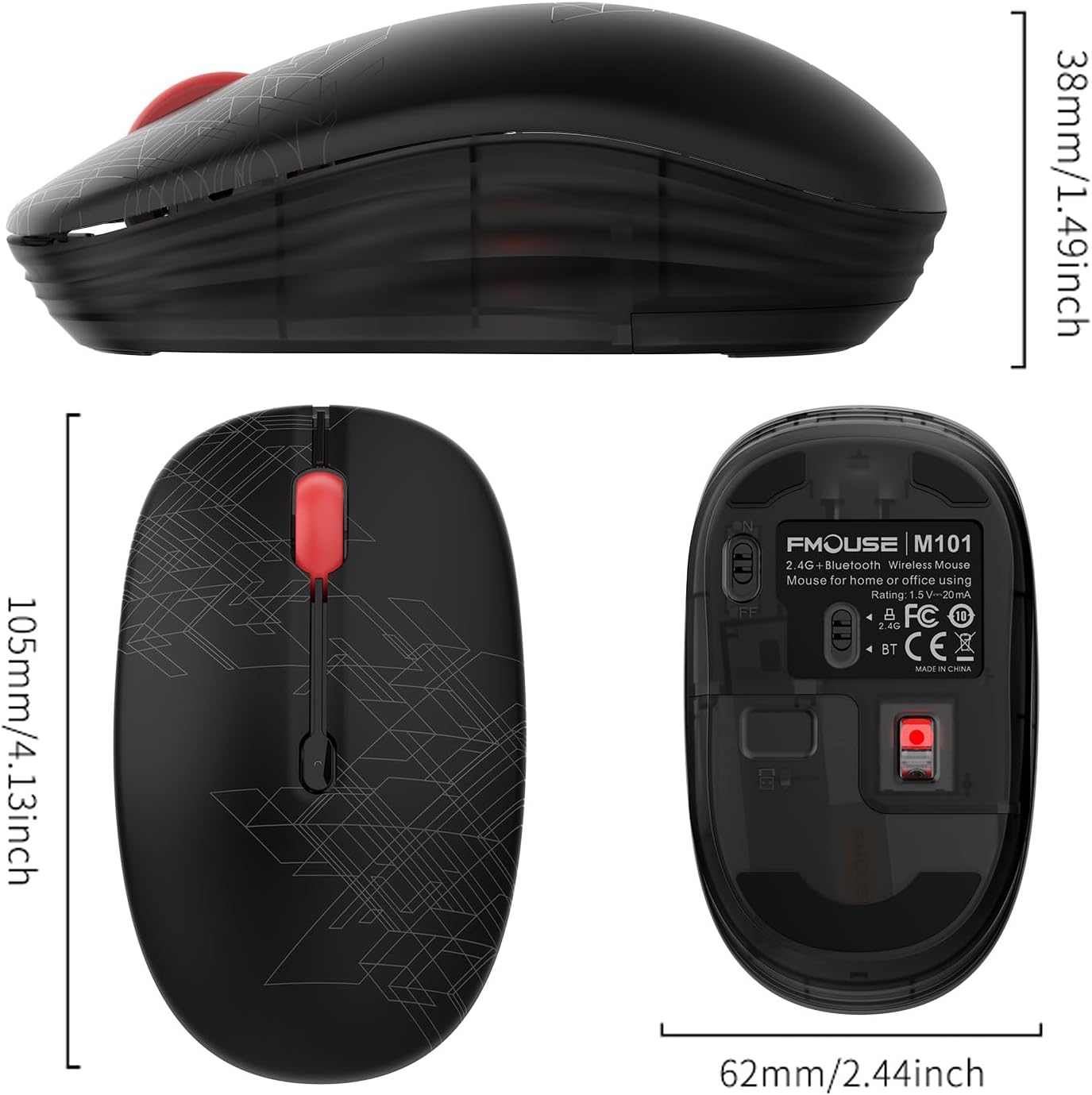
| Димензије производа | 4.13 к 2.44 к 0.1 инча |
| Тежина артикла | 2.05 унци |
| Батерије | Потребна је 1 АА батерија (није укључена) |
| Технологија повезивања | Bluetooth, 2.4GHz USB |
| Технологија детекције покрета | Оптицал |
| Посебна карактеристика | Soundless (Silent Click) |
КСНУМКС. Решавање проблема
9.1. Миш не реагује
- Проверите батерију: Уверите се да је АА батерија правилно инсталирана и да је довољно напуњена. Замените је ако је потребно.
- Прекидач: Verify the ON/OFF switch on the bottom of the mouse is in the 'ON' position.
- Избор режима: Confirm the mode switch (2.4G or BT) matches your intended connection method.
9.2. 2.4GHz Connection Issues
- УСБ пријемник: Уверите се да је USB пријемник безбедно прикључен на исправан USB порт на рачунару. Покушајте са другим USB портом.
- сметње: Move the mouse closer to the USB receiver to rule out signal interference.
9.3. Проблеми са Bluetooth везом
- Блуетоотх омогућен: Ensure Bluetooth is enabled on your device and the mouse is in 'BT' mode.
- Поново упарите уређај: If the mouse was previously paired, try removing it from your device's Bluetooth list and re-pairing it.
- Компатибилност уређаја: Confirm your device supports Bluetooth connectivity.
10. Гаранција и подршка
FMOUSE products come with a standard manufacturer's warranty. For detailed warranty information, technical support, or customer service inquiries, please refer to the contact information provided on the product packaging or visit the official FMOUSE webсајту.