
Displays2go DF043TLB2
Displays2go Advertising Multimedia Kiosk (DF043TLB2) User Manual
Model: DF043TLB2 | Brand: Displays2go
1. Увод
This manual provides comprehensive instructions for the setup, operation, and maintenance of your Displays2go Advertising Multimedia Kiosk, model DF043TLB2. This 43-inch multi-touch kiosk is designed for displaying interactive digital content in various public and commercial environments. Please read this manual thoroughly before use to ensure proper functionality and safety.
2. Безбедносне информације
- Ensure the kiosk is placed on a stable, level surface to prevent tipping.
- Не излажите уређај влази, киши или екстремним температурама.
- Користите само испоручени адаптер за напајање.
- Оставите вентилационе отворе слободним да спречите прегревање.
- Не покушавајте сами да отворите или поправите уређај. Све сервисне радове препустите квалификованом особљу.
- Disconnect power before cleaning or moving the unit.
3. Садржај пакета
Проверите да ли су све ставке присутне у пакету:
- Displays2go Advertising Multimedia Kiosk (DF043TLB2)
- Повер Цабле
- Four Locking Casters (pre-installed or to be installed)
- Кориснички приручник (овај документ)
4. Упутства за подешавање
4.1. Распакивање и постављање
Carefully remove the kiosk from its packaging. Place the unit on a flat, stable surface. Ensure adequate space around the kiosk for ventilation and access.

Слика 1: Предња страна view of the Displays2go Advertising Multimedia Kiosk.

Слика 2: Страна view of the kiosk displaying content.

Слика 3: Задња страна view of the kiosk, showing ventilation and access panel.
Видео 1: Поглед од 360 степени view of the 43-inch Floor Standing Poster, showcasing its physical design and features from all angles.
4.2. Caster Installation (if not pre-installed)
If the four locking casters are not pre-installed, carefully tilt the kiosk and attach each caster to the designated mounting points on the base. Ensure they are securely fastened. Lock the casters once the kiosk is in its final position to prevent unintended movement.
4.3. Прикључак за напајање
- Locate the power input port on the back of the kiosk.
- Connect the provided power cable to the kiosk and then to a standard electrical outlet.
- Flip the power switch to the "ON" position. The kiosk will begin to boot up.

Слика 4: Детаљно view of the kiosk's connectivity ports and power switch.
5. Упутство за употребу
5.1. Initial Boot-Up and Android 11 OS
Upon powering on, the kiosk will boot into the Android 11 operating system. The initial setup may require you to configure basic settings such as language, Wi-Fi connection, and time zone. Follow the on-screen prompts.
Video 2: Product Showcase of the Displays2go Digital Poster, highlighting various features and applications. This video provides a general overview of the kiosk's capabilities, including its touch functionality and design.
5.2. Using the Multi-Touch Screen
The kiosk features a 10-point IR touchscreen, allowing for interactive gestures such as tapping, swiping, and multi-finger operations. Navigate the Android interface and interactive applications by touching the screen directly.
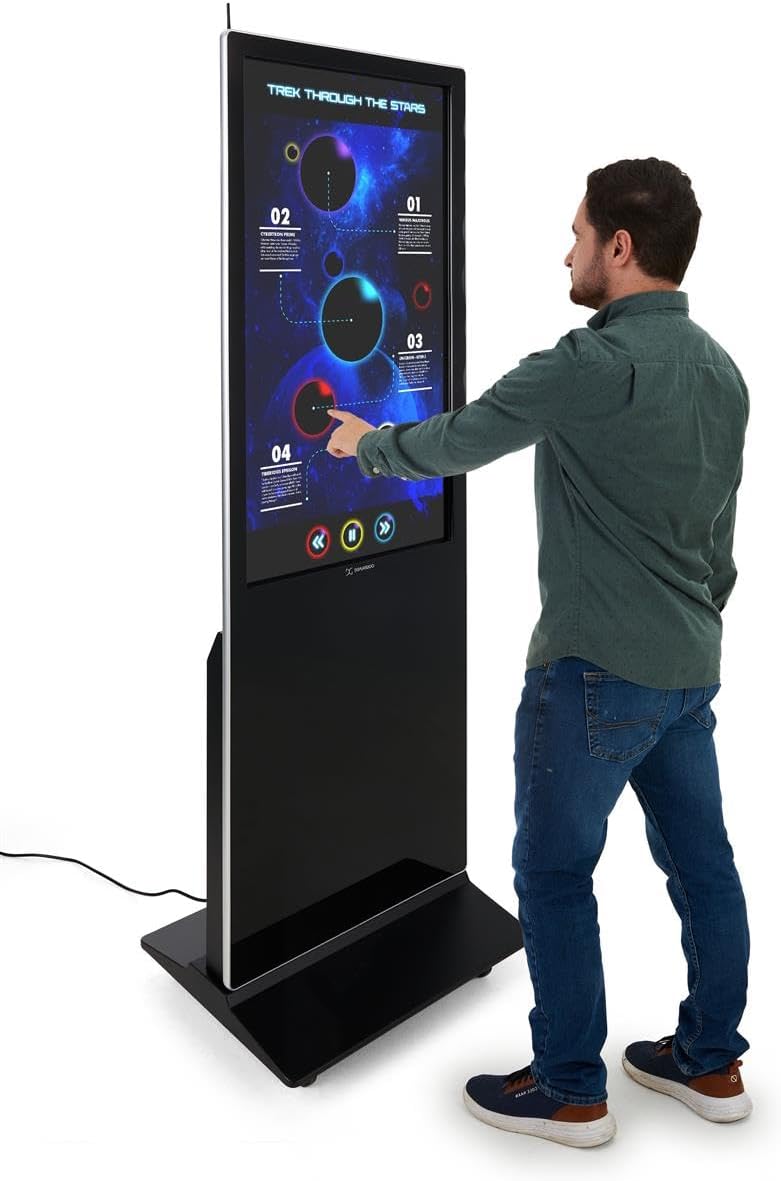
Figure 5: A user interacting with the multi-touch screen of the kiosk.
5.3. Content Upload and Management
There are several methods to upload and manage content on your kiosk:
- УСБ Плуг-анд-Плаи: Connect a USB drive to one of the three available USB ports. The kiosk will detect the drive, allowing you to transfer media files (images, videos, documents) directly to the internal storage.
- Cloud Storage/CMS: Connect the kiosk to your network via Wi-Fi or Ethernet (LAN port). You can then access your personal cloud storage accounts or integrate with a connected content management system (CMS) for remote content updates.
5.4. Using the DiViEX Slideshow App
The kiosk comes with the DiViEX slideshow app pre-installed. This application allows you to create and manage captivating slideshows with various borders, aspect ratios, and theme sharing capabilities. Refer to the in-app help or the DiViEX documentation for detailed usage instructions.
Video 3: Demonstration of the DiViEX Slideshow App. This video illustrates how to use the pre-installed application to create and customize digital content for display on the kiosk.
5.5. Аудио излаз
The kiosk is equipped with dual 8W speakers for audio output. Adjust the volume through the Android operating system settings or within the media playback application.
6. Одржавање
6.1. Cleaning the Screen and Casing
- Увек искључите кабл за напајање пре чишћења.
- Користите меку крпу која не оставља длачицеampводом или неабразивним средством за чишћење екрана да бисте обрисали екран.
- За цasing, use a soft, dry cloth. Avoid harsh chemicals or abrasive materials.
6.2. Ажурирања софтвера
Periodically check for system updates through the Android settings menu to ensure optimal performance and security. Ensure the kiosk is connected to the internet during updates.
КСНУМКС. Решавање проблема
| Проблем | Могући узрок | Решење |
|---|---|---|
| Kiosk does not power on. | Power cable disconnected; power switch off; no power from outlet. | Check power cable connection; ensure power switch is ON; test outlet with another device. |
| Екран на додир не реагује. | Software glitch; screen dirty; external interference. | Restart the kiosk; clean the screen; ensure no objects are blocking the IR sensors. |
| No content displayed. | No media loaded; incorrect app selected; network issue for streaming content. | Verify media files are present; ensure the correct application (e.g., DiViEX) is running; check network connection. |
| Нема звука. | Volume too low; audio muted; application audio settings. | Increase volume in Android settings; unmute audio; check audio settings within the playing application. |
8. Спецификације
| Феатуре | Детаљ |
|---|---|
| Модел | DF043TLB2 |
| Величина екрана | 43 инча |
| Резолуција | 1920 x 1080 (1080p HD) |
| Тоуцх Тецхнологи | 10pt IR Touchscreen |
| Оперативни систем | Андроид 11 |
| Интерна меморија | 32 ГБ |
| РАМ | 4 ГБ |
| УСБ портови | 3 |
| Звучници | Дуал 8В |
| Аспецт Ратио | 1.78:1 |
| Однос контраста слике | 1200:1 |
| Димензије производа (Ш к В к Д) | 24.4 к 56 к 9 инча |
| Произвођач | Дисплаис2го |
9. Гаранција и подршка
For warranty information and technical support, please refer to the Displays2go official webсајт или контактирајте њихову корисничку службу. Сачувајте рачун за куповину за потребе гаранције.
Displays2go Contact Information:
- Webсајт: ввв.дисплаис2го.цом
- Телефон: 1-844-221-3393