
Увод
Ово упутство пружа основне информације за подешавање, рад, одржавање и решавање проблема вашег HP лаптопа од 14 инча. Пажљиво прочитајте ово упутство како бисте осигурали правилну употребу и максимизирали перформансе и дуговечност вашег уређаја.

Image: An HP 14 inch laptop being used by a person on a kitchen counter, demonstrating its portability and suitability for various environments.
1. Почетно подешавање
1.1 Распакивање и прво укључивање
Carefully remove the laptop and all accessories from the packaging. Ensure all components are present:
- HP 14 inch Laptop
- Повер Адаптер
- Документација
Connect the power adapter to the laptop's power port and then to a wall outlet. Press the power button to turn on the laptop. Follow the on-screen instructions to complete the initial Windows 11 setup, including language selection, network connection, and user account creation.
1.2 Повезивање периферних уређаја
Ваш лаптоп је опремљен разним портовима за повезивање екстерних уређаја:

Слика: Са стране view of the HP 14 inch laptop, highlighting the various ports available for connecting peripherals such as USB devices and external displays.
- USB 3.2 Gen 1 Type-C (5Gbps): For connecting modern USB-C devices.
- USB 3.2 Gen 1 Type-A (2x, 5Gbps): За стандардне УСБ уређаје попут мишева, тастатура и екстерних дискова.
- HDMI верзија 1.4: За повезивање са екстерним екранима или пројекторима.
- Комбиновани прикључак за слушалице/микрофон: For audio input/output devices.
Simply plug the peripheral's cable into the corresponding port on the laptop. Most devices are plug-and-play and will be recognized automatically by Windows 11.
2. Операција
2.1 Основна употреба
The laptop features a standard keyboard and a responsive touchpad for navigation. Familiarize yourself with the function keys (Fn) for quick access to settings like volume, brightness, and Wi-Fi.
2.2 Connecting to Networks (Wi-Fi)
Your laptop supports Wi-Fi 6 for fast wireless connectivity. To connect to a Wi-Fi network:
- Click the Wi-Fi icon in the taskbar (usually bottom-right).
- Изаберите жељену мрежу са листе.
- Унесите безбедносни кључ мреже (лозинку) ако се то од вас затражи.
- Кликните на „Повежи се“.
2.3 Упаривање Bluetooth уређаја
The laptop includes Bluetooth 5.3 for connecting wireless accessories. To pair a Bluetooth device:
- Иди на Подешавања > Bluetooth и уређаји.
- Уверите се да је Bluetooth укључен On.
- Кликните Додајте уређај и изаберите Блуетоотх.
- Ставите свој Блуетоотх уређај у режим упаривања.
- Select your device from the list and follow any on-screen prompts.
2.4 Коришћењем Webцам
The integrated 720p HD camera is suitable for video calls and conferences. For privacy, your laptop features a physical privacy shutter. Slide the shutter to cover or uncover the camera lens as needed.
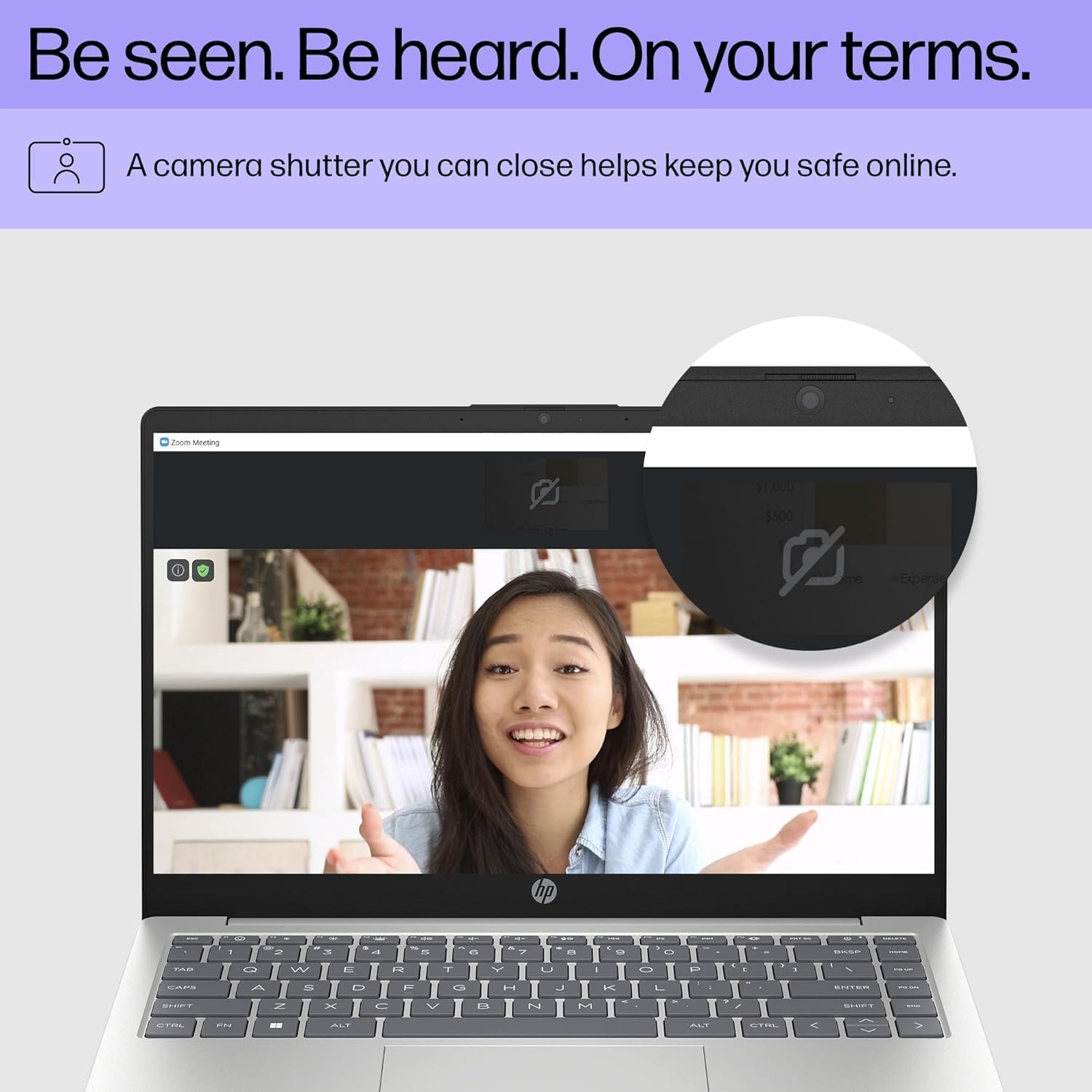
Image: Close-up of the HP laptop's integrated webcam, showing the physical privacy shutter in the open position. This feature allows users to physically block the camera lens for enhanced privacy.
2.5 Управљање батеријом
The laptop is equipped with a 3-cell 41Wh battery, providing up to 8 hours of non-gaming battery life. To optimize battery longevity:
- Избегавајте често потпуно пражњење батерије.
- Keep the laptop in a cool, dry environment.
- Подесите осветљеност екрана на удобан ниво.
- Utilize Windows power saving modes when on battery power.

Image: Diagram illustrating the HP laptop's dimensions (14" display, 12.74" W, 8.46" D, 0.70" H) and indicating up to 8 hours of mixed usage battery life. This highlights the laptop's portability and endurance.
3. Одржавање
3.1 Чишћење лаптопа
Редовно чишћење помаже у одржавању изгледа и функционалности вашег лаптопа:
- Екран: Лагано користите меку крпу која не оставља длачице дampводом или средством за чишћење екрана. Избегавајте јаке хемикалије.
- Тастатура и кућиште: Користите меку крпу. За тврдокорну прљавштину, благо дampМоже се користити крпа обрисана благим раствором сапуна, водећи рачуна да течност не уђе у отворе.
- Портови: Користите компримовани ваздух да нежно очистите прашину из отвора.
3.2 Ажурирања софтвера
Keep your Windows 11 operating system and drivers updated to ensure optimal performance and security. Windows Update typically handles this automatically, but you can manually check by going to Подешавања > Windows Update.
3.3 Управљање складиштењем и меморијом
Your laptop is equipped with a 4TB NVMe M.2 SSD and 64GB DDR4 RAM. While these provide ample capacity, regular management is recommended:
- Периодично бришите непотребне fileи апликације за ослобађање простора за складиштење.
- Користите складиште у облаку за велике files to reduce local drive usage.
- Windows 11 includes tools like Storage Sense (in Settings > System > Storage) to automate cleanup.
4. Решавање уобичајених проблема
4.1 Проблеми са напајањем
- Лаптоп се не укључује: Уверите се да је адаптер за напајање безбедно повезан и са лаптопом и са исправном утичницом. Покушајте са другом утичницом.
- Батерија се не пуни: Проверите везу адаптера за напајање. Проверите да ли има оштећења на адаптеру или каблу.
4.2 Проблеми са екраном
- Нема слике на екрану: If connected to an external monitor, ensure the correct input source is selected on the monitor. Try pressing Фн + Ф4 (or the equivalent display toggle key) to switch display outputs.
- Затамњени екран: Adjust brightness using the function keys (e.g., Фн + Ф2/Ф3) или путем подешавања екрана у систему Windows.
4.3 Проблеми са повезивањем (Wi-Fi/Bluetooth)
- Не могу да се повежем на Ви-Фи: Ensure Wi-Fi is enabled in Windows settings. Restart your router and the laptop. Check if other devices can connect to the network.
- Блутут уређај се не упарује: Ensure the Bluetooth device is in pairing mode and within range. Restart Bluetooth on the laptop and the device.
За детаљније решавање проблема или упорне проблеме, обратите се HP подршци webсајту или контактирајте корисничку подршку.
5. Спецификације
Detailed technical specifications for your HP 14 inch Laptop (Model EP01):

Image: Infographic detailing key specifications of the HP 14 inch laptop, including 13th Gen Intel Core i7-1355U processor, 16GB DDR4-3200 MHz RAM, 1TB PCIe NVMe M.2 SSD, Intel Iris Xe Graphics, Windows 11 Home, and a Full HD IPS anti-glare display.
| Феатуре | Спецификација |
|---|---|
| Бранд | HP |
| Назив модела | 14 inch Laptop (EP01) |
| Процесор | 13th Generation Intel Core i7-1355U (10 Cores, up to 5.0GHz) |
| Графика | Intel Iris Xe графика (интегрисана) |
| Меморија (РАМ) | 64GB DDR4 3200 MHz SDRAM (Upgraded from 16GB) |
| Складиштење | 4TB NVMe M.2 SSD (Upgraded from 1TB) |
| Дисплаи | 14" FHD (1920 x 1080) IPS Anti-Glare, 300 nits, 45% NTSC, 60Hz |
| Оперативни систем | Виндовс 11 Хоме |
| Повезивање | Ви-Фи 6 (2x2), Блутут 5.3 |
| Портс | 1x USB 3.2 Gen 1 Type-C, 2x USB 3.2 Gen 1 Type-A, 1x HDMI v1.4, 1x Headphone/Microphone Combo Jack |
| Камера | 720p HD камера са затварачем за приватност |
| Аудио | Двоструки звучници |
| Батерија | 3 ћелије 41Wh (до 8 сати без играња) |
| Димензије (Д к Ш к В) | 12.74 к 8.46 к 0.70 инча |
| Тежина | 5.13 фунти |
| Боја | Природно сребро |
| УПЦ | 194850841057 |
6. Гаранција и подршка
6.1 Гаранција на производ
Your HP laptop comes with a standard manufacturer's warranty. For specific details regarding coverage, duration, and terms, please refer to the warranty documentation included with your product or visit the official HP support webсајт. Гаранција обично покрива недостатке у материјалу и изради при нормалној употреби.
6.2 Корисничка подршка
For technical assistance, service, or further inquiries, please contact HP Customer Support:
- Подршка на мрежи: Посетите суппорт.хп.цом за драјвере, упутства и водиче за решавање проблема.
- Телефонска подршка: Refer to the contact information provided in your product's documentation for regional phone numbers.
When contacting support, please have your laptop's serial number and model number (EP01) ready.