
EDDBNi K12E
EDDBNi 10.1-inch Android 14 Tablet User Manual
Model: K12E
Увод
Welcome to the user manual for your new EDDBNi 10.1-inch Android 14 Tablet. This guide provides essential information on setting up, operating, maintaining, and troubleshooting your device to ensure optimal performance and user experience. Please read this manual thoroughly before using your tablet.
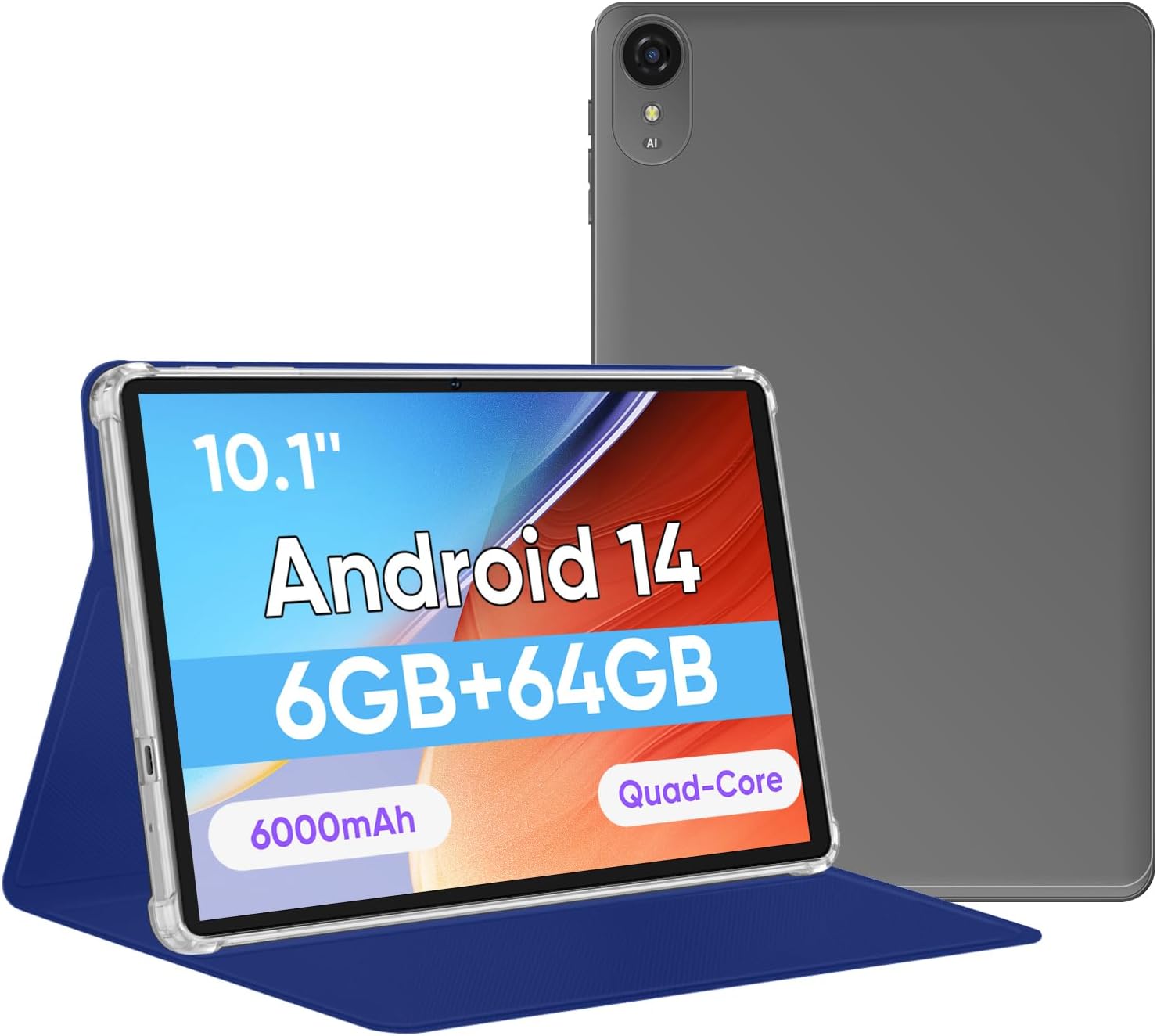
Image: The EDDBNi 10.1-inch Android 14 Tablet, shown with its included blue protective case, highlighting its sleek design and display.
Водич за подешавање
1. Шта је у кутији
Проверите да ли су све ставке присутне у пакету:
- EDDBNi 10.1-inch Android 14 Tablet
- Tablet Leather Case
- Кабл за пуњење (УСБ Типе-Ц)
- Повер Адаптер
- Кориснички приручник (овај документ)
2. Пуњење таблета
Пре прве употребе, потпуно напуните таблет. Повежите USB Type-C кабл са портом за пуњење таблета, а други крај са адаптером за напајање. Укључите адаптер у зидну утичницу. Индикатор батерије на екрану ће приказивати статус пуњења.
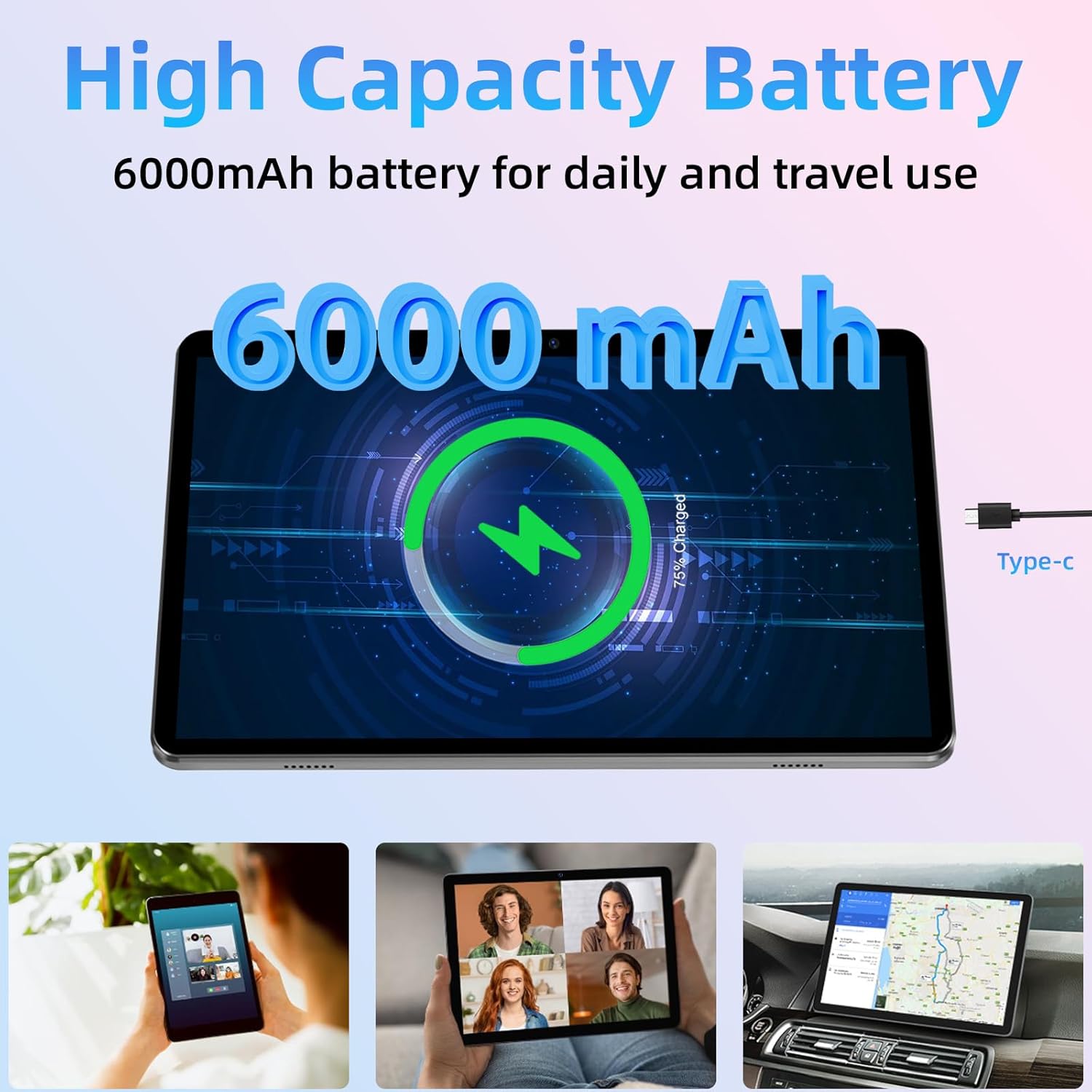
Image: A visual representation of the tablet's 6000mAh battery charging, indicating the Type-C charging port.
3. Укључивање/искључивање
- Укључено: Press and hold the Power button located on the side of the tablet until the EDDBNi logo appears on the screen.
- Искључивање: Притисните и држите дугме за напајање док се не појави мени за искључивање. Изаберите „Искључивање“ да бисте искључили уређај.
- Поново покрени: From the power-off menu, select "Restart" to reboot the device.
4. Почетно подешавање
При првом укључивању, таблет ће вас водити кроз процес почетног подешавања:
- Изаберите жељени језик.
- Повежите се са Wi-Fi мрежом. Ово је кључно за преузимање ажурирања и подешавање вашег Google налога.
- Sign in with your Google account or create a new one. This is required to access the Google Play Store and other Google services.
- Follow the on-screen prompts to set up date and time, screen lock, and other preferences.
5. Уметање MicroSD картице (опционо)
Your tablet supports storage expansion up to 1TB using a MicroSD card (sold separately). This allows for ampпростор за фотографије, видео записе и апликације.
- Пронађите слот за MicroSD картицу са стране таблета.
- Пажљиво уметните MicroSD картицу у слот са златним контактима окренутим надоле док не кликне на своје место.
- To remove, gently push the card inward until it pops out.
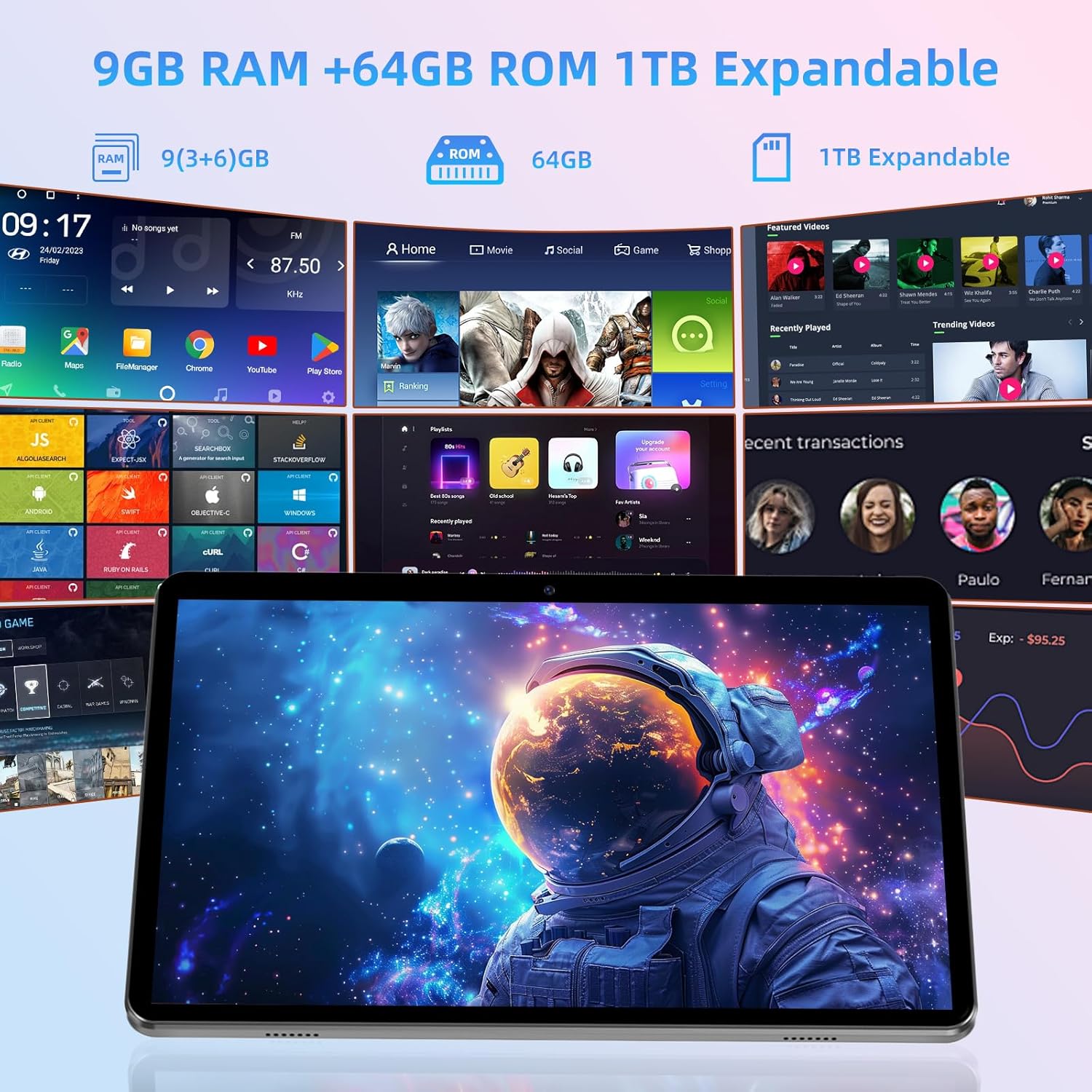
Image: A visual demonstrating the tablet's memory specifications, including 9GB RAM, 64GB ROM, and the option for 1TB expandable storage via a MicroSD card.
Управљање таблетом
1. Основна навигација
The tablet features a responsive 10.1-inch IPS HD touchscreen for intuitive interaction:
- Додирните: Да бисте отворили апликације, изаберите ставке или притисните дугмад.
- Додирните и задржите: To move icons, open context menus, or activate selection mode.
- Превуците: За кретање кроз странице, листе или пребацивање између почетних екрана.
- Прстохват: To zoom in or out on photos, maps, or web странице.
2. Оперативни систем Андроид 14
Your tablet runs on the latest Android 14 operating system, offering enhanced privacy features, improved app compatibility, and a smooth user experience. Enjoy a diverse selection of original apps and games via the Google Play Store, which is GMS certified.
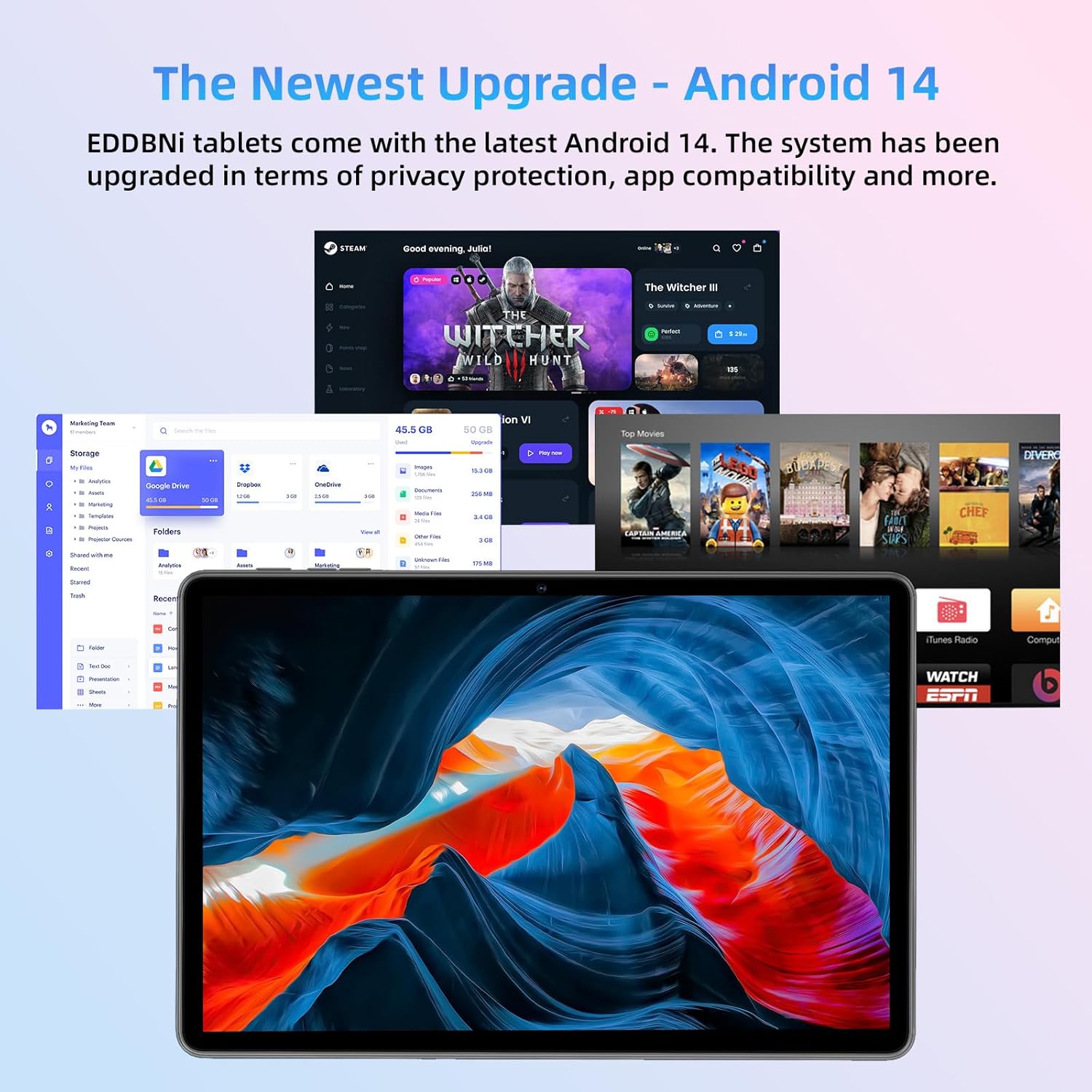
Image: The tablet's display showcasing the Android 14 interface with multiple application icons, emphasizing the latest operating system upgrade.
3. Повезивање
- Ви-Фи: Да бисте се повезали са Wi-Fi мрежом, идите на Подешавања > Мрежа и интернет > Wi-Fi. Select your desired network and enter the password if required. The tablet supports 2.4GHz/5GHz WiFi.
- Блуетоотх: To pair with Bluetooth devices (e.g., headphones, speakers), go to Подешавања > Повезани уређаји > Подешавања везе > Блуетоотх. Turn on Bluetooth and select the device you wish to pair with from the list.
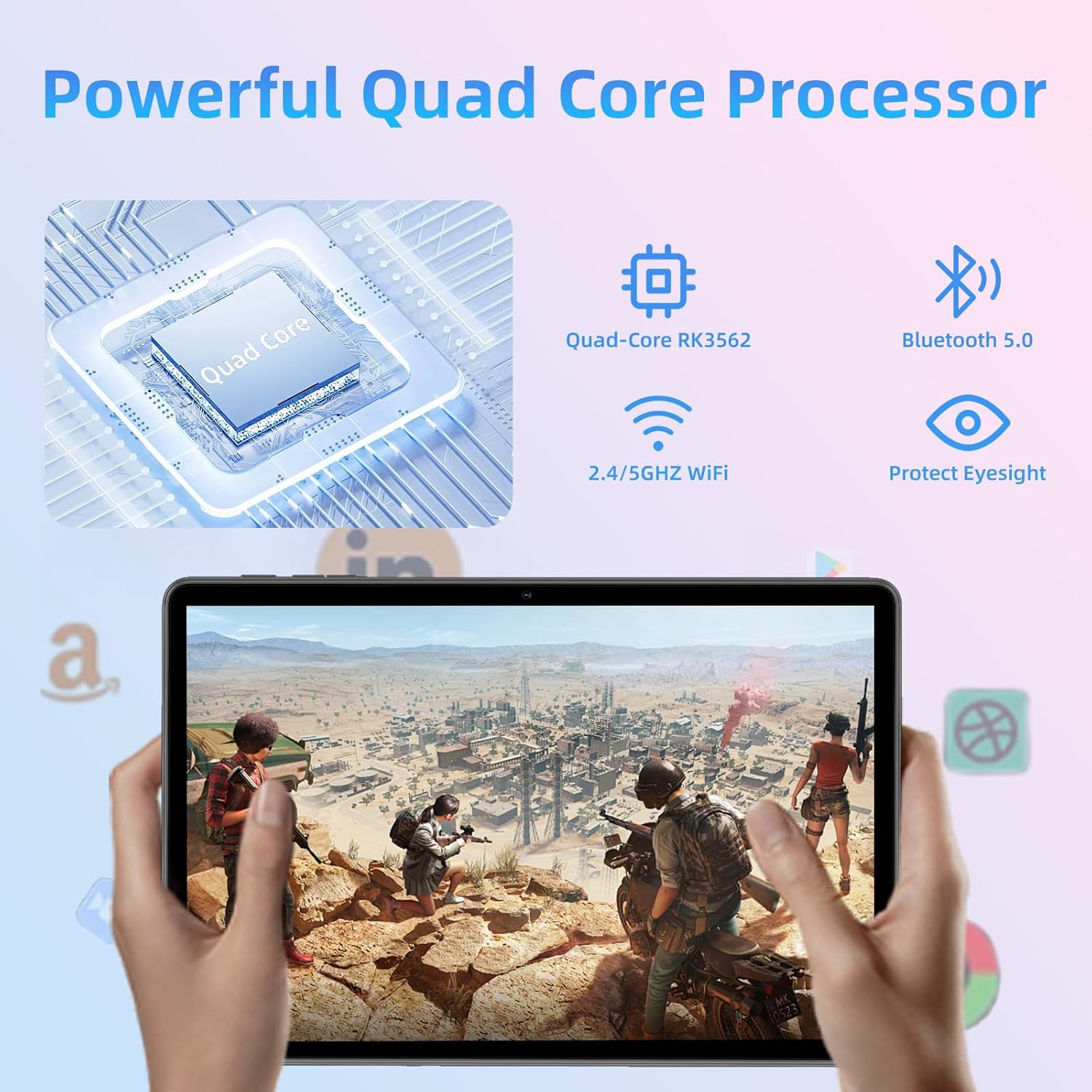
Image: An illustrative diagram highlighting the tablet's core features, including its powerful Quad-Core RK3562 processor, Bluetooth 5.0, and dual-band 2.4/5GHz WiFi connectivity.
4. Коришћење камера
The tablet is equipped with a 5.0MP front camera and an 8.0MP rear camera, suitable for video calls, photos, and scanning documents.
- Отворите апликацију „Камера“ са почетног екрана или из фиоке апликација.
- Додирните икону камере да бисте пребацивали између предње и задње камере.
- Додирните дугме затварача да бисте снимили фотографију или покренули/зауставили снимање видеа.
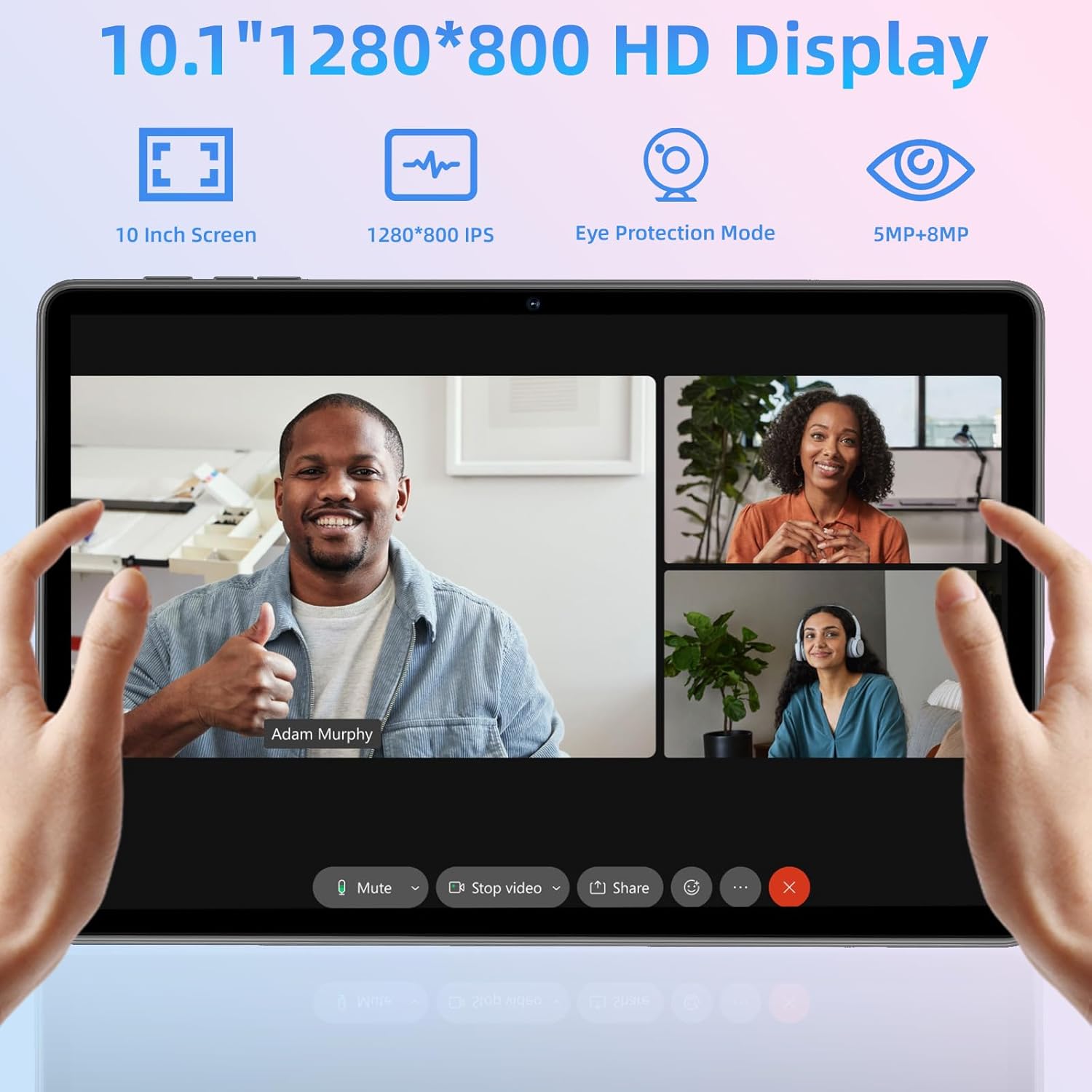
Image: The tablet displaying a video call, demonstrating its 10.1-inch 1280x800 IPS HD screen and the functionality of its dual cameras for communication.
Одржавање
1. Чишћење таблета
To keep your tablet clean and in good condition:
- Користите меку крпу која не оставља влакна да обришете екран и кућиште.
- За тврдокорне мрље, благо дampОперите крпу водом или средством за чишћење екрана намењеним за електронику.
- Избегавајте употребу јаких хемикалија, абразивних материјала или прекомерне влаге.
2. Ажурирања софтвера
Редовно проверавајте и инсталирајте ажурирања софтвера како бисте били сигурни да ваш таблет има најновије функције, безбедносне закрпе и побољшања перформанси. Идите на Подешавања > Систем > Ажурирање система да проверите доступна ажурирања.
3. Брига о батерији
To maximize the lifespan of your 6000mAh lithium battery:
- Избегавајте екстремне температуре.
- Не дозволите да се батерија често потпуно испразни.
- Користите оригинални пуњач или сертификовани компатибилни пуњач.
- За дуготрајно складиштење, напуните таблет до око 50% и искључите га.
Решавање проблема
If you encounter issues with your tablet, refer to the common solutions below:
| Проблем | Могуће решење |
|---|---|
| Таблет се не укључује | Ensure the battery is charged. Connect to the charger and wait a few minutes before attempting to power on again. If unresponsive, press and hold the power button for 10-15 seconds for a forced restart. |
| Slow performance/Lagging | Close unused applications. Clear cache for frequently used apps. Restart the tablet. Check for available software updates. Consider uninstalling rarely used apps to free up storage. |
| Проблеми са Ви-Фи везом | Ensure Wi-Fi is enabled in settings. Restart your Wi-Fi router. Forget the network and reconnect. Check if other devices can connect to the same network. |
| Батерија се брзо празни | Смањите осветљеност екрана. Затворите апликације у позадини. Искључите Wi-Fi/Bluetooth када се не користе. Ограничите услуге локације. Проверите потрошњу батерије у подешавањима да бисте идентификовали апликације које троше много енергије. |
| Апликације се руше или замрзавају | Force close the app and reopen it. Clear the app's cache and data (Подешавања > Апликације > [Назив апликације] > Меморија и кеш). Reinstall the app. Ensure the tablet's software is up to date. |
Спецификације
| Феатуре | Детаљ |
|---|---|
| Модел | ККСНУМКСЕ |
| Оперативни систем | Андроид 14 |
| Дисплаи | 10.1-inch IPS HD Touchscreen (1280x800 pixels) |
| Процесор | Quad-Core ARM Processor |
| РАМ | 9 ГБ (3 ГБ + 6 ГБ виртуелно) |
| Интерна меморија | 64ГБ РОМ |
| Екпандабле Стораге | Up to 1TB via MicroSD card (sold separately) |
| камере | Front: 5.0MP, Rear: 8.0MP |
| Батерија | 6000mAh Lithium Polymer (Up to 8 hours video playback) |
| Повезивање | Wi-Fi (802.11g, 2.4GHz/5GHz), Bluetooth |
| Димензије (ДкШкВ) | 9.7 к 5.62 к 0.18 инча |
| Тежина | 2.44 фунти |
Гаранција и подршка
EDDBNi offers a 1 година гаранције for this product, providing comprehensive support to ensure your peace of mind. This warranty covers manufacturing defects and issues arising from normal use.
If you have any questions, require technical assistance, or need to claim warranty service, please do not hesitate to contact our customer support team. We are committed to responding promptly and assisting you in resolving any issues you may encounter.
Please refer to the contact information provided with your purchase or visit the official EDDBNi webсајт за најновије информације о подршци.
Ask a question about this manual
Ask about setup, troubleshooting, compatibility, parts, safety, or missing instructions. Manuals+ will review the question and use this page’s manual context to help answer it.