
Eightwood EWUA0230
Eightwood WiFi 6E AX210 PCIe Wireless Adapter User Manual
Model: EWUA0230
1. Увод
This manual provides detailed instructions for the installation, operation, and maintenance of your Eightwood WiFi 6E AX210 PCIe Wireless Adapter. This adapter is designed to enhance your desktop computer's wireless connectivity with WiFi 6E (802.11ax) and Bluetooth 5.3 capabilities, offering tri-band support (2.4GHz, 5GHz, and 6GHz) for improved speed and stability.
2. Садржај пакета
Verify that all items listed below are present in your package. If any items are missing or damaged, please contact Eightwood customer support.
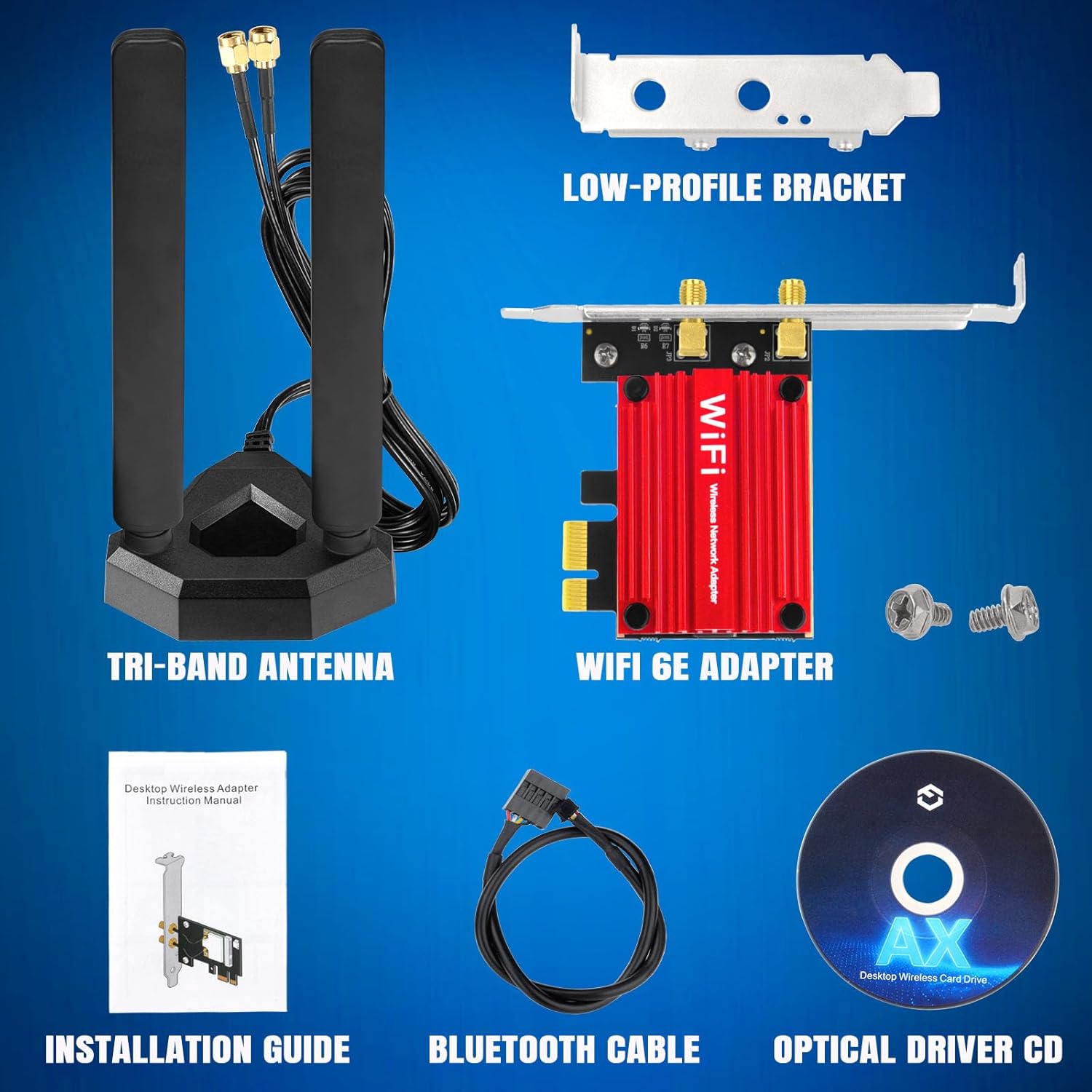
Слика 2.1: Садржај пакета. This image displays the components included in the Eightwood WiFi 6E AX210 PCIe Wireless Adapter package. It shows the tri-band antenna, the WiFi 6E adapter card, a low-profile bracket, an installation guide, a Bluetooth cable, an optical driver CD, and mounting screws.
- Eightwood WiFi 6E AX210 PCIe Wireless Adapter Card
- Tri-Band Magnetic Antenna with Extension Cable
- Лов-Проfile Заграда
- Bluetooth Connection Cable
- Installation Guide (Printed Manual)
- Optical Driver CD
- Монтажни завртњи
3. Спецификације
| Феатуре | Детаљ |
|---|---|
| Број модела | EWUA0230 |
| вирелесс стандард | IEEE 802.11ax (WiFi 6E) |
| Чипсет | Интел АКС210 |
| Фрекуенци Бандс | 2.4GHz, 5GHz, 6GHz (Tri-Band) |
| Блуетоотх верзија | Блуетоотх 5.3 |
| Интерфејс | PCIe X1 (Compatible with X4, X8, X16 slots) |
| Безбедносни протоколи | ВПА3 |
| Напредне функције | OFDMA, MU-MIMO, 160MHz Channels |
| Антенна Типе | External Magnetic Base Antenna |
| Подршка за оперативни систем | Виндовс 10 (64-бит), Виндовс 11 (64-бит) |
4. Системски захтеви
- Available PCIe X1 slot (compatible with X4, X8, X16 slots).
- Available F_USB header on the motherboard for Bluetooth functionality.
- Operating System: Windows 10 (64-bit) or Windows 11 (64-bit).
- For 6GHz band utilization, Windows 11 is required.

Image 4.1: Operating System Compatibility. This image illustrates that the Eightwood WiFi 6E AX210 adapter supports Windows 10 (64-bit) and Windows 11 (64-bit). It also highlights the requirement of Windows 11 for accessing the 6GHz WiFi band.
5. Подешавање и инсталација
Follow these steps to install the Eightwood WiFi 6E AX210 PCIe Wireless Adapter into your desktop computer.
Step 1: Prepare Your PC

Image 5.1: PC Preparation. This image shows the initial steps for installation: turning off the PC, unplugging the power cable, opening the computer chassis, and removing a back panel bracket to access the PCIe slots.
- Искључите рачунар completely and unplug the power cable from the wall outlet.
- Open the computer chassis to access the motherboard.
- Remove the appropriate back panel bracket to expose an empty PCIe slot.
Step 2: Install the PCIe Card

Image 5.2: PCIe Card Insertion. This image demonstrates how to insert the WiFi 6E adapter card into an available PCIe slot on the motherboard. It also visually indicates compatibility with PCIe X1, X4, X8, and X16 slots, while explicitly stating incompatibility with older PCI slots.
- Carefully insert the WiFi 6E adapter card into an available PCIe X1 slot. The card is compatible with PCIe X4, X8, and X16 slots as well. Ensure it is seated firmly.
- Secure the card with the screw removed from the back panel bracket. If needed, use the provided low-profile bracket for smaller cases.
Step 3: Connect the Bluetooth Cable

Image 5.3: Bluetooth Cable Connection. This image illustrates the connection of the Bluetooth cable. The 9-pin side connects to the motherboard's F_USB header, and the 4-pin side connects to the dedicated Bluetooth header on the WiFi 6E adapter card.
- Connect the 9-pin side of the Bluetooth cable to an available F_USB header on your motherboard.
- Connect the 4-pin side of the Bluetooth cable to the corresponding header on the WiFi 6E adapter card. This connection is essential for Bluetooth functionality.
Step 4: Install Antennas and Drivers

Image 5.4: Antenna and Driver Installation. This image shows the magnetic base antenna connected to the adapter card and placed on top of the PC case. It also reminds the user to power on the PC and install the necessary drivers.
- Connect the tri-band magnetic antenna to the gold-plated connectors on the back of the WiFi 6E adapter card. Place the magnetic base in a location that provides optimal signal reception.
- Close your PC chassis and reconnect the power cable.
- Power on your PC.
- Инсталирајте драјвере from the included optical driver CD. If your PC does not have a CD drive, download the latest drivers from Intel's official website by searching for "AX210 drivers".
Once the drivers are installed, your Eightwood WiFi 6E AX210 adapter is ready for use.
6. Упутство за употребу
6.1 Connecting to a WiFi Network
- Ensure the drivers are successfully installed.
- In Windows, click on the WiFi icon in the system tray.
- Select your desired WiFi network from the list of available networks.
- Кликните на „Повежи се“ и унесите безбедносни кључ мреже (лозинку) ако се то од вас затражи.
- Your computer should now be connected to the WiFi network.
Напомена: For optimal performance, ensure your router supports WiFi 6E and is configured for the 6GHz band if you wish to utilize this frequency (requires Windows 11).
6.2 Using Bluetooth 5.3
- Ensure the Bluetooth cable is correctly connected to both the adapter card and the motherboard's F_USB header.
- У Виндовс-у идите на Подешавања > Bluetooth и уређаји.
- Укључите Блуетоотх.
- Click "Add device" and select "Bluetooth".
- Put your Bluetooth device (e.g., headphones, keyboard, mouse) into pairing mode.
- Изаберите свој уређај са листе и пратите упутства на екрану да бисте завршили упаривање.

Image 6.1: Bluetooth 5.3 Connectivity. This image illustrates the capability of the Bluetooth 5.3 feature to connect with various peripherals such as keyboards, mice, game controllers, headphones, and speakers, highlighting its versatility for desktop use.
КСНУМКС. Решавање проблема
- No WiFi or Bluetooth detected:
- Ensure the card is firmly seated in the PCIe slot.
- Verify the Bluetooth cable is securely connected to both the card and the motherboard's F_USB header.
- Check if drivers are correctly installed. Reinstall if necessary.
- Confirm your operating system is Windows 10 (64-bit) or Windows 11 (64-bit).
- Poor WiFi signal or slow speeds:
- Ensure the external antenna is properly connected and positioned for optimal reception. Avoid placing it near large metal objects.
- Проверите да ли има сметњи од других бежичних уређаја.
- Update your router's firmware and ensure it supports WiFi 6E for best performance.
- Verify that you are connected to the appropriate frequency band (2.4GHz for range, 5GHz/6GHz for speed).
- Cannot connect to 6GHz band:
- Ensure your operating system is Windows 11.
- Verify your WiFi router supports the 6GHz band (WiFi 6E).
- Check your router settings to ensure the 6GHz band is enabled.
8. Одржавање
The Eightwood WiFi 6E AX210 PCIe Wireless Adapter requires minimal maintenance. Keep the following in mind:
- Држите драјвере ажурираним: Regularly check Intel's official website for the latest AX210 drivers to ensure optimal performance and security.
- чистоћа: Periodically clean the external antenna and the area around the PCIe card inside your PC to prevent dust buildup, which can affect performance and cooling. Use compressed air for internal components.
- Положај антене: Ensure the antenna is always positioned upright and away from obstructions for the best signal.

Image 8.1: Heat Sink. This image highlights the heat sink integrated into the WiFi 6E adapter card, designed to dissipate heat and maintain stable operation. Proper airflow within the PC case is important for its effectiveness.
9. Гаранција и подршка
For warranty information, technical support, or assistance with your Eightwood product, please refer to the contact details provided in the included installation guide or visit the official Eightwood website. Eightwood specializes in RF antennas and connectivity accessories, aiming to provide high-quality products and efficient after-sales service.
You can find more information about Eightwood products and support at the Eightwood Store on Amazon.
Ask a question about this manual
Ask about setup, troubleshooting, compatibility, parts, safety, or missing instructions. Manuals+ will review the question and use this page’s manual context to help answer it.