
Увод
The ACASIS USB4 to 10Gb Ethernet Adapter provides a high-speed network connection for Thunderbolt 3/4/USB4-enabled desktops, laptops, switches, and routers. This adapter supports multi-gigabit speeds, ensuring compatibility with various network environments. Its durable aluminum housing is designed for efficient heat management and portability.
Садржај пакета
- 1x ACASIS USB4 to 10Gb Ethernet Adapter
- 1x 40Gbps Thunderbolt 4 cable
- 1к упутство за употребу
- 24/7 Technical Assistance information
Упутства за подешавање
- Повежите адаптер: Plug the provided 40Gbps Thunderbolt 4 cable into the USB-C port on the ACASIS adapter and into a compatible Thunderbolt 3/4/USB4 port on your computer.
- Повежите се на мрежу: Insert a standard Ethernet cable (RJ45) from your router, switch, or wall outlet into the Ethernet port on the ACASIS adapter.
- Инсталација драјвера:
- macOS/Linux: The adapter is typically plug-and-play and does not require manual driver installation.
- Виндовс: A driver may be required. Please visit https://www.acasis.com/pages/network-card-drivers to download and install the latest driver for your Windows operating system.
- Потврдите везу: Once connected, observe the LED status indicators on the adapter for network link and activity status.

Image: ACASIS USB4 to 10Gb Ethernet Adapter showing its USB-C input and RJ45 Ethernet output.

Image: The adapter connected to a laptop via USB-C, with an Ethernet cable plugged into the adapter.
Video: A brief demonstration of connecting the ACASIS 10Gb Ethernet Adapter to a device and an Ethernet cable.
Упутство за употребу
Once properly connected and drivers are installed (if necessary), the ACASIS USB4 to 10Gb Ethernet Adapter will automatically establish a high-speed wired network connection. This provides a stable and fast alternative to wireless connections, ideal for demanding tasks.
ЛЕД индикатори статуса
The adapter features surface-mounted LEDs that provide immediate visual feedback on the network status:
- Леви ЛЕД: Indicates link speed.
- Десни ЛЕД: Означава мрежну активност.

Image: Diagram illustrating the function of the LED indicators for signal and connection status on the adapter.
Сценарији коришћења
The adapter is suitable for various applications requiring high-speed and stable network performance:
- Video editing and animation production
- Велики file трансфери
- Онлине играње
- High-bandwidth streaming
- Business and office tasks requiring reliable connectivity

Image: A user engaged in video editing on a laptop, utilizing the ACASIS adapter for a stable connection.
Компатибилност
The ACASIS USB4 to 10Gb Ethernet Adapter is designed for broad compatibility with modern systems and interfaces:
- Compatible Interfaces: USB4, Thunderbolt 3, Thunderbolt 4, Thunderbolt 5
- Incompatible Interfaces: USB 3.2, USB 3.1, USB 3.0, USB 2.0 (The adapter requires a 40Gbps USB-C connection for full performance.)
- Подржани оперативни системи: macOS (Plug-and-play), Windows (Driver required for Windows 10/11 64-bit and future releases), Linux (Plug-and-play)
- Компатибилни уређаји: MacBook Pro/Air, Mac Mini, Desktops, Laptops, Gaming Consoles, Tablets
- Мрежна опрема: Routers, Ethernet Switches, Wall Outlets
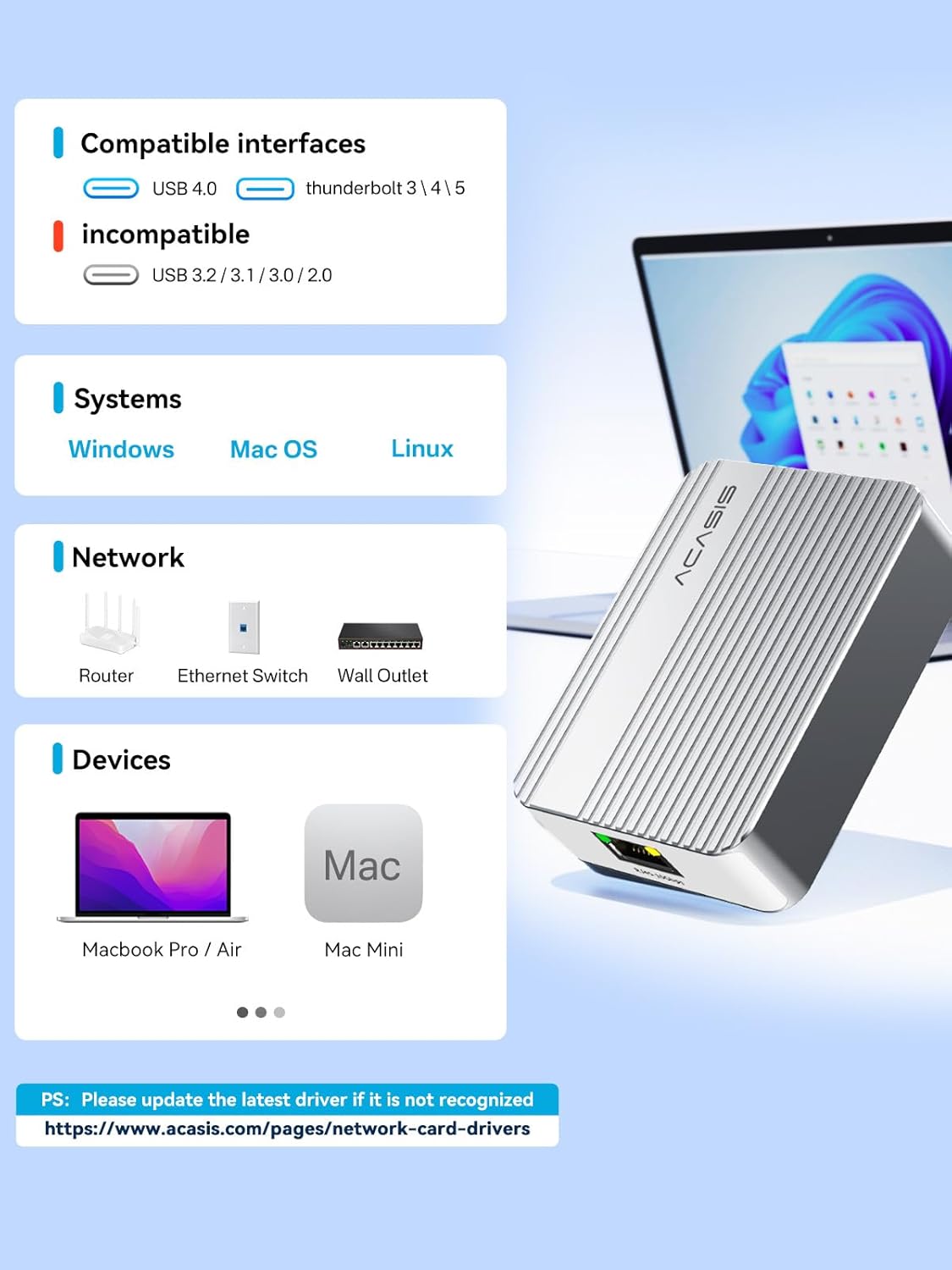
Image: A visual guide detailing compatible and incompatible USB interfaces, supported operating systems, and devices for the adapter.
Напомене о перформансама
The adapter supports various connection speeds including 1G, 2.5G, 5G, and 10G. To achieve full 10Gbps performance, ensure that both your computer's port and your network infrastructure (router, switch, and cables) also support 10Gbps speeds. Speeds may vary depending on your specific usage environment and network configuration.
Управљање топлотом
The adapter features a premium aluminum alloy construction with a ribbed design to provide excellent heat management. This design helps dissipate heat during prolonged use, contributing to reliable long-term performance and stability.

Image: The adapter's aluminum housing with cooling fins, emphasizing its heat dissipation capabilities.
Решавање проблема
- Is it normal for the device to heat up during operation?
Yes. The adapter's main control chip generates some heat when processing data at high speeds. According to temperature rise tests, the temperature increase remains within 25°C after 4 hours of continuous operation, and there are no functional abnormalities. As long as the device functions normally (e.g., no disconnections or sudden speed drops), the heat generated does not affect normal use.
- Why can't I connect to the internet or why is the connection dropping?
- Please ensure your computer interface is Thunderbolt 3/4/5 or USB4.0 (not backward compatible).
- For Windows systems, please install the driver from the official website before connecting and using the device (macOS/Linux systems do not require a driver).
- Please ensure the network cable and router/switch equipment are functioning correctly.
- Reconnect the Type-C cable and network cable to the device, ensuring a secure connection.
- Ensure the device has good ventilation to prevent prolonged high-temperature operation from causing unstable chip performance.
- Try replacing the network cable or connecting to a different network port (e.g., changing the router port) to rule out network cable or upstream network equipment failure.
- Why is the speed not reaching 10Gbps?
- Check the connected device and network cable: Ensure that the network port on the switch, router, or other computer you are connecting to also supports 10Gbps speed. Additionally, a high-quality network cable must be used; ordinary network cables cannot support 10 Gigabit speeds.
- Check computer interface bandwidth: Ensure that your computer's Thunderbolt or USB4 interface is not being used by other high-bandwidth devices, resulting in insufficient bandwidth.
- Check the system connection speed:
Виндовс: Following the DOC2 guide, in "Control Panel" -> "Network and Internet" -> "Network Connections," double-click the corresponding "Marvell AQtion 10Gbit" Ethernet connection to view the displayed "Speed." It should show "10.0 Gbps."
Мац: Check the speed in "System Preferences" -> "Network" -> select the device -> "Advanced" -> "Hardware." - Differences in actual environment: In actual use, the speed may be reduced due to factors such as network equipment, cables, and system load, which is normal.
Спецификације
| Број модела | НТ0201 |
| Димензије производа | 3.44 к 2.51 к 1.09 инча |
| Тежина артикла | 4.4 унци |
| Тип конектора | РЈ45 |
| Компатибилни уређаји | Desktop, Gaming Console, Laptop, Tablet |
| Боја | Сребро |
| Брзина преноса података | 10/5/2.5/1 Gbps, 100 Mb/s |
Одржавање
To ensure optimal performance and longevity of your ACASIS USB4 to 10Gb Ethernet Adapter, follow these maintenance tips:
- Обезбедите добру циркулацију ваздуха: Place the device in a well-ventilated area and avoid enclosed spaces where heat may accumulate.
- Избегавајте директну сунчеву светлост: Extended use under direct sunlight can cause temperatures to rise quickly. We recommend keeping the device in a cool, shaded location.
- Limit Extended High-Load Usage: During long, continuous data transfers, allowing short breaks can help the device cool down and maintain consistent performance.
- Use External Airflow (if possible): If available, a small desk fan directed toward the device can greatly improve heat dissipation.
- Add Passive Cooling Support: Attaching a small heatsink to the surface of the device may help lower its temperature.
Подршка
If you have any questions or operational problems, please contact ACASIS customer support for assistance.
- Подршка путем е-поште: суппорт@ацасис.цом
- техничка помоћ: 24/7 online service available anytime.