
Увод
This manual provides detailed instructions for the setup, operation, maintenance, and troubleshooting of your KOORUI S2721XO 27-inch QD-OLED Gaming Monitor. Please read this manual thoroughly before using the product to ensure proper functionality and to prevent damage.

Image: KOORUI S2721XO 27-inch QD-OLED Gaming Monitor showcasing its main features like 240Hz refresh rate, 0.03ms response time, QHD resolution, QD-OLED panel, VESA compatibility, 99% DCI-P3 color gamut, Eye Care, and Adaptive Sync.
Садржај пакета
Проверите да ли су све компоненте присутне у пакету:
- KOORUI S2721XO 27-inch QD-OLED Gaming Monitor
- Постоље за монитор (база и врат)
- Повер Цабле
- ХДМИ кабл
- ДисплаиПорт Цабле
- Кориснички приручник (овај документ)
- Гарантни лист (ако је примењиво)
Упутства за подешавање
1. Састављање постоља
- Пажљиво извадите компоненте монитора и постоља из паковања.
- Причврстите врат постоља на панел монитора. Уверите се да је безбедно закачено на своје место или да је причвршћено завртњима као што је назначено у водичу за брзи почетак.
- Причврстите основу постоља на врат постоља, причврстивши је приложеним завртњем.
- Поставите састављени монитор на стабилну, равну површину.
Alternatively, the monitor supports VESA 75mm x 75mm mounting for wall mounts or monitor arms. Ensure the VESA mount is rated for the monitor's weight (3 kg).

Image: Illustrations showing the monitor's ergonomic adjustments including height adjustment (110mm), tilt (-20° to 20°), 90° pivot for vertical viewing, and swivel (-5° to 20°).
2. Повезивање каблова
Identify the ports on the back of your monitor and connect the necessary cables.

Слика: Позади view of the KOORUI S2721XO monitor showing the connectivity ports: 1. Power cable input, 2. HDMI 2.1, 3. HDMI 2.1, 4. DisplayPort 1.4, 5. Audio output interface. Also shows VESA 100x100mm mounting points.
- Кабл за напајање: Повежите један крај кабла за напајање са улазом за напајање монитора, а други крај са електричном утичницом.
- Видео улаз:
- For HDMI connection, use the provided HDMI cable to connect your computer's HDMI output to one of the monitor's HDMI 2.1 ports.
- For DisplayPort connection, use the provided DisplayPort cable to connect your computer's DisplayPort output to the monitor's DisplayPort 1.4 port.
- Аудио излаз: If desired, connect external speakers or headphones to the audio output jack.
3. Прво укључивање
- Притисните дугме за напајање на монитору.
- Укључите рачунар. Монитор би требало аутоматски да детектује улазни сигнал. У супротном, можда ћете морати ручно да изаберете извор улаза помоћу OSD менија.
Упутство за употребу
Он-Сцреен Дисплаи (ОСД) мени
The OSD menu allows you to adjust various monitor settings. Typically, a joystick or a set of buttons located on the back or bottom of the monitor is used to navigate the OSD.
- Press the OSD button/joystick to open the menu.
- Use the navigation controls to move through options.
- Притисните дугме за избор да бисте потврдили избор.
- Притисните дугме за излаз да бисте затворили OSD мени.
Подешавања слике
- Осветљеност/контраст: Прилагодите ова подешавања својим viewинг окружење.
- Температура боје: Select from preset modes (e.g., Warm, Cool, User) or customize RGB values.
- ХДР (високи динамички опсег): The monitor supports HDR 400. Enable HDR in your operating system and monitor settings for enhanced contrast and color detail.
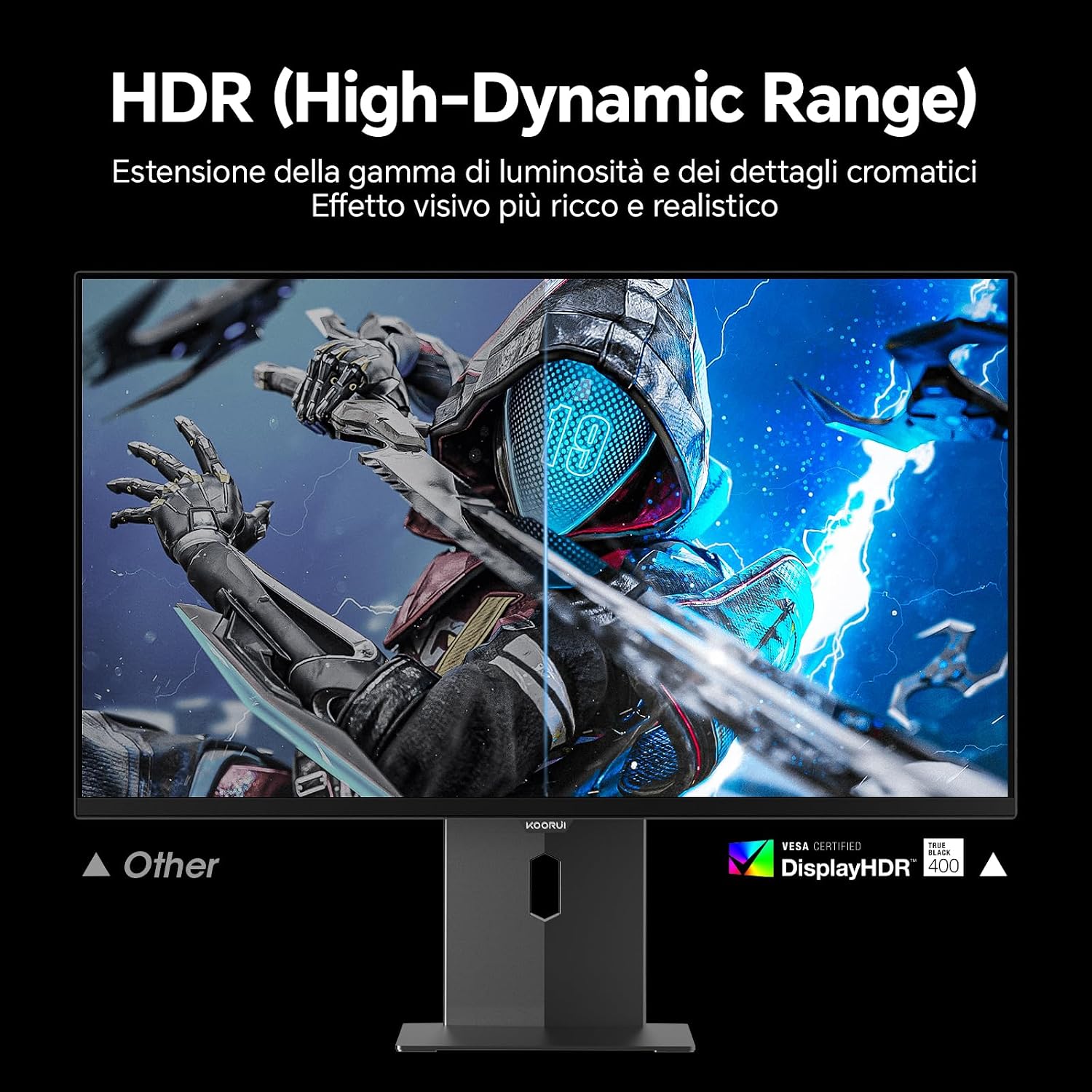
Image: Comparison of a standard display versus the KOORUI S2721XO monitor with HDR (High-Dynamic Range) enabled, showing richer visual effects and realistic details.
Карактеристике игара
- Брзина освежавања: The monitor supports up to 240Hz. Ensure your graphics card and system settings are configured to utilize this refresh rate for smooth gameplay.
- Време одговора: With a 0.03ms response time, motion blur is significantly reduced.
- Прилагодљива синхронизација: This technology synchronizes the monitor's refresh rate with your GPU's frame rate, eliminating screen tearing and stuttering. Enable Adaptive Sync in the OSD menu and your graphics card control panel.
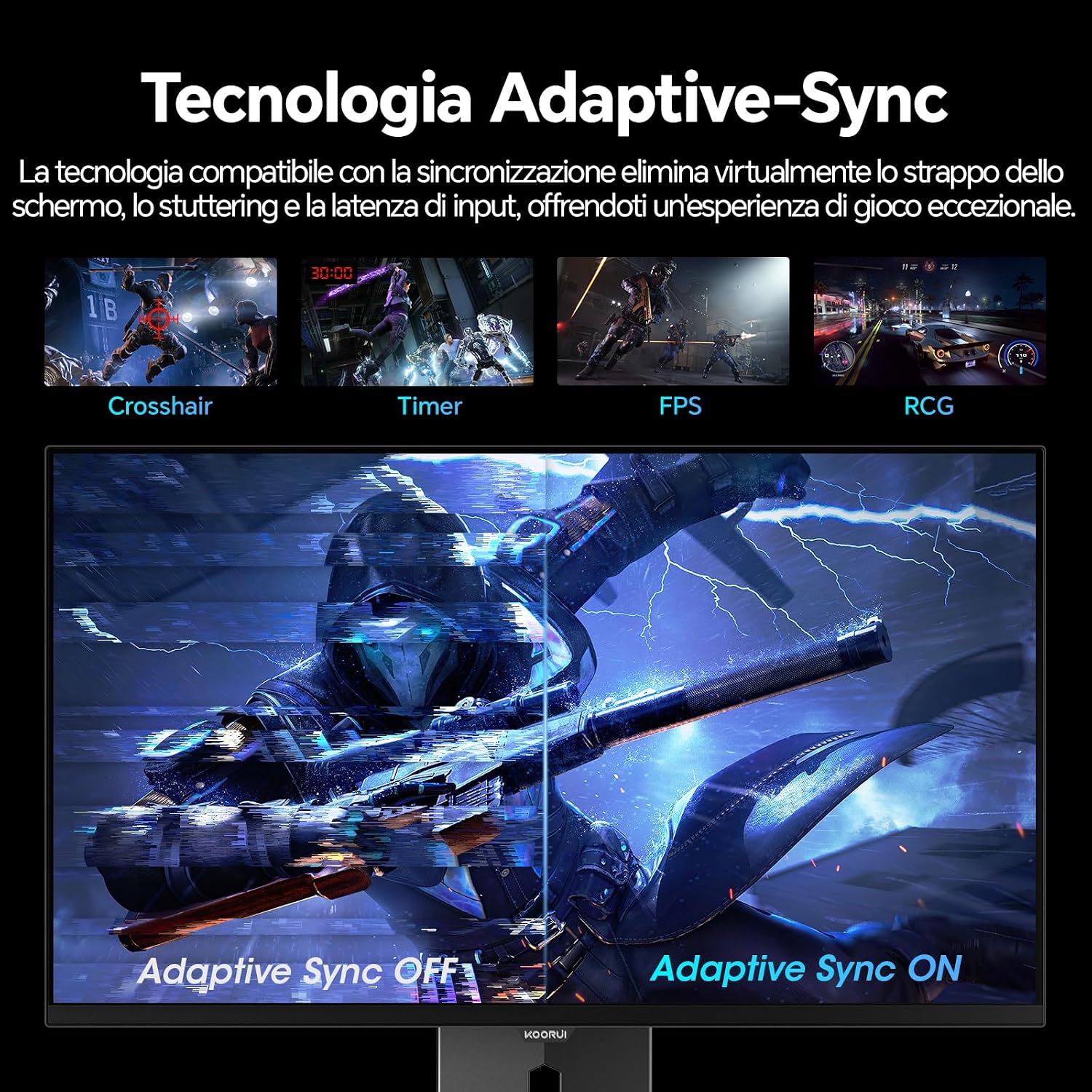
Image: A visual demonstration of Adaptive Sync technology, showing the difference between Adaptive Sync OFF (with screen tearing and stuttering) and Adaptive Sync ON (with smooth, tear-free visuals).

Image: A visual comparison illustrating the ultra-high refresh rate of 240Hz and 0.03ms response time, contrasting it with a 100Hz 5ms display to show the improved fluidity and reduced ghosting.
Режим за негу очију
The monitor includes features designed to reduce eye strain during extended use. Access the Eye Care settings in the OSD menu to enable modes that reduce blue light emission or adjust flicker-free settings.
Одржавање
Чишћење монитора
- Увек искључите монитор и извуците кабл за напајање пре чишћења.
- Користите меку крпу која не оставља длачицеampводом или специјализованим средством за чишћење екрана.
- Не прскајте средство за чишћење директно на екран.
- Avoid using abrasive cleaners, waxes, or solvents as they can damage the screen surface.
- Обришите монитор цasinг меком, сувом крпом.
Складиштење
When storing the monitor for an extended period, ensure it is powered off, unplugged, and stored in a cool, dry place away from direct sunlight and extreme temperatures. Use original packaging if available for best protection.
Решавање проблема
| Проблем | Могући узрок | Решење |
|---|---|---|
| Нема струје | Кабл за напајање није повезан; Утичница не ради; Монитор је искључен. | Ensure power cable is securely connected. Test power outlet with another device. Press the monitor's power button. |
| Нема сигнала | Видео кабл није повезан; изабран је погрешан улазни извор; рачунар није укључен. | Check video cable connections (HDMI/DisplayPort). Select the correct input source via the OSD menu. Ensure your computer is powered on and outputting a signal. |
| Треперећи екран | Incorrect refresh rate; Faulty cable; Graphics card driver issues. | Adjust refresh rate in display settings. Try a different video cable. Update graphics card drivers. |
| Лош квалитет слике | Incorrect resolution; Picture settings misconfigured; Dirty screen. | Set display resolution to 2560x1440. Adjust brightness, contrast, and color settings in the OSD. Clean the screen as per maintenance instructions. |
Спецификације
| Бранд | КООРУИ |
| Број модела | С2721КСО |
| Величина екрана | 27 инча |
| Панел Типе | КД-ОЛЕД |
| Резолуција | QHD Wide 1440p (2560 x 1440) |
| Аспецт Ратио | 16:9 |
| Рефресх Рате | 240 Хз |
| Време одговора | 0.03 мс |
| Однос контраста | 1,500,000:1 |
| Осветљеност | 280 цд/м² |
| Viewинг Англе | 178 степени |
| Цолор Гамут Валуе | 99% DCI-P3 (100% sRGB) |
| Повезивање | 2x HDMI 2.1, 1x DisplayPort 1.4, аудио излаз |
| Адаптиве Синц | FreeSync compatible |
| Посебне карактеристике | HDR 400, Eye Care, Height Adjustment, Tilt Adjustment, Swivel Adjustment, Pivot Adjustment |
| ВЕСА компатибилност | 75 мм к 75 мм |
| Димензије (Ш к В к Д) | 610.11 мм к 521.84 мм к 215.82 мм (24.02 ин к 20.54 ин к 8.50 ин) |
| Тежина | 3 килограма |
Информације о гаранцији
The KOORUI S2721XO monitor comes with a 2 година гаранције from the date of purchase. This warranty covers manufacturing defects and malfunctions under normal use. Please retain your proof of purchase for warranty claims. For detailed terms and conditions, refer to the warranty card included in your package or visit the official KOORUI webсајту.
Подршка и контакт
For further assistance, technical support, or customer service inquiries, please visit the official KOORUI website or contact their customer support team. You can also refer to the official PDF instructions for use: