
1. Производ је готовview
The KOORUI G2722P is a 27-inch QHD (2560x1440) gaming monitor designed for an immersive visual experience. It features a Fast IPS panel with a 200Hz refresh rate and a 1ms response time, ensuring smooth and responsive gameplay. The monitor supports HDR 400 for enhanced contrast and color depth, and Adaptive Sync technology to minimize screen tearing and stuttering. Its ergonomic stand allows for height, tilt, and pivot adjustments, and it is VESA 75x75mm compatible for flexible mounting options.

The KOORUI G2722P monitor integrated into a typical gaming environment.
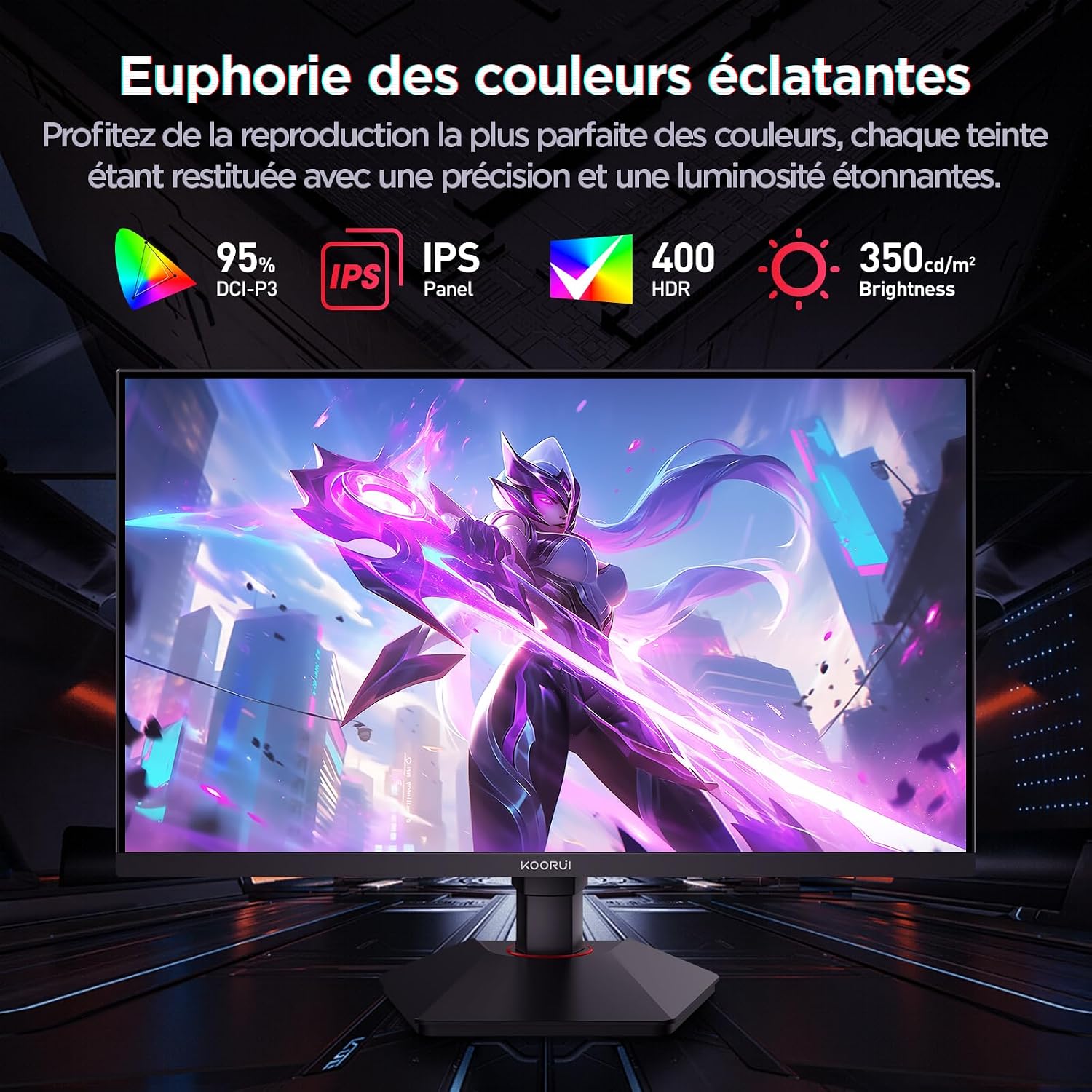
This image highlights the monitor's color capabilities, including 95% DCI-P3 color gamut, IPS panel technology, HDR 400 support, and 350 cd/m² brightness.
2. Безбедносне информације
- Пажљиво прочитајте сва упутства пре употребе монитора.
- Не излажите монитор киши или влази како бисте спречили опасност од пожара или струјног удара.
- Не отварајте монитор цasinг. Унутра нема делова које корисник може сам да поправи. Сво сервисирање препустите квалификованом особљу.
- Поставите монитор на стабилну, равну површину како бисте спречили његов пад.
- Држите монитор даље од директне сунчеве светлости, извора топлоте и екстремних температура.
- Обезбедите одговарајућу вентилацију око монитора. Не блокирајте вентилационе отворе.
- Користите само адаптер за напајање и каблове које је обезбедио или препоручио произвођач.
- Искључите монитор из утичнице током грмљавине или када га не користите дуже време.
3. Садржај пакета
Проверите да ли су све ставке присутне у пакету:
- Монитор KOORUI G2722P
- Постоље за монитор (база и врат)
- Адаптер за напајање и кабл за напајање
- DisplayPort (DP) кабл
- Кориснички приручник (овај документ)
- Вијци за монтажу постоља
4. Склоп монитора
4.1 Причвршћивање постоља
- Пажљиво поставите монитор лицем надоле на меку, чисту крпу како бисте спречили огреботине.
- Attach the stand neck to the back of the monitor until it clicks into place or is secured with screws (refer to specific instructions in the included quick start guide).
- Attach the stand base to the stand neck and secure it with the provided screw.
- Пажљиво подигните монитор и поставите га на стабилан сто.
4.2 ВЕСА монтажа
The monitor supports VESA 75x75mm mounting. To use a VESA mount:
- Уклоните сталак ако је већ причвршћен.
- Attach your VESA-compatible mount (sold separately) to the 75x75mm screw holes on the back of the monitor using appropriate screws.
- Ensure the mount is securely fastened before releasinмонитор.

This image demonstrates the monitor's ergonomic adjustments (height, tilt, pivot) and provides a visual reference for stand attachment points.
5. Повезивање монитора
Connect the monitor to your computer or other devices using the available ports.
- Прикључак за напајање: Connect the power cable to the power adapter, then connect the adapter to the monitor's power input and a wall outlet.
- Видео веза:
- For optimal performance (QHD @ 200Hz), use the provided DisplayPort (DP 1.4) cable to connect the monitor to your graphics card.
- Alternatively, use an HDMI 2.0 cable to connect to an HDMI port on your device.
- Аудио излаз: Connect external speakers or headphones to the 3.5mm audio output jack on the monitor if you wish to use the monitor's audio passthrough.

This image displays the rear of the monitor, highlighting the available connectivity options: two HDMI 2.0 ports, one DisplayPort 1.4, an audio output jack, and the VESA 75x75mm mounting pattern.
6. Руковање монитором
6.1 Укључивање/искључивање
- Притисните дугме за напајање које се налази на монитору да бисте га укључили или искључили.
- Индикаторска лампица напајања ће светлети када је монитор укључен.
6.2 Приказ на екрану (ОСД) мени
The OSD menu allows you to adjust various monitor settings. Typically, buttons are located on the back or bottom right of the monitor.
- Press one of the OSD buttons to activate the menu.
- Use the navigation buttons (usually directional or a joystick) to browse through menu options.
- Притисните дугме за избор да бисте ушли у подмени или потврдили подешавање.
- Притисните дугме за излаз да бисте затворили OSD мени.
7. Подешавања екрана
7.1 Резолуција и брзина освежавања
The monitor supports a native resolution of 2560x1440 (QHD) and a maximum refresh rate of 200Hz. Ensure your graphics card and operating system are configured to use these settings for the best experience.

This image illustrates the difference in motion clarity between a 75Hz and a 200Hz refresh rate, emphasizing the 1ms response time for reduced blur and ghosting.
7.2 Adaptive Sync (FreeSync)
This monitor supports Adaptive Sync technology (compatible with AMD FreeSync) to synchronize the monitor's refresh rate with your graphics card's frame rate, eliminating screen tearing and reducing stuttering.
- Enable Adaptive Sync in the monitor's OSD menu.
- Ensure Adaptive Sync (or FreeSync) is enabled in your graphics card control panel.

This image visually compares the display with Adaptive Sync enabled versus disabled, demonstrating how Adaptive Sync eliminates screen tearing for a smoother visual experience.
7.3 ХДР 400
The monitor supports HDR 400, providing a wider dynamic range for brighter whites and deeper blacks, resulting in more vibrant and realistic images.
- Enable HDR in your operating system's display settings and in the monitor's OSD menu if available.
7.4 Подешавања боја
The Fast IPS panel offers excellent color reproduction and wide viewинг углова.
- Adjust color temperature, gamma, and saturation through the OSD menu to suit your preferences.
- The monitor features a 178-degree wide viewing angle, ensuring consistent color and image quality from various perspectives.
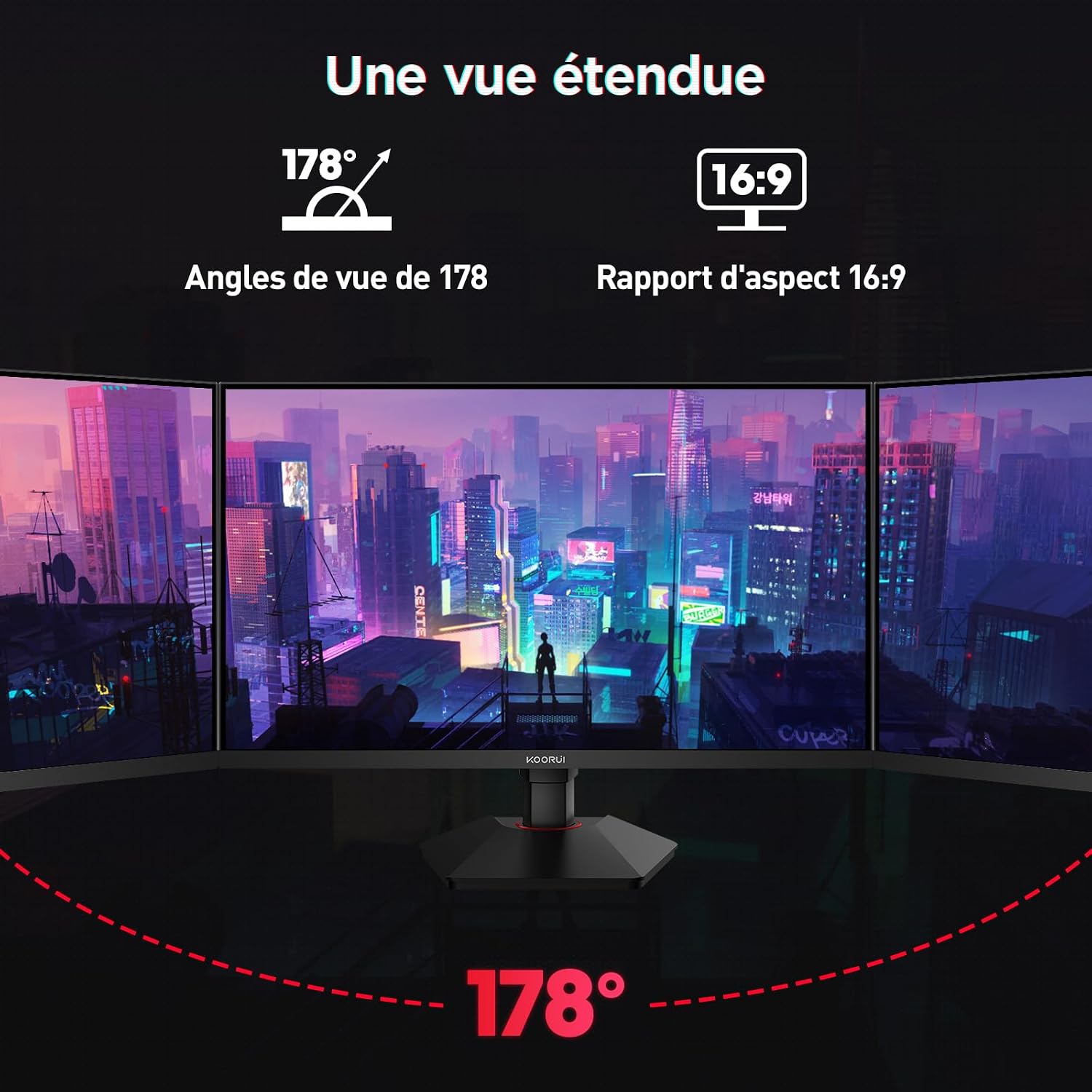
This image demonstrates the monitor's wide 178-degree viewing angle, illustrating how the display maintains clarity and color consistency even when viewed from extreme angles, ideal for multi-monitor setups.
8. Ергономска подешавања
Постоље за монитор омогућава разна подешавања како би се оптимизовало ваше viewутеха:
- Подешавање висине: Adjust the monitor height by up to 100mm by gently pushing or pulling the monitor up or down.
- Подешавање нагиба: Tilt the screen from -5° (forward) to +20° (backward) to find your preferred viewугао уласка.
- Окретање (ротација): Rotate the screen 90° to switch between landscape and portrait orientations.
This image illustrates the full range of ergonomic adjustments available: 100mm height adjustment, -5° to +20° tilt, and 90° pivot rotation for optimal viewин удобност.
9. Карактеристике неге очију
The KOORUI G2722P monitor incorporates features designed to reduce eye strain during prolonged use:
- Технологија без треперења: Смањује треперење екрана, које може изазвати замор очију.
- Филтер ниске плаве светлости: Minimizes harmful blue light emissions to protect your eyes. This feature can usually be adjusted or enabled/disabled in the OSD menu.
10. Одржавање
Правилно одржавање осигурава дуготрајност и оптималне перформансе вашег монитора.
- Чишћење екрана: Нежно обришите екран меком крпом која не оставља влакна. За тврдокорне мрље користите средство за чишћење посебно за мониторе нането на крпу, а не директно на екран.
- Чишћење Цasing: Користите меку, суву крпу за чишћење монитора casinг. Избегавајте употребу абразивних средстава за чишћење или растварача.
- Руковање: Avoid touching the screen directly with your fingers or sharp objects. Do not place heavy objects on the monitor.
КСНУМКС. Решавање проблема
Ако наиђете на проблеме са монитором, погледајте следеће уобичајене проблеме и решења:
| Проблем | Могуће решење |
|---|---|
| Нема слике на екрану |
|
| Треперење или цепање слике |
|
| Нема звука из аудио излаза |
|
| Монитор не достиже 200Hz |
|
12. Спецификације
Key technical specifications for the KOORUI G2722P monitor:
| Феатуре | Спецификација |
|---|---|
| Величина екрана | 27 инча |
| Панел Типе | Скоро ИПС |
| Резолуција | КХД (2560 к 1440) |
| Рефресх Рате | 200Хз |
| Време одговора | 1мс |
| ХДР подршка | ХДР 400 |
| Адаптиве Синц | ФрееСинц |
| Однос контраста | 1000:1 (статично) |
| Осветљеност | 350 цд/м² |
| Viewинг Англе | 178° (В/В) |
| Гамут боја | 95% ДЦИ-П3 |
| Видео улази | 2x HDMI 2.0, 1x DisplayPort 1.4 |
| Аудио излаз | 1x 3.5mm Audio Out |
| ВЕСА компатибилност | 75к75мм |
| Потрошња енергије | 19 Watts (Typical) |
| Ергономија | Height, Tilt, Pivot Adjustment |

This diagram provides the physical dimensions of the monitor, including width, height, and depth.
За детаљније информације о енергији, погледајте базу података EPREL: https://eprel.ec.europa.eu/qr/2216313
13. Гаранција и подршка
Монитор KOORUI G2722P долази са Двогодишња гаранција произвођачаОва гаранција покрива недостатке у материјалу и изради при нормалној употреби.
For technical support, warranty claims, or further assistance, please contact KOORUI customer service through their official webсајт или продавницу где је производ купљен.