
1. Увод
This manual provides essential information for setting up, operating, and maintaining your GenMachine Mini PC AMD Ryzen 7 7735HS. Please read this manual thoroughly before using the device to ensure proper functionality and safety.
2. Безбедносне информације
Придржавајте се следећих безбедносних смерница како бисте спречили оштећење уређаја или повреде себе:
- Не излажите уређај води, влази или екстремним температурама.
- Обезбедите одговарајућу вентилацију како бисте спречили прегревање. Не блокирајте вентилационе отворе.
- Користите само испоручени адаптер за напајање.
- Избегавајте испуштање или излагање уређаја јаким ударима.
- Не покушавајте сами да отворите или поправите уређај. Све сервисирање препустите квалификованом особљу.
3. Садржај пакета
Проверите да ли су све ставке присутне у пакету:
- GenMachine Mini PC
- Упутство за употребу
- Повер Адаптер
- ХДМИ кабл
- Монтажни носач (са завртњима)

Image: Package Contents. This image displays the items included in the GenMachine Mini PC box: the Mini PC unit, user manual, power adapter, HDMI cable, and a mounting bracket with screws.
4. Производ је готовview
The GenMachine Mini PC is a compact, high-performance computer designed for various applications, from home office tasks to multimedia consumption. Its small footprint allows for versatile placement.

Слика: Фронт View of GenMachine Mini PC. This image shows the front panel of the GenMachine Mini PC, featuring the power button, USB-C port, audio jack, and two USB 3.0 ports.
4.1 Предња плоча
- Дугме за напајање: Притисните да бисте укључили/искључили уређај.
- УСБ-Ц порт: For data transfer and display output.
- Аудио прикључак: За слушалице или екстерне звучнике.
- УСБ 3.0 портови (к2): For connecting peripherals like keyboards, mice, or external storage.
4.2 Задња плоча

Слика: Позади View of GenMachine Mini PC. This image illustrates the rear panel of the Mini PC, highlighting the power input, HDMI ports, Ethernet ports, and additional USB ports.
- Power Input (DC IN): Повежите адаптер за напајање овде.
- HDMI портови (x2): Connect to monitors or TVs for video output. Supports 4K resolution.
- Ethernet Ports (x2): For wired network connections (Dual 2.5G).
- УСБ 2.0 портови (к2): За повезивање разних УСБ уређаја.
4.3 Design and Dimensions

Image: GenMachine Mini PC Size Comparison. This image compares the compact size of the GenMachine Mini PC to a traditional tower chassis, illustrating its space-saving design. Dimensions are shown as 126mm x 130mm x 40mm.
The GenMachine Mini PC features an ultra-durable, lightweight metal casing. Its compact design (approximately 126 x 130 x 40 mm) makes it significantly smaller than traditional desktop computers, ideal for any work environment.
5. Подешавање
5.1 Повезивање периферних уређаја
- Connect your monitor(s) to the HDMI ports or the USB-C port using appropriate cables.
- Connect your USB keyboard and mouse to the available USB ports.
- If using wired internet, connect an Ethernet cable to one of the Ethernet ports.
- Connect the power adapter to the DC IN port on the Mini PC, then plug it into a power outlet.
5.2 Укључивање
Press the power button on the front panel of the Mini PC. The power indicator light will illuminate, and the system will begin to boot.
5.3 Initial Operating System Setup
Upon first boot, you will be guided through the operating system setup process (e.g., Windows 11). Follow the on-screen instructions to configure language, region, network, and user accounts.
6. Упутство за употребу
6.1 Мрежна повезаност
- Ви-Фи: During initial setup or via the operating system's network settings, select your Wi-Fi network and enter the password. The Mini PC supports Wi-Fi 6 for faster and more stable wireless connections.
- Етхернет: If an Ethernet cable is connected, the system should automatically detect and connect to the wired network. The Mini PC features dual 2.5G network ports for enhanced connectivity.
6.2 Bluetooth Devices
The Mini PC supports Bluetooth 5.2. To pair a Bluetooth device (e.g., headphones, keyboard, mouse):
- Enable Bluetooth on your device and set it to pairing mode.
- On the Mini PC, go to the operating system's Bluetooth settings.
- Тражи and select your device from the list, then follow any on-screen prompts to complete pairing.
6.3 Multi-Display Setup
The GenMachine Mini PC supports up to four displays simultaneously, utilizing its two HDMI ports and one full-function USB-C port (which supports 4K display output).
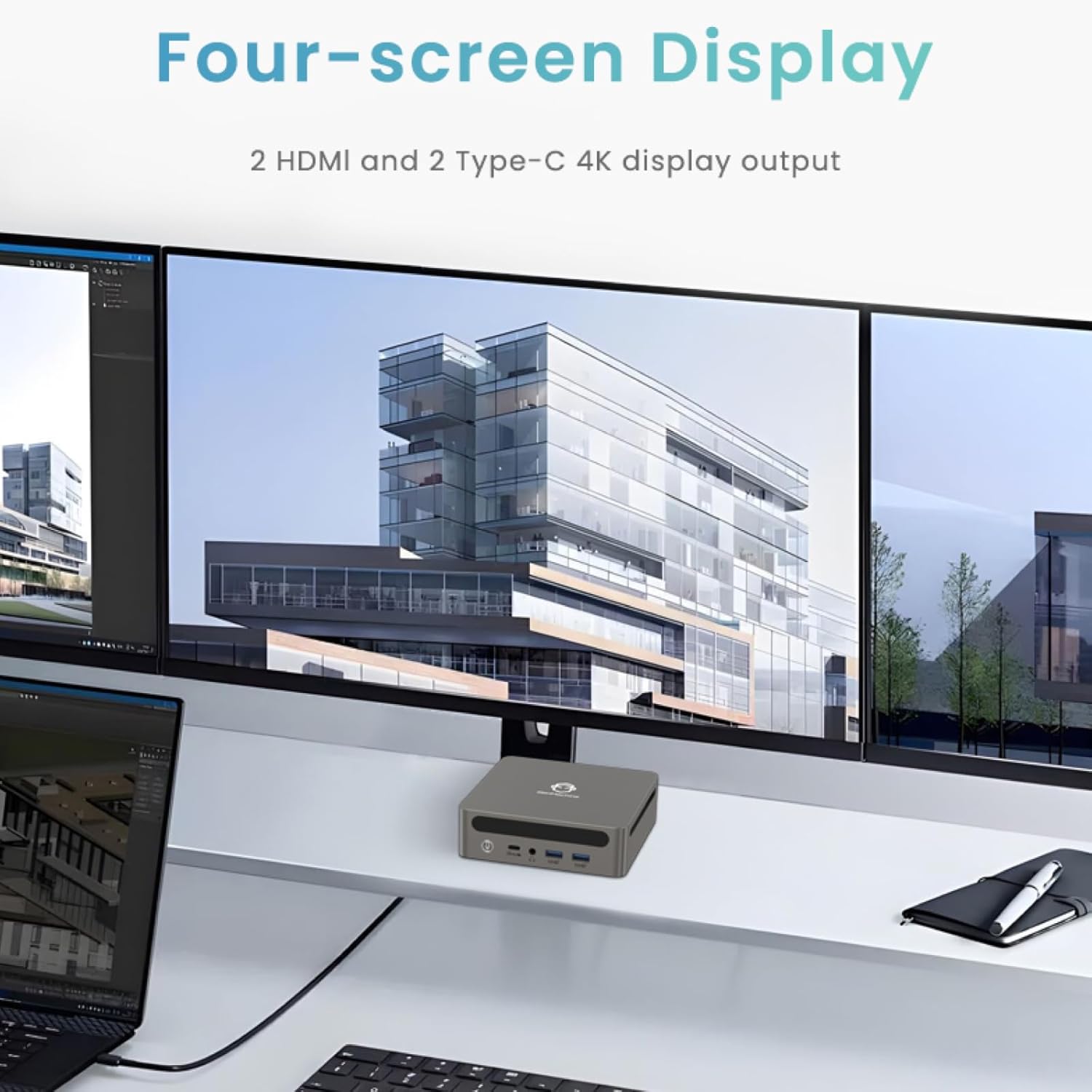
Image: Four-Screen Display Setup. This image demonstrates the GenMachine Mini PC connected to four monitors, showcasing its multi-display capabilities for enhanced productivity.
To configure multiple displays, connect your monitors and then adjust display settings within your operating system (e.g., Extend, Duplicate, or Second screen only).
7. Одржавање
7.1 Чишћење
Regularly clean the exterior of the Mini PC with a soft, dry cloth. For stubborn dirt, slightly dampen the cloth with water. Do not use harsh chemicals or abrasive cleaners. Ensure ventilation openings are free of dust buildup.
7.2 Ажурирања софтвера
Keep your operating system and drivers updated to ensure optimal performance and security. Check for updates regularly through your operating system's settings.
7.3 Складиштење
Када се не користи дуже време, чувајте Мини рачунар на хладном и сувом месту, даље од директне сунчеве светлости и екстремних температура.
КСНУМКС. Решавање проблема
| Проблем | Могући узрок | Решење |
|---|---|---|
| Нема струје | Power adapter not connected; power outlet faulty. | Ensure power adapter is securely connected to the Mini PC and a working power outlet. Try a different outlet. |
| Нема приказа на монитору | Monitor not connected; incorrect input source selected on monitor; faulty cable. | Check HDMI/USB-C cable connections. Ensure the monitor is set to the correct input source. Try a different cable or monitor. |
| Ви-Фи се не повезује | Incorrect password; router issue; Wi-Fi adapter driver issue. | Verify Wi-Fi password. Restart your router. Check operating system settings for Wi-Fi adapter status and drivers. |
| Систем је спор или не реагује | Too many applications running; insufficient free storage; outdated drivers. | Close unnecessary applications. Free up disk space. Update operating system and drivers. Restart the Mini PC. |
9. Спецификације
The following table details the technical specifications of the GenMachine Mini PC AMD Ryzen 7 7735HS:
| Феатуре | Детаљ |
|---|---|
| Процесор | AMD Ryzen 7 7735HS (3.2 GHz, 8 Cores, 16 Threads, up to 4.75 GHz Max Boost Clock) |
| Графика | AMD Radeon Graphics (Integrated, 680 MB RAM) |
| РАМ | 32GB LPDDR5 (up to 6400 Mb/s) |
| Складиштење | 512GB 2280 SSD (PCIE x 16 interface) |
| Оперативни систем | OS (Windows 11 typically pre-installed) |
| Видео Оутпут | 2x HDMI (4K @ 60Hz), 1x USB-C (4K display output), supports up to 3 displays |
| УСБ портови | 2x USB 3.0, 2x USB 2.0, 1x USB-C (full-function USB 4.0 port) |
| Умрежавање | Wi-Fi 6, Bluetooth 5.2, Dual 2.5G Ethernet |
| Аудио | Аудио Јацк |
| Димензије | 6.34 x 6.3 x 3.62 инча (приближно 16.1 x 16 x 9.2 цм) |
| Тежина | 2.4 фунти (приближно 1.09 кг) |
| Боја | Сливер |

Image: AMD Ryzen 7 7735HS Processor. This image highlights the specifications of the AMD Ryzen 7 7735HS processor, including its 8 cores, 16 threads, and up to 4.75 GHz max boost clock.

Image: LPDDR5 Memory Performance. This image illustrates the enhanced speed of LPDDR5 RAM, showing a 50% increase in maximum DRAM bandwidth compared to LPDDR4X, reaching up to 6400 Mb/s.
10. Гаранција и подршка
For warranty information and technical support, please refer to the documentation included with your purchase or visit the official GenMachine webсајт. Сачувајте доказ о куповини за потребе гаранције.
For further assistance, you may contact GenMachine customer service through their official channels.