
1. Увод
This manual provides essential information for the proper installation, operation, and maintenance of your GAMEON Pro Series 27-inch Fast IPS Gaming Monitor (Model: GOAE27QHD165IPS). Please read this manual thoroughly before using the product to ensure optimal performance and safety. Keep this manual for future reference.

Слика 1.1: Предња страна view of the GAMEON Pro Series 27-inch Fast IPS Gaming Monitor, showcasinњегове танке оквире и постоље.
The GAMEON Pro Series 27-inch Fast IPS Gaming Monitor features a QHD 2K (2560x1440p) resolution, a 165Hz refresh rate, and a 0.5ms MPRT response time. It supports Adaptive-Sync and Variable Refresh Rate (VRR) technologies for smooth, tear-free gameplay. Connectivity options include dual HDMI 2.1 ports and dual DisplayPort 1.4 ports, along with an audio-out jack and integrated speakers. This monitor is compatible with various gaming consoles and PCs, including PS5.
2. Садржај пакета
Молимо вас да проверите садржај пакета након распакивања. Ако неке ставке недостају или су оштећене, обратите се продавцу.
- GAMEON Pro Series 27-inch Fast IPS Gaming Monitor
- Постоље за монитор (база и врат)
- Адаптер за напајање и кабл за напајање
- ХДМИ кабл
- ДисплаиПорт Цабле
- Упутство за употребу
3. Подешавање
3.1 Склапање монитора
- Пажљиво извадите монитор из паковања, штитећи екран.
- Причврстите врат постоља на панел монитора. Уверите се да је безбедно закачено на своје место или да је причвршћено завртњима ако су приложени.
- Attach the stand base to the stand neck and tighten the screw at the bottom of the base.
- Поставите састављени монитор на стабилну, равну површину.
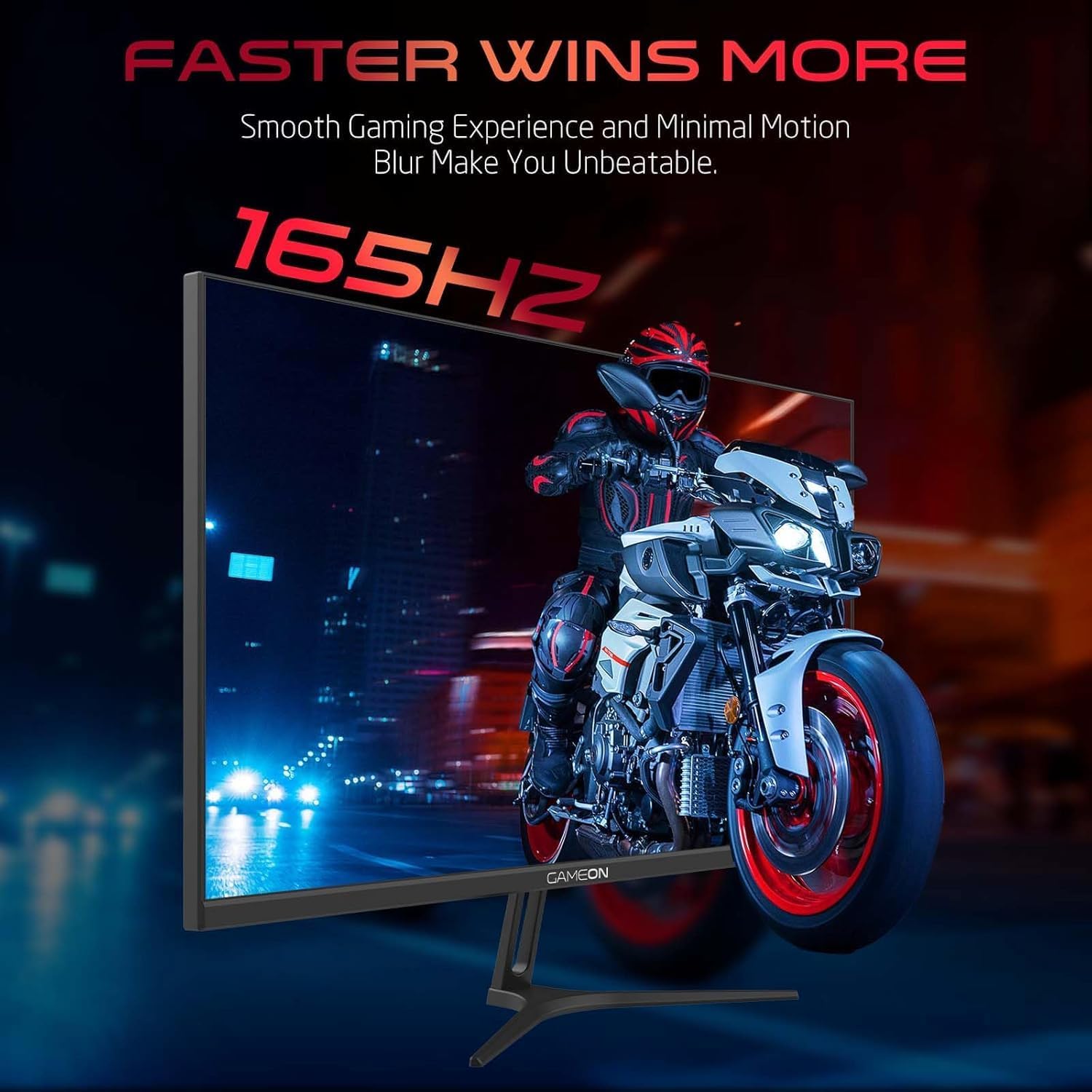
Image 3.1: Illustration of the monitor with its stand, ready for assembly.
3.2 Повезивање са уређајима
The monitor offers multiple input options. Choose the appropriate cable for your device (PC, gaming console, etc.).

Слика 3.2: Позади view of the monitor, highlighting the input ports and VESA mounting points.

Image 3.3: Detailed diagram illustrating the various input/output ports and their corresponding devices.
- ХДМИ веза: Connect one end of the HDMI cable to the HDMI output port of your device (PC, PS5, Xbox, TV box) and the other end to one of the HDMI 2.1 ports on the monitor.
- ДисплаиПорт веза: Connect one end of the DisplayPort cable to the DisplayPort output of your PC and the other end to one of the DisplayPort 1.4 ports on the monitor.
- Аудио излаз: For external audio, connect headphones or external speakers to the 3.5mm audio-out jack on the monitor.
3.3 Прикључак за напајање
- Connect the power adapter to the DC IN port on the monitor.
- Plug the power cable into the power adapter, then plug the other end of the power cable into a power outlet.
4. Упутство за употребу
4.1 Укључивање/искључивање
Притисните дугме за напајање које се налази на монитору да бисте га укључили или искључили. Индикаторска лампица напајања ће светлети када је монитор укључен.
4.2 Приказ на екрану (ОСД) мени
The monitor features a menu button (often a joystick or a series of buttons) usually located on the back or bottom right of the monitor. Use this to navigate the OSD menu and adjust settings.
- Press the menu button to open the OSD menu.
- Користите контроле за навигацију да бисте се кретали кроз опције менија.
- Press the menu button again (or a designated 'Enter' button) to select an option.
- Use the navigation controls to adjust values or select sub-menus.
- Select 'Exit' or press the menu button repeatedly to close the OSD menu.
4.3 Уобичајена подешавања OSD-а
- Подешавања слике: Подесите осветљеност, контраст, оштрину, гаму и температуру боје.
- Подешавања боја: Fine-tune RGB values, hue, and saturation.
- Извор уноса: Manually select between HDMI 1, HDMI 2, DisplayPort 1, or DisplayPort 2.
- аудио: Подесите јачину звука за уграђене звучнике или повезане слушалице.
- Карактеристике игара: Enable/disable Adaptive-Sync/FreeSync, adjust overdrive settings, and activate crosshair overlays if available.
4.4 PS5 120Hz Setup Guide
To enable 120Hz output on your PlayStation 5 with this monitor, follow these steps:

Image 4.1: Visual guide for configuring 120Hz refresh rate on a PlayStation 5 console.
- Enable 120Hz from PS5 Settings:
- Иди на Подешавања > Screen and Video > Видео Оутпут.
- Сет Enable 120Hz Output да Аутоматски.
- Сет Резолуција да 1080п or Аутоматски. (Note: While the monitor supports 1440p, some PS5 games may require 1080p for 120Hz output.)
- Enable Performance Mode for Gamers:
- Иди на Подешавања > Save Data and Game App Settings > Пресетс игре.
- Сет Режим перформанси као подразумевани.
- Check In-Game Settings:
- Go to the specific game's Подешавања игре > Видео Сеттингс и изаберите 120фпс or Режим перформанси.
5. Одржавање
5.1 Чишћење екрана
- Искључите монитор и искључите кабл за напајање.
- Лагано користите меку крпу која не оставља длачице дampводом или специјализованим средством за чишћење екрана.
- Wipe the screen gently. Do not press hard or use abrasive materials.
- Avoid using alcohol, ammonia, or benzene-based cleaners, as they may damage the screen surface.
5.2 Чишћење Casing
- Користите меку, суву крпу да обришете монитор casing.
- За тврдокорне мрље лагано дampобришите крпу водом и благим детерџентом, а затим обришите сувим.
КСНУМКС. Решавање проблема
Ако наиђете на проблеме са монитором, погледајте следећи водич за решавање проблема:
| Проблем | Могући узрок | Решење |
|---|---|---|
| Нема слике на екрану | No power; Incorrect input source; Loose video cable | Ensure power cable is securely connected and power outlet is active. Press power button. Check OSD menu to select correct input source (HDMI/DP). Reconnect video cable firmly. |
| Слика је мутна или искривљена | Incorrect resolution; Video cable issue | Set display resolution to 2560x1440p in your device's display settings. Try a different video cable. |
| Нема звука | Volume too low; Incorrect audio output selected; Loose audio cable | Adjust monitor volume via OSD. Ensure monitor is selected as the audio output device on your PC/console. Check external audio cable connection if using headphones/speakers. |
| Екран трепери | Refresh rate mismatch; Adaptive-Sync/VRR issue | Ensure your device's refresh rate is set to 165Hz. If flickering persists with Adaptive-Sync/VRR enabled, try disabling it in the OSD or your graphics card settings. |
| Monitor not detected by PC/console | Video cable issue; Driver issue | Try a different video cable or port. Update your graphics card drivers. Restart your PC/console. |
7. Спецификације
Below are the technical specifications for the GAMEON Pro Series 27-inch Fast IPS Gaming Monitor (GOAE27QHD165IPS):
| Феатуре | Спецификација |
|---|---|
| Величина екрана | 27 инча |
| Панел Типе | Скоро ИПС |
| Резолуција | QHD 2K (2560x1440p) |
| Рефресх Рате | 165Хз |
| Време одговора | 0.5мс МПРТ |
| Однос контраста | 1000:1 |
| Осветљеност | 280 (±30) nits typical |
| Viewинг Англес | Широко viewing angles (IPS technology) |
| Адаптиве Синц Тецхнологи | Adaptive-Sync, FreeSync, VRR Compatible |
| Повезивање | 2x HDMI 2.1, 2x DisplayPort 1.4, 1x аудио излаз (3.5 мм) |
| Аудио | Built-in 4Ω2W speakers |
| Компатибилност ВЕСА носача | 100к100мм |
| Повер Инпут | Екстерни ДЦ 12В 4А адаптер |
| Максимална потрошња енергије | 48В |
| Димензије производа (са постољем) | 16.2 к 61.4 к 45.3 цм |
| Тежина производа | 5.84 кг |
| Број модела | GOAE27QHD165IPS |
8. Гаранција и подршка
The GAMEON Pro Series 27-inch Fast IPS Gaming Monitor comes with a 2 година гаранције од датума куповине. Ова гаранција покрива производне недостатке при нормалној употреби. Молимо вас да сачувате доказ о куповини за потребе подношења захтева за гаранцију.
For technical support, warranty inquiries, or service requests, please contact GAMEON customer service through their official website or the retailer where the product was purchased. Provide your monitor's model number (GOAE27QHD165IPS) and a detailed description of the issue to expedite assistance.