
Увод
This manual provides essential information for the proper setup, operation, maintenance, and troubleshooting of your KTC H27T27 27-inch WQHD IPS Flat Monitor. Please read this manual thoroughly before using the product to ensure optimal performance and safety.
The KTC H27T27 monitor features a 27-inch WQHD (2560x1440) IPS panel with a 100Hz refresh rate, designed to deliver clear and detailed images with smooth motion. It includes FreeSync technology for enhanced visual fluidity during dynamic content. The IPS panel ensures vivid colors and wide viewинг углова.

Figure 1: KTC H27T27 27-inch WQHD IPS Flat Monitor Front View
Сетуп
1. Распакивање
Carefully remove all components from the packaging. Ensure all items listed in the packing list are present and undamaged. Retain the original packaging for future transport or service needs.
2. Склоп штанда
- Поставите монитор лицем надоле на меку, чисту површину да бисте спречили огреботине.
- Причврстите основу постоља на врат постоља помоћу приложених вијака.
- Поравнајте састављено постоље са отвором за монтажу на задњој страни монитора и чврсто га причврстите.
3. VESA монтажа (опционо)
The monitor supports VESA 100x100mm mounting. If using a VESA mount, remove the stand and attach the VESA compatible bracket to the monitor's rear panel using appropriate screws.
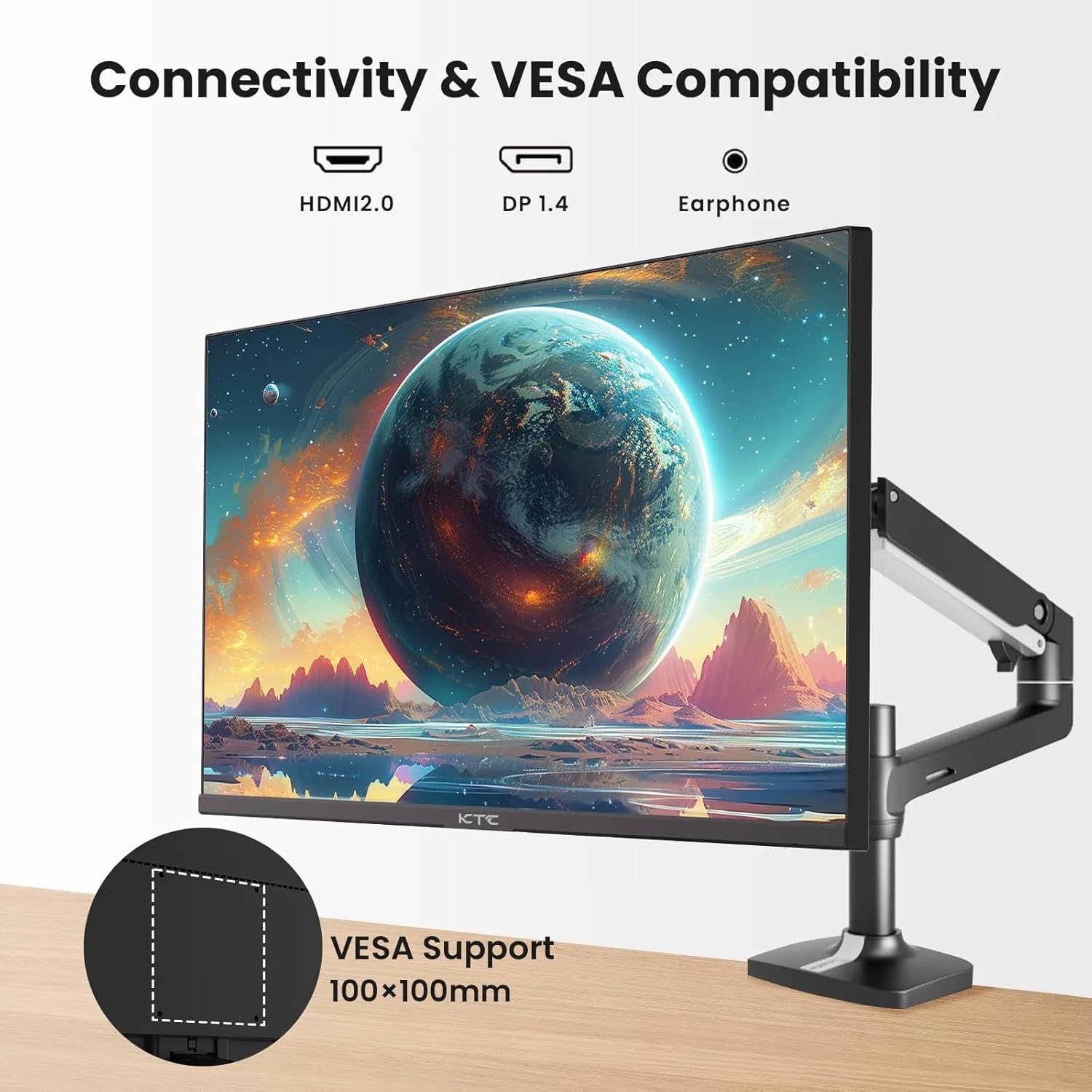
Figure 2: VESA Compatibility and Connectivity Ports
4. Повезивање каблова
Повежите потребне каблове са монитором и рачунаром или другим уређајима. Уверите се да су сви прикључци безбедни.
- Кабл за напајање: Connect the power adapter to the monitor's DC input port, then plug the power cable into a power outlet.
- Видео кабл: Connect either an HDMI cable (HDMI 2.0) or a DisplayPort cable (DP 1.4) from your computer's graphics card to the corresponding input port on the monitor.
- Аудио излаз: If desired, connect headphones or external speakers to the 3.5mm audio output jack.

Слика 3: Улазни портови за монитор
5. Прво укључивање
Press the power button on the monitor. The power indicator light will illuminate. If no image appears, ensure your computer is powered on and the correct input source is selected on the monitor.
Оперативни
1. Укључивање/искључивање
Press the power button located on the monitor to turn it on or off. The power indicator will show the monitor's status.
2. Он-Сцреен Дисплаи (ОСД) мени
The OSD menu allows you to adjust various monitor settings. Use the control buttons (usually located on the back or bottom of the monitor) to navigate the menu.
- Press a button to activate the OSD menu.
- Користите дугмад за навигацију да бисте се кретали кроз опције менија.
- Press a selection button to enter a sub-menu or confirm a setting.
- Press an exit button to close the OSD menu.
3. Подешавање подешавања
Уобичајена подесива подешавања укључују:
- Осветљеност/контраст: Подесите укупну осветљеност и разлику између светлих и тамних подручја.
- Подешавања боја: Modify color temperature, gamma, and individual RGB values.
- Извор уноса: Ручно изаберите између HDMI 1, HDMI 2 или DisplayPort улаза.
- Режим слике: Select predefined display modes (e.g., Standard, Game, Movie).
4. Брзина освежавања
The KTC H27T27 supports a 100Hz refresh rate, providing smoother motion compared to standard 60Hz displays. Ensure your graphics card and operating system are configured to output at 100Hz for the best experience.

Figure 4: 100Hz Refresh Rate Benefit
5. FreeSync Technology
This monitor is compatible with AMD FreeSync technology, which synchronizes the monitor's refresh rate with your graphics card's frame rate. This helps eliminate screen tearing and stuttering for a smoother gaming and video experience. Ensure FreeSync is enabled in both the monitor's OSD menu and your graphics card's control panel.
Figure 5: FreeSync Technology in Action
Одржавање
1. Чишћење екрана
- Искључите монитор и извуците кабл за напајање.
- Нежно обришите екран меком крпом која не оставља длачице.
- За тврдокорне трагове, лагано дampОбришите крпу водом или специјализованим средством за чишћење екрана (не прскајте директно по екрану).
- Избегавајте употребу абразивних средстава за чишћење, алкохола или раствора на бази амонијака, јер они могу оштетити површину екрана.
2. Општа нега
- Држите монитор даље од директне сунчеве светлости, прекомерне топлоте и влаге.
- Обезбедите одговарајућу вентилацију око монитора како бисте спречили прегревање.
- Избегавајте стављање тешких предмета на монитор или његове каблове.
Решавање проблема
Ако наиђете на проблеме са монитором, погледајте следеће уобичајене проблеме и решења:
- Нема напајања:
- Ensure the power cable is securely connected to both the monitor and the power outlet.
- Verify the power outlet is functional. - Нема сигнала:
- Check that the video cable (HDMI or DisplayPort) is securely connected to both the monitor and your computer.
- Ensure your computer is powered on and not in sleep mode.
- Select the correct input source via the monitor's OSD menu. - Треперење или искривљена слика:
- Check the video cable for damage or loose connections.
- Adjust the refresh rate settings on your computer.
- Disable or enable FreeSync in the OSD menu and graphics card settings to test. - Нетачне боје:
- Reset color settings to factory defaults in the OSD menu.
- Adjust color temperature or individual RGB values.
Ако проблем и даље постоји након покушаја ових решења, обратите се корисничкој подршци.
Спецификације
| Феатуре | Спецификација |
|---|---|
| Бранд | КТЦ |
| Број модела | Х27Т27 |
| Величина екрана | 27 инча |
| Резолуција | 2560к1440 (ВКХД) |
| Рефресх Рате | 100 Хз |
| Дисплаи Типе | ИПС |
| Време одговора | 7 милисекунди |
| Адаптиве Синц | ФрееСинц |
| Повезивање | 2x HDMI 2.0, 1x DisplayPort 1.4, 1x 3.5mm Audio Out |
| Аспецт Ратио | 1.78:1 |
| Површина екрана | Мат |
| Димензије артикла (Д к Ш к В) | 1.85"Д к 24.25"Ш к 14.33"В |
| Тежина артикла | 4 килограма |
Гаранција и подршка
Информације о гаранцији
This KTC monitor is covered by a manufacturer's warranty. Please refer to the warranty card included in your product packaging for specific terms, conditions, and duration of coverage. Keep your purchase receipt as proof of purchase for warranty claims.
Корисничка подршка
For technical assistance, warranty service, or any product-related inquiries, please contact KTC customer support. Contact details can typically be found on the official KTC webсајту или на гарантном листу.
When contacting support, please have your monitor's model number (H27T27) and serial number ready.