
1. Увод
Thank you for choosing the Auusda T156A 15.6-inch Business Laptop. This manual provides essential information for setting up, operating, and maintaining your new laptop. Please read this manual thoroughly before using the device to ensure proper function and longevity. This laptop is designed for productivity and portability, featuring a 4-core processor, 8GB DDR4 RAM, and a 512GB M.2 PCIe NVMe SSD, all running on Windows 11 Pro.
2. Садржај пакета
Проверите да ли су све ставке присутне у пакету:
- Auusda T156A Laptop
- Адаптер за напајање и кабл
- Transparent Keyboard Cover
- Spanish Keyboard Cover
- Упутство за употребу (овај документ)

Image: The laptop, power adapter, and keyboard covers as included in the package.
3. Производ је готовview
3.1 Кључне карактеристике
- Моћне перформансе: Equipped with a 4-core N95 processor (1.7-3.4 GHz) and 8GB DDR4 RAM for efficient multitasking.
- AmpЛе Стораге: Features a 512GB M.2 PCIe NVMe SSD for fast data access and sufficient storage.
- Vibrant Full HD Display: A 15.6" Full HD IPS LCD screen offers clear visuals with wide viewинг углова.
- Погодне карактеристике: Includes a backlit keyboard for low-light use and a fingerprint reader for secure access.
- Connectivity & Versatility: Offers Bluetooth, an SD card reader, and essential ports for various devices.

Слика: Оверview of the Auusda T156A laptop with its main features labeled.
3.2 Процесор и меморија
The laptop is powered by an Intel N95 4-core processor, capable of speeds up to 3.4 GHz, ensuring smooth operation for business and academic tasks. It comes with 8GB of DDR4 RAM and a 512GB M.2 PCIe NVMe Solid State Drive (SSD) for quick boot times and application loading.

Image: A visual representation of the 4-core N95 processor chip.

Image: The laptop highlighting its 8GB RAM and 512GB SSD configuration.
3.3 Дисплеј
Experience clear and vibrant visuals on the 15.6-inch Full HD (1920x1080) IPS LCD display. The screen features a narrow bezel and supports 16 million colors, providing an immersive viewing experience. A privacy shutter is integrated for the webцам.

Image: The laptop's 15.6-inch Full HD IPS LCD display and its features.
3.4 Тастатура и тачпед
The laptop features a full-size backlit keyboard, allowing comfortable typing in various lighting conditions. The integrated touchpad includes a fingerprint sensor for secure and quick login.

Image: The backlit keyboard and the fingerprint ID sensor on the touchpad.
3.5 Портови и повезивање
The Auusda T156A offers a range of connectivity options:
- Улаз једносмерне струје
- USB-A Ports (multiple)
- ХДМИ излаз
- Читач мицроСД картица
- Прикључак за слушалице
- Bluetooth and Wi-Fi (802.11ac, 802.11ax)
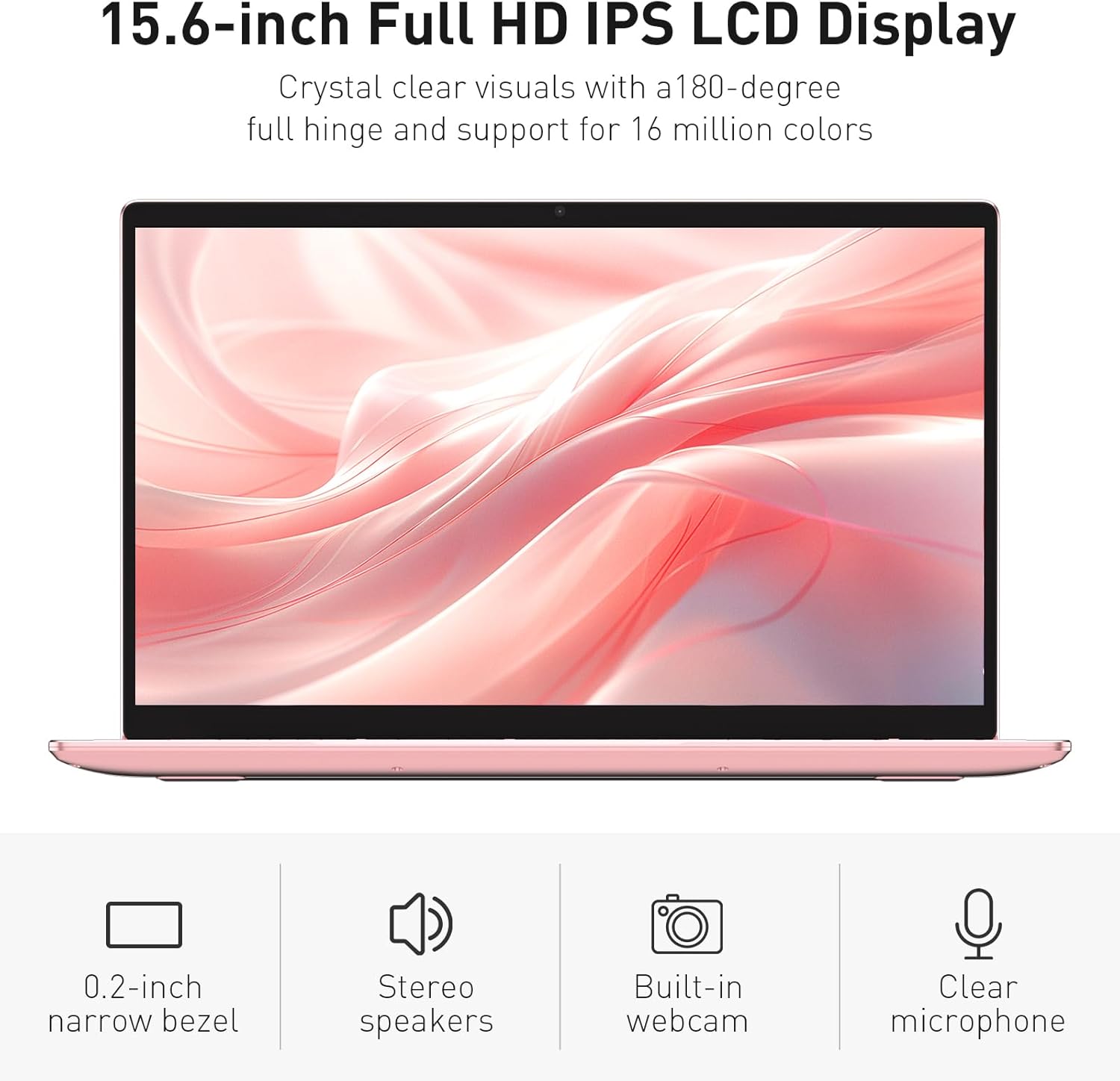
Image: The various ports available on the sides of the laptop.
4. Подешавање
4.1 Прво укључивање и пуњење
- Извадите лаптоп и адаптер за напајање из кутије.
- Connect the power adapter to the DC power input port on the laptop and then to a power outlet.
- Allow the laptop to charge for at least 30 minutes before initial use, or until the charging indicator light shows a full charge.
- Притисните дугме за напајање да бисте укључили лаптоп.
4.2 Подешавање система Windows 11 Pro
Follow the on-screen instructions to complete the initial Windows 11 Pro setup. This will include:
- Избор региона и распореда тастатуре.
- Повезивање на Ви-Фи мрежу.
- Прихватање лиценцног уговора.
- Креирање корисничког налога или пријављивање помоћу Microsoft налога.
4.3 Fingerprint Sensor Setup
For enhanced security, set up the fingerprint sensor:
- Када је Windows подешен, идите на Подешавања > Налози > Опције пријављивања.
- Under 'Windows Hello Fingerprint', click Подесите.
- Follow the on-screen prompts to register your fingerprint. You will be asked to lift and place your finger multiple times on the sensor until it is fully registered.
5. Управљање лаптопом
5.1 Основна употреба
- Укључивање/искључивање: Притисните дугме за напајање које се налази у горњем десном углу тастатуре да бисте укључили или искључили лаптоп.
- Режим спавања: Close the lid or press the power button briefly to put the laptop into sleep mode.
- Поновно покретање/Искључивање: Access these options from the Start Menu in Windows.
5.2 Backlit Keyboard Control
The keyboard backlight can be adjusted or turned off using the function keys. Look for the key with a keyboard icon (often F5 or F6) to cycle through brightness levels or toggle the backlight on/off.
5.3 Webцам Приваци Схуттер
Интегрисани webcam includes a physical privacy shutter. Slide the small cover located directly above the webcam lens to open or close it, ensuring your privacy when the camera is not in use.
5.4 Повезивање екстерних уређаја
Use the available ports to connect peripherals:
- УСБ уређаји: Plug USB drives, mice, or keyboards into the USB-A ports.
- Спољашњи екран: Connect an external monitor or projector using the HDMI port.
- аудио: Use the headphone jack for headphones or external speakers.
- МицроСД картица: Insert a microSD card into the dedicated slot for additional storage or data transfer.
5.5 Перформансе у играма
The Auusda T156A is capable of handling light gaming and provides a smooth experience for many popular titles. For optimal performance, ensure your drivers are updated and close unnecessary background applications.
Video: Demonstration of the Auusda T156A laptop's light gaming capabilities.
Видео: Кратак исечакasing the laptop's performance during racing games.
6. Одржавање
- Чишћење: Користите меку крпу која не оставља влакна за чишћење екрана и спољашњости. За тврдокорне мрље, дampОбришите крпу водом или средством за чишћење екрана. Избегавајте јаке хемикалије.
- Одржавање батерије: To prolong battery life, avoid fully discharging the battery frequently. It is recommended to keep the battery charged between 20% and 80% when possible. Store the laptop in a cool, dry place.
- Ажурирања софтвера: Редовно проверавајте и инсталирајте ажурирања за Windows и ажурирања драјвера како бисте осигурали оптималне перформансе и безбедност.
- вентилација: Уверите се да вентилациони отвори лаптопа нису блокирани како бисте спречили прегревање. Користите лаптоп на тврдој, равној површини.
- Резервна копија података: Редовно правите резервне копије важних података на екстерни диск или складиште у облаку како бисте спречили губитак података.
КСНУМКС. Решавање проблема
This section addresses common issues you might encounter with your Auusda T156A laptop.
| Проблем | Могуће решење |
|---|---|
| Лаптоп се не укључује. | Ensure the power adapter is securely connected and the outlet is working. Try charging the laptop for a while before attempting to power it on again. |
| Екран је празан или црн. | Check if the laptop is powered on. Try pressing Fn + F1 (or the display toggle key) to ensure the display is not turned off. Connect to an external monitor to check if the issue is with the laptop's screen. |
| Проблеми са Wi-Fi везом. | Уверите се да је Wi-Fi омогућен у подешавањима Windows-а. Поново покрените рутер и лаптоп. Проверите да ли постоје ажурирани Wi-Fi драјвери. |
| Сензор отиска прста не ради. | Ensure your finger is clean and dry. Re-register your fingerprint in Windows settings. Check for driver updates for the fingerprint sensor. |
| Позадинско осветљење тастатуре не ради. | Press the dedicated backlight function key (e.g., Fn + F5 or F6) to toggle or adjust brightness. |
| Лаптоп ради споро. | Close unnecessary applications. Check Task Manager for resource-intensive processes. Ensure sufficient free space on the SSD. Run a malware scan. |
8. Спецификације
Detailed technical specifications for the Auusda T156A laptop:
| Феатуре | Детаљ |
|---|---|
| Бранд | Ауусда |
| Назив модела | Т156А |
| Величина екрана | 15.6 инча |
| Величина чврстог диска | 512 GB (SSD) |
| ЦПУ модел | Intel N95 (4-Core, 1.7 GHz base, up to 3.4 GHz turbo) |
| Величина инсталиране РАМ меморије | 8 ГБ ДДР4 |
| Оперативни систем | Виндовс 11 Про |
| Посебне карактеристике | Позадинско осветљење тастатуре, читач отиска прста |
| Грапхицс Цопроцессор | UHD Graphics (Integrated) |
| Технологија повезивања | Bluetooth, Wi-Fi (802.11ac, 802.11ax) |
| Број портова | 2 (USB-A, HDMI, microSD, Headphone Jack) |
| Тип батерије | Lithium Polymer (6000 mAh) |
| Димензије артикла (Д к Ш к дебљина) | 14 cm D x 9 cm Š x 0.7 cm Deb |
| Нативе Ресолутион | 1920 к 1080 пиксела |
| Рефресх Рате | 60 Хз |
| Webcam Capability | Yes (with privacy shutter) |
9. Гаранција и подршка
9.1 Гаранција на производ
The Auusda T156A laptop comes with a 2-годишња гаранција произвођача. Please retain your proof of purchase for warranty claims. For detailed warranty terms and conditions, refer to the documentation provided with your product or contact Auusda customer support.
9.2 Корисничка подршка
For technical assistance, troubleshooting, or service inquiries, please visit the official Auusda Store or contact their customer support channels. You can find more information and support resources at the Auusda Official Store on Amazon.
Video: A short promotional video from the Auusda Official Store, showcasing the laptop's features for college students.