
1. Увод
This manual provides essential instructions for setting up, operating, maintaining, and troubleshooting your CRUA 32-inch 4K UHD 160Hz Curved Gaming Monitor (Model CR320A). Please read this manual thoroughly before using the product to ensure proper functionality and to prevent damage.
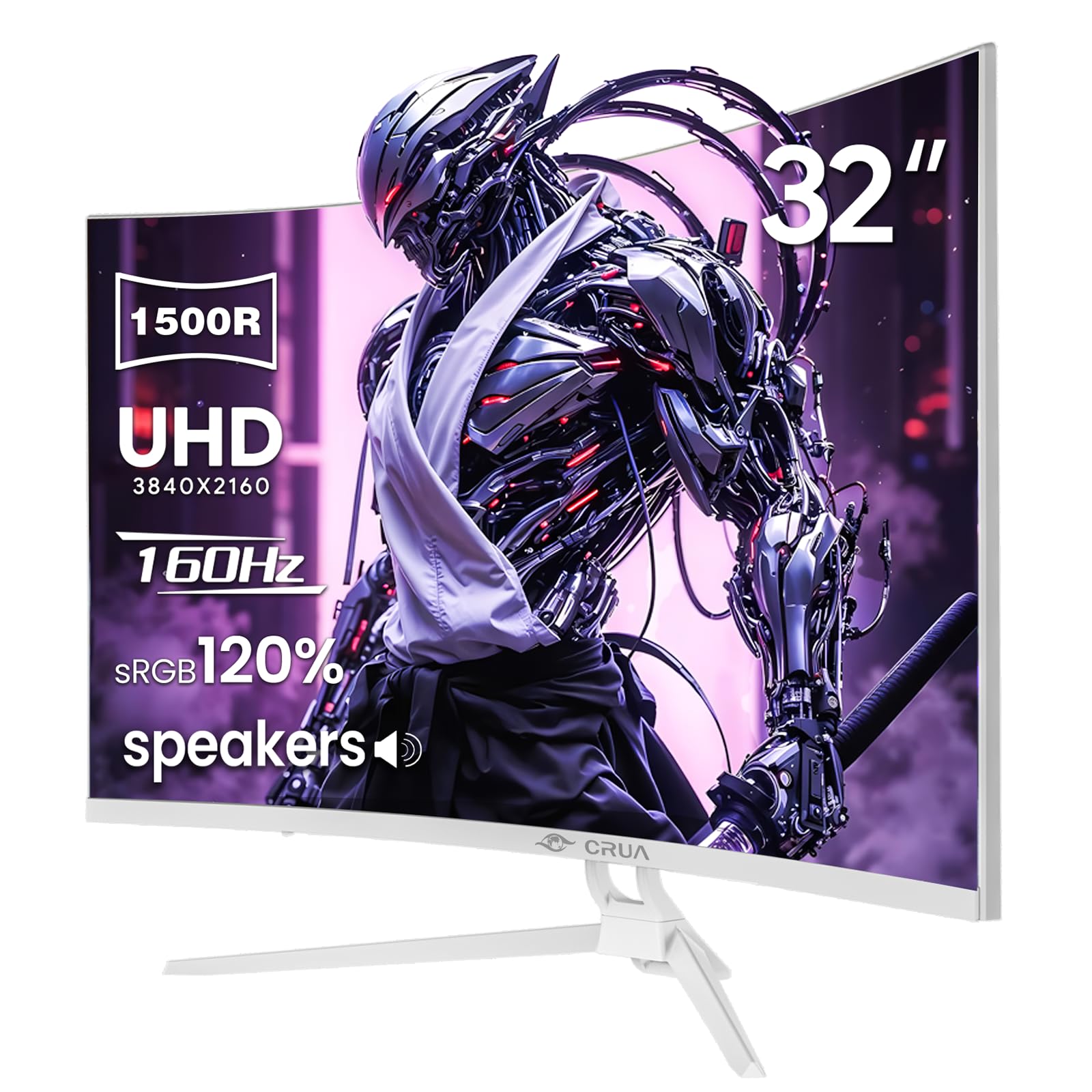
Слика 1: Предња страна view of the CRUA 32-inch 4K UHD 160Hz Curved Gaming Monitor.
2. Шта је у кутији
Проверите да ли су све компоненте присутне у паковању:
- CRUA 32-inch Monitor
- Monitor Base and Support
- DisplayPort (DP) кабл
- Повер Суппли Унит
- Кориснички приручник (овај документ)
3. Подешавање
3.1 Састављање постоља
- Пажљиво извадите монитор из паковања, постављајући га екраном надоле на меку, чисту површину како бисте спречили оштећење екрана.
- Attach the monitor support arm to the back of the monitor. Ensure it clicks securely into place or is fastened with screws if provided.
- Connect the base to the support arm and secure it with the provided screw(s).
Note: The included stand is fixed and does not offer height, tilt, or swivel adjustments. For adjustable positioning, the monitor supports VESA wall mounting (75mm x 75mm) using a compatible VESA mount (sold separately).

Слика 2: Задња страна view of the monitor with stand attachment area and RGB lighting.
3.2 Каблови за повезивање
- Connect the DisplayPort (DP) cable from your computer's graphics card to the DP 1.4 port on the monitor. Alternatively, use an HDMI 2.1 cable for compatible devices.
- Connect the power supply unit to the monitor's power input, then plug the power cord into an electrical outlet.
- Уверите се да су све везе безбедне.

Figure 3: Monitor connectivity ports including HDMI 2.1, DP 1.4, and audio out.
4. Руковање монитором
4.1 Укључивање/искључивање
Притисните дугме за напајање, које се обично налази на задњој или доњој десној страни монитора, да бисте укључили или искључили монитор. Индикаторска лампица напајања ће светлети када је монитор укључен.
4.2 Приказ на екрану (ОСД) мени
The OSD menu allows you to adjust various monitor settings. Use the navigation buttons (joystick or individual buttons) typically found on the back or bottom of the monitor to access and navigate the OSD.
- Извор уноса: Изаберите између DisplayPort и HDMI улаза.
- Подешавања слике: Подесите осветљеност, контраст, оштрину и температуру боје.
- Подешавања боја: Fine-tune color gamut (120% sRGB), gamma, and color depth (8-bit).
- Подешавања за игре: Enable/disable AMD FreeSync, adjust refresh rate (144Hz/160Hz), and other gaming-specific features.
- Аудио подешавања: Control volume for the built-in speakers or connected external audio devices.
- РГБ осветљење: Customize the RGB lighting effects on the back of the monitor.

Figure 4: Visual representation of color and brightness capabilities.
4.3 AMD FreeSync
This monitor supports AMD FreeSync technology, which synchronizes the monitor's refresh rate with your graphics card's frame rate to eliminate screen tearing and stuttering. Ensure FreeSync is enabled in both the monitor's OSD and your graphics card's control panel for optimal performance.

Figure 5: Visualizing the benefit of 160Hz refresh rate and FreeSync.
4.4 Curved Display (1500R)
The 1500R curvature of the screen provides an immersive viewing experience, reducing eye strain and enhancing depth perception, especially beneficial for gaming and multimedia content.
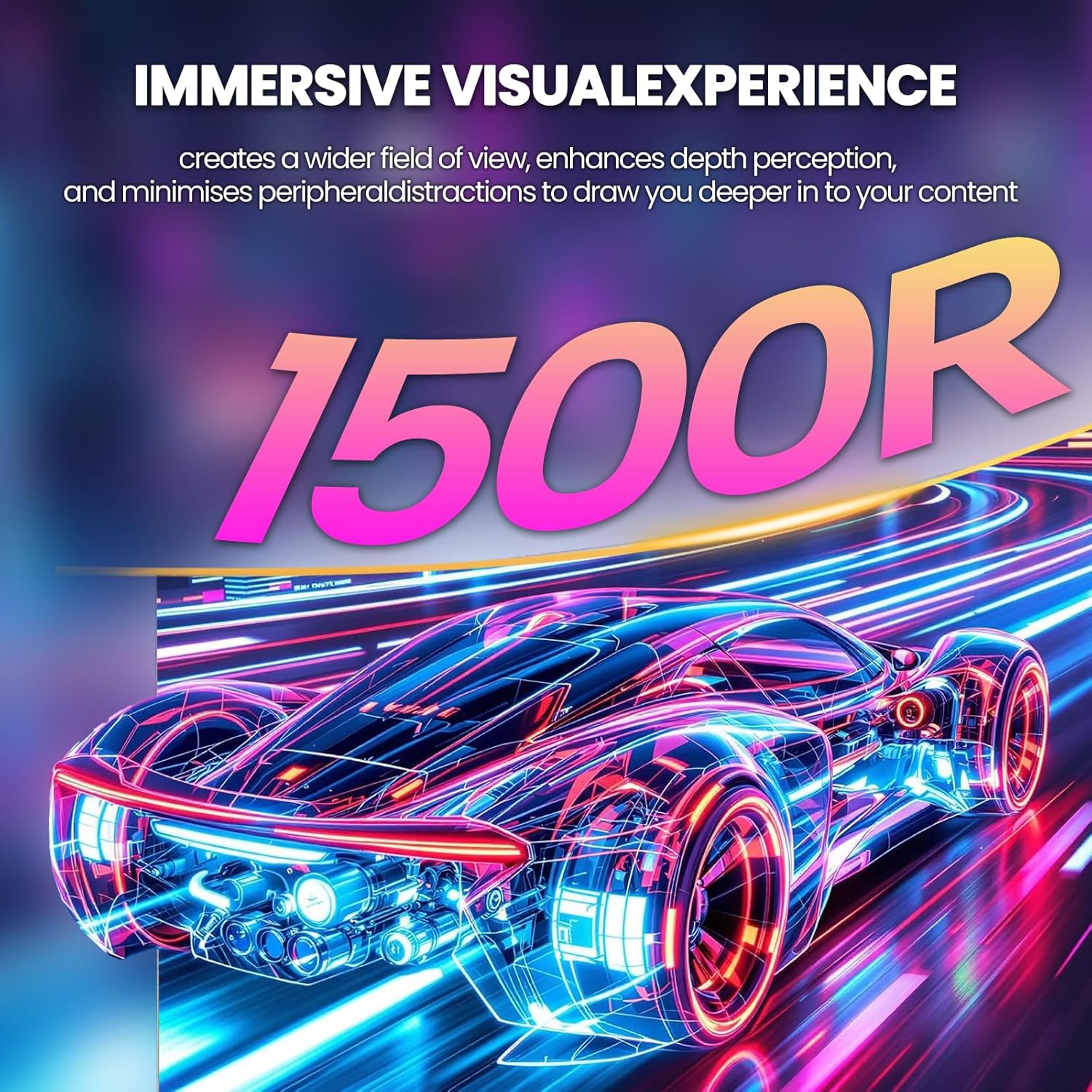
Figure 6: The 1500R curved screen design.
5. Одржавање
5.1 Чишћење монитора
- Увек искључите монитор и извуците кабл за напајање пре чишћења.
- Користите меку крпу која не оставља длачицеampиспрати водом или неабразивним средством за чишћење екрана.
- Не прскајте средство за чишћење директно на екран. Прво га нанесите на крпу.
- Avoid using alcohol, ammonia, or abrasive cleaners, as these can damage the screen surface.
5.2 Општа нега
- Држите монитор даље од директне сунчеве светлости, прекомерне топлоте и влаге.
- Обезбедите одговарајућу вентилацију око монитора како бисте спречили прегревање.
- Избегавајте стављање тешких предмета на монитор или његове каблове.
КСНУМКС. Решавање проблема
6.1 Нема напајања
- Проверите да ли је кабл за напајање безбедно повезан и са монитором и са утичницом.
- Проверите да ли утичница исправно функционише тако што ћете укључити други уређај.
- Уверите се да је дугме за напајање монитора притиснуто.
6.2 Нема сигнала
- Confirm that the video cable (DP or HDMI) is securely connected to both the monitor and your computer/device.
- Уверите се да је изабран исправан улазни извор у OSD менију монитора.
- Check if your computer/device is powered on and outputting a signal.
- Пробајте други видео кабл или порт ако је доступан.
6.3 Screen Flickering or Tearing
- Ensure AMD FreeSync is enabled in both the monitor's OSD and your graphics card settings.
- Verify that your graphics card drivers are up to date.
- Check the refresh rate setting in your operating system's display settings; it should be set to 144Hz or 160Hz.
6.4 Washed Out Colors or Poor Picture Quality
- Access the OSD menu and adjust picture settings such as brightness, contrast, and color temperature.
- Ресетујте монитор на фабричка подешавања преко OSD менија.
- Ensure your graphics card output settings are correctly configured for the monitor's resolution (3840x2160) and color depth.
6.5 No Sound from Built-in Speakers
- Check the volume level in the monitor's OSD menu.
- Verify that the audio output on your computer/device is set to the monitor.
- Ensure the video cable (DP or HDMI) supports audio transmission.
7. Спецификације
| Феатуре | Спецификација |
|---|---|
| Број модела | ЦРКСНУМКСА |
| Величина екрана | 32 инча |
| Панел Типе | VA |
| Закривљеност | 1500Р |
| Резолуција | 4K UHD (3840 x 2160 пиксела) |
| Аспецт Ратио | 16:9 |
| Рефресх Рате | КСНУМКСХз / КСНУМКСХз |
| Осветљеност | 320 кандела (cd/m²) |
| Однос контраста | 3000:1 |
| Гамут боја | 120% сРГБ |
| Дубина боје | 8-битни |
| Површина екрана | Мат |
| Повезивање | HDMI 2.1, DisplayPort 1.4 |
| Аудио | Уграђени звучници |
| Компатибилност ВЕСА носача | 75 мм к 75 мм |
| Димензије производа (Д к Ш к В) | 1 к 28 к 16.6 инча |
| Тежина артикла | 16.57 фунти |
8. Гаранција и подршка
8.1 Product Assurance
CRUA is committed to providing high-quality computer monitors and premium services. We offer assurances for our products to ensure customer satisfaction.
8.2 Корисничка подршка
If you encounter any issues or have questions regarding your CRUA monitor, please contact our customer support team. We are available to assist you and resolve any problems you may experience.
For support, please refer to the contact information provided on the official CRUA webсајт или вашу документацију о куповини.