
Увод
Thank you for choosing the CRUA 27-inch 4K UHD 144Hz IPS Gaming Monitor. This monitor is designed to deliver an immersive visual experience with its high resolution, fast refresh rate, and vibrant color reproduction. This manual provides essential information for the proper installation, operation, and maintenance of your new monitor. Please read it thoroughly before use and retain it for future reference.
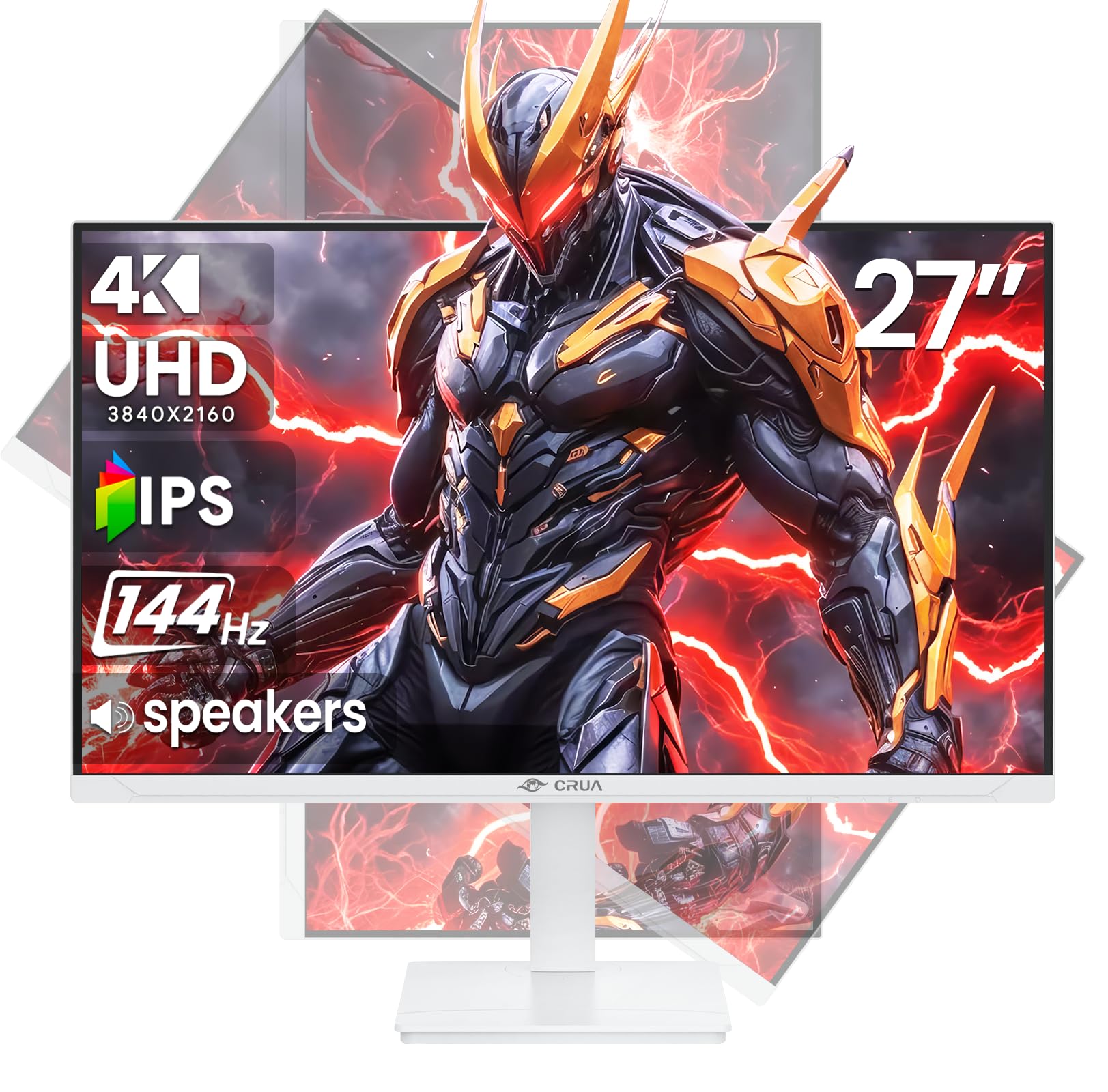
Слика: Фронт view of the CRUA 27-inch 4K UHD 144Hz IPS Gaming Monitor.
Шта је у кутији
Молимо вас да проверите садржај вашег пакета. Ако неке ставке недостају или су оштећене, обратите се продавцу.
- Монитор од 27 инча
- ДП Цабле
- Base and Support
- Упутство за употребу
- Повер Суппли
Карактеристике производа
- 27" 4K Display with IPS Panel: Experience ultra-clear visuals with a 3840x2160P resolution.
- Брзина освежавања од 144Хз: Enjoy fluid and sharp motion, ideal for competitive gaming and fast-paced content.
- 120% sRGB тачност боја: Delivers rich and accurate tones with 350cd/m² brightness and 1000:1 high-contrast.
- Уграђени звучници: Provides clear audio for daily use.
- Full Ergonomic Adjustment: Features height, pivot, tilt, and rotation adjustments for optimal viewинг углова.
- Више опција повезивања: Equipped with 2x HDMI 2.1 and 2x DP 1.4 ports.
- Подршка за AMD FreeSync: Synchronizes the monitor's refresh rate with your GPU for tear-free gaming.
- Може се монтирати на зид: Supports VESA 75mm x 75mm wall mounts for flexible installation.
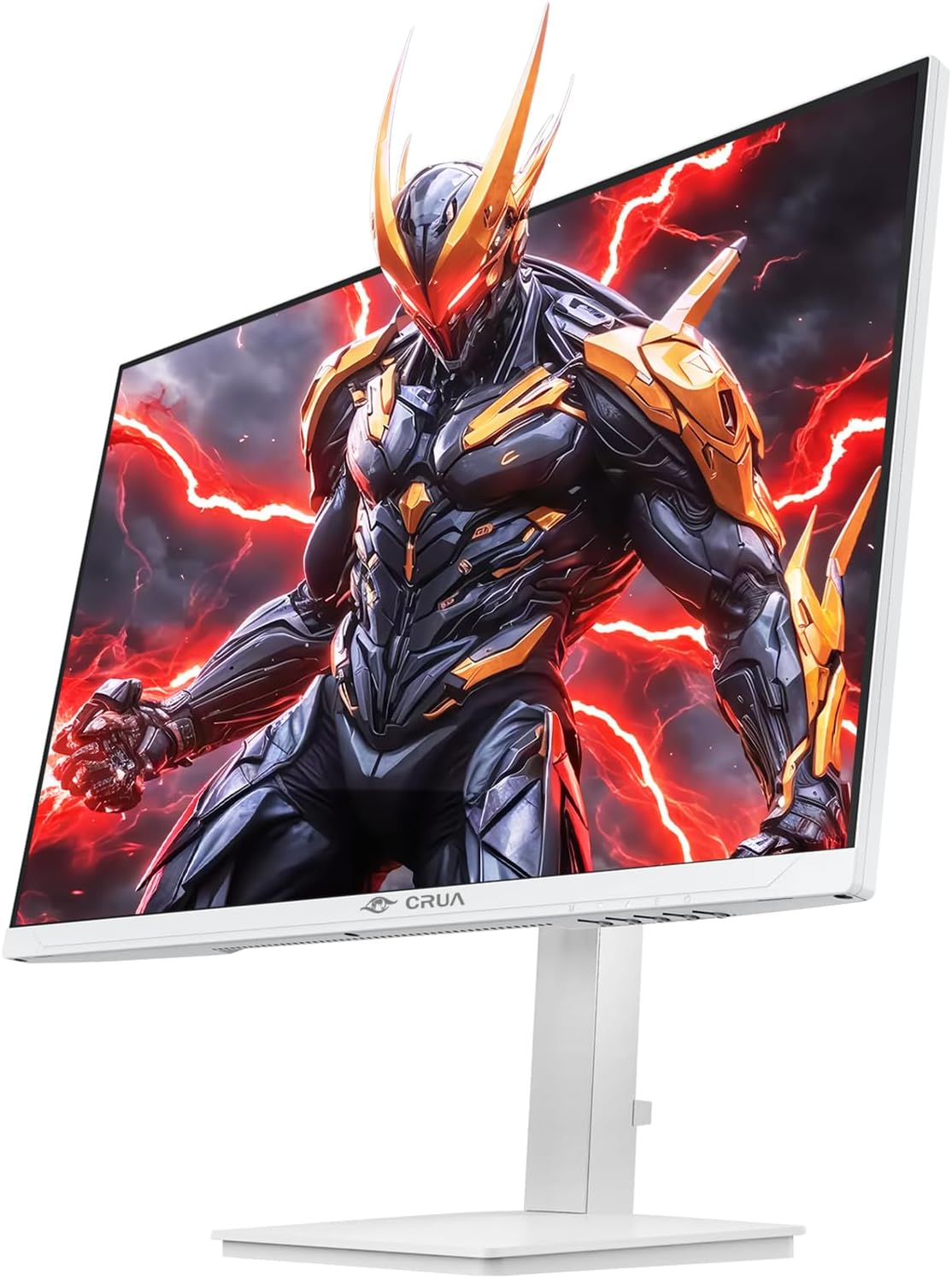
Слика: Фронт view of the CRUA 27-inch 4K UHD 144Hz IPS Gaming Monitor displaying a game scene.

Слика: Позади view of the CRUA 27-inch 4K UHD 144Hz IPS Gaming Monitor showing the stand and RGB lighting.

Слика: Позади view of the CRUA 27-inch 4K UHD 144Hz IPS Gaming Monitor highlighting the input ports (2x DP 1.4, 2x HDMI 2.1, and 3.5mm Audio Port).

Image: Diagram illustrating the adjustable height (110mm), tilt (-5° to +15°), swivel (±30°), and pivot (90°) features of the CRUA 27-inch 4K UHD 144Hz IPS Gaming Monitor.
Упутства за подешавање
1. Састављање постоља
- Пажљиво извадите компоненте монитора и постоља из паковања.
- Причврстите врат постоља на панел монитора. Уверите се да је безбедно закачено на своје место или да је причвршћено завртњима ако су приложени.
- Attach the base to the stand neck, securing it with the thumb screw or other fasteners.
- Поставите састављени монитор на стабилну, равну површину.
2. Монтажа на зид (опционо)
The monitor supports VESA 75mm x 75mm wall mounts. Remove the stand before attaching a compatible wall mount bracket (not included). Follow the instructions provided with your wall mount.
3. Повезивање каблова
- Снага: Connect the power supply to the monitor's power input and then to a power outlet.
- Видео улаз: Connect one end of the provided DP cable (or an HDMI cable) to the corresponding port on your computer's graphics card and the other end to a DP 1.4 or HDMI 2.1 port on the monitor.
- Аудио излаз (опционо): If using external speakers or headphones, connect them to the 3.5mm audio jack on the monitor.
4. Прво укључивање
Press the power button on the monitor. The monitor should automatically detect the input signal. If not, you may need to manually select the input source using the OSD menu.
Упутство за употребу
1. Укључивање/искључивање
Притисните дугме за напајање које се налази на монитору да бисте га укључили или искључили.
2. Навигација кроз OSD мени
The On-Screen Display (OSD) menu allows you to adjust various monitor settings. Navigate the menu using the joystick or buttons typically located on the back or bottom of the monitor.
- Притисните џојстик/дугме да бисте отворили OSD мени.
- Move the joystick up/down or use corresponding buttons to navigate through menu options.
- Померите џојстик лево/десно или користите одговарајућа дугмад да бисте подесили вредности или ушли у подменије.
- Поново притисните џојстик/дугме да бисте потврдили избор или изашли из подменија.
3. Избор извора улаза
If the monitor does not automatically detect the correct input, open the OSD menu, navigate to "Input Source," and select the active input (e.g., HDMI1, HDMI2, DP1, DP2).
4. Подешавање подешавања екрана
Within the OSD menu, you can customize settings such as:
- Осветљеност/контраст: Подесите укупни ниво осветљености и контраста.
- Подешавања боја: Фино подешавање температуре боје, гаме и појединачних RGB вредности.
- Квалитет слике: Select preset modes (e.g., Standard, Game, Movie) or customize sharpness and dynamic contrast.
- Резолуција и брзина освежавања: Ensure your computer's display settings match the monitor's native 4K UHD (3840x2160P) resolution and 144Hz refresh rate for optimal performance.
- АМД ФрееСинц: Enable FreeSync in the OSD menu and your graphics card control panel for adaptive synchronization.
5. Аудио поставке
Adjust the volume of the built-in speakers or connected external audio devices through the OSD menu's audio section. You can also mute the audio if desired.
6. Ергономска подешавања
Подесите монитор како желите viewпозиција:
- Висина: Gently push or pull the monitor up or down along the stand.
- Нагиб: Tilt the screen forward or backward.
- Окретни: Окрените монитор лево или десно на његовој бази.
- Пивот: Rotate the screen 90 degrees for vertical orientation.
Одржавање
Чишћење екрана
- Увек искључите монитор и извуците кабл за напајање пре чишћења.
- Лагано користите меку крпу која не оставља длачице дampводом или специјализованим средством за чишћење екрана.
- Не прскајте средство за чишћење директно на екран.
- Избегавајте употребу абразивних средстава за чишћење, алкохола или раствора на бази амонијака, јер могу оштетити површину екрана.
Општа нега
- Држите монитор даље од директне сунчеве светлости, извора топлоте и прекомерне прашине.
- Обезбедите одговарајућу вентилацију око монитора како бисте спречили прегревање.
- Не стављајте тешке предмете на монитор или његове каблове.
- Избегавајте додиривање екрана оштрим предметима.
Решавање проблема
| Проблем | Могуће решење |
|---|---|
| Нема слике на екрану |
|
| Нема звука из звучника |
|
| Треперење или изобличење слике |
|
| Дугмад не реагују |
|
For further assistance, please refer to the CRUA support webсајту или контактирајте корисничку подршку.
Спецификације
| Феатуре | Детаљ |
|---|---|
| Број модела | ЦР270Е |
| Величина екрана | 27 инча |
| Резолуција | 4K UHD (3840 x 2160 пиксела) |
| Рефресх Рате | 144Хз |
| Панел Типе | ИПС |
| Аспецт Ратио | 16:9 |
| Гамут боја | 120% сРГБ |
| Осветљеност | 350 кандела (cd/m²) |
| Однос контраста | 1000:1 |
| Повезивање | 2x DP 1.4, 2x HDMI 2.1, 1x 3.5mm Audio Jack |
| Адаптиве Синц | АМД ФрееСинц |
| Ергономија | Height, Pivot, Tilt, Rotate Adjustable |
| Валл Моунт | ВЕСА 75 мм к 75 мм |
| Уграђени звучници | Да |
| Димензије производа | 2.5 к 24 к 14 инча |
| Тежина артикла | 11.38 фунти |
Гаранција и подршка
CRUA provides high-quality computer monitors and premium services. For warranty information, technical support, or any questions regarding your monitor, please visit the official CRUA website or contact their customer service team. Details can typically be found on the product packaging or the CRUA brand store on Amazon.
Контакт информације: Refer to your purchase documentation or the CRUA official webсајт за најновије контакт информације за подршку.