
1. Увод
This manual provides instructions for the CINETREAK C2 HDMI Video Switcher Mixer. The C2 is a multi-format professional video switcher designed for live production, featuring a 5.5-inch screen, PTZ camera control, recording, playback, and vertical livestreaming capabilities. Please read this manual thoroughly before operating the device to ensure proper usage and optimal performance.
2. Безбедносне информације
- Ensure proper ventilation to prevent overheating. Do not block any ventilation openings.
- Користите само приложени адаптер за напајање. Коришћење неовлашћеног напајања може оштетити уређај и поништити гаранцију.
- Avoid exposing the device to moisture, rain, or extreme temperatures. Operate within the specified environmental conditions.
- Do not attempt to disassemble or repair the unit yourself. Refer all servicing to qualified service personnel.
- Keep the device away from strong magnetic fields, which can interfere with its operation.
- Handle all cables and connectors with care to prevent damage.
3. Подешавање
3.1 Распакивање и преглед
Carefully unpack the CINETREAK C2 and check for any visible damage. Verify that all listed accessories are present in the package. If any items are missing or damaged, contact your vendor immediately.
3.2 Повезивање напајања
Connect the provided DC 12V power adapter to the "DC 12V IN" port located on the rear panel of the C2. Plug the adapter into a standard electrical outlet. Ensure the connection is secure.
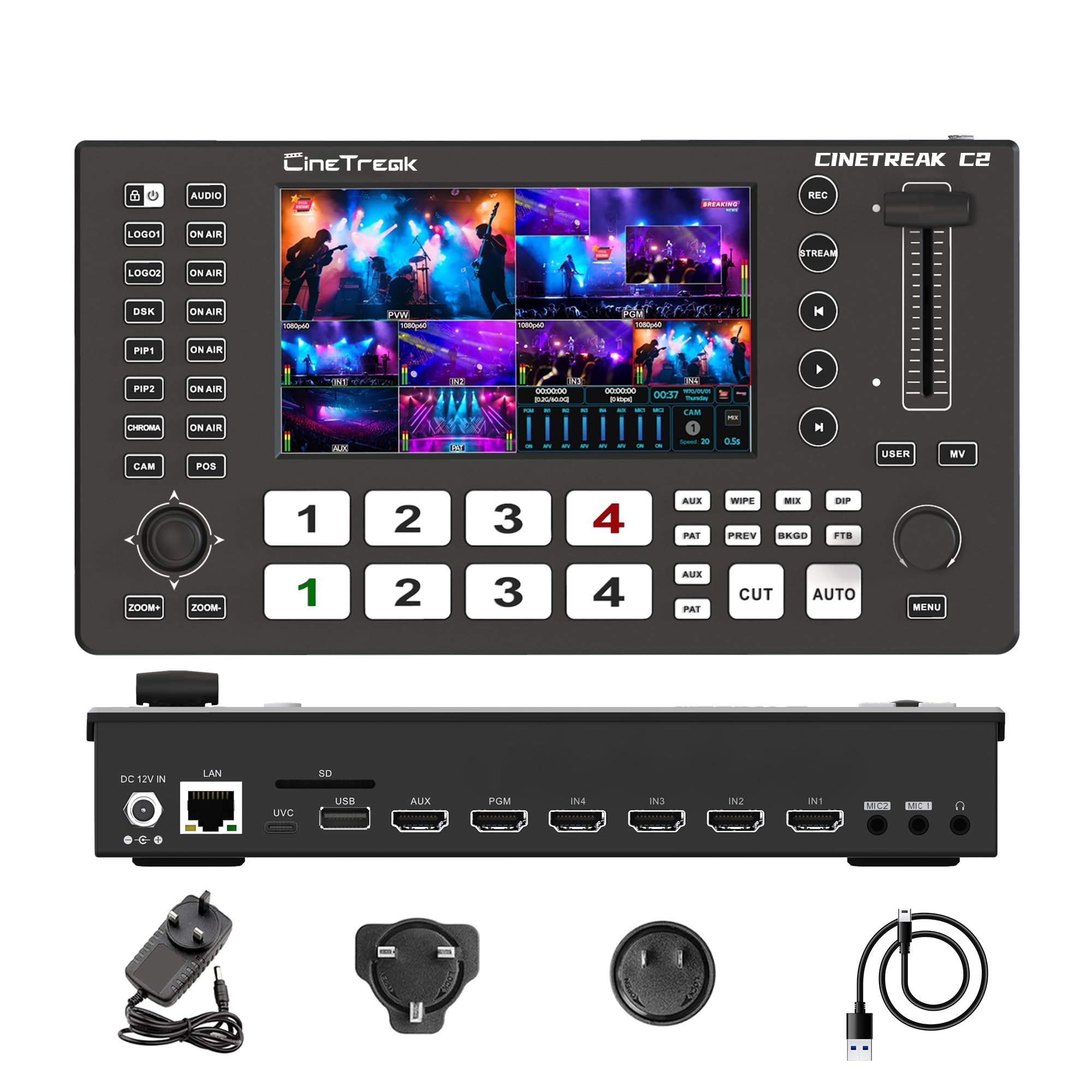
Слика: Позади view of the CINETREAK C2 showing the DC 12V IN port on the left.
3.3 Улазне и излазне везе
The C2 features a variety of input and output ports for flexible integration into your production workflow:
- ХДМИ улази: Up to 4 HDMI inputs (HDMI IN1, HDMI IN2, HDMI IN3, HDMI IN4). HDMI 1 and HDMI 2 ports support 4K resolution input for high-quality video sources.
- АУКС улаз: One AUX channel is available for accessing the internal media library or other auxiliary sources.
- Program (PGM) Output: One PGM output provides the main program feed to external monitors or recording devices.
- Auxiliary (AUX) Output: One AUX output, capable of outputting any selected video channel or a clean PGM source, offering additional monitoring or recording flexibility.
- УСБ портови: Two USB ports are provided for connecting external devices such as USB drives for recording or playback.
- UVC Port: A UVC 3.0 port enables the C2 to function as a webcam, allowing direct connection to a computer for streaming applications.
- ЛАН порт: An RJ45 port for network connectivity, enabling IP control and streaming functionalities.
- Аудио улази: Dedicated MIC 1 and MIC 2 inputs for connecting microphones.
- Излаз за слушалице: A headphone jack for real-time audio monitoring.

Image: Diagram illustrating the rear panel connections of the CINETREAK C2, including DC 12V IN, LAN, SD, USB, UVC, AUX, PGM, HDMI IN (1-4), MIC (1-2), and headphone jack.
Image: Physical rear view of the CINETREAK C2 showing all input and output ports.
3.4 Почетно укључивање
After connecting all necessary cables, power on the C2. The integrated 5.5-inch screen will display the system interface, indicating the device is ready for operation.
4. Упутство за употребу
4.1 Screen and Display Modes
The C2 features a 5.5-inch wide gamma screen for precise color monitoring of your video sources.
- MV Mode Display: This mode allows you to manage and monitor multiple video inputs simultaneously on the integrated screen.
- Режим састанка: Specifically designed for collaborative environments, this mode enables the display and output of up to four video streams concurrently, perfect for conferences, live events, and multi-source productions.

Image: The CINETREAK C2 displaying multiple video inputs in a multi-view layout on its integrated screen.
4.2 Пребацивање сигнала
The C2 allows for flexible mixed-format signal switching between its HDMI and AUX inputs. Use the dedicated buttons on the control panel to select your desired input for Program (PGM) and Preview (PVW) outputs. Transitions can be performed using the T-bar or dedicated cut/auto buttons.

Image: Close-up of the CINETREAK C2 control panel, highlighting the input selection buttons and the T-bar for transitions.
4.3 Снимање и репродукција
The C2 enables recording of high-bitrate Full HD video files for post-production or archiving.
- Снимање: Initiate recording via the dedicated REC button on the control panel. Video is recorded in H.264 format.
- Репродукција: Instant playback functionality is available directly from the device.
- Складиштење: Record directly to an SD card, USB drive, or external SSD connected to the device.

Image: The CINETREAK C2 interface with an overlay indicating recording and playback features, showing the REC button and media playback interface.
4.4 Livestreaming
The C2 supports the RTMPS protocol, allowing for versatile and efficient live broadcasting.
- Down & Pull Stream: Users can seamlessly integrate any unencrypted video source into the stream switcher, enabling real-time output through the switcher.
- Dual Destination Streaming: The RTMPS protocol allows simultaneous live broadcasting to two different destinations, maximizing your audience reach.

Image: The CINETREAK C2 interface demonstrating streaming to multiple social media platforms like Facebook, YouTube, Instagram, Zoom, Twitch, and OBS via RTMPS.
Video: An official CINETREAK video demonstrating the features and operation of the Cinelive C2S Video Switcher, which shares many functionalities with the C2 model.
4.5 Управљање PTZ камером
The C2 features built-in PTZ (Pan-Tilt-Zoom) control for up to 4 cameras via the VISCA protocol.
- Wired Control: Use the joystick and dedicated buttons on the C2 for direct control over connected PTZ cameras.
- Wireless IP Control: Users can access the host system through the device's IP address to remotely manage the mixer and PTZ cameras in real time from a PC or smartphone.
- Tally Function: The tally function can be enabled for streamlined production control, providing visual cues to camera operators.
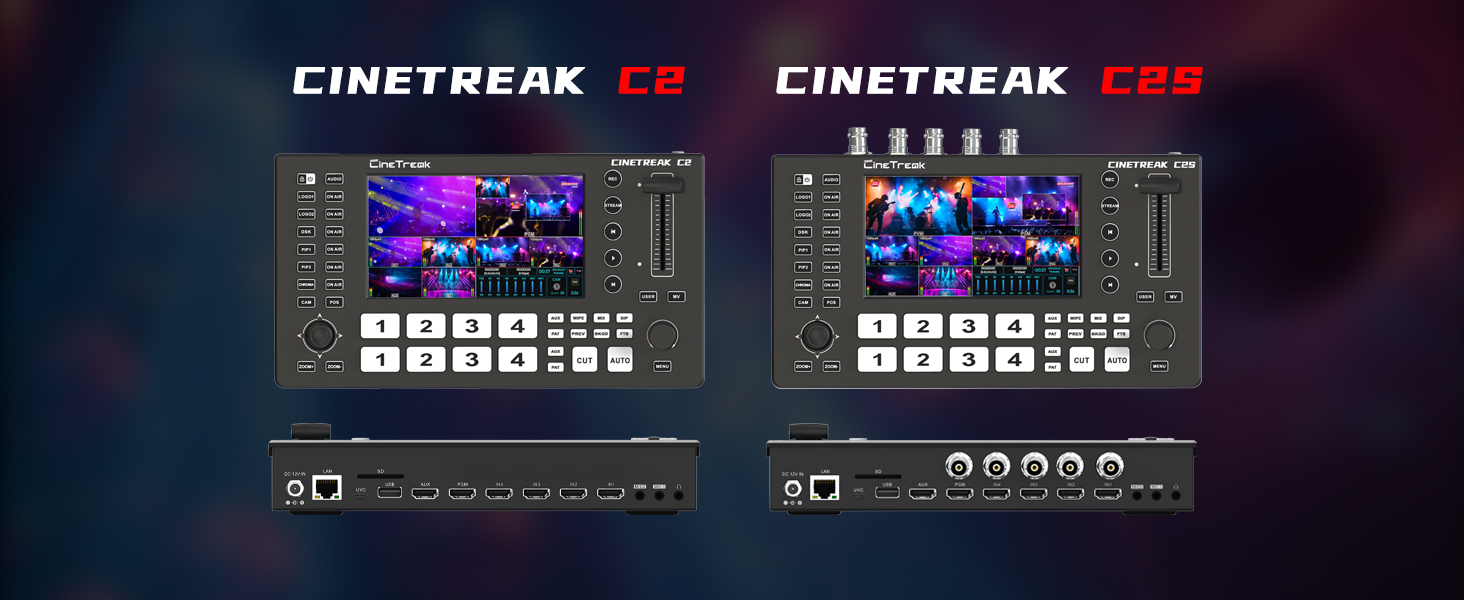
Image: The CINETREAK C2 interface showing PTZ camera control options, including camera selection and position presets.
4.6 Picture-in-Picture (PIP) and Picture-on-Picture (POP)
The C2 supports advanced multi-view layouts to enhance your video productions.
- PIP Layouts: Supports two distinct Picture-in-Picture (PIP) layouts, allowing you to overlay smaller video feeds onto a main program.
- Прилагодљиве опције: Features adjustable cropping and resizing options for both PIP and POP to accommodate diverse creative and production requirements.

Слика: прamples of Picture-on-Picture (POP) and Picture-in-Picture (PIP) layouts on the CINETREAK C2, showing multiple video sources combined on screen.
4.7 Vertical and Landscape Livestream
The C2 offers flexibility in output orientation, allowing you to switch between horizontal (landscape) and vertical (portrait) screen modes, catering to different streaming platforms and content formats.

Image: The CINETREAK C2 displaying multiple video inputs in a landscape multi-view режим.

Image: The CINETREAK C2 displaying multiple video inputs in a portrait multi-view mode, suitable for vertical livestreaming.
Video: An official CINETREAK video demonstrating USB connection and webcam operation with a similar model, including switching between horizontal and vertical screen modes.
4.8 DSK, Chroma, and Luma Keying
The C2 offers powerful DSK (Downstream Keyer) functionality for rich visual effects, including advanced Chroma and Luma keying. This allows for professional-grade compositing, such as green screen effects and graphic overlays.
Image: The CINETREAK C2 displaying various visual effects, including green screen keying and graphic overlays.
5. Одржавање
5.1 Чишћење
Use a soft, dry, and lint-free cloth to clean the exterior surfaces of the device. Do not use liquid cleaners, aerosols, or harsh chemicals, as these may damage the finish or internal components.
5.2 Ажурирања софтвера
Periodically check the CINETREAK official website for firmware updates. Keeping your device's firmware up-to-date ensures optimal performance, stability, and access to the latest features and improvements. Follow the instructions provided with the update carefully.
КСНУМКС. Решавање проблема
6.1 No Video Input
- Ensure all HDMI cables are securely connected to both the source device and the C2's input ports.
- Verify that the input source (e.g., camera, computer) is powered on and actively outputting a video signal.
- Check the input resolution and frame rate compatibility with the C2. Refer to the specifications section for supported formats.
- Try connecting a different video source or cable to isolate the issue.
6.2 Нема аудио излаза
- Confirm that microphones are properly connected to the MIC 1/2 inputs and are powered if required.
- Check the audio levels on the C2's interface to ensure they are not muted or set too low.
- Ensure the output device (e.g., headphones, monitor with speakers) is connected and functioning correctly.
- Verify that the correct audio input source is selected for the program output.
6.3 Streaming Issues
- Verify network connectivity by checking the LAN port status and ensuring the C2 is connected to a stable internet source.
- Double-check the RTMP server address and stream key settings in the C2's streaming configuration. Ensure they match the settings provided by your streaming platform.
- Ensure sufficient internet bandwidth for streaming. Low bandwidth can cause buffering or dropped frames.
- Confirm that your streaming platform account is active and configured correctly.
6.4 PTZ Camera Control Not Responding
- Confirm the PTZ camera is connected to the C2 and powered on.
- Verify that the VISCA protocol settings are correctly configured on both the C2 and the PTZ camera.
- If using IP control, ensure the C2 and the control device (PC/smartphone) are on the same network and have correct IP addresses.
- Check for any physical obstructions preventing camera movement.
7. Спецификације
| Феатуре | Детаљ |
|---|---|
| Модел | C2 |
| Величина екрана | 5.5 инча |
| ХДМИ улази | 4 (HDMI 1 & 2 support 4K) |
| АУКС улаз | 1 |
| PGM Output | 1 |
| АУКС излаз | 1 |
| УСБ портови | 2 |
| UVC Port | 1 (UVC 3.0) |
| ЛАН порт | 1 (РЈ45) |
| Аудио улази | 2 (МИК 1, МИК 2) |
| Тежина артикла | 2.72 фунти |
| Димензије пакета | 13.5 к 7.4 к 3.78 инча |
| Произвођач | CINETREAK |
8. Гаранција и подршка
For detailed warranty information, product registration, and technical support, please visit the official CINETREAK website or contact their authorized customer service channels. It is recommended to retain your proof of purchase for warranty claims. Ensure you purchase products from official channels to be eligible for warranty services.