
upHere P10PARGB BK
upHere PWM & 5V Addressable ARGB Magnetic Fan Hub User Manual
Model: P10PARGB BK
1. Увод
The upHere P10PARGB BK is a versatile 1 to 9-port hub designed to manage both PWM fans and 5V Addressable RGB (ARGB) devices within your PC case. This hub simplifies cable management and provides synchronized RGB lighting control via a remote, enhancing the aesthetics and cooling performance of your custom PC build. Its magnetic mounting feature allows for flexible and secure placement.
2. Производ је готовview и компоненте
Before installation, ensure all components listed below are present in your package.

Image: Detailed diagram of the upHere P10PARGB BK hub and its connections.
Садржај пакета:
- Control Hub: The main unit for connecting fans and ARGB devices.
- даљински управљач: For adjusting RGB lighting effects and fan speeds.
- SATA Power Supply Line: Connects the hub to your power supply for stable power.
- M/B Lighting Sync Line: For motherboard synchronization of ARGB lighting.
- PWM Signal Line: Connects to the CPU fan interface for PWM control.
- Упутство за употребу: Овај документ.
3. Подешавање и инсталација
Follow these steps to properly install your upHere P10PARGB BK fan hub.
3.1 Монтирање чворишта
The hub features a large magnetic back for easy installation. You can secure it effortlessly inside your PC case or on any iron surface, allowing for flexible placement.

Image: The magnetic back design allows for easy and adjustable placement within a PC case.
3.2 Повезивање напајања
- Locate an available SATA power connector from your power supply unit (PSU).
- Повежите приложено SATA Power Supply Line to the hub's "POWER IN +5V +12V" port and to the PSU's SATA connector. This ensures stable high-power output for all connected devices.
3.3 Connecting Fans and ARGB Devices
- Connect your PWM fans to the "PWM1" through "PWM9" ports on the hub.
- Connect your 5V Addressable RGB (ARGB) devices (e.g., ARGB fans, LED strips) to the "ARGB1" through "ARGB9" ports on the hub.
- For motherboard synchronization, connect the M/B Lighting Sync Line from the hub's "M/B SYN" port to your motherboard's 5V ARGB header.
- Повежите PWM Signal Line from the hub's "PWM IN" port to your motherboard's CPU fan header (or another available 4-pin fan header).
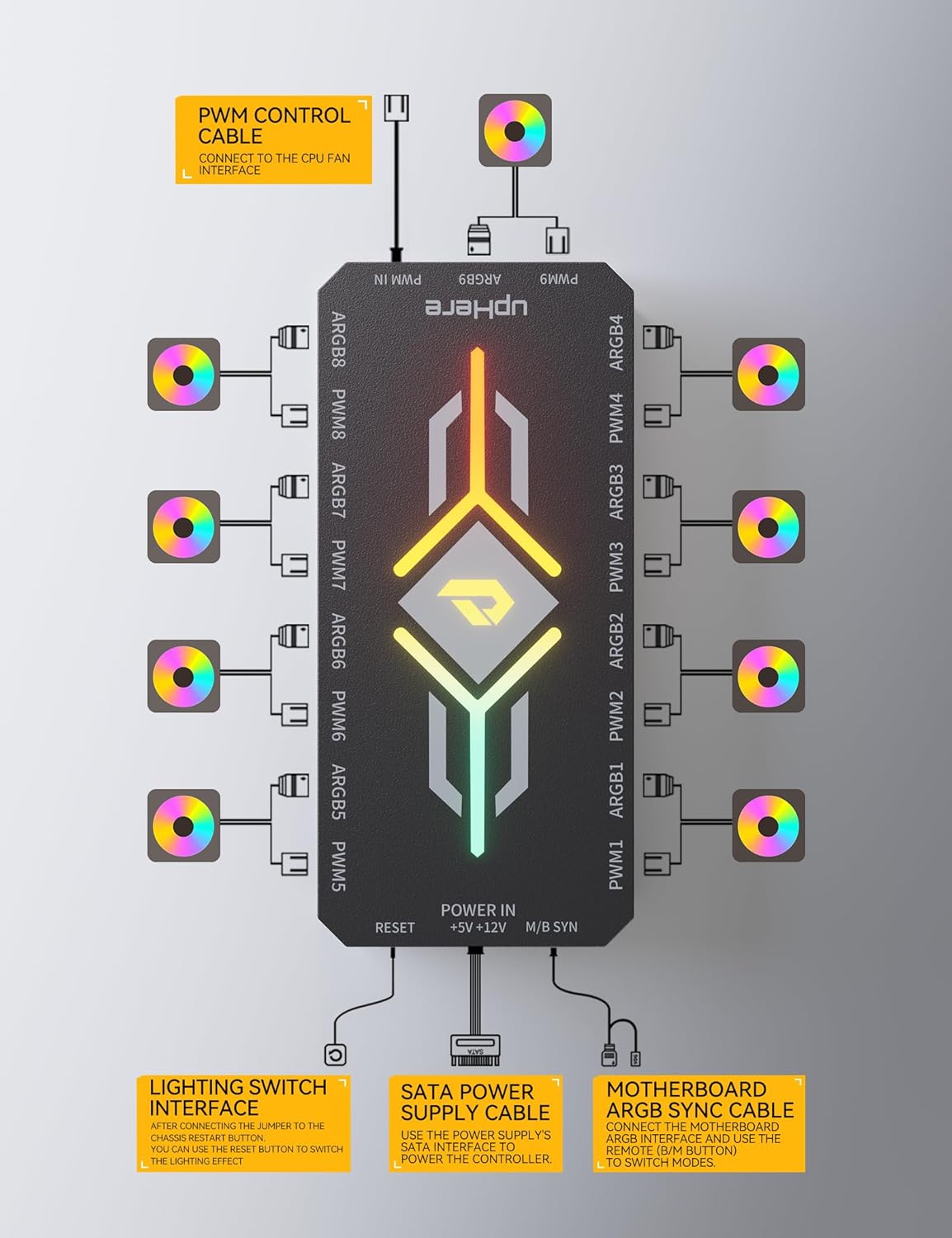
Image: Connection diagram for the upHere P10PARGB BK hub, showing PWM control, ARGB connections, SATA power, and motherboard sync.
3.4 Lighting Switch Interface (Optional)
If you prefer to control lighting effects via a physical button on your PC case, connect your case's reset button cable to the hub's "RESET" port. After connecting the jumper to the corresponding pins, you can use the reset button to switch lighting effects.
4. Упутство за употребу
The upHere P10PARGB BK hub can be controlled via the included remote or synchronized with your motherboard's ARGB software.
4.1 Функције даљинског управљача
The remote control allows for comprehensive adjustment of lighting and fan speed. Ensure the remote has a clear line of sight to the hub's receiver.

Image: Layout of the P10PARGB remote control, detailing each button's function.
- УКЉУЧЕНО/ИСКЉУЧЕНО: Power on/off the lighting.
- M/B Sync: Switch between motherboard control and remote control modes.
- LIGHTING CONTROL SWITCH +/-: Adjust lighting effects.
- LIGHT BRIGHTNESS ADJUSTMENT: Повећајте или смањите осветљеност осветљења.
- LIGHT SPEED CHANGE +/-: Подесите брзину динамичких светлосних ефеката.
- ЛЕПЕЗА: Toggle fan speed adjustment mode.
- FAN SPEED ADJUSTMENT: Increase or decrease fan speed (requires FAN mode to be active).
- НАЧИН: Cycle through various lighting modes (e.g., Automatic Cycle, Full-Color Running, Colorful Gradient, Colorful Breathing, Colorful Flowing Water).
- M1, M2, M3, M4: Preset lighting modes.
- Color Buttons (Red, Green, Blue, White, Yellow, Cyan, Purple): Select fixed monochrome colors.
4.2 Motherboard Synchronization
If the hub is connected to your motherboard's 5V ARGB header, you can use your motherboard's native RGB software (e.g., ASUS Aura Sync, MSI Mystic Light Sync, GIGABYTE RGB Fusion, ASRock Polychrome Sync) to control the lighting effects. Press the "M/B Sync" button on the remote to switch to motherboard control mode.
4.3 Контрола брзине вентилатора
The hub supports PWM fan control. Fan speeds can be adjusted via the remote control or through your motherboard's BIOS/software if the PWM signal line is connected to a motherboard fan header.
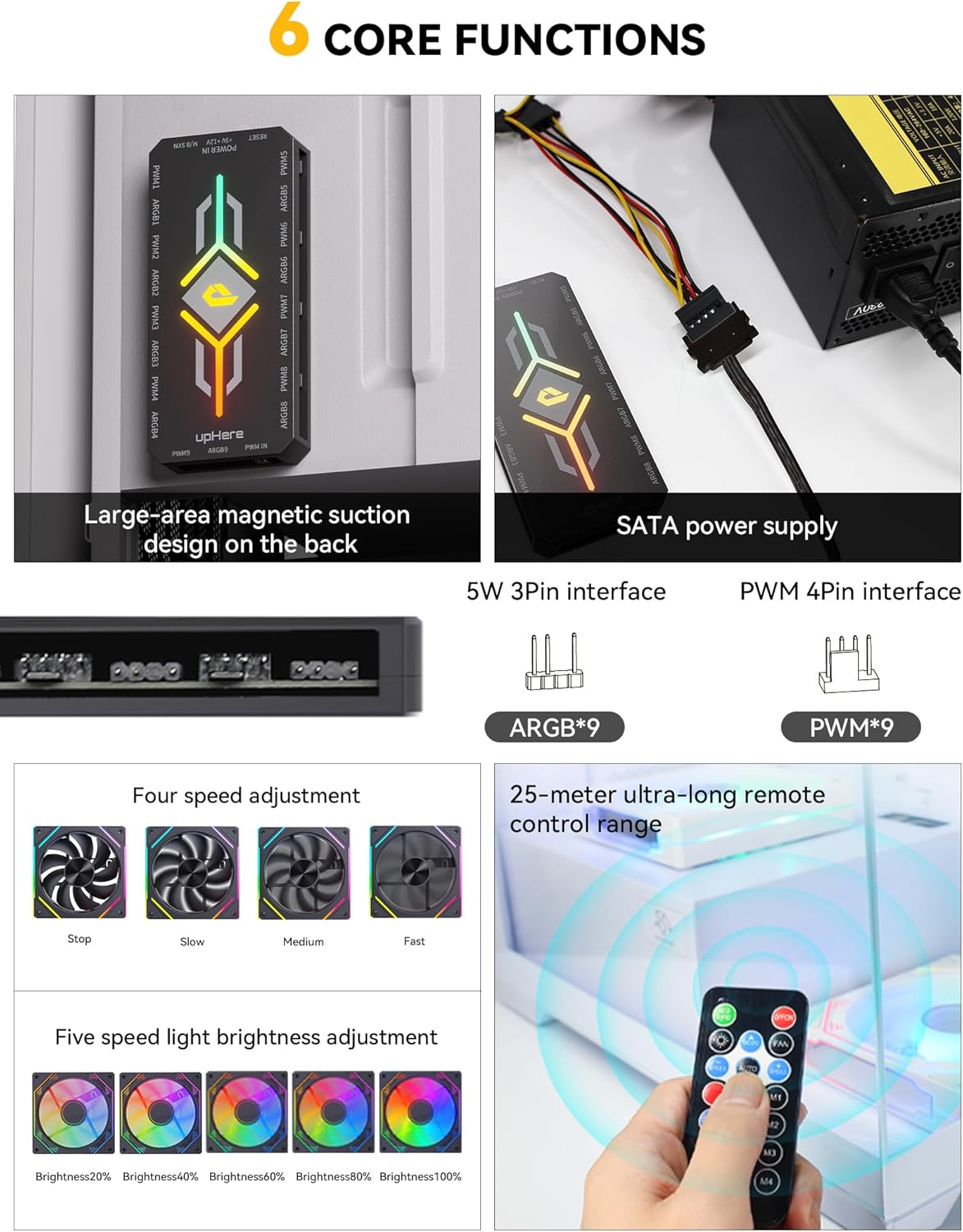
Image: Visual representation of four-speed fan adjustment and five-speed light brightness adjustment options.
5. Одржавање
To ensure optimal performance and longevity of your upHere P10PARGB BK fan hub, follow these maintenance guidelines:
- Чишћење: Periodically clean the hub and its connections with a soft, dry cloth to remove dust. Ensure the PC is powered off and unplugged before cleaning.
- Управљање кабловима: Ensure all cables are neatly routed and not obstructing airflow or putting strain on connectors.
- Услови животне средине: Operate the hub within standard PC case temperatures. Avoid extreme heat or humidity.
КСНУМКС. Решавање проблема
If you encounter issues with your upHere P10PARGB BK fan hub, refer to the following common troubleshooting steps:
- No Power to Hub/Fans/RGB:
- Ensure the SATA power cable is securely connected to both the hub and the PSU.
- Verify that your PSU is functioning correctly.
- RGB осветљење не ради или је неисправно:
- Check if ARGB devices are correctly connected to the hub's 5V ARGB ports.
- If using remote control, ensure the remote's battery is functional and there's no obstruction.
- If using motherboard sync, ensure the M/B Lighting Sync Line is connected to the motherboard's 5V ARGB header and the remote is set to M/B Sync mode.
- Confirm that your motherboard's ARGB software is updated and configured correctly.
- Fans Not Spinning or Incorrect Speed:
- Verify that PWM fans are correctly connected to the hub's PWM ports.
- Ensure the PWM Signal Line is connected to the motherboard's CPU fan header.
- Check fan speed settings in your motherboard's BIOS or fan control software.
- If using the remote, ensure you are in fan speed adjustment mode and adjusting correctly.
- Даљински управљач не реагује:
- Замените батерију даљинског управљача.
- Ensure no physical obstructions are blocking the signal between the remote and the hub.
7. Спецификације
Key technical specifications for the upHere P10PARGB BK hub:
| Феатуре | Спецификација |
|---|---|
| Назив модела | P10PARGB BK |
| Вентилаторски отвори | 9x PWM (4-pin) |
| АРГБ портови | 9x 5V ARGB (3-pin) |
| Повер Инпут | САТА Повер |
| Контролни метод | Remote Control, Motherboard ARGB Sync |
| Монтажа | Магнетиц |
| Димензије (Д x Ш x В) | 120mm x 55mm x 13mm (approximate, based on product images) |
| Боја | Црно |
| Тежина артикла | 4.2 унци (0.12 килограма) |
8. Гаранција и подршка
For warranty information and technical support, please refer to the official upHere webсајт или директно контактирајте њихову корисничку службу. Сачувајте рачун за куповину за потребе гаранције.
Службено Webсајт: www.uphere.com (Напомена: Ово је резервисано место URL. Please refer to the actual product packaging or official brand information for the correct webсајту.)
Ask a question about this manual
Ask about setup, troubleshooting, compatibility, parts, safety, or missing instructions. Manuals+ will review the question and use this page’s manual context to help answer it.