
1. Увод
Thank you for choosing the DOOGEE Tab A9 PRO Tablet. This manual provides essential information for setting up, operating, and maintaining your device. Please read it carefully before using the tablet to ensure proper functionality and longevity.
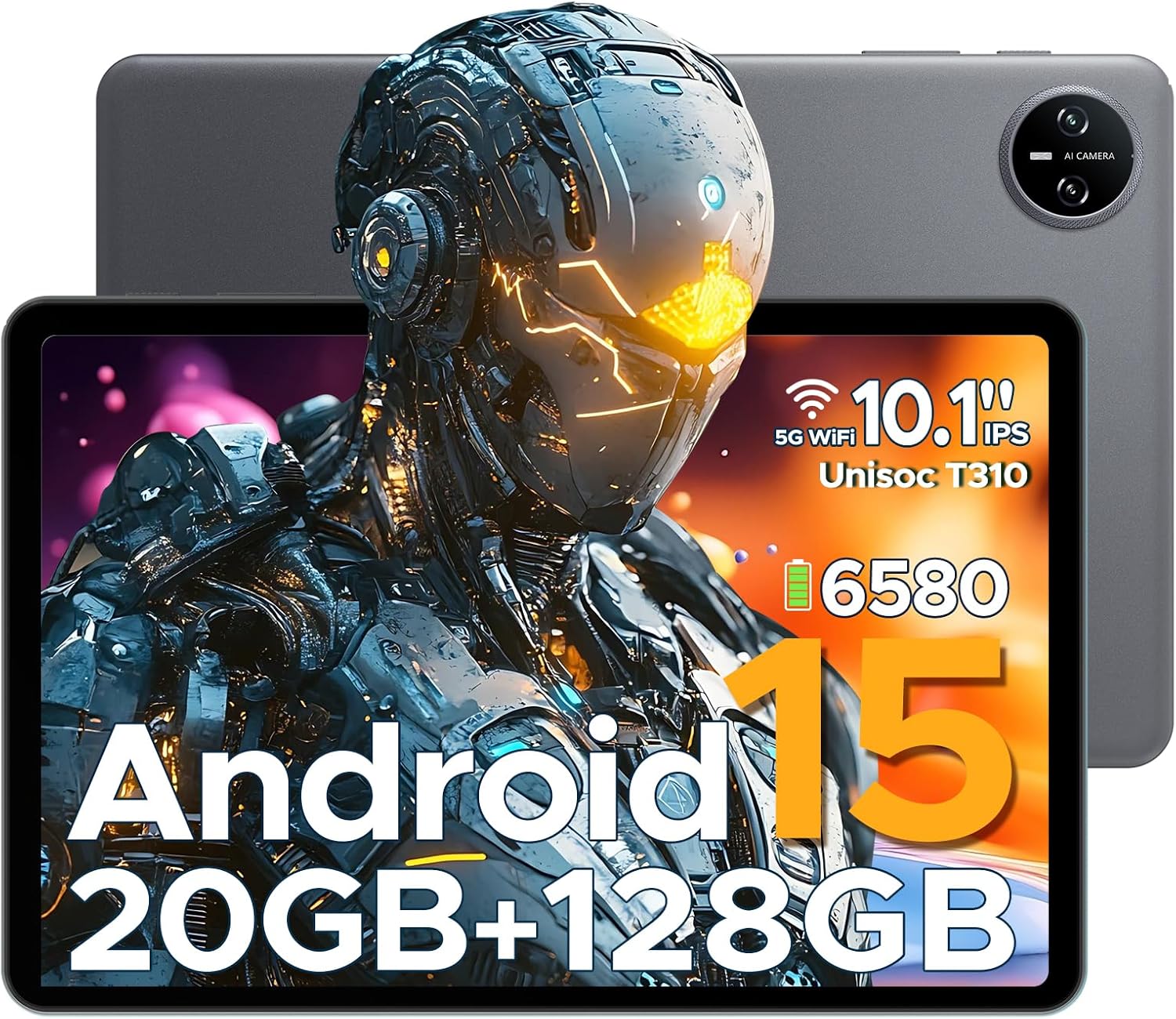
Figure 1.1: DOOGEE Tab A9 PRO Tablet. This image displays the tablet from both the front, highlighting its display, and the back, showing the camera module and overall grey finish.
2. Шта је у кутији
Проверите да ли су све ставке присутне у пакету:
- DOOGEE Tab A9 PRO Tablet
- пуњач
- Тип-Ц УСБ кабл
- Tool for taking card (SIM/SD card tray ejector)
3. Подешавање
3.1 Почетно пуњење
Before first use, fully charge the tablet using the provided charger and Type-C USB cable. Connect the Type-C cable to the tablet's charging port and the charger to a power outlet.
3.2 Укључивање/искључивање
- To power on: Press and hold the power button until the DOOGEE logo appears.
- To power off: Press and hold the power button, then select "Power off" from the options.
3.3 Чаробњак за почетно подешавање
Upon first power-on, the tablet will guide you through an initial setup process. This includes selecting your language, connecting to Wi-Fi, setting up your Google account, and configuring security options like face recognition.

Figure 3.1: Android 15 System Interface. This image illustrates the clean and intuitive interface of the Android 15 operating system, showing various application icons and system settings.
3.4 Уметање MicroSD картице (опционо)
The tablet supports expandable memory up to 2TB via a MicroSD card (purchased separately). Use the provided tool to open the card tray and insert the MicroSD card as indicated.

Figure 3.2: Storage Capabilities. This image highlights the tablet's 20GB Max RAM (composed of 4GB Basic and 16GB Virtual RAM) and 128GB internal storage, with the option to expand up to 2TB using a TF card.
4. Управљање таблетом
4.1 Приказ и навигација
The DOOGEE Tab A9 PRO features a 10.1-inch IPS HD+ display with a resolution of 1280x800 pixels, offering clear visuals and a wide field of view.

Figure 4.1: Display Specifications. This image details the 10.1-inch IPS HD display, including its 1280x800 resolution, 80.2% screen-to-body ratio, and 16.7 million colors.
4.2 Функције камере
The tablet is equipped with an 8MP main camera and a 5MP front camera, suitable for capturing photos, videos, and video calls.

Figure 4.2: Camera Features. This image highlights the tablet's 8MP main camera and 5MP front camera, demonstrating their use for capturing moments and video calls.
4.3 Аудио
The tablet features 1217 BOX Dual Speakers for enhanced audio experience. It also includes a 3.5mm headphone jack for private listening.

Figure 4.3: Dual Speaker System. This image illustrates the tablet's 1217 BOX Dual Speakers, designed to provide clear and immersive audio.
4.4 Повезивање
- Ви-Фи: Повежите се са доступним Wi-Fi мрежама преко Подешавања > Мрежа и интернет > Wi-Fi.
- Блуетоотх КСНУМКС: Pair with Bluetooth devices (headphones, speakers, etc.) via Settings > Connected devices > Bluetooth.
- OTG (У покрету): Supports connecting USB peripherals like flash drives or keyboards via a compatible OTG adapter (not included).
- Wireless Screencasting: Easily connect to a large TV or display for screen mirroring.
5. Одржавање
5.1 Чишћење
Користите меку крпу која не оставља влакна да бисте очистили екран и кућиште таблета. Избегавајте употребу јаких хемикалија или абразивних материјала.
5.2 Одржавање батерије
Таблет је опремљен литијум-полимерском батеријом од 6580 mAh. Да бисте продужили век трајања батерије:
- Избегавајте екстремне температуре.
- Не дозволите да се батерија често потпуно испразни.
- Use the provided charger.
- Enable power saving mode when needed.
5.3 Ажурирања софтвера
Редовно проверавајте и инсталирајте системска ажурирања како бисте осигурали оптималне перформансе, безбедност и приступ новим функцијама. Идите на Подешавања > Систем > Ажурирање система.
КСНУМКС. Решавање проблема
6.1 Уобичајена питања и решења
| Проблем | Решење |
|---|---|
| Таблет се не укључује | Уверите се да је батерија напуњена. Притисните и држите дугме за напајање 10-15 секунди да бисте поново покренули рачунар. |
| Споро перформансе | Close unused applications. Clear cache. Restart the tablet. Check for system updates. |
| Проблеми са Ви-Фи везом | Restart the tablet and your Wi-Fi router. Forget and reconnect to the network. |
| Апликације падају | Обришите кеш меморију и податке апликације (Подешавања > Апликације > [Назив апликације] > Меморија). Поново инсталирајте апликацију. |
7. Спецификације
| Феатуре | Детаљ |
|---|---|
| Модел | DOOGEE Tab A9 PRO |
| Оперативни систем | Андроид 15 |
| Процесор | Quad-Core (Unisoc T310) |
| РАМ | 12ГБ |
| Интерна меморија | 128ГБ РОМ |
| Екпандабле Стораге | Up to 2TB (MicroSD, sold separately) |
| Дисплаи | 10.1-inch IPS HD+ (1280x800) |
| Главна камера | 8МП |
| Предња камера | 5МП |
| Батерија | Литијум полимер 6580мАх |
| Повезивање | Wi-Fi, Bluetooth 5.0, OTG, Type-C USB |
| Аудио | 1217 BOX Dual Speakers, 3.5mm headphone jack |
| Димензије | 25.7 к 16.88 к 0.79 цм |
| Тежина | 400 г |

Figure 7.1: Unisoc T310 Processor. This image details the specifications of the Unisoc T310 processor, highlighting its powerful quad-core architecture, 2.0GHz ultimate frequency, and 12nm advanced process technology.
8. Гаранција и подршка
За информације о гаранцији и техничку подршку, обратите се званичном DOOGEE webсајт или контактирајте њихову корисничку службу. Сачувајте рачун за куповину за потребе гаранције.
Званични DOOGEE Webсајт: ввв.доогее.цц