
1. Увод
This manual provides essential information for setting up, operating, maintaining, and troubleshooting your new CyberPowerPC Gamer Xtreme GXiVR8060A47 Gaming PC. This system is designed for high-performance gaming and demanding multimedia tasks, featuring an Intel Core i5-14400F processor and NVIDIA GeForce RTX 5060 graphics.
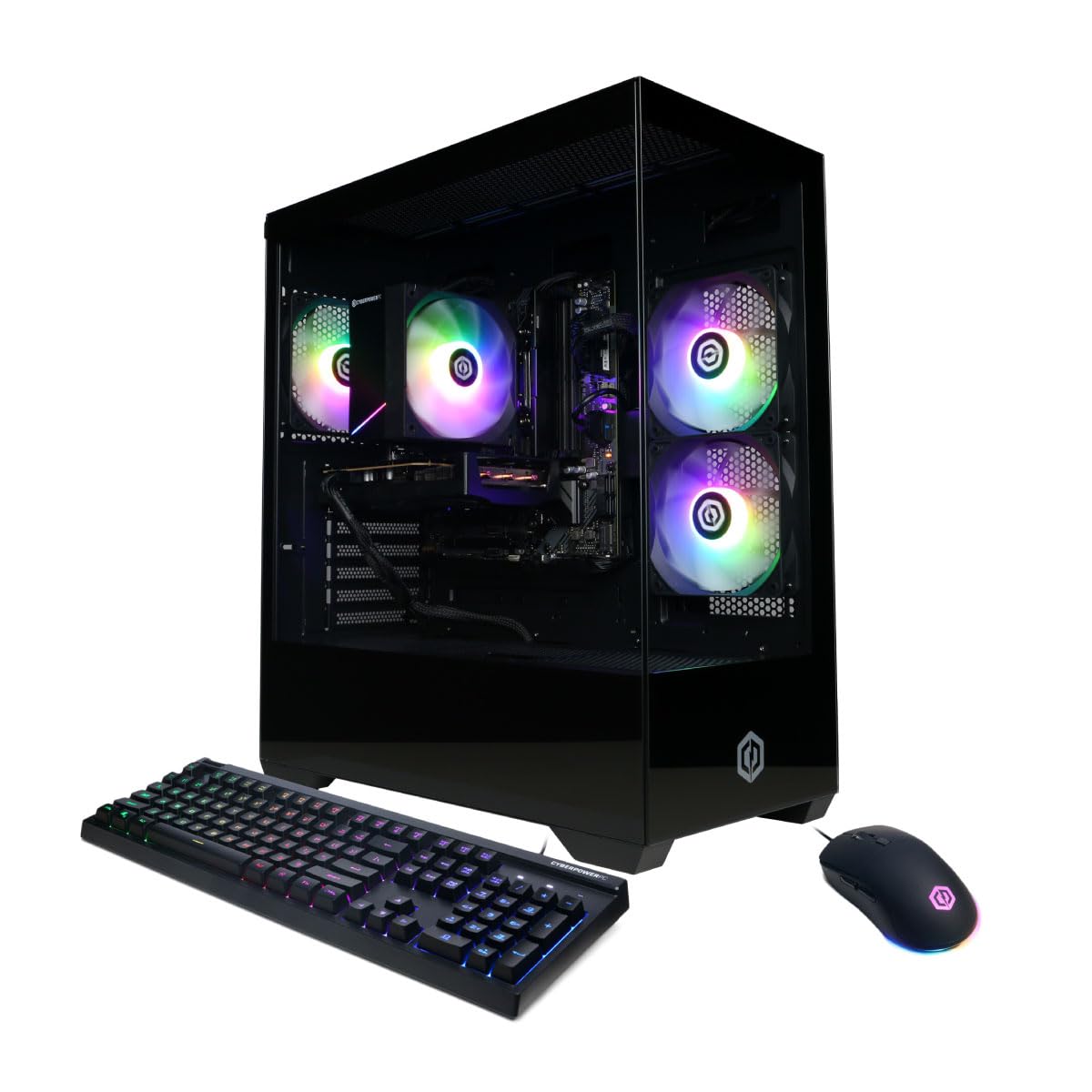
Слика: Фронт view of the CyberPowerPC Gamer Xtreme GXiVR8060A47 Gaming PC with RGB lighting.
2. Садржај пакета
Проверите да ли су све ставке присутне у пакету:
- CyberPowerPC Gamer Xtreme GXiVR8060A47 Gaming PC
- Повер Цорд
- Тастатура за игре
- Гаминг Моусе
- Документација (укључујући и овај приручник)

Image: The CyberPowerPC gaming desktop tower, keyboard, and mouse.
3. Водич за подешавање
3.1 Распакивање и постављање
- Carefully remove the PC and all accessories from the packaging. Retain packaging for future transport or warranty claims.
- Поставите рачунар на стабилну, равну површину са одговарајућом вентилацијом. Уверите се да има слободног простора око отвора за усис и издув ваздуха.
- Remove any internal packing foam or protective films from the PC components.
3.2 Повезивање периферних уређаја
Повежите монитор, тастатуру, миш и остале периферне уређаје са одговарајућим портовима на задњој страни рачунара.
- Монитор: Connect your monitor to the graphics card (NVIDIA GeForce RTX 5060) ports (HDMI or DisplayPort). Do not connect to the motherboard's video outputs if a dedicated graphics card is installed.
- Тастатура и миш: Повежите се са било којим доступним УСБ портовима.
- Снага: Connect the power cord to the PC's power supply unit (PSU) and then to a grounded electrical outlet.
- Мрежа: For wired internet, connect an Ethernet cable to the LAN port. For wireless internet, the system is WiFi 6 ready.

Слика: Позади view of the PC showing various connectivity ports for peripherals.
3.3 Почетно покретање
- Press the power button located on the front or top of the PC.
- The system will boot into Windows 11 Home. Follow the on-screen instructions to complete the initial Windows setup, including language, region, and user account creation.
- It is recommended to check that the graphics card is securely seated in its slot after shipping. Gently press down on the graphics card near the PCIe slot to ensure it is fully engaged.
4. Упутство за употребу
4.1 Укључивање/искључивање
- Укључено: Притисните дугме за напајање једном.
- Искључи: Click the Start button in Windows, then select Power > Shut down. Avoid directly holding the power button to turn off the PC, as this can lead to data loss or system corruption.
- Поново покрени: Кликните на дугме Старт у оперативном систему Windows, а затим изаберите Напајање > Поново покрени.
4.2 Windows 11 Home
Your PC comes pre-installed with Windows 11 Home. Familiarize yourself with its interface and features. Regular updates are crucial for security and performance.
4.3 Игре и перформансе
The CyberPowerPC Gamer Xtreme GXiVR8060A47 is optimized for gaming. For optimal performance:
- Ensure graphics drivers are up to date. Visit the NVIDIA webсајт за најновије драјвере.
- Close unnecessary background applications when gaming.
- Прилагодите подешавања графике у игри да бисте уравнотежили визуелни квалитет и број слика у секунди према вашим жељама.
4.4 RGB контрола осветљења
Your PC features custom RGB lighting. Control options may include:
- Дугме за случај: A dedicated button on the PC case allows cycling through various lighting modes and colors.
- Контрола софтвера: For advanced customization, connect the RGB fan cables to the motherboard's RGB headers and use compatible motherboard software (if available) to synchronize and control lighting effects. Refer to your motherboard manual for specific instructions.

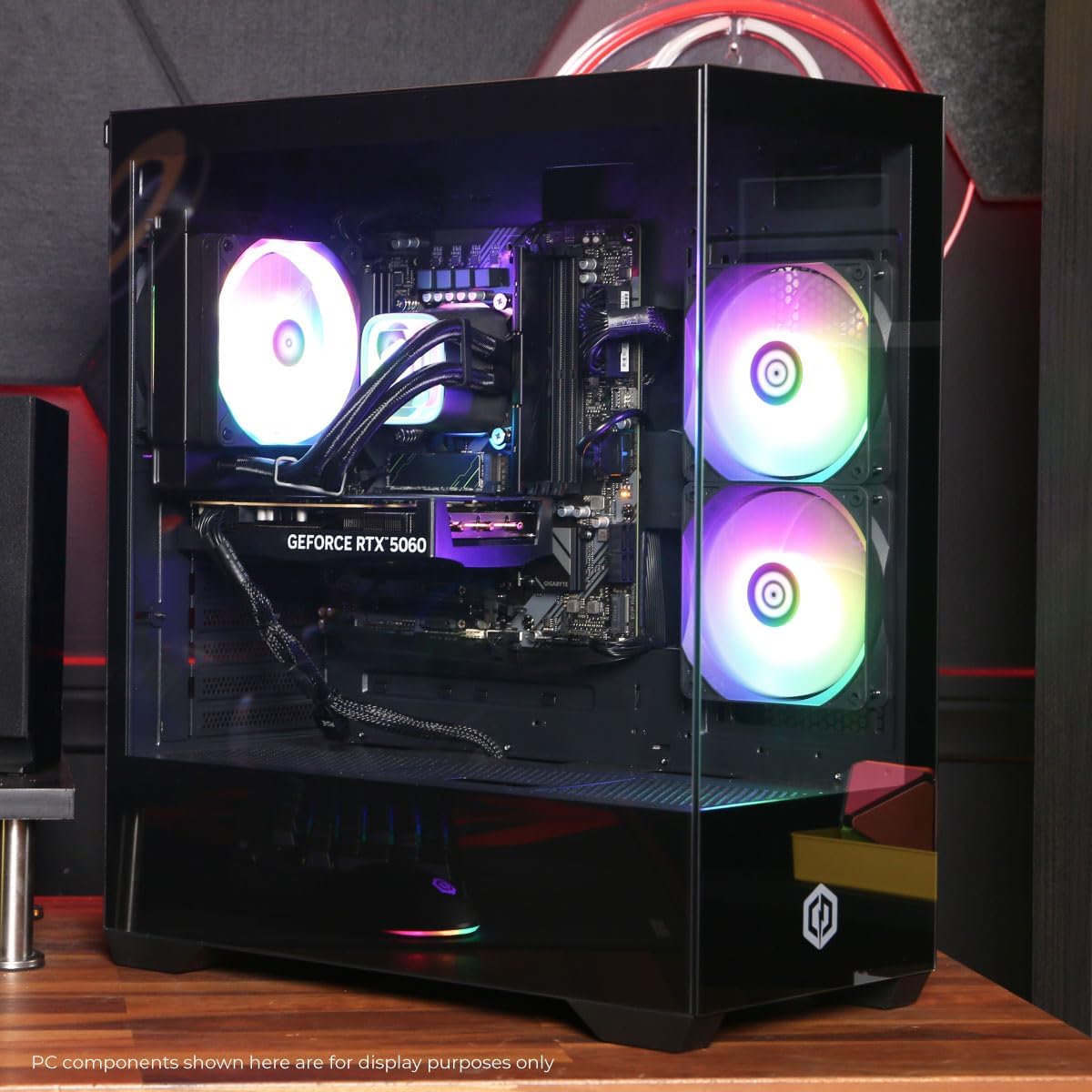
Слика: Интерна view сајма рачунараasing the RGB fans and components.
5. Одржавање
5.1 Cleaning Your PC
- Екстеријер: Користите меку, дamp cloth to wipe down the exterior of the case. Avoid harsh chemicals.
- Ентеријер: Periodically clean dust from inside the PC using compressed air. Focus on fans (CPU cooler, case fans, GPU fans) and heatsinks. Ensure the PC is powered off and unplugged before opening the case.
- Филтери за прашину: If your case has removable dust filters, clean them regularly to maintain optimal airflow.
5.2 Ажурирања софтвера
Regularly update your operating system, drivers (especially graphics drivers), and antivirus software to ensure system stability, security, and performance.
5.3 Проток ваздуха и хлађење
Proper airflow is critical for component longevity. Ensure the PC is placed in an open area, not confined in a cabinet, to allow for unrestricted air circulation.
Слика: Врх view of the PC, highlighting the mesh panel for ventilation.
КСНУМКС. Решавање проблема
Ако наиђете на проблеме, погледајте следеће уобичајене кораке за решавање проблема:
- Без приказа: Ensure your monitor is connected to the graphics card's output, not the motherboard's. Check all cable connections (power, video). Try a different video cable or monitor if possible.
- Рачунар се не укључује: Verify the power cord is securely connected to both the PC and the wall outlet. Check the power switch on the PSU (if present) is in the 'On' position. Try a different power outlet.
- Прекомерна бука вентилатора: This can indicate dust buildup or a fan issue. Clean the interior of the PC as described in the Maintenance section. If the noise persists, contact support.
- System Instability/Blue Screen Errors (BSOD): Ensure all drivers are updated. Check for Windows updates. Run a memory diagnostic tool (Windows Memory Diagnostic) to check RAM integrity. Ensure components are properly seated.
- Периферни уређаји не раде: Try connecting the keyboard or mouse to different USB ports. Ensure drivers are installed for specialized peripherals.
За сталне проблеме, погледајте одељак Гаранција и подршка за контакт информације.
7. Спецификације
| Компонента | Детаљ |
|---|---|
| Назив модела | Gamer Xtreme GXiVR8060A47 |
| Процесор | Intel Core i5-14400F 2.5GHz (10 Cores) |
| Чипсет | Интел Б760 |
| графичка картица | NVIDIA GeForce RTX 5060 8GB GDDR7 |
| РАМ | 16GB DDR5 (4800 MT/s) |
| Складиштење | 1TB PCIe 4.0 NVMe SSD |
| Оперативни систем | Виндовс 11 Хоме |
| Повезивање | WiFi 6, Bluetooth 5.3, 1x LAN |
| УСБ портови | 2 x USB-A 3.2, 6 x USB-A 2.0 (Total 8) |
| Видео Оутпут | 1x HDMI, 2x DisplayPort |
| Аудио | 7.1-канални аудио |
| Димензије (Д к Ш к В) | Прибл. 19.09 к 8.27 к 18.90 инча (54.5 к 52.5 к 29.5 цм) |
| Тежина | Прибл. 13.96 кг |

Image: Detailed internal view of the PC showing the CPU cooler, RAM, and graphics card.
8. Гаранција и подршка
8.1 Информације о гаранцији
Your CyberPowerPC Gamer Xtreme GXiVR8060A47 Gaming PC comes with a 1 година ограничене гаранције покрива делове и рад. Молимо вас да сачувате доказ о куповини за потребе гаранције.
8.2 Техничка подршка
CyberPowerPC offers Бесплатна доживотна техничка подршка for your product. For assistance with setup, troubleshooting, or any other technical inquiries, please contact CyberPowerPC customer service.
Contact information can typically be found on the CyberPowerPC official website or in the documentation included with your PC.