
Увод
This manual provides detailed instructions for the installation, operation, and maintenance of your Zyyini B150M V3 Computer Motherboard. Please read this manual thoroughly before proceeding with installation to ensure proper setup and to prevent damage to the components. This motherboard is designed for desktop computers, supporting LGA 1151 CPUs and DDR4 memory, offering a stable and efficient platform for various computing needs.
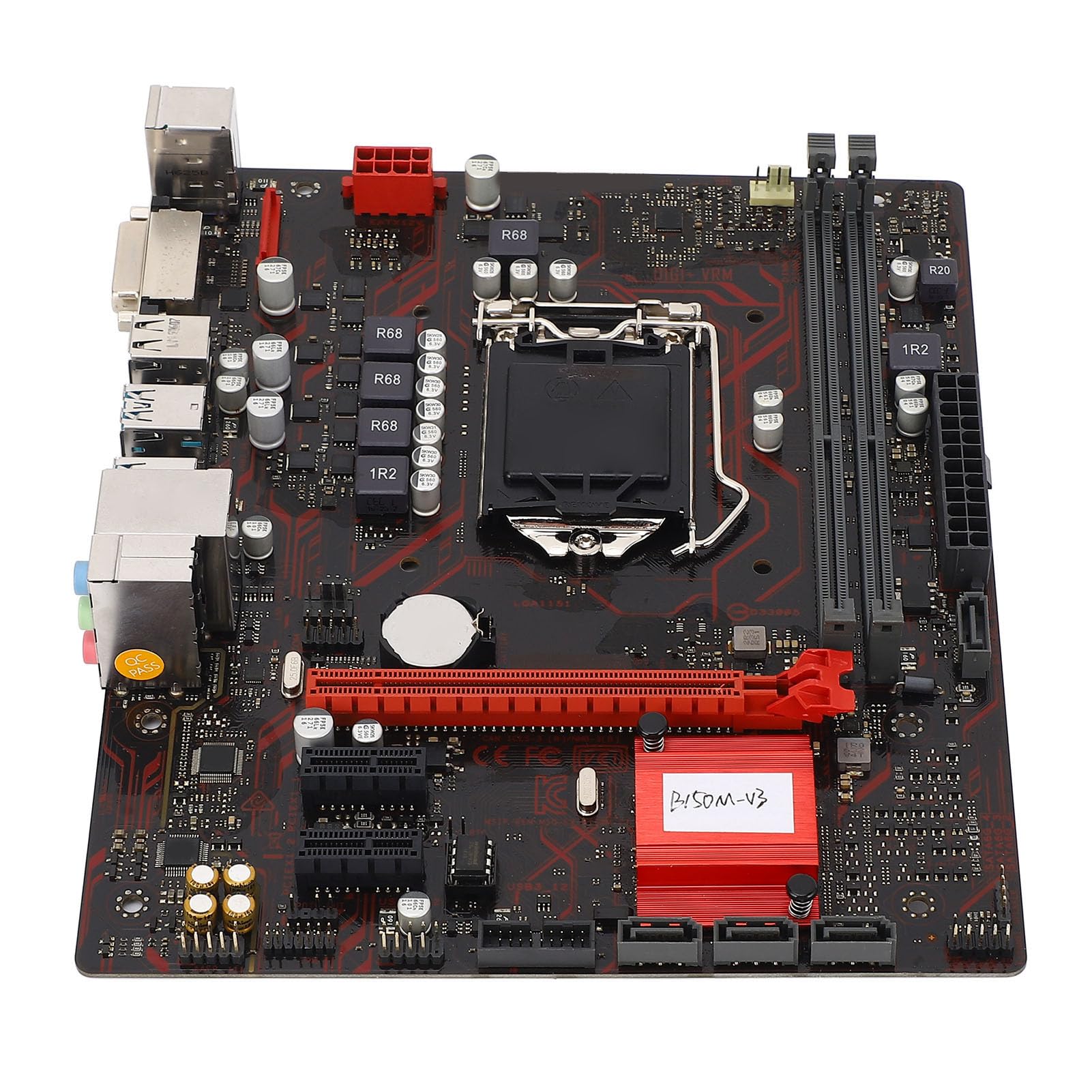
Слика 1: Завршеноview of the Zyyini B150M V3 Motherboard.
Подешавање и инсталација
Before beginning installation, ensure your workspace is clean and static-free. It is recommended to wear an anti-static wrist strap to prevent electrostatic discharge (ESD) damage to components.
1. Мере предострожности
- Увек искључите напајање из зидне утичнице пре инсталирања или уклањања било којих компоненти.
- Handle components by their edges to avoid touching sensitive circuits.
- Ensure proper grounding to prevent ESD.
- Refer to the CPU, memory, and other component manuals for specific installation instructions.
2. Распоред матичне плоче

Слика 2: Одозго надоле view highlighting key components and connectors on the motherboard.
Familiarize yourself with the locations of the CPU socket, memory slots, PCI-E slots, SATA ports, and power connectors before installation.
3. Инсталација процесора (LGA 1151)
- Пронађите LGA 1151 CPU сокет на матичној плочи.
- Пажљиво притисните ручицу за оптерећење надоле и повуците је у страну да бисте отворили поклопац процесорског сокета.
- Carefully align the notches on your Intel Core i7/i5/i3/Pentium/Celeron (14nm) processor with the corresponding keys on the socket. Ensure the gold triangle on the CPU matches the triangle on the socket.
- Place the CPU gently into the socket without forcing it.
- Затворите плочу за оптерећење и вратите полугу за оптерећење на место док не кликне.

Слика 3: Крупни план view LGA 1151 CPU сокета, спремног за уградњу процесора.
4. Memory Installation (DDR4 DIMM)
The motherboard features two DDR4 DIMM slots, supporting dual-channel DDR4 2133MHz memory up to a maximum of 32GB.
- Отворите копче на оба краја DIMM слота.
- Поравнајте зарез на DDR4 меморијском модулу са кључем у DIMM слоту.
- Чврсто уметните меморијски модул у слот док се копче не залепе на своје место. Уверите се да су обе копче затворене.

Figure 4: The two DDR4 DIMM slots for memory installation.
5. Storage Device Installation (SATA III & M.2)
The motherboard provides 4 x Serial ATA III interfaces and 1 x M.2 slot for storage devices.
- SATA уређаји: Connect one end of a SATA data cable to a SATA III port on the motherboard and the other end to your SATA hard drive or SSD. Connect the SATA power cable from your power supply to the drive.
- М.2 уређаји: Insert your M.2 SSD into the M.2 slot, securing it with the provided screw.
6. Expansion Card Installation (PCI-E)
The motherboard includes 1 x PCI-E x16 graphics card slot and 2 x PCI-E x1 slots for expansion cards.
- Align your PCI-E expansion card (e.g., graphics card, sound card, network card) with the desired PCI-E slot.
- Press the card firmly into the slot until it is fully seated. Secure the card with a screw to the chassis.
7. Connecting Peripherals and Front Panel
Connect your USB devices, DVI display, audio devices, and Ethernet cable to the rear I/O panel. Connect the front panel connectors (power button, reset button, USB ports, audio jacks) from your PC case to the corresponding headers on the motherboard.

Слика 5: Детаљно view of the rear I/O panel, showing USB, DVI, Ethernet, and audio ports.
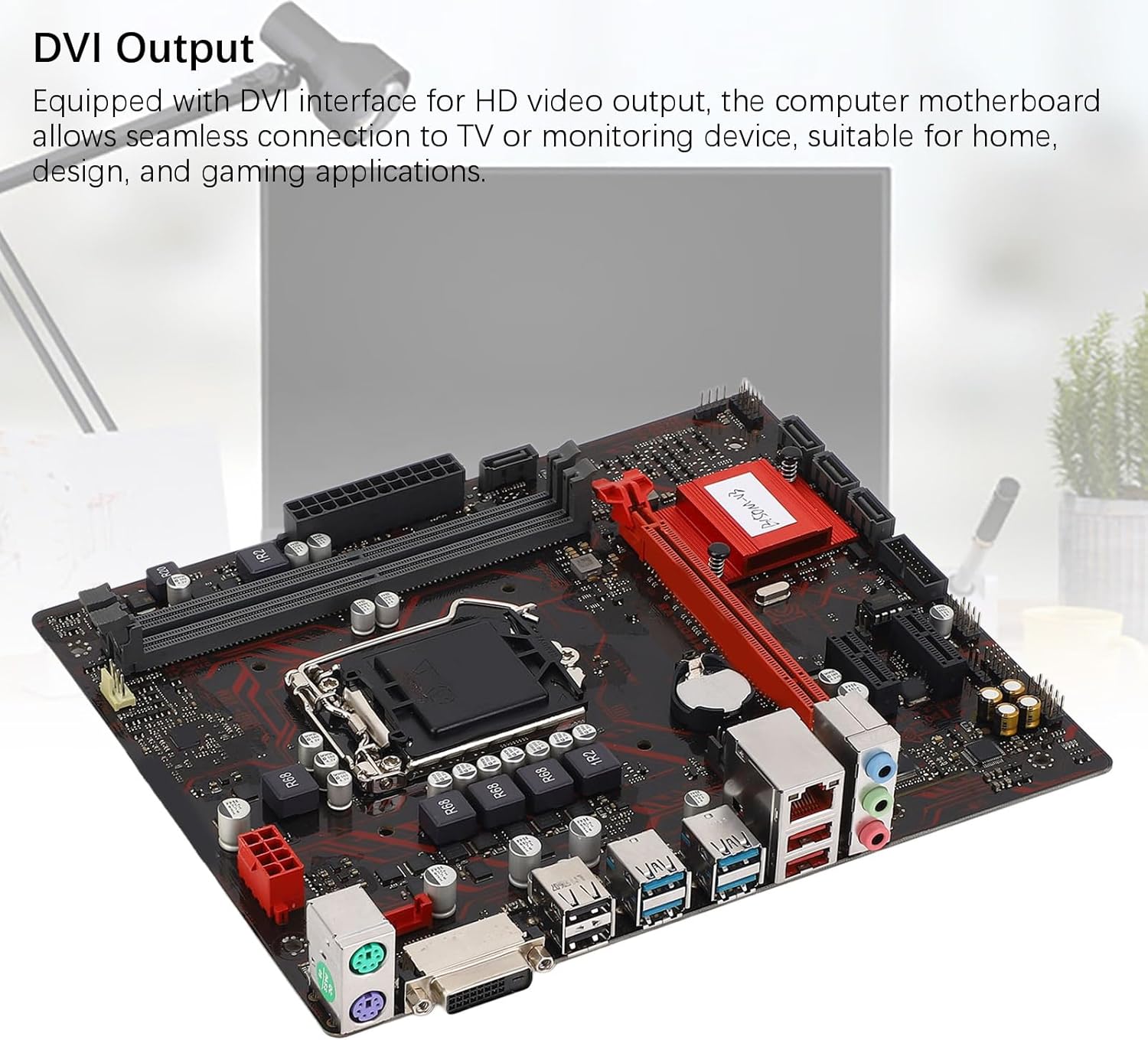
Figure 6: The DVI interface for connecting a display.
8. Прикључци за напајање
Connect the 24-pin ATX power connector and the 8-pin CPU power connector from your power supply to the respective ports on the motherboard. Ensure they are firmly seated.

Слика 7: Под углом view showing the location of power connectors and other ports.
Упутство за употребу
1. Почетно покретање система
After all components are installed and connected, power on your system. The system should initiate the boot process. If no display appears, refer to the troubleshooting section.
2. Конфигурација BIOS-а/UEFI-ја
During boot-up, press the designated key (usually ДЕЛ or F2) to enter the BIOS/UEFI setup. Here you can configure boot order, system time, and other advanced settings. Save changes before exiting.
3. Инсталација драјвера
After installing your operating system, install the necessary drivers for the motherboard chipset, network, and audio. These are typically provided on a driver CD or available for download from the manufacturer's webсајту.
Одржавање
1. Dust Cleaning
Regularly clean the inside of your computer case to prevent dust buildup, which can lead to overheating and component failure. Use compressed air to gently remove dust from fans, heatsinks, and motherboard surfaces.
2. Ажурирања BIOS-а
Периодично проверавајте произвођачеве webсајт за ажурирања BIOS-а. Ажурирања BIOS-а могу побољшати стабилност система, додати подршку за нови хардвер или поправити грешке. Пажљиво пратите упутства за ажурирање како бисте избегли оштећење матичне плоче.
Решавање проблема
1. Нема снаге
- Уверите се да је напајање прикључено на зидну утичницу и укључено.
- Verify that the 24-pin and 8-pin power connectors are securely attached to the motherboard.
- Check the front panel power switch connection to the motherboard.
2. Нема дисплеја
- Confirm that the monitor is connected to the correct video output (DVI) on the motherboard or graphics card and is powered on.
- Reseat the memory modules. Try booting with only one memory module installed.
- Reseat the graphics card (if applicable).
- Ensure the CPU is properly installed and the CPU cooler is securely attached.
3. Нестабилност система / Падови система
- Check for overheating. Ensure all fans are working and heatsinks are clean.
- Verify that all components (CPU, RAM, storage) are properly seated.
- Покрените алате за дијагностику меморије да бисте проверили да ли постоји неисправна РАМ меморија.
- Уверите се да су сви драјвери ажурирани.
Спецификације

Figure 8: The motherboard's robust construction ensures stable performance and longevity.
| Феатуре | Детаљ |
|---|---|
| Модел матичне плоче | B150M-V3 |
| Чипсет | Б150 чипсет |
| ЦПУ Соцкет | ЛГА 1151 |
| Compatible CPU Type | Intel Core i7, i5, i3, Pentium, Celeron (14nm processors) |
| Тип меморије | 2 x DDR4 DIMM (Dual Channel) |
| Брзина меморије | 2133МХз |
| Максимални капацитет меморије | 32ГБ |
| PCI-E стандард | ПЦИ-Е 3.0 |
| PCI-E x16 Slots | 1 |
| PCI-E x1 Slots | 2 |
| Интерфејси за складиштење | 4 x Serial ATA III, 1 x M.2 |
| USB Interfaces (Rear) | 4 к УСБ3.0, 4 к УСБ2.0 |
| USB Interfaces (Internal) | 1 x USB3.0 header, 1 x USB2.0 header |
| Видео интерфејс | 1 к ДВИ |
| Network Chip | Realtek RTL8111GR Gigabit Ethernet |
| Соунд Цхип | Realtek ALC887 8-Channel |
| Повер Интерфацес | One 8-Pin, One 24-Pin |
| Форм Фацтор | М-АТКС |
| Начин напајања | 5 Фаза |
| Остали интерфејси | RJ45, Chassis Fan, Internal Speaker, System Panel, Sound, PS/2 Mouse, PS/2 Keyboard, COM |
Информације о гаранцији
For specific warranty terms and conditions, please refer to the documentation provided with your purchase or visit the official Zyyini webсајт. Гаранција обично покрива недостатке у материјалу и изради при нормалној употреби.
Корисничка подршка
If you encounter any issues that cannot be resolved using this manual, please contact your retailer or visit the Zyyini official support channels for assistance. Have your product model number (B150M-V3) and purchase details ready when seeking support.