1. Увод
Thank you for choosing the EvoFox Deathray v2 Pro Gaming Keyboard. This manual provides detailed instructions for setting up, operating, and maintaining your new gaming keyboard. Please read this manual carefully to ensure optimal performance and longevity of your device.
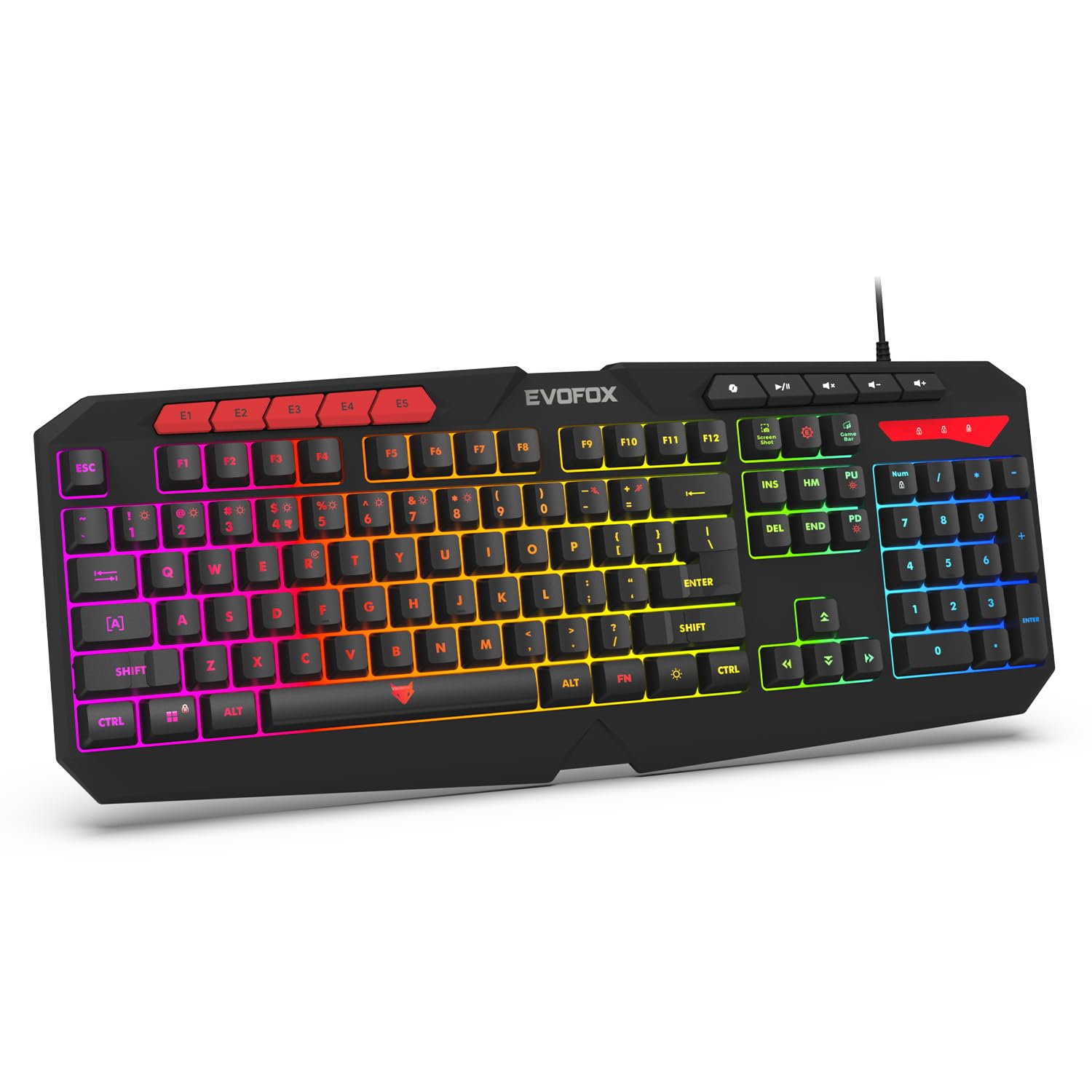
Image 1.1: EvoFox Deathray v2 Pro Gaming Keyboard overview.
2. Садржај пакета
- EvoFox Deathray v2 Pro Gaming Keyboard
- Упутство за употребу
3. Упутства за подешавање
3.1 Повезивање тастатуре
- Unpack the EvoFox Deathray v2 Pro Gaming Keyboard from its packaging.
- Пронађите слободан УСБ порт на рачунару (PC или лаптоп).
- Укључите УСБ конектор тастатуре у УСБ порт.
- The keyboard will automatically install the necessary drivers. This process may take a few moments.
- Once installed, the RGB backlighting will illuminate, indicating the keyboard is ready for use.
The keyboard features a durable 1.8m braided cable for reliable connectivity.

Image 3.1: Keyboard with durable braided cable and soft membrane keys.
4. Упутство за употребу
4.1 RGB Backlighting Customization
The EvoFox Deathray v2 Pro features 6-zone customizable RGB backlighting with 8 dynamic lighting modes. You can personalize your gaming setup for an immersive experience.
- Промена режима осветљења: Use the dedicated lighting control keys (often indicated by a sun or lightbulb icon, or through a combination with the Fn key) to cycle through the 8 available dynamic lighting modes.
- Прилагођено осветљење: Refer to the keyboard's software (if available, check the official EvoFox website) for advanced custom lighting profiles and per-key RGB customization.

Image 4.1: Keyboard showcasing 6-zone RGB backlighting with 7 lighting presets and 1 custom lighting option.

Image 4.2: Comparison illustrating the difference between RGB lighting with full color customization per zone and standard rainbow lighting with fixed color zones.
4.2 Програмабилни макро тастери
The keyboard includes 5 programmable macro keys (E1-E5) to streamline your gameplay with customizable macros for lightning-fast responses. These keys allow you to record and assign complex sequences of commands to a single key press.
- Макро снимање: Typically, macro recording is initiated by a dedicated macro recording key (often labeled 'MR' or similar, or accessed via Fn key combination). Follow the on-screen prompts or software instructions to record your desired key sequence.
- Assigning Macros: Once recorded, assign the macro to one of the programmable macro keys (E1-E5) using the keyboard's software.

Image 4.3: Highlight of the 5 programmable macro keys (E1-E5) for executing complex commands.
4.3 Special Function Keys
Access essential tools quickly with dedicated shortcuts for Screenshot, Macro Recording, and Xbox Game Bar. These functions are typically accessed via specific keys or Fn key combinations.
- Screenshot Key: Captures a screenshot of your display.
- Macro Recording Key: Initiates macro recording.
- Xbox Game Bar Key: Opens the Xbox Game Bar interface for gaming features.
- Кључ копилота: Activates the Copilot feature (if supported by your operating system).

Image 4.4: Illustration of special function keys for Screenshot, Macro Recording, Xbox Game Bar, and Copilot.
4.4 Anti-Ghosting Keys
The keyboard features 19 anti-ghosting keys, ensuring flawless input during high-stakes moments. This technology allows multiple key presses to be registered simultaneously and accurately, preventing missed commands.

Image 4.5: Keyboard layout highlighting the 19 anti-ghosting keys for precise, uninterrupted gameplay.
4.5 Ergonomic Full-Size Layout
Designed for comfort during extended gaming sessions, the keyboard features an ergonomic full-size layout with soft and silent membrane keys. This design aims to provide precision without sacrificing ease of use.
5. Одржавање
5.1 Чишћење тастатуре
- Искључите тастатуру из рачунара пре чишћења.
- Користите меку крпу која не оставља длачицеampводом или благим раствором за чишћење да бисте обрисали површину тастатуре.
- За прашину и остатке између тастера користите компримовани ваздух.
- Избегавајте употребу јаких хемикалија, абразивних средстава за чишћење или растварача, јер они могу оштетити завршну обраду тастатуре и натписе на тастерима.
- Уверите се да је тастатура потпуно сува пре него што је поново повежете са рачунаром.
КСНУМКС. Решавање проблема
6.1 Тастатура не реагује
- Проверите УСБ везу: Уверите се да је USB кабл безбедно прикључен у исправан USB порт на рачунару. Покушајте са другим USB портом.
- Поново покрените рачунар: Понекад једноставно поновно покретање може решити проблеме са повезивањем.
- Поновна инсталација драјвера: If the issue persists, try uninstalling the keyboard drivers from your computer's Device Manager and then reconnecting the keyboard to allow for automatic reinstallation.
6.2 RGB Backlighting Not Working
- Проверите подешавања осветљености: Ensure the brightness level is not set to minimum or off. Use the dedicated lighting control keys to adjust brightness.
- Режими циклуса: Cycle through different RGB modes to see if any mode activates.
- Провера софтвера: Ако користите прилагођени професионалацfiles, ensure the keyboard software is running and configured correctly.
6.3 Macro Keys Not Functioning
- Конфигурација софтвера: Verify that macros are correctly recorded and assigned to the desired keys within the keyboard's software.
- Software Running: Ensure the keyboard's macro software (if applicable) is running in the background.
7. Спецификације
| Феатуре | Спецификација |
|---|---|
| Бранд | ЕвоФокс |
| Модел | 498 |
| Димензије производа | 44.7 к 17.2 к 2.6 цм |
| Тежина артикла | 565 г |
| Хардверска платформа | Виндовс |
| Компатибилни уређаји | Лаптоп, ПЦ |
| Посебне карактеристике | Compact Design, Silent Membrane Keyboard, True Prims RGB |
| Опис тастатуре | Гаминг |
| Тип конектора | УСБ |
| Материјал | АБС пластика |
| Земља порекла | Кина |
8. Гаранција и подршка
8.1 Информације о гаранцији
The EvoFox Deathray v2 Pro Gaming Keyboard typically comes with a 1-годишња ограничена гаранција од датума куповине. Ова гаранција покрива производне недостатке и осигурава да производ функционише како је предвиђено при нормалној употреби. Молимо вас да сачувате доказ о куповини за потребе подношења захтева за гаранцију.
8.2 Корисничка подршка
For technical assistance, warranty claims, or any product-related inquiries, please contact EvoFox customer support through their official website or the contact information provided with your product packaging. You may also refer to the Amkette helpline mentioned in some product documentation.