
Увод
This manual provides comprehensive instructions for the LogiLink ID0212 Wireless 28-Key Bluetooth 5.0 Scissor Mechanism Keyboard. It covers setup, operation, maintenance, and troubleshooting to ensure optimal performance and user experience. Please read this manual thoroughly before using the device.
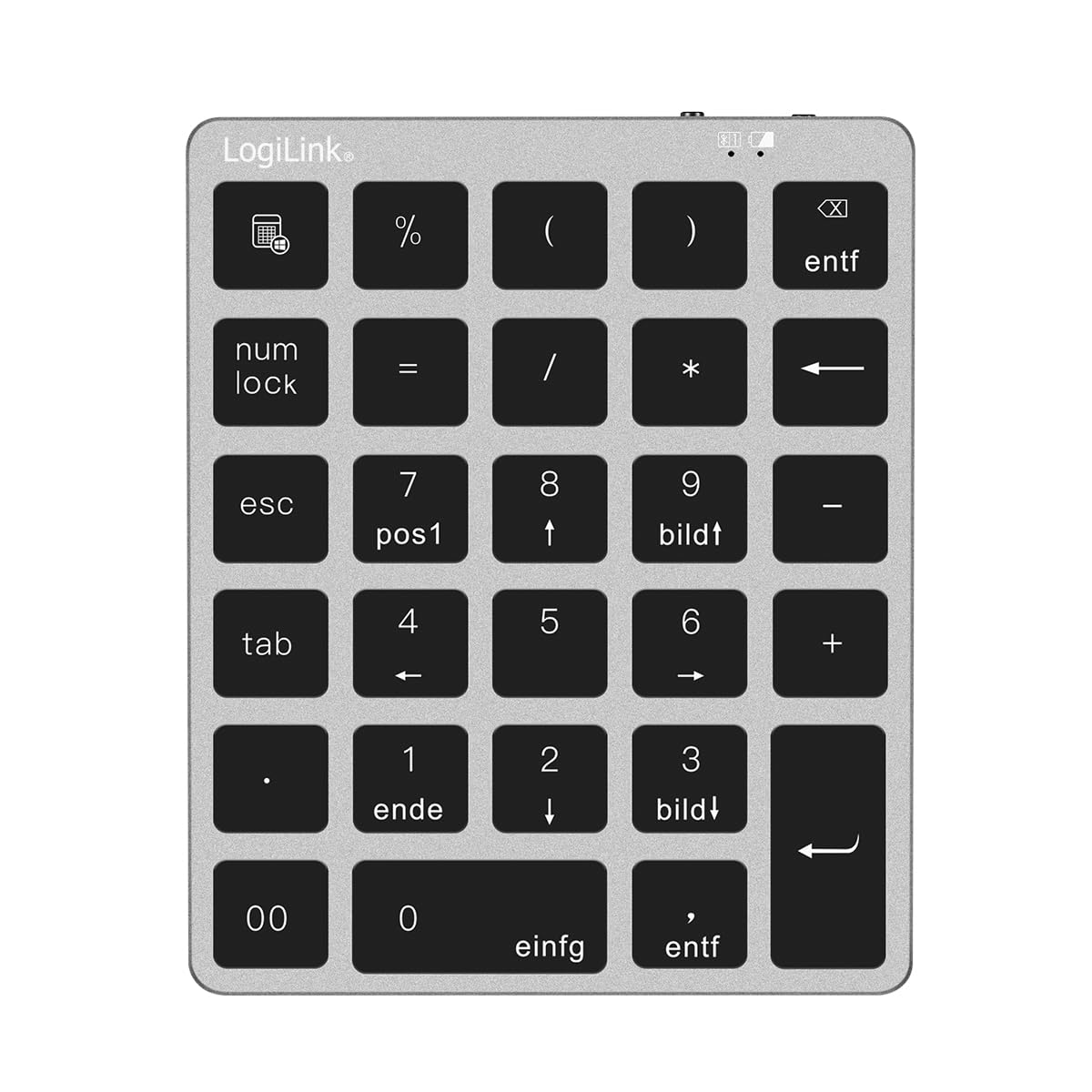
Figure 1: LogiLink ID0212 Wireless 28-Key Bluetooth 5.0 Scissor Mechanism Keyboard. This image shows the overall design of the numeric keypad.
Садржај пакета
Уверите се да су све ставке присутне у пакету:
- LogiLink ID0212 Wireless 28-Key Bluetooth 5.0 Keyboard
- УСБ-Ц кабл за пуњење
- Кориснички приручник (овај документ)
Сетуп
1. Пуњење тастатуре
Before initial use, fully charge the keyboard. Connect the supplied USB-C cable to the keyboard's charging port and the other end to a USB power source (e.g., computer USB port, USB wall adapter).
- The LED indicator will show црвена током пуњења.
- The LED indicator will turn off or change color (depending on model) when fully charged.
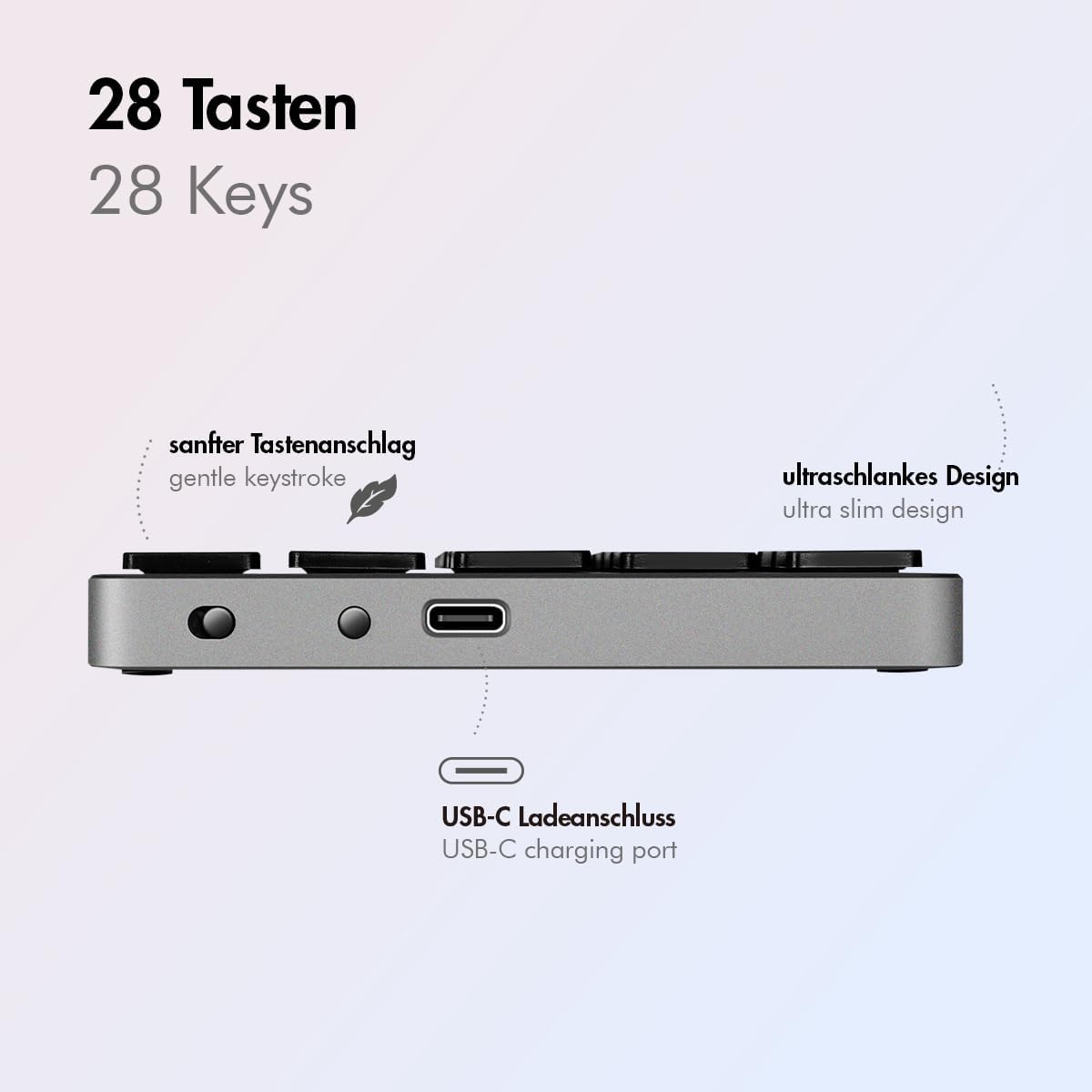
Слика 2: Страна view of the LogiLink ID0212 keyboard showing the USB-C charging port. This image highlights the location of the charging port and the ultra-slim design.

Слика 3: Детаљно view of the LogiLink ID0212 keyboard's side profile, indicating the USB-C charging port, gentle keystroke mechanism, and ultra-slim design.
2. Блуетоотх упаривање
Follow these steps to connect your LogiLink ID0212 keyboard via Bluetooth 5.0:
- Уверите се да је тастатура напуњена и укључена.
- Activate Bluetooth on your device (computer, tablet, smartphone).
- Put the keyboard into pairing mode. Look for a small button on the back or side, or a key combination like Фн + Ц (common for Bluetooth keyboards). The LED indicator will flash плава when in pairing mode.
- На свом уређају потражите доступне Блуетоотх уређаје.
- Select "LogiLink ID0212" or a similar name from the list of found devices.
- If prompted, enter the pairing code displayed on your screen using the LogiLink ID0212 keyboard and press Ентер.
- Once paired, the blue LED indicator will stop flashing and remain solid for a few seconds, then turn off. The keyboard is now ready for use.
The keyboard supports a stable connection up to 10 meters (33 feet) and is compatible with iOS, Android, Windows, MacOS, Chrome OS, and iPadOS.
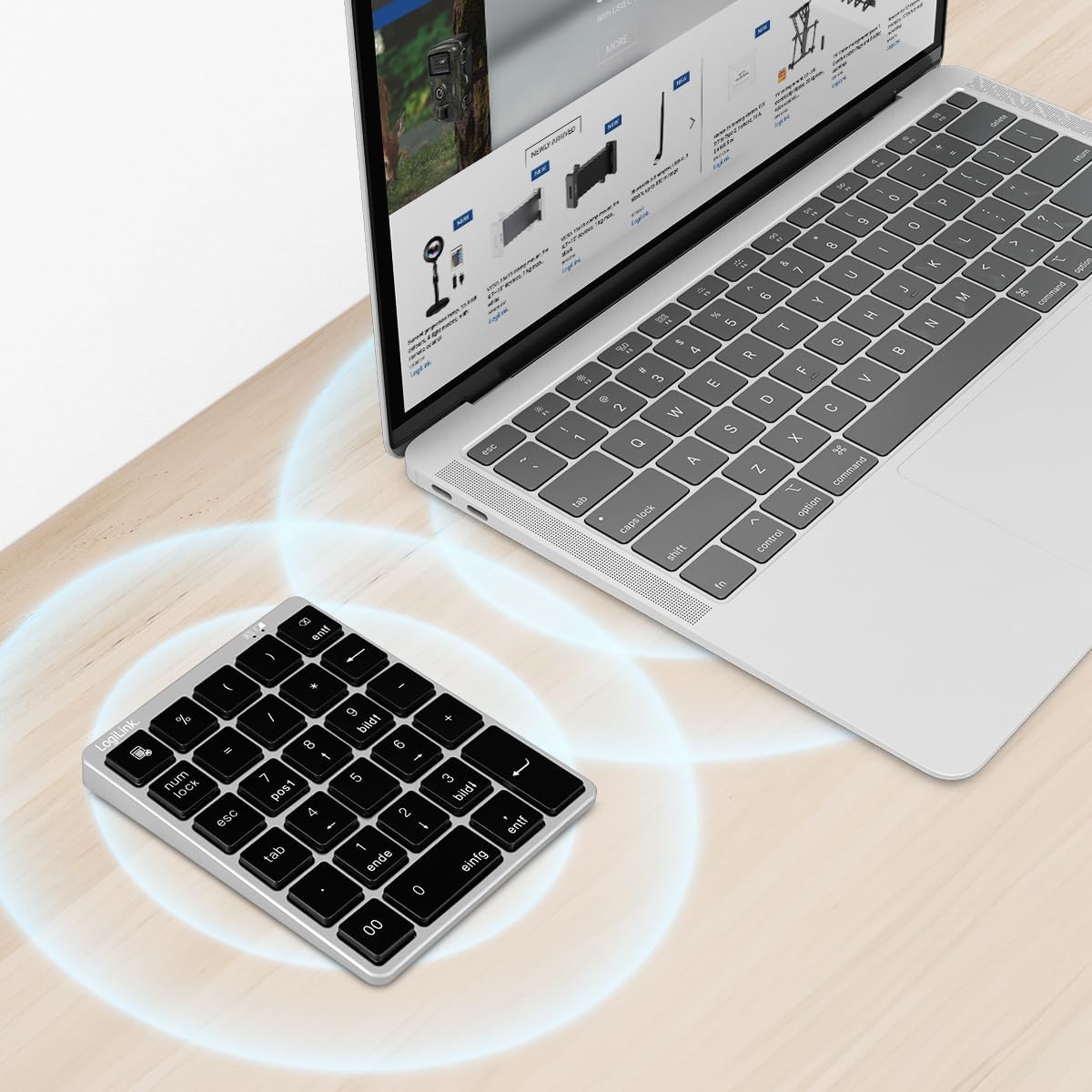
Figure 4: The LogiLink ID0212 keyboard positioned next to a laptop, illustrating its wireless connectivity. This image demonstrates the keyboard's use in a typical workspace setup.
Упутство за употребу
Основне функције тастера
The LogiLink ID0212 features 28 keys designed for efficient data entry and calculations. Key functions include:
- Нумерички тастери (0-9)Стандардни унос бројева.
- Аритметички оператори (+, -, *, /): For calculations.
- Децимална тачка (.): For fractional numbers.
- НумЛоцк: Toggles the numeric keypad function. When NumLock is active, the green LED indicator will be on.
- ЕСЦ: Escape key, typically used to cancel operations or close menus.
- Обриши (DEL): Deletes characters.
- Calculator Button: Launches the calculator application on compatible operating systems.
- Таб: Помера курсор на следећи табулатор или поље.
- Home/End/PgUp/PgDn: These keys (often labeled as 'pos1', 'ende', 'bildt', 'bildl' or similar) provide navigation functions.
The scissor mechanism keys provide a gentle and quiet keystroke, enhancing typing comfort.

Figure 5: The LogiLink ID0212 keyboard in active use, demonstrating its compact layout and key functions alongside a laptop. This image provides a clear view of the keypad's design and key labels.
ЛЕД индикатори
The keyboard features LED indicators to provide status information:
- Црвена ЛЕД диода: Indicates the keyboard is charging.
- Плава ЛЕД: Flashes during Bluetooth pairing mode; solid when successfully paired (then turns off).
- Зелена ЛЕД: Indicates that NumLock is active.
Одржавање
Чишћење
Да бисте одржали изглед и функционалност тастатуре:
- Use a soft, dry, lint-free cloth to wipe the surface.
- За тврдокорну прљавштину, благо дampОбришите крпу водом или благим средством за чишћење. Избегавајте прекомерну влагу.
- Do not use abrasive cleaners, solvents, or aerosol sprays directly on the keyboard.
Баттери Царе
The integrated 140 mAh lithium battery provides long-lasting power. To prolong battery life:
- Пуните тастатуру помоћу приложеног USB-C кабла.
- Избегавајте често потпуно пражњење батерије.
- If storing the keyboard for an extended period, charge it to about 50% and store it in a cool, dry place.
Решавање проблема
Тастатура се не повезује/не упарује
- Проверите ниво батерије: Ensure the keyboard is sufficiently charged. Charge it if the red LED indicates low battery.
- Поново уђите у режим упаривања: Turn the keyboard off and on, then re-enter Bluetooth pairing mode (blue LED flashing).
- Device Bluetooth: Ensure Bluetooth is enabled on your computer/device and it's discoverable.
- Заборави уређај: On your device, remove or "forget" the keyboard from your Bluetooth device list, then attempt to pair again.
- Удаљеност: Ensure the keyboard is within the 10-meter (33 feet) operating range of your device.
- Интерференција: Move away from other wireless devices that might cause interference.
Тастери не реагују
- Веза: Verify the keyboard is still connected via Bluetooth (blue LED should not be flashing).
- НумЛоцк: If numeric keys are not working as expected, check the green NumLock LED. Press the NumLock key to toggle its state.
- Поново покрените уређај: Sometimes, restarting your computer or device can resolve input issues.
- Компатибилност: While compatible with many OS, specific key functions might behave differently on certain systems (e.g., some special characters on macOS, as noted in reviewс).
Проблеми са пуњењем
- Цабле Цхецк: Ensure the USB-C cable is securely connected to both the keyboard and the power source.
- Извор напајања: Try a different USB port or power adapter.
- Црвена ЛЕД диода: Confirm the red LED illuminates when charging. If not, the cable or port might be faulty.
Спецификације
| Феатуре | Детаљ |
|---|---|
| Број модела | ИД0212 |
| Кључеви | 28 keys (NumLock, ESC, Delete, Calculator button) |
| Кључни механизам | Механизам маказа |
| Повезивање | Блуетоотх 5.0 |
| Оперативни опсег | До 10 метара (33 стопе) |
| Батерија | Литијумска батерија од 140 мАх |
| Порт за пуњење | УСБ-Ц |
| ЛЕД индикатори | Red (Charging), Blue (Pairing/Connected), Green (NumLock) |
| Материјал | Алуминијум + АБС |
| Боја | Спаце Греи |
| Димензије (Д к Ш к В) | КСНУМКС к КСНУМКС к КСНУМКС цм (КСНУМКС к КСНУМКС к КСНУМКС инча) |
| Тежина | 95 грама (0.21 лбс) |
| Компатибилност | iOS, Android, Windows, MacOS, Chrome OS, iPadOS |
| Укључене компоненте | УСБ-Ц кабл |
| Земља порекла | Кина |
Информације о гаранцији
Specific warranty details for the LogiLink ID0212 keyboard are typically provided at the point of purchase or included with the product packaging. Please refer to your purchase documentation or the official LogiLink webсајт за најтачније и најновије услове гаранције.
Корисничка подршка
If you encounter issues not covered in this manual or require further assistance, please contact LogiLink customer support. You can usually find contact information, FAQs, and additional resources on the official LogiLink webсајт:
When contacting support, please have your product model number (ID0212) and purchase information ready.