
1. Увод
Thank you for choosing the FUWANG Touch Keyboard Case. This manual provides detailed instructions for setting up, operating, and maintaining your keyboard case to enhance your iPad experience. Please read this manual thoroughly before use.

The FUWANG Touch Keyboard Case with an iPad inserted, displaying the backlit keyboard and integrated trackpad.
2. Компатибилност
Ова футрола са тастатуром је компатибилна са следећим моделима iPad-а:
- iPad Air 13-inch M3 2025 (Model Numbers: A3268, A3269, A3271)
- iPad Air 13-inch M2 2024 (Model Numbers: A2900, A2899, A2898)
- iPad Pro 12.9-inch 6th Generation (Model Numbers: A2436, A2437, A2764, A2766)
- iPad Pro 12.9-inch 5th Generation (Model Numbers: A2378, A2379, A2461, A2462)
- iPad Pro 12.9-inch 4th Generation 2020 (Model Numbers: A2229, A2069, A2232, A2233)
- iPad Pro 12.9-inch 3rd Generation 2018 (Model Numbers: A1876, A2014, A1895, A1983)
To verify your iPad model, check the back of your device or go to Подешавања > Опште > О > Број модела.

A visual guide detailing the compatible iPad models and instructions on locating your iPad's model number.
3. Садржај пакета
Уверите се да су све ставке присутне у вашем пакету:
- 1 x FUWANG Touch Keyboard Case
- 1 x Type-C USB Charging Cable (charger not included)
- 1 к Упутство за употребу

A clear layout of the package contents: the Touch Keyboard Case, a Type-C charging cable, and the product manual.
4. Карактеристике производа
- Дизајн окретања за 360°: Allows for versatile viewing angles and transforms your iPad into a laptop, tablet, or presentation display.
- Мулти-тач тракпед: Supports various gestures for precise navigation and control, enhancing productivity.
- Тастатура са 7 боја позадинског осветљења: Features adjustable 3-level brightness and 7 color options for comfortable typing in any lighting condition.
- Издржљива конструкција: Equipped with aluminum hinges tested for 20,000 folding cycles, ensuring long-lasting stability.
- Пуњива батерија: Built-in 500mAh battery provides approximately 120 hours of working time on a 2-3 hour charge.
- Потпуна заштита: Hard shell case protects all sides of your iPad from scratches and minor impacts.
- Прецизни изрези: Ensures full access to all ports, buttons, and camera.
- Интегрисани држач за оловке: Convenient slot for storing and charging your Apple Pencil.
- Аутоматско спавање/буђење: Automatically conserves battery life by putting the iPad to sleep when closed and waking it when opened.

A composite image detailing various design elements: a dedicated slot for the Apple Pencil, the durable scissor-key structure, the Type-C charging port, the responsive multi-touch trackpad, and the overall compact, portable design.
5. Упутства за подешавање
5.1 Пуњење тастатуре
- Locate the Type-C charging port on the side of the keyboard case.
- Connect the provided Type-C USB cable to the keyboard port and the other end to a USB power adapter (not included) or a computer's USB port.
- Индикаторска лампица пуњења ће се упалити. Потпуно пуњење обично траје 2-3 сата.

Information regarding the keyboard's 500mAh battery, indicating a charging time of 2-3 hours and a working time of approximately 120 hours.
5.2 Pairing with Your iPad via Bluetooth
- Slide the power switch on the keyboard to the 'On' position.
- Press the 'Pair' button (often labeled 'BT' or a Bluetooth icon) for 3 seconds. The Bluetooth indicator light will flash blue, indicating it's in pairing mode.
- На вашем iPad-у идите на Подешавања > Блуетоотх и уверите се да је Блуетоотх укључен.
- Your iPad will automatically search for nearby devices. Select 'Bluetooth Keyboard' (or a similar name) from the list of available devices to connect.
- Once connected, the Bluetooth indicator light on the keyboard will turn off or remain solid blue.

A step-by-step visual guide on pairing the keyboard with your iPad via Bluetooth.
5.3 Inserting Your iPad into the Case
- Gently align your iPad with the case's frame, ensuring the camera cutout and ports match.
- Press firmly but carefully around the edges until the iPad is securely seated in the case.
- The case is designed for a snug fit to provide maximum protection.
6. Упутство за употребу
6.1 Using the Multi-Touch Trackpad
The integrated trackpad supports various multi-touch gestures (requires iPadOS 13 or later):
- Додир једним прстом: Click/Select
- Two Fingers Slide Up/Down: Scroll content
- Two Fingers Pinch In/Out: Увећајте/умањите
- Three Fingers Swipe Up: Идите на почетни екран
- Three Fingers Swipe Left/Right: Пребацивање између отворених апликација
To turn off the trackpad function, press Fn + A.
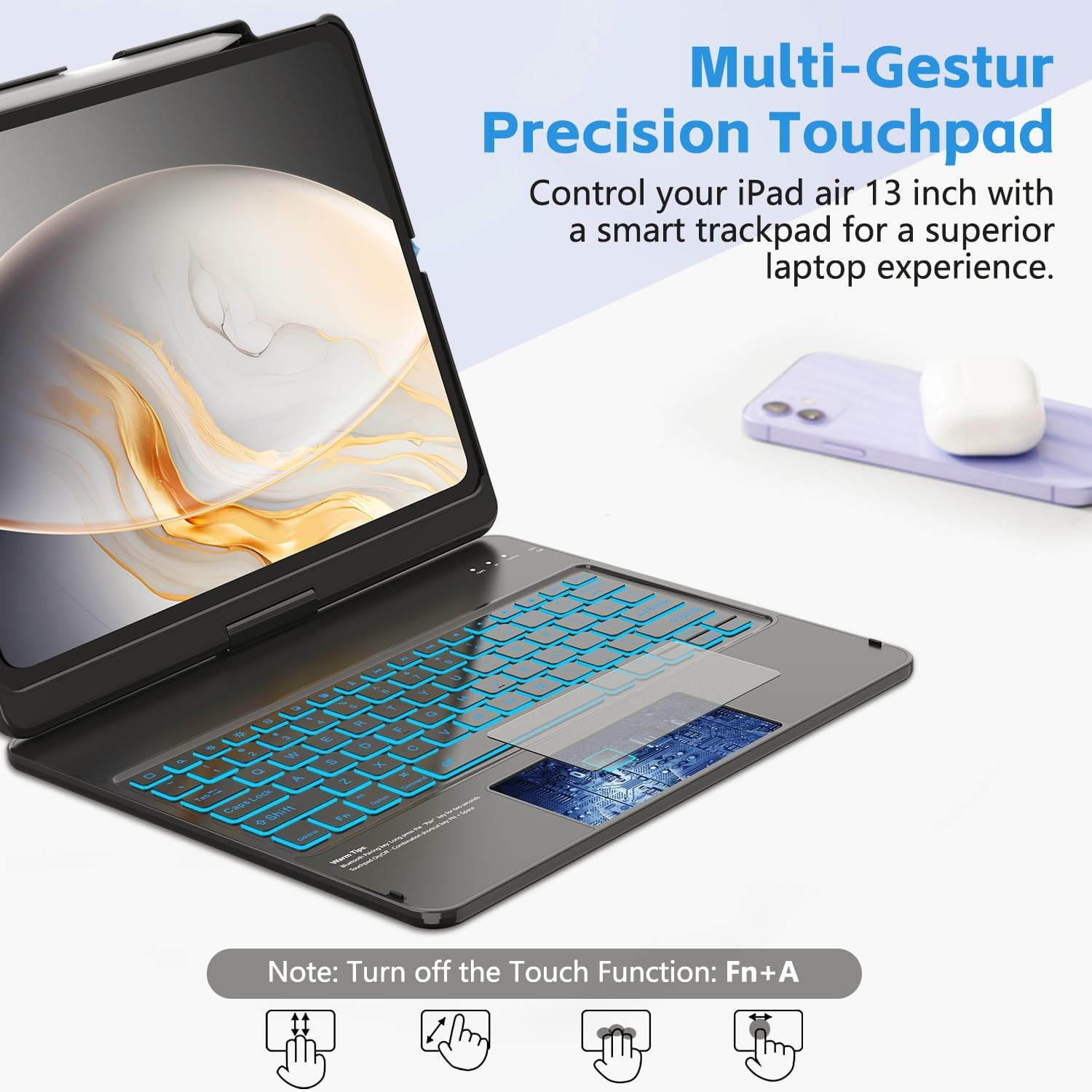
An illustration of the multi-touch trackpad, highlighting various gestures such as two-finger scroll, pinch-to-zoom, three-finger swipe for home, and single-finger tap for clicking.
6.2 Подешавање позадинског осветљења
The keyboard features 7 colors and 3 levels of brightness:
- Притисните тастер Сијалица key (usually near the top right) to cycle through the 7 backlight colors.
- Притисните тастер Сијалица тастер + Стрелица горе / доле keys to adjust the brightness level (3 levels).

The keyboard illuminated with vibrant backlighting, demonstrating the seven available colors and the function keys for color and brightness adjustment.
6.3 Коришћење пречица на тастатури
The top row of the keyboard includes dedicated shortcut keys for quick access to iPad functions:

An illustration pointing out the dedicated row of shortcut keys for quick access to various iPad functions.
6.4 Multi-Angle Usage
The 360° swivel and 180° flip design allows you to adjust your iPad to various positions:
- Режим лаптопа: For typing and productivity.
- Режим таблета: Fold the keyboard back for touch-only interaction.
- ViewРежим рада: Position the screen at an optimal angle for watching videos or presentations.

Visual representations of the case's 360-degree swivel and 180-degree flip functionality, allowing for diverse viewинг и куцање углова.
6.5 Функција аутоматског спавања/буђења
The case automatically detects when it is opened or closed. Closing the case will put your iPad to sleep, and opening it will wake your iPad, helping to conserve battery life for both devices.

A visual showing how the case automatically puts the iPad to sleep when closed and wakes it when opened, conserving battery life.
6.6 Stylus Pen Slot
A dedicated slot is provided for your Apple Pencil, allowing for secure storage and charging (if your iPad model supports magnetic charging).
7. Одржавање
- Држите кућиште тастатуре даље од течности и екстремних температура.
- Очистите спољашњост меком, дamp тканина. Избегавајте јаке хемикалије.
- Уверите се да је порт за пуњење без прашине и остатака.
- When not in use for extended periods, fully charge the keyboard and store it in a cool, dry place.
КСНУМКС. Решавање проблема
8.1 Keyboard Not Connecting via Bluetooth
- Уверите се да је тастатура укључена и потпуно напуњена.
- Уверите се да је Bluetooth омогућен на вашем iPad-у.
- Press the 'Pair' button on the keyboard to enter pairing mode.
- Заборавите уређај у Bluetooth подешавањима вашег iPad-а и покушајте поново да га упарите.
- Поново покрените и iPad и тастатуру.
8.2 Трекпед не реагује
- Ensure your iPad's operating system is iPadOS 13 or later.
- Check if the trackpad is accidentally turned off (press Fn + A to toggle).
- Ensure the Bluetooth connection is stable.
- Очистите површину додирне табле.
8.3 Позадинско осветљење не ради
- Уверите се да је тастатура укључена.
- Притисните тастер Сијалица key to turn on or cycle through backlight options.
- Check battery level; low battery might disable backlight.
9. Спецификације
| Димензије производа | 12.99 к 10.63 к 0.98 инча |
| Тежина артикла | 2 фунти |
| Произвођач | ФУВАНГ |
| Капацитет батерије | 500mAh литијум-јонска батерија (укључена) |
| Време пуњења | 2-3 сати |
| Радно време | Отприлике 120 сата |
| Технологија повезивања | Блуетоотх |
| Карактеристике тастатуре | Flexible Touch Backlit Wireless Bluetooth Keyboard, Scissor-foot keys |
| Посебне карактеристике | 360° Swivel, 7-Color Backlit, Comprehensive Protection, Pencil Holder, Multi-Touch Trackpad, Auto Sleep/Wake |
10. Гаранција и подршка
10.1 Информације о гаранцији
FUWANG products are designed for durability and performance. For specific warranty details, please refer to the warranty card included with your purchase or contact FUWANG customer support. Keep your proof of purchase for warranty claims.
10.2 Корисничка подршка
If you encounter any issues or have questions not covered in this manual, please contact FUWANG customer support through the retailer where you purchased the product or visit the official FUWANG webсајт за помоћ.