
1. Увод
This manual provides detailed instructions for the setup, operation, maintenance, and troubleshooting of your SGIN 17.3 Inch Laptop Computer (Model M17S). Please read this manual thoroughly before using your laptop to ensure proper functionality and to maximize its lifespan. Keep this manual for future reference.

Figure 1.1: SGIN 17.3 Inch Laptop Computer Overview
The SGIN M17S laptop is designed for a wide range of applications, including study, work, entertainment, and internet browsing, offering a balance of performance and portability.
2. Садржај пакета
Verify that all items listed below are included in your package. If any items are missing or damaged, please contact SGIN customer support.
- SGIN 17.3 Inch Laptop Computer (M17S) x 1
- Power Adapter/Charger x 1
- Упутство за употребу к 1
3. Карактеристике производаview
3.1 Дисплеј
The laptop features a 17.3-inch Full HD (1920x1080) IPS screen. This display technology provides sharp, clear text and vivid colors, along with wide viewинг углова.

Figure 3.1: High-Definition IPS Display
3.2 Процесор
Equipped with an Intel Core i3-5005U processor, operating at 2.4GHz Turbo Boost. This dual-core, four-thread processor is designed for efficient multitasking and handling various workloads.

Figure 3.2: Intel Core i3-5005U Processor
3.3 Меморија и складиштење
The laptop comes with 4GB DDR4 RAM and a 128GB SSD for fast boot times and application loading. Storage can be expanded with an additional SSD (up to 1TB) and a MicroSD card (up to 512GB).

Слика 3.3: Конфигурација меморије и складишта
3.4 Батерија
A 8000 mWh (60Wh) lithium-ion battery provides extended usage time, with an estimated 8 hours of typical use on a single charge.

Figure 3.4: Long-Lasting Battery
3.5 Портови и повезивање
The laptop offers a variety of ports for versatile connectivity:
- УСБ 3.2 портови (к2)
- HDMI Port (for external monitors/projectors)
- Порт Типе-Ц
- 3.5 мм прикључак за слушалице
- Слот за МицроСД картицу
- Улаз једносмерне струје
Wireless connectivity includes 5G Wi-Fi (802.11ac) and Bluetooth 4.2.

Figure 3.5: Available Ports
3.6 Аудио и Webцам
The laptop includes stereo speakers and a digital microphone for audio input and output. A 0.3MP webcam is integrated for video calls and conferencing.

Слика 3.6: Аудио и Webцам Феатурес
4. Getting Started (Setup Guide)
4.1 Распакивање
Carefully remove the laptop and all accessories from the packaging. Retain the packaging materials for future transport or storage.
4.2 Пуњење батерије
Before first use, fully charge the laptop battery. Connect the power adapter to the DC-in port on the laptop and then plug the adapter into a power outlet. The charging indicator light will illuminate.
4.3 Прво укључивање и почетно подешавање
Press the power button to turn on the laptop. The system will guide you through the initial Windows 11 setup process. This includes selecting your region, language, connecting to a Wi-Fi network, and setting up your user account.
5. Основна операција
5.1 Power On/Off/Sleep
- Укључено: Притисните дугме за напајање које се налази на плочи са тастатуром.
- Искључивање: Кликните на дугме Старт, затим на Напајање и изаберите „Искључи“.
- Режим спавања: Click the Start button, then Power, and select 'Sleep', or close the laptop lid.
5.2 Коришћење тастатуре и тачпеда
The laptop features a full-size keyboard with a numeric keypad and a multi-touch touchpad. Refer to Windows 11 settings for customizing touchpad gestures and keyboard shortcuts.
5.3 Повезивање на Ви-Фи
Да бисте се повезали на бежичну мрежу:
- Кликните на икону Wi-Fi мреже у системској палети (доњи десни угао екрана).
- Изаберите жељену мрежу са листе.
- Унесите мрежну лозинку ако се то затражи, а затим кликните на „Повежи се“.
5.4 Connecting Bluetooth Devices
Да бисте упарили Блуетоотх уређај:
- Go to 'Settings' > 'Bluetooth & devices'.
- Ensure Bluetooth is turned 'On'.
- Click 'Add device' and select 'Bluetooth'.
- Choose your device from the list and follow the on-screen pairing instructions.
5.5 Using External Displays (HDMI)
Connect an external monitor or projector to the laptop's HDMI port. Press Windows тастер + P да бисте изабрали режим приказа (нпр. Дуплирање, Проширење, Само други екран).
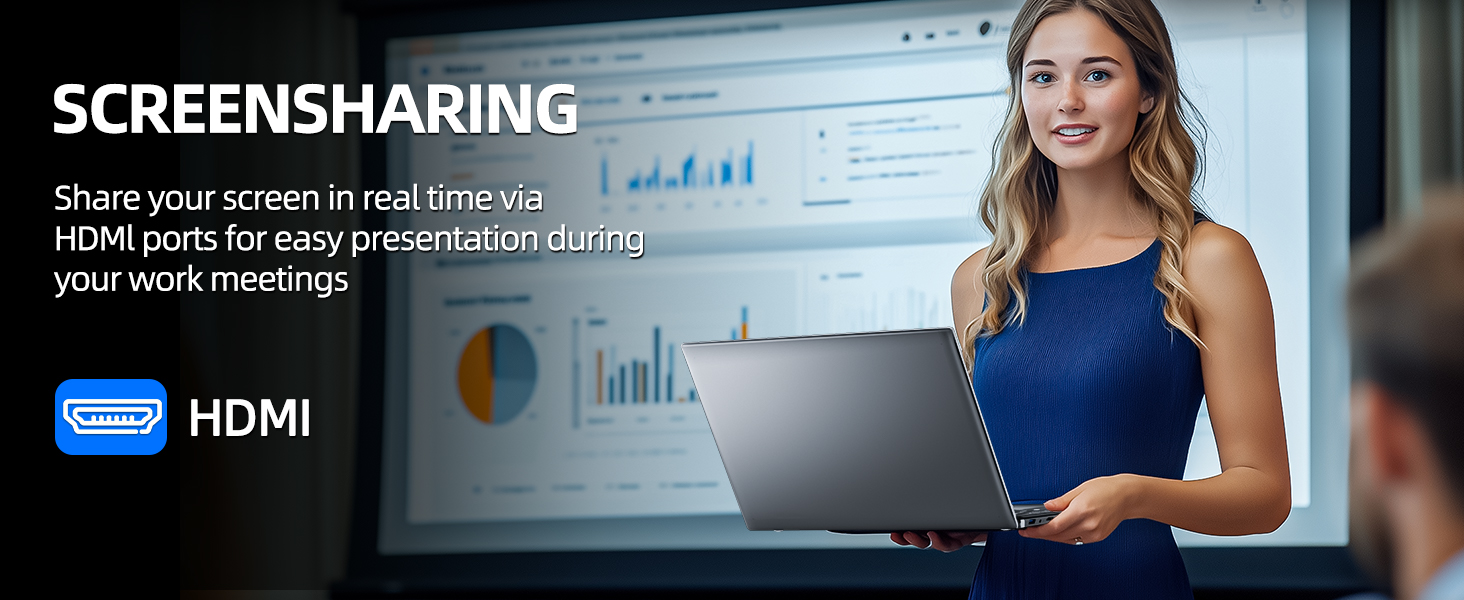
Figure 5.1: Screen Sharing via HDMI
5.6 Using USB Devices
Connect USB devices such as external hard drives, keyboards, or mice to the available USB 3.2 ports. The laptop will automatically detect and install necessary drivers.
6. Управљање складиштењем и меморијом
6.1 Проширивање складишног простора
Your SGIN laptop supports storage expansion:
- Additional SSD: An extra slot is available for installing an M.2 SSD, supporting up to 1TB. Consult a qualified technician for installation.
- МицроСД картица: Insert a MicroSD card into the dedicated slot for up to 512GB of additional storage.
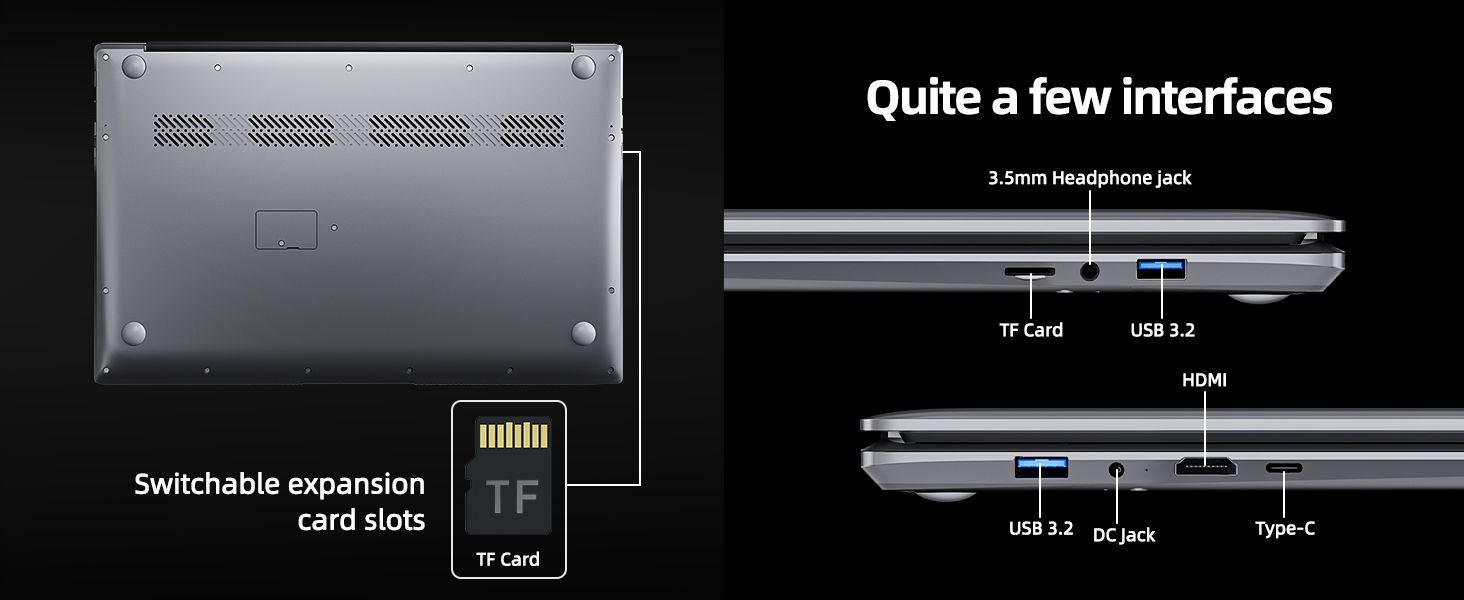
Figure 6.1: Expansion Card Slots
7. Брига о батерији
7.1 Смернице за пуњење
Always use the original SGIN power adapter provided with your laptop. Avoid using third-party chargers that may not meet the required specifications.
7.2 Оптимизација трајања батерије
Да бисте продужили век трајања батерије:
- Подесите осветљеност екрана на удобан, али нижи ниво.
- Затворите неискоришћене апликације и картице прегледача.
- Искључите спољне периферне уређаје када их не користите.
- Enable Windows Battery Saver mode.
- Избегавајте екстремне температуре.
8. Одржавање и њега
8.1 Чишћење лаптопа
Користите меку крпу која не оставља длачицеampОчистите екран водом или средством за чишћење екрана. За тастатуру и кућиште користите меку, суву крпу. Избегавајте јаке хемикалије или абразивне материјале.
8.2 Ажурирања софтвера
Regularly check for and install Windows updates to ensure system stability, security, and optimal performance. Go to 'Settings' > 'Windows Update'.
8.3 Опште руковање
Handle your laptop with care. Avoid dropping it or exposing it to liquids, extreme temperatures, or direct sunlight. Do not place heavy objects on the laptop.
КСНУМКС. Решавање проблема
This section addresses common issues you might encounter with your SGIN laptop.
| Проблем | Могући узрок | Решење |
|---|---|---|
| Лаптоп се неће укључити | Low battery; Power adapter issue; Hardware malfunction | Ensure battery is charged. Check power adapter connection. Try a different outlet. If problem persists, contact support. |
| Ви-Фи се не повезује | Wi-Fi disabled; Incorrect password; Router issue | Ensure Wi-Fi is enabled in settings. Verify password. Restart router and laptop. |
| Споро перформансе | Too many applications running; Low storage space; Malware | Close unnecessary programs. Free up disk space. Run a virus scan. Consider adding more RAM or upgrading SSD if frequently slow. |
| Нема звука | Volume muted; Incorrect audio output; Driver issue | Check volume levels and mute status. Ensure correct output device is selected. Update audio drivers. |
| Webкамера не ради | Privacy settings; Driver issue; Application access | Check Windows privacy settings for camera access. Update webcam drivers. Ensure the application has permission to use the camera. |
10. Техничке спецификације
Detailed specifications for the SGIN M17S Laptop Computer:
| Феатуре | Спецификација |
|---|---|
| Назив модела | М17С |
| Величина екрана на стојећем екрану | 17.3 инча |
| Резолуција екрана | 1920 x 1080 пиксела (Full HD IPS) |
| Процесор | Intel Core i3-5005U (2.4 GHz, 2 Cores, 4 Threads) |
| РАМ | 4 ГБ ДДР4 |
| Хард Дриве | 128 ГБ ССД |
| Грапхицс Цопроцессор | Интегрисано |
| Вирелесс Типе | 802.11ac (5G WiFi) |
| Блуетоотх | Блуетоотх 4.2 |
| Оперативни систем | Виндовс 11 Хоме |
| Тежина артикла | 5.89 фунти |
| Димензије производа | 17.3 к 10 к 0.6 инча |
| Батерија | 8000 mWh Lithium Ion (60Wh) |
| Боја | Црно |
| Посебна карактеристика | Memory Card Slot (MicroSD) |
11. Гаранција и подршка
Your SGIN laptop includes a 1-year comprehensive after-sales warranty covering essential components. For technical assistance, warranty claims, or any product-related inquiries, please contact SGIN customer service. Our professional customer service team aims to respond within 12 hours.
For more information and support, please visit the official SGIN webсајт или погледајте контакт податке који су наведени на паковању вашег производа.