
1. Увод
Welcome to the user manual for your new Onyx E Ink Tablet Go Series 6 Inch B/W eReader Digital Paper Black. This manual provides essential information on setting up, operating, and maintaining your device to ensure optimal performance and longevity. Please read this manual thoroughly before using your eReader.
2. Производ је готовview
2.1 Садржај пакета
Након распакивања, проверите да ли су присутне све ставке наведене у наставку:
- Onyx E Ink Tablet Go Series 6 Inch B/W eReader Digital Paper Black
- УСБ-Ц кабл
- Card Tray Eject Tool
- Водич за брзи почетак
- Гарантни лист
2.2 Кључне карактеристике
The Onyx E Ink Tablet Go Series 6 Inch eReader is designed for an exceptional reading experience. Key features include:
- High-Resolution E Ink Display: The E Ink Carta 1300 delivers crisp text and images with 300 PPI, making everything as sharp as if it's printed on high-quality paper. The flush screen creates modern aesthetics, enhancing sleekness and durability.
- Персонализовано читање: Get a truly personalized reading experience with our powerful native reading app NeoReader and enjoy a wide range of features tailored to your needs.
- Подесиво предње светло: Read whenever and wherever with an adjustable front light. It sheds evenly across the screen, gently on your eyes. Choose from white cold light for focused reading or warm amber light for a cozy nighttime ambience.
- Компактан и преносив дизајн: Explore without limits with this 6'' eReader. Sleek at 6.8mm thick and weighing just 146g, it follows you all the way in a quaint café, on a slow-moving train, and under the trees in the forest.
- Прилагођавање теме: Effortlessly toggle between white and dark themes. Customize your reading experience for a clean, calming feel or a futuristic, high-tech look. Lose yourself in the text with your favorite vibe.
- Smart Word Menu: The Word Menu offers a handy toolkit, where you can highlight and annotate text that inspires you, search for information directly, or summon an AI assistant to answer your questions - all within a few taps.
2.3 Изглед уређаја

Слика 1: Предње и задње view of the Onyx E Ink Tablet. Shows the sleek design and the E Ink display.

Слика 2: Предња и бочна view of the Onyx E Ink Tablet, highlighting its thin profile.

Слика 3: A person holding the Onyx E Ink Tablet, demonstrating its comfortable size for reading.

Слика 4: A woman using the Onyx E Ink Tablet at a table, showcasing its use in a relaxed setting.

Слика 5: Close-up of a person holding the Onyx E Ink Tablet, displaying text on the E Ink screen.
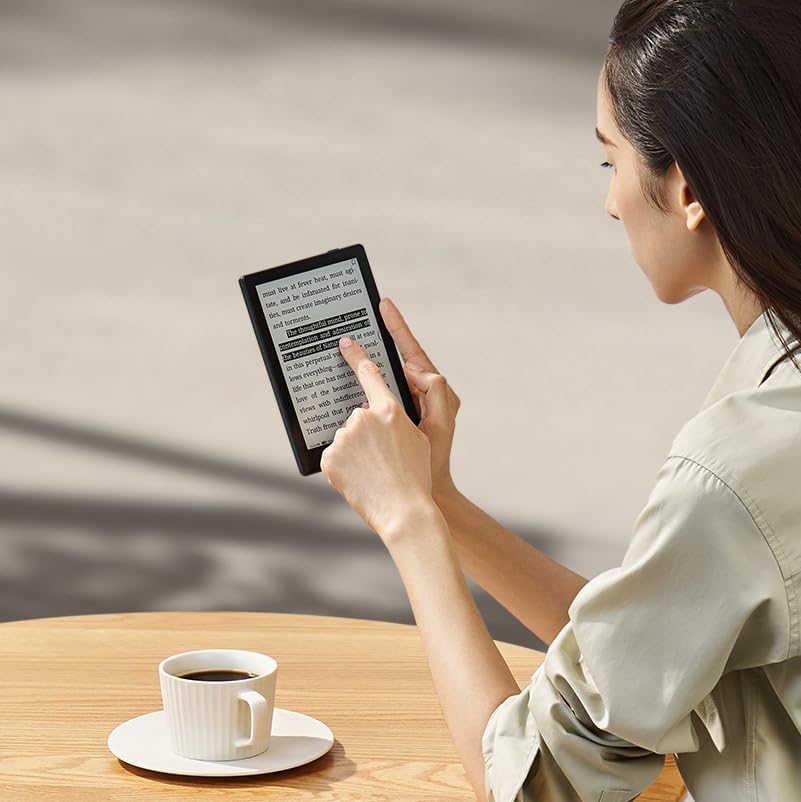
Слика 6: A woman interacting with the Onyx E Ink Tablet, demonstrating touch screen functionality.

Слика 7: A person holding the Onyx E Ink Tablet casually by their side, emphasizing its portability.
3. Подешавање
3.1 Почетна наплата
Before first use, fully charge your Onyx eReader. Connect the provided USB-C cable to the device's USB-C port and the other end to a compatible USB power adapter (not included) or a computer's USB port. The charging indicator will show the charging status.
3.2 Укључивање/искључивање
- За укључивање: Press and hold the Power Button located on the device for a few seconds until the screen illuminates.
- За искључивање: Press and hold the Power Button until a power-off menu appears. Select "Power Off".
- За спавање/буђење: Briefly press the Power Button to put the device into sleep mode or wake it up.
3.3 Почетна конфигурација
При првом укључивању, пратите упутства на екрану да бисте конфигурисали уређај:
- Изаберите жељени језик.
- Connect to a Wi-Fi network (2.4GHz + 5GHz supported) to enable online features and updates.
- Подесите датум и време.
- Log in to your Google account (optional, for Google Play Store access).
4. Operating Your eReader
4.1 Навигација кроз интерфејс
The Onyx eReader features a capacitive touch screen for intuitive navigation. Tap icons to open applications, swipe to turn pages, and use pinch-to-zoom for adjusting text size or image magnification.
4.2 Читање докумената
The device supports a wide range of document formats including PDF, EPUB, MOBI, TXT, DOC, and more. Open the NeoReader app or navigate to your Library to access your books. Tap the left or right side of the screen to turn pages, or swipe horizontally.
4.3 Adjusting Front Light
To adjust the front light, swipe down from the top of the screen to access the quick settings panel. You can adjust both the brightness and the color temperature (warm to cold) to suit your environment and preference.
4.4 Using the Word Menu
While reading, long-press on a word to activate the Word Menu. This menu allows you to highlight text, add annotations, search for definitions, or use the AI assistant for more information.
4.5 Управљање Files
Можете пренети files to your device via USB-C cable connection to a computer or by using Wi-Fi transfer services like BOOXDrop. The device has 32GB of internal storage and supports microSD cards for expanded storage.
5. Одржавање
5.1 Чишћење уређаја
Use a soft, lint-free cloth to gently wipe the screen and body of the device. Do not use liquid cleaners, aerosols, or abrasive materials, as these can damage the screen or finish.
5.2 Одржавање батерије
To prolong battery life, avoid exposing the device to extreme temperatures. Charge the device regularly, but avoid leaving it fully discharged for extended periods. The built-in 1,500mAh Li-ion Polymer battery is designed for long reading sessions.
5.3 Ажурирања софтвера
Periodically check for software updates to ensure your device has the latest features and performance improvements. Updates can typically be found in the device's settings menu under "System Update".
КСНУМКС. Решавање проблема
6.1 Уређај не реагује
If the device becomes unresponsive, press and hold the Power Button for approximately 10-15 seconds to force a restart.
6.2 Screen Ghosting
E Ink screens may exhibit minor ghosting (faint remnants of previous images). This is normal for E Ink technology. The device performs full screen refreshes periodically to clear ghosting. You can also manually trigger a full refresh in the display settings if needed.
6.3 Проблеми са Wi-Fi повезивањем
Ensure your Wi-Fi network is active and within range. Try restarting your eReader and your Wi-Fi router. Verify that the Wi-Fi password entered is correct.
6.4 Unable to Open Files
Проверите да ли је file format is supported by the device (PDF, EPUB, MOBI, TXT, etc.). Ensure the file is not corrupted. Try transferring the file опет.
7. Спецификације
| Феатуре | Детаљ |
|---|---|
| Екран | 6-инчни HD Carta 1300 стаклени екран са равним заштитним сочивом |
| Резолуција | 1448x1072 (300 ppi) |
| Додирните | Капацитивни додир |
| ЦПУ | 2.0Ghz Octa-core |
| РАМ | 2ГБ |
| РОМ | 32ГБ |
| Повезивање | Wi-Fi (2.4 GHz + 5 GHz) + BT 5.0 |
| Предње светло | Са CTM (топло и хладно) |
| Оперативни систем | Андроид 11 |
| Формати докумената | ПДФ, CAJ, DJVU, CBR, CBZ, EPUB, EPUB3, AZW3, MOBI, TXT, DOC, DOCX, FB2, CHM, RTF, HTML, ZIP, PRC, PPT, PPTX |
| Формати слика | PNG, JPG, BMP, TIFF |
| Аудио формати | ВАВ, МП3 |
| Дугмад | Дугме за напајање |
| Портс | USB-C (Supports OTG or audio jack), microSD Card Slot |
| Микрофон | Уграђени |
| Батерија | Литијум-јонска полимерска батерија од 1,500 mAh |
| Димензије | 148*108*6.8mm (5.8" x 4.3" x 0.27") |
| Тежина | Приближно 146г (5.15оз) |
8. Гаранција и подршка
8.1 Информације о гаранцији
Your Onyx E Ink Tablet Go Series 6 Inch B/W eReader Digital Paper Black comes with a warranty. Please refer to the included "Warranty card" for detailed terms and conditions, including warranty period and coverage. Keep your proof of purchase for warranty claims.
8.2 Корисничка подршка
For technical assistance, troubleshooting beyond this manual, or warranty inquiries, please contact the manufacturer's customer support. Refer to the contact information provided on the warranty card or the official Onyx webсајту.