
1. Увод
This manual provides detailed instructions for the setup, operation, and maintenance of your Phomemo M834 Bluetooth Thermal Printer. The M834 is a portable, inkless thermal printer designed for high-clarity document printing, offering 300 dpi resolution and versatile paper compatibility. It supports both Bluetooth and USB connections for various devices.

Image 1.1: The Phomemo M834 thermal printer in use, connected to a smartphone, printing documents.
2. Садржај пакета
Молимо вас да проверите да ли су све ставке присутне у вашем пакету:
- Phomemo M834 Thermal Printer
- УСБ кабл за пуњење
- 200 Sheets of Folded Thermal Printer Paper (8.5" x 11")
- Кориснички приручник (овај документ)
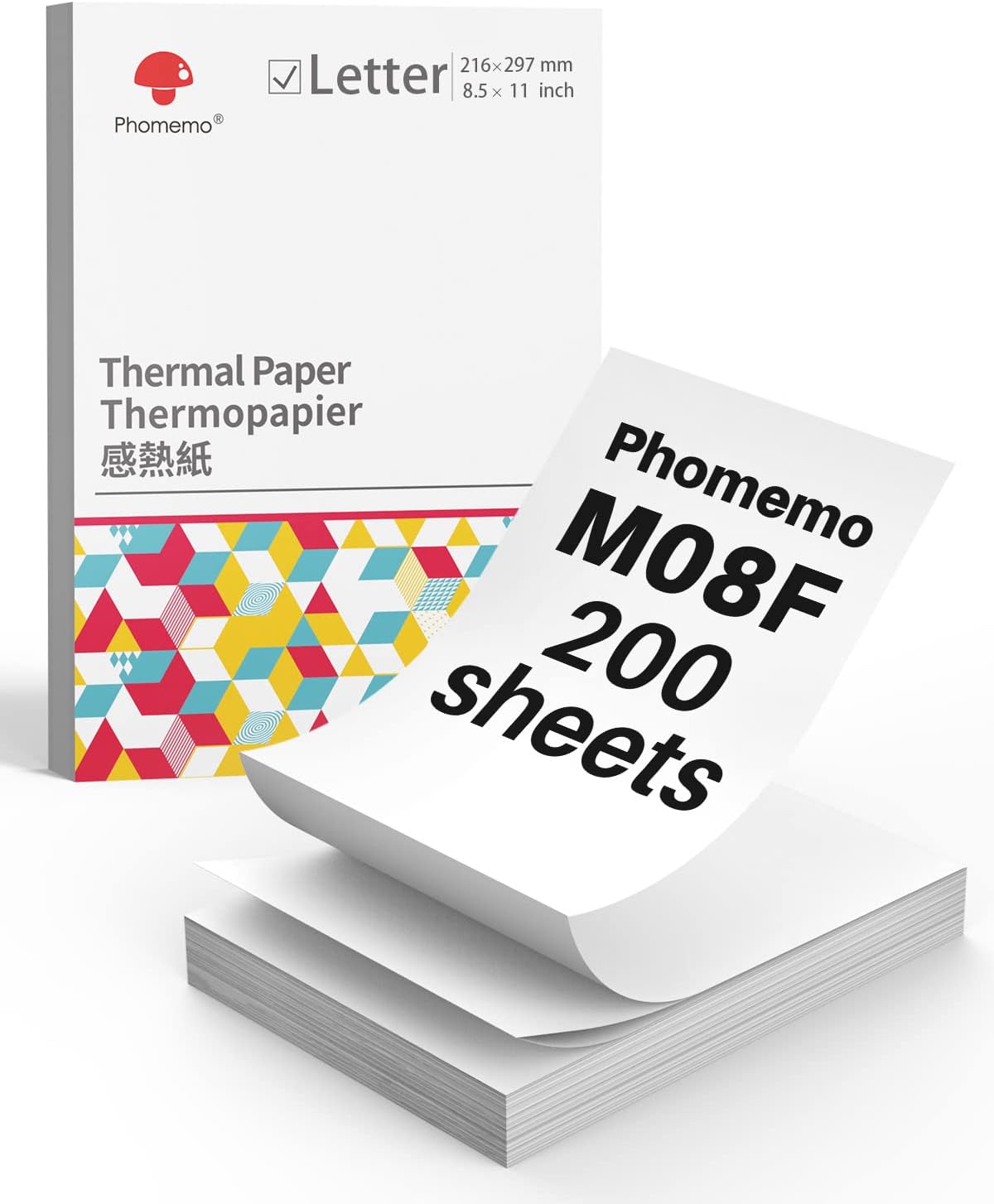
Image 2.1: A box containing 200 sheets of Phomemo M08F Letter-sized thermal paper.
3. Почетно подешавање
3.1 Пуњење штампача
Before first use, fully charge the printer. Connect the provided USB cable to the printer's charging port and a power adapter (not included) or a computer's USB port. The indicator light will show charging status.
3.2 Installing the Phomemo App
For mobile printing, download the 'Phomemo' app from your device's app store (available for iOS and Android). Follow the in-app instructions for initial setup and pairing.
3.3 Убацивање термалног папира
The Phomemo M834 supports various thermal paper types, including folded sheets. Ensure the paper is inserted correctly for optimal printing.
- Open the paper cover of the printer.
- Insert the thermal paper with the printable side facing up. For folded paper, ensure it feeds smoothly from the stack.
- Adjust the paper guides to fit the width of the paper.
- Добро затворите поклопац папира.

Image 3.1: Illustration of Phomemo continuous folding paper, showing 8.5" x 11" dimensions.

Image 3.2: A hand demonstrating how to easily tear thermal paper along its perforated edge after printing.
4. Руковање штампачем
4.1 Connecting via Bluetooth (Mobile Devices)
The M834 printer connects wirelessly to smartphones and tablets via Bluetooth.
- Ensure the printer is powered on and within range of your mobile device.
- Омогућите Блуетоотх на свом мобилном уређају.
- Open the Phomemo app. The app will guide you to discover and pair with the M834 printer.
- Once paired, you can select documents or images within the app to print.
4.2 Connecting via USB (Computers)
For Windows, macOS, Linux, and ChromeOS computers, connect the printer using the provided USB cable.
- Connect one end of the USB cable to the printer and the other end to your computer.
- The computer should automatically detect the printer. If necessary, install the appropriate printer drivers from the Phomemo official webсајту.
- Once installed, the M834 will appear as an available printer in your system's print dialogue.

Image 4.1: Visual representation of the two connection methods: Bluetooth for mobile devices (Android, iOS, Tablets) and USB for computers (Windows, Mac OS, Chrome OS, Linux).
4.3 Штампање докумената
After connecting, select the document or image you wish to print from your device. Adjust print settings such as paper size (US Letter, A4, 4.33'', 3.14'', 2.08'') and orientation as needed before initiating the print job.

Image 4.2: A side-by-side comparison highlighting the enhanced clarity of 300dpi printing (Phomemo M834) compared to 203dpi.
5. Одржавање
5.1 Чишћење главе за штампање
To maintain print quality, periodically clean the print head. Use a cotton swab lightly dampened with isopropyl alcohol. Gently wipe the print head surface. Allow it to dry completely before use.
5.2 Општа нега
- Keep the printer in a clean, dry environment.
- Избегавајте излагање штампача директној сунчевој светлости или екстремним температурама.
- Use only Phomemo-approved thermal paper for optimal results and to prevent damage.
- Do not attempt to disassemble the printer.

Image 5.1: Information highlighting the use of BPA-Free thermal paper, emphasizing its inkless and harmless properties.
КСНУМКС. Решавање проблема
6.1 No Print Output
- Проверите снагу: Ensure the printer is powered on and has sufficient battery charge.
- Учитавање папира: Verify that thermal paper is loaded correctly with the printable side facing up.
- веза: Confirm that the printer is properly connected via Bluetooth or USB.
6.2 Лош квалитет штампе
- Чиста глава за штампање: A dirty print head can cause streaks or faded prints. Refer to Section 5.1.
- Квалитет папира: Уверите се да користите висококвалитетни термални папир.
- Paper Orientation: Make sure the thermal paper is inserted with the correct side facing the print head.
6.3 Проблеми са Bluetooth везом
- Поново покрените уређаје: Turn off and on both the printer and your mobile device.
- Заборави уређај: In your device's Bluetooth settings, 'forget' or 'unpair' the M834 and then attempt to pair again through the Phomemo app.
- Дозволе за апликације: Ensure the Phomemo app has necessary Bluetooth permissions.
7. Спецификације
| Феатуре | Спецификација |
|---|---|
| Модел | Phomemo M834 |
| Резолуција штампања | 300 дпи |
| Технологија штампе | Термални (без мастила) |
| Повезивање | Блуетоотх, УСБ |
| Капацитет батерије | 2600mAh (up to 160+ pages continuous printing) |
| Подржане величине папира | US Letter, A4, 4.33'', 3.14'', 2.08'' |
| Подржане врсте папира | Roll, Fold, Ordinary Thermal Paper |
| Подржани оперативни системи | Android, iOS, Windows 10/11, Linux, ChromeOS, macOS |
8. Гаранција и подршка
8.1 Информације о гаранцији
For detailed warranty information, please refer to the warranty card included with your product or visit the official Phomemo webсајт. Услови гаранције могу се разликовати у зависности од региона и датума куповине.
8.2 Корисничка подршка
If you encounter any issues or have questions not covered in this manual, please contact Phomemo customer support through their official website or the contact information provided in your product packaging. When contacting support, please have your product model (M834) and purchase details ready.