
Увод
The MAGIC-REFINER G6 is a versatile wireless gaming mouse designed for optimal performance across various applications, including gaming, office work, and general computer use. It features tri-mode connectivity (2.4GHz wireless, Bluetooth, and wired USB-C), a high-precision PixArt PAW3311 sensor with up to 24000 DPI, and a lightweight ergonomic design. This manual provides detailed instructions for setting up, operating, and maintaining your G6 mouse.

Image: The MAGIC-REFINER G6 Wireless Gaming Mouse in black, shown with its USB wireless dongle.
Сетуп
Садржај пакета
- MAGIC-REFINER G6 Wireless Gaming Mouse
- УСБ-Ц кабл за пуњење
- 2.4GHz USB Wireless Dongle (stored in the mouse base)
- Set of 6 DIY Anti-slip Grip Tapes
- Упутство за употребу
Пуњење миша
Before first use, it is recommended to fully charge the mouse. Connect the supplied USB-C cable to the mouse's front port and the other end to a USB power source (e.g., computer USB port, USB wall adapter). The mouse can be used while charging in wired mode.
Повезивање миша
The G6 mouse supports three connection modes: 2.4GHz wireless, Bluetooth, and wired USB-C. The connection mode can be switched using the button on the back of the mouse.
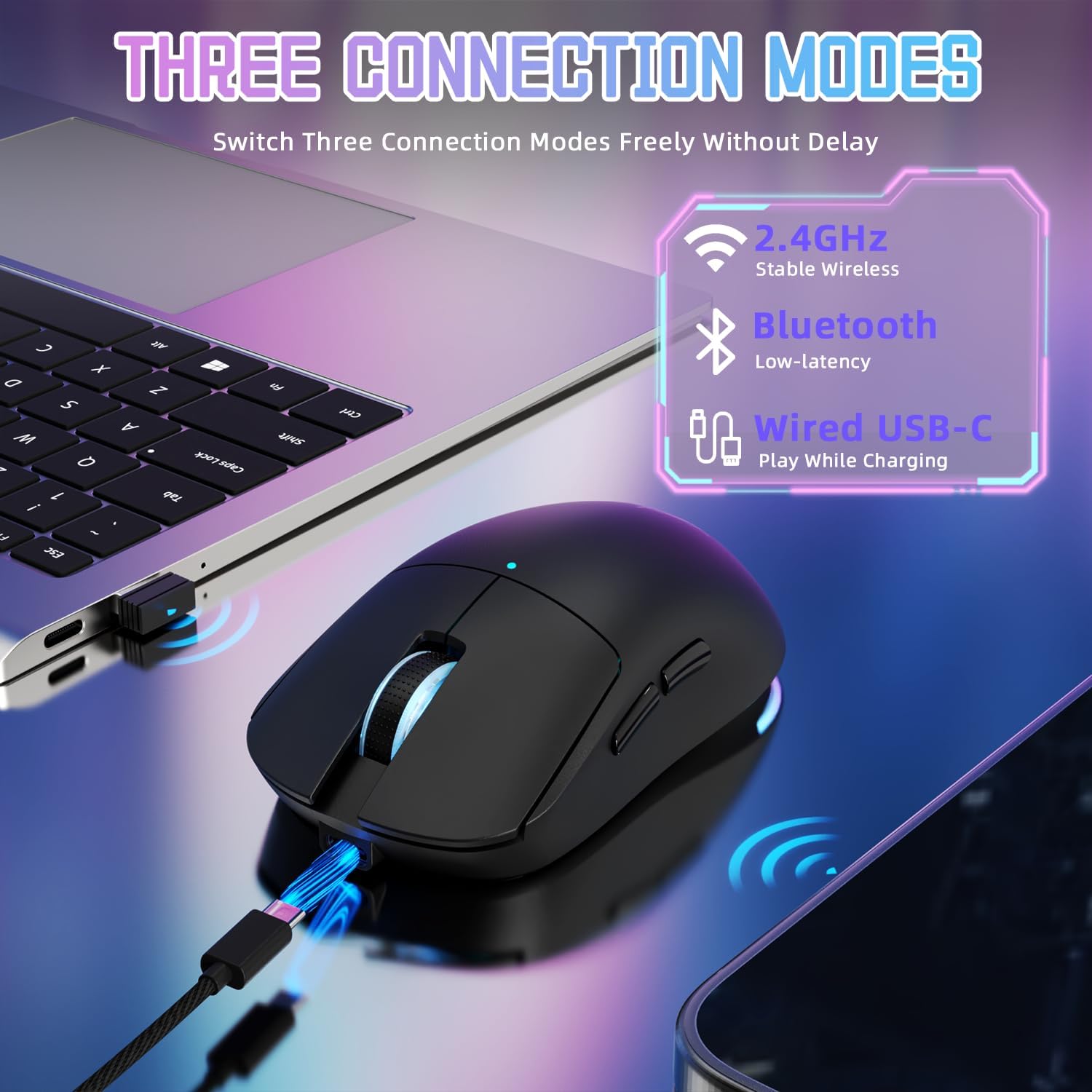
Image: Illustration of the three connectivity options for the G6 mouse: 2.4GHz wireless, Bluetooth, and wired USB-C.
- 2.4 ГХз бежични режим:
- Locate the USB wireless dongle stored in the compartment on the underside of the mouse.
- Укључите кључ у слободан УСБ порт на рачунару.
- Switch the mode selector on the mouse to the '2.4G' position. The mouse should connect automatically.
- Блуетоотх режим:
- Switch the mode selector on the mouse to the 'BT' position.
- На рачунару или уређају отворите подешавања за Bluetooth и потражите нове уређаје.
- Select 'MAGIC-REFINER G6' from the list of available devices to pair.
- Wired USB-C Mode:
- Connect the supplied USB-C cable to the mouse and to your computer's USB port.
- Миш ће се аутоматски пребацити у жични режим и почети са пуњењем.
Инсталација драјвера
For advanced customization of DPI settings, polling rate, button assignments, and RGB lighting effects, download and install the official MAGIC-REFINER G6 driver software from the manufacturer's website. The software allows for personalized configuration to enhance your user experience.

Image: The customizable driver software interface for the G6 mouse, showing options for light settings, button settings, performance settings, and macro management.
Упутство за употребу
Функције дугмета
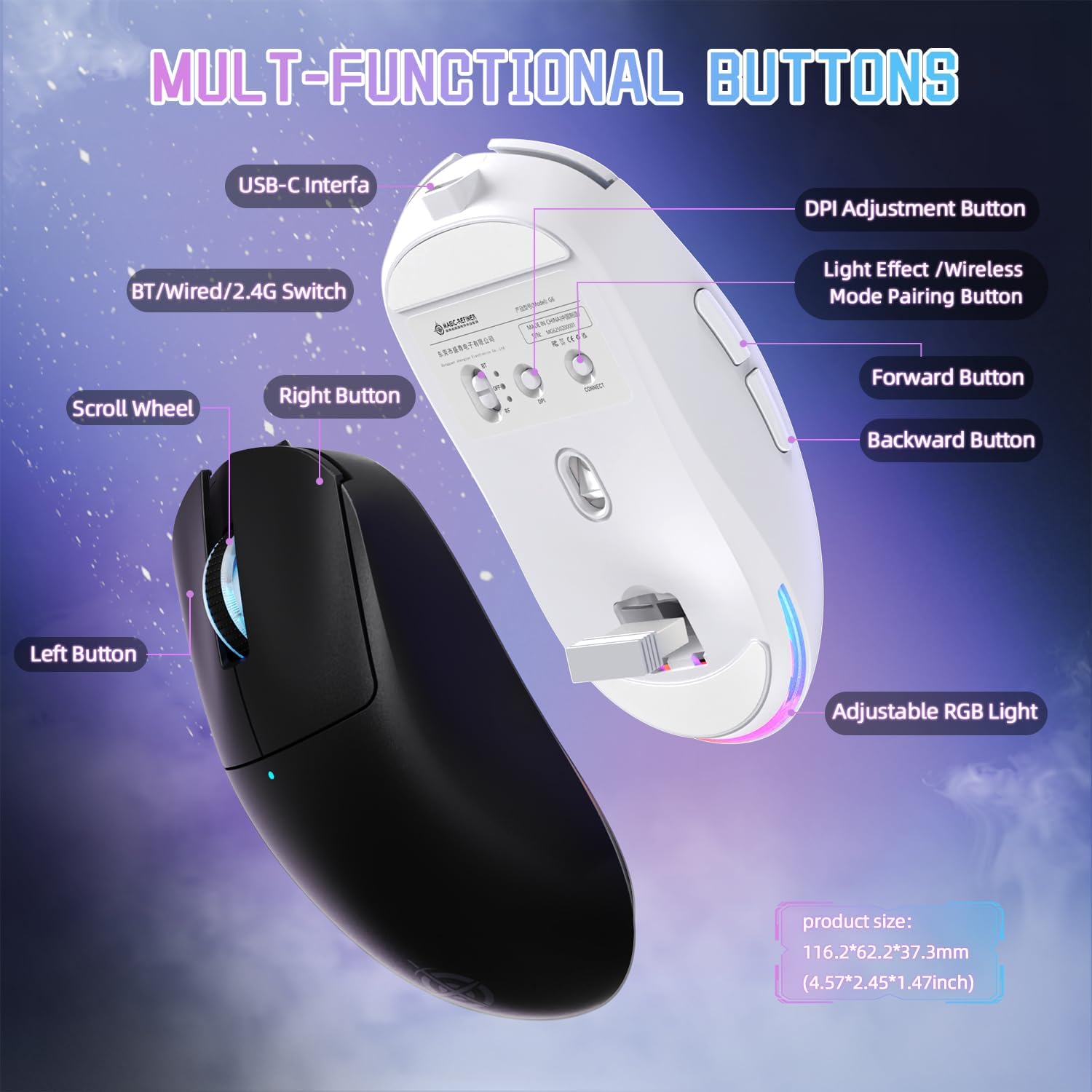
Image: Detailed diagram illustrating the multi-functional buttons of the G6 mouse, including Left, Right, Scroll Wheel, Forward, Backward, DPI Adjustment, Light Effect/Wireless Mode Pairing, and the USB-C interface.
- Лево дугме: Стандардна функција клика.
- Десно дугме: Стандардна функција десног клика.
- Точак за померање: Функција померања горе/доле и клика средњим тастером миша.
- Дугме за напред: Навигација напред у web претраживачи или file истраживачи.
- Дугме за назад: Навигација уназад web претраживачи или file истраживачи.
- Дугме за подешавање DPI-ја: Прелази кроз унапред подешаване нивое DPI-ја.
- Light Effect / Wireless Mode Pairing Button (Bottom): Controls RGB lighting effects and initiates wireless pairing.
- Power Toggle Switch (Bottom): Switches between 2.4G, OFF, and Bluetooth modes.
ДПИ Адјустмент
The G6 mouse offers 6 levels of adjustable DPI, up to 24000 DPI. You can cycle through the preset DPI levels (800-1600-2400-3200-6400-24000) by pressing the DPI adjustment button located on the top of the mouse. For fine-tuning and custom DPI settings, use the driver software.
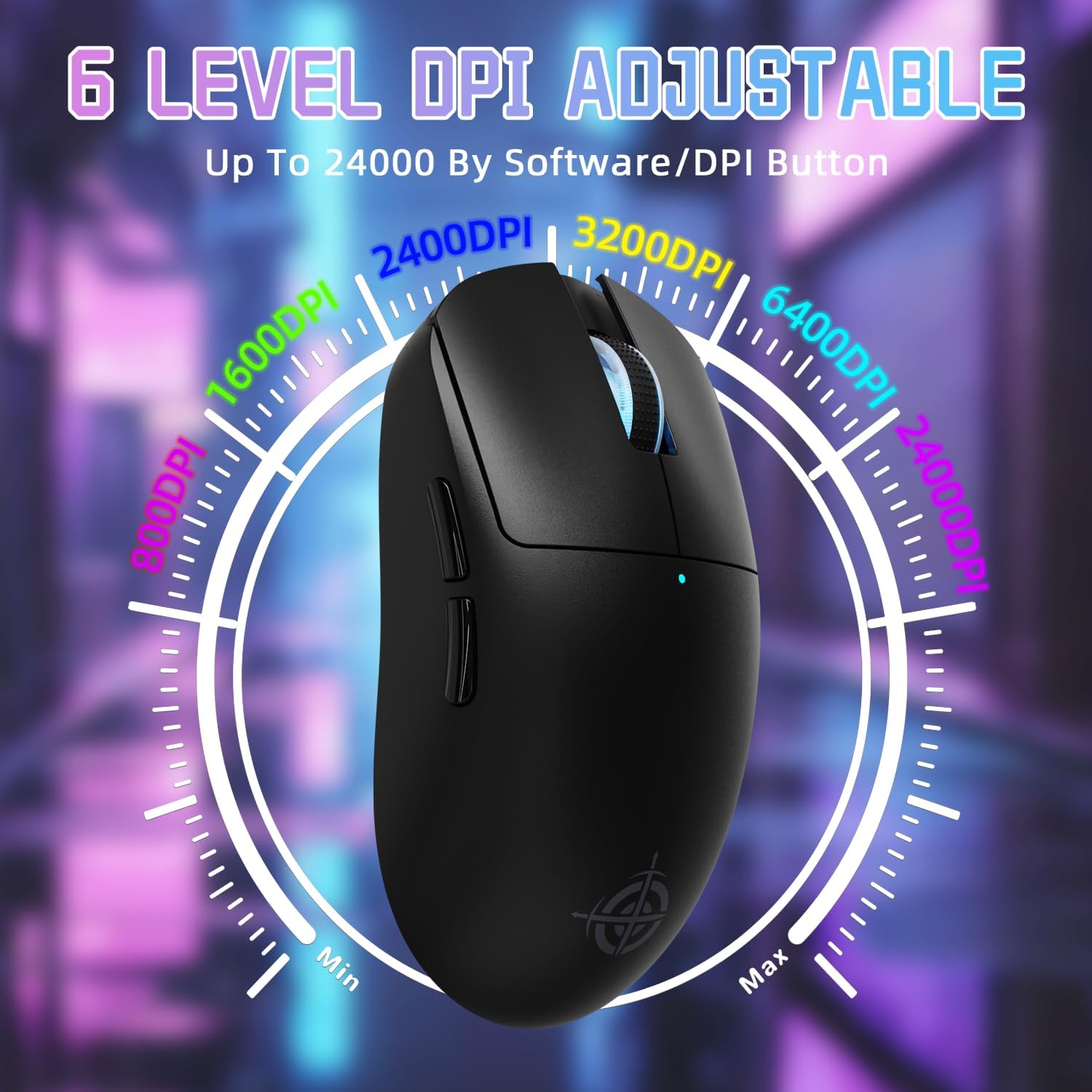
Image: Visual representation of the 6 adjustable DPI levels (800, 1600, 2400, 3200, 6400, 24000) available on the G6 mouse.
Поллинг Рате Адјустмент
The polling rate can be configured via the driver software, offering options up to 1000Hz (1ms response time) for optimal gaming performance. Default polling rates for different modes are:
- 2.4GHz Wireless Mode: 125/250/500/1000Hz
- USB-C Wired Mode: 125/250/500/1000Hz
- Блуетоотх режим: 125 Хз
РГБ контрола осветљења
The rear RGB ambient light on the mouse can be adjusted using the dedicated button on the bottom of the mouse. This button allows you to cycle through various lighting effects and colors. Further customization is available through the driver software.
Наношење траке за хватање
The included anti-slip grip tapes can be applied to the mouse surface to enhance grip, absorb hand sweat, and provide a personalized aesthetic. Ensure the mouse surface is clean and dry before applying the tapes for optimal adhesion.
Одржавање
Управљање батеријом
The G6 mouse is equipped with a 750mAh high-capacity battery, providing over 150 hours of battery life on a single charge. To maximize battery lifespan:
- Charge the mouse when the battery indicator light shows low power.
- Избегавајте често потпуно пражњење батерије.
- If not using the mouse for an extended period, switch it to the 'OFF' position using the toggle switch on the bottom.

Image: Internal components of the G6 mouse highlighting the durable HUANO micro switches (rated for 20 million clicks) and the 750mAh rechargeable battery.
Чишћење
За чишћење миша користите меку, суву крпу која не оставља влакна. За тврдокорну прљавштину, благо обришитеampen the cloth with water or a mild cleaning solution. Avoid using harsh chemicals, abrasive cleaners, or spraying liquids directly onto the mouse.
Решавање проблема
- Миш не реагује:
- Уверите се да је миш напуњен.
- Check the power toggle switch on the bottom of the mouse is in the correct position (2.4G or BT).
- For 2.4GHz mode, ensure the USB dongle is securely plugged into a working USB port. Try a different USB port.
- For Bluetooth mode, ensure Bluetooth is enabled on your device and the mouse is paired correctly. Try re-pairing.
- For wired mode, ensure the USB-C cable is securely connected to both the mouse and the computer.
- Поново покрените рачунар.
- Cursor movement is erratic or imprecise:
- Очистите оптички сензор на дну миша.
- Уверите се да користите миш на одговарајућој површини (нпр. подлога за миш).
- Adjust the DPI settings using the DPI button or driver software.
- RGB осветљење не ради:
- Press the light effect button on the bottom of the mouse to cycle through modes.
- Check settings in the driver software.
- Cannot install driver software:
- Ensure your operating system is compatible with the software.
- Download the latest version of the driver from the official MAGIC-REFINER webсајту.
- Temporarily disable antivirus or firewall software during installation if issues persist.
Спецификације
| Феатуре | Детаљ |
|---|---|
| Модел | G6 |
| Повезивање | 2.4G бежично, Bluetooth, USB-C жично |
| Сензор | Оптички сензор PixArt PAW3311 |
| ДПИ Левелс | 800-1600-2400-3200-6400-24000 (Adjustable) |
| Поллинг Рате | Up to 1000Hz (Configurable via software) |
| Брзина праћења | КСНУМКС ИПС |
| Убрзање | 35Г |
| Прекидачи | HUANO Micro Switches (10 Million Clicks) |
| Капацитет батерије | 750мАх |
| Трајање батерије | 150+ сати |
| Тежина | 75г ± 3г |
| Димензије | КСНУМКС к КСНУМКС к КСНУМКСмм (КСНУМКС к КСНУМКС к КСНУМКС инча) |

Image: Close-up of the PixArt PAW3311 gaming sensor, highlighting its 24000 DPI, 1K Hz polling rate, 300 IPS tracking speed, and 35G max acceleration.
Гаранција и подршка
Информације о гаранцији
The MAGIC-REFINER G6 Wireless Gaming Mouse comes with a standard manufacturer's warranty. Please refer to the warranty card included in your product packaging or visit the official MAGIC-REFINER webсајт за детаљне услове гаранције.
Корисничка подршка
For technical assistance, troubleshooting, or any product-related inquiries, please contact MAGIC-REFINER customer support through their official webсајт или контакт информације наведене у документацији производа. Такође можете посетити MAGIC-REFINER Store on Amazon за више информација.