
1. Увод
This manual provides essential information for the safe and efficient operation, maintenance, and troubleshooting of your OMTech 60W CO2 Laser Engraver, Model SH-G570. Please read this manual thoroughly before operating the machine to ensure proper usage and to prevent injury or damage.
2. Производ је готовview
The OMTech 60W CO2 Laser Engraver is a versatile machine designed for precision cutting and engraving across a wide range of materials. It features a 28"x20" working area, autofocus, air assist, and 4-way pass-through capabilities, making it suitable for various creative and industrial applications.
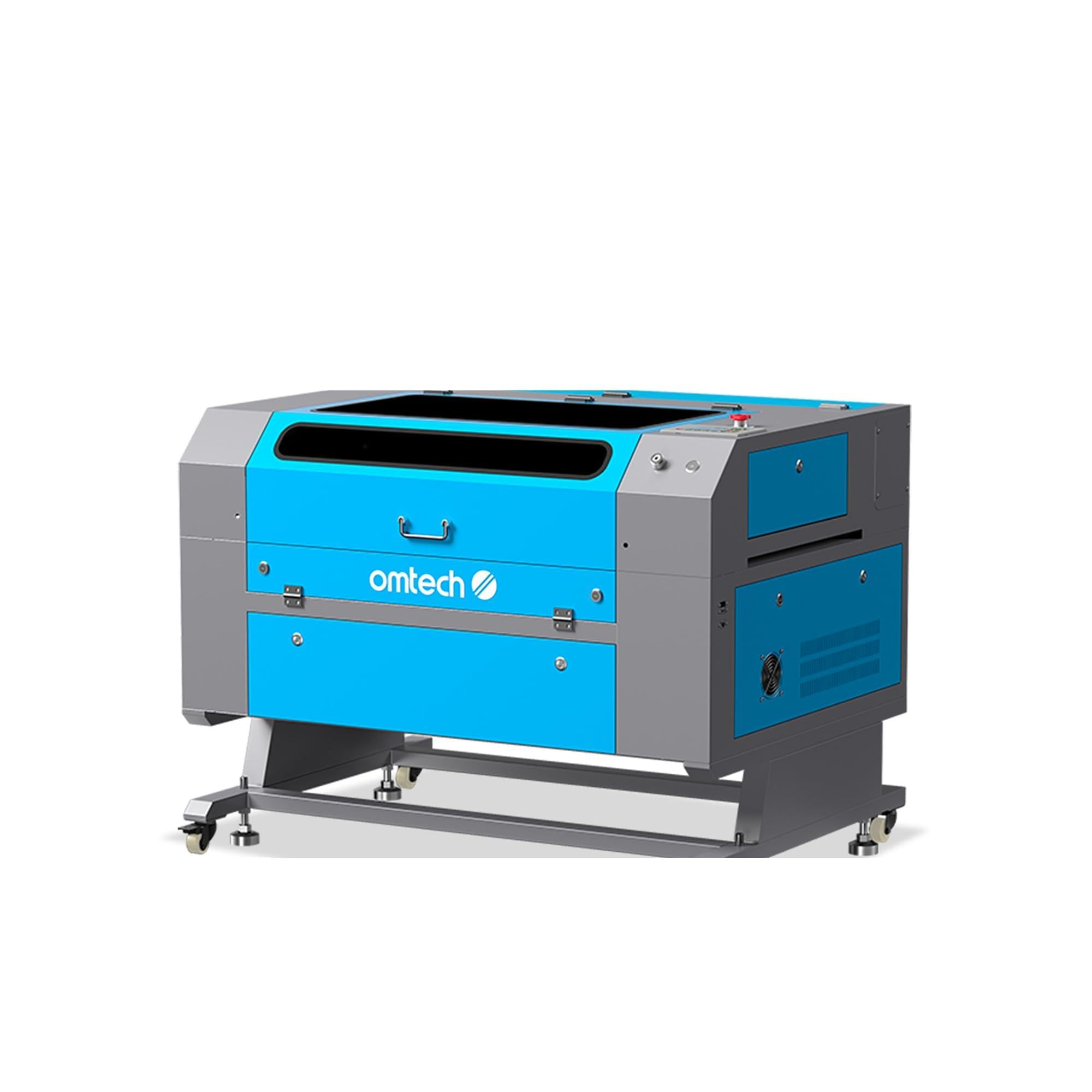
Figure 2.1: OMTech 60W CO2 Laser Engraver, Model SH-G570.
Кључне карактеристике:
- 60W CO2 Laser Tube: Provides sufficient power for engraving and cutting various materials.
- 28"x20" Working Area: Accommodates a wide range of project sizes.
- Autofocus Function: Simplifies setup by automatically adjusting the laser focal distance.
- Ваздушна помоћ: Helps to clear debris and reduce scorching during operation, resulting in cleaner cuts and engravings.
- 4-Way Pass-Through: Allows for processing of oversized materials.
- Компатибилност софтвера: Supports LightBurn, RDWorks, CorelDRAW, and AutoCAD.

Слика 2.2: Завршеноview of the laser engraver's main features including laser power, working area, engraving speed, autofocus, and software compatibility.

Figure 2.3: The built-in autofocus and air assist system ensures precise focusing and efficient debris removal for optimal results.

Figure 2.4: The machine offers wide compatibility with popular software like RDWorks, LightBurn, CorelDRAW, and AutoCAD.
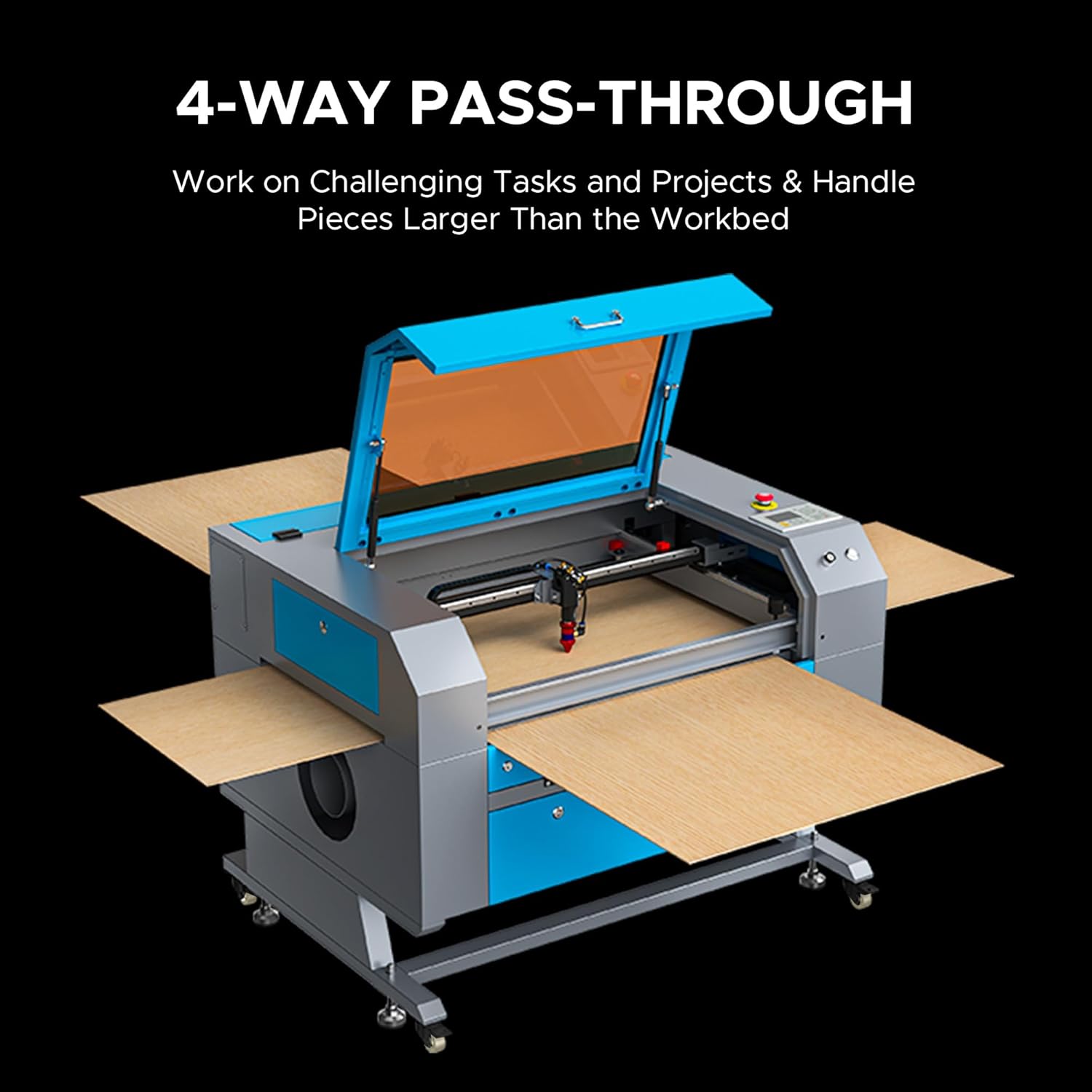
Figure 2.5: The 4-way pass-through design allows for working with materials larger than the internal workbed.
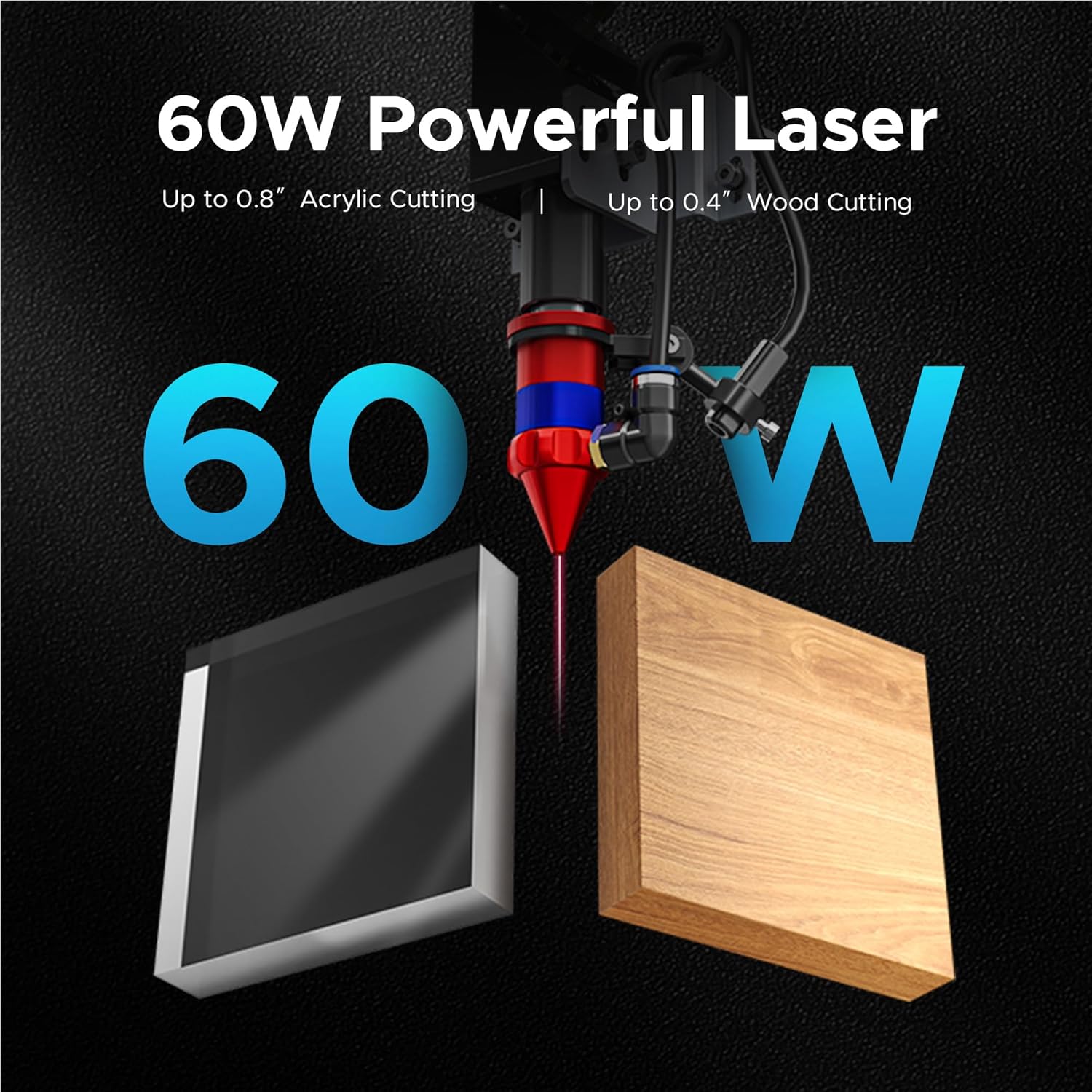
Figure 2.6: The 60W laser is capable of cutting up to 0.8 inches of acrylic and 0.4 inches of wood.

Figure 2.7: The laser head precisely engraves text onto a wooden surface, demonstrating its detailed capabilities.
3. Безбедносне информације
Operating a laser engraver involves inherent risks. Adhere to all safety guidelines to prevent accidents and ensure safe operation.
- Заштита очију: Always wear appropriate laser safety glasses when the laser is in operation.
- вентилација: Ensure adequate ventilation to remove fumes and smoke generated during engraving and cutting. An efficient exhaust system is crucial.
- Противпожарна безбедност: Keep a fire extinguisher nearby. Never leave the machine unattended during operation.
- Компатибилност материјала: Only engrave or cut materials approved for CO2 lasers. Avoid materials that produce toxic fumes or are highly flammable.
- електрична безбедност: Ensure the machine is properly grounded and connected to a suitable power supply.
- Хитно заустављање: Упознајте се са положајем и радом дугмета за хитно заустављање.

Figure 3.1: An efficient exhaust system is vital for directing hazardous debris and fumes away from the engraving surface and into a ventilation system.
4. Подешавање
Follow these steps to set up your OMTech 60W CO2 Laser Engraver.
4.1 Распакивање и постављање
- Пажљиво извадите машину из паковања.
- Поставите гравер на стабилну, равну површину у добро проветреном простору.
- Ensure sufficient space around the machine for operation and maintenance.
4.2 Повезивање компоненти
- Connect the exhaust fan and ducting to the machine and vent outdoors.
- Connect the water pump/chiller to the laser tube's inlet and outlet ports. Ensure the water reservoir is filled with distilled water.
- Connect the air pump to the air assist inlet.
- Прикључите кабл за напајање на уземљену утичницу.
4.3 Инсталација софтвера
Your OMTech laser engraver is compatible with LightBurn and RDWorks. Refer to the software-specific installation guides provided with your machine or available on the OMTech webсајт за детаљна упутства.
Видео 4.1: Овај видео пружа општи прегледview of OMTech laser engravers, demonstrating their capabilities and ease of use, which can be helpful during initial setup and understanding the machine's potential.
5. Упутство за употребу
This section outlines the basic steps for operating your laser engraver.
5.1 Powering On and Initial Checks
- Turn on the water chiller/pump and air pump. Verify water flow and air pressure.
- Укључите главни прекидач на машини.
- The control panel will initialize.
5.2 Постављање и фокусирање материјала
- Place your material on the honeycomb or blade workbed.
- Затворите поклопац машине.
- Use the autofocus function by pressing the designated button on the control panel. The laser head will automatically adjust to the correct focal distance.
5.3 Software Operation and Job Execution
- Open your design software (e.g., LightBurn) on your computer.
- Import or create your design.
- Set appropriate power and speed settings for your material. Refer to the material compatibility chart below for general guidelines.
- Send the job to the laser engraver.
- On the machine's control panel, select the job and press 'Start'.
- Monitor the engraving/cutting process through the flame-resistant window.

Figure 5.1: This table illustrates the wide range of materials compatible with the OMTech 60W CO2 laser for both engraving and cutting applications.

Figure 5.2: The machine's maximum engraving speed of 600 mm/s significantly enhances productivity.
6. Одржавање
Regular maintenance is crucial for the longevity and optimal performance of your laser engraver.
6.1 Дневно одржавање
- Clean the workbed and interior of the machine to remove debris.
- Check the water level in the chiller and ensure proper circulation.
- Inspect the laser lens and mirrors for dust or residue.
6.2 Недељно одржавање
- Clean the laser lens and mirrors using a specialized lens cleaning solution and wipes.
- Clean the exhaust fan and ducting.
- Lubricate the guide rails and bearings.
6.3 Laser Tube Care
The CO2 laser tube has a lifespan of up to 1,000 hours, which can be extended with efficient use at lower power settings. Ensure the water chiller maintains a stable temperature to prevent overheating.

Figure 6.1: The high-performance laser tube is designed for long-lasting operation, providing up to 1,000 hours of use.
КСНУМКС. Решавање проблема
Овај одељак се бави уобичајеним проблемима на које можете наићи и њиховим могућим решењима.
7.1 Нема ласерског излаза
- Проверите снагу: Ensure the machine is powered on and connected to a working outlet.
- Water Chiller: Verify the water chiller is on and circulating water. The laser will not fire if the water protection sensor is triggered.
- Подешавања софтвера: Confirm that the laser power and speed settings in your software are correctly configured and not set to zero.
- Хитно заустављање: Уверите се да дугме за хитно заустављање није активирано.
7.2 Poor Engraving/Cutting Quality
- Фокус: Re-run the autofocus function or manually adjust the focal distance. An incorrect focus is a common cause of poor quality.
- Lens/Mirrors: Clean the laser lens and mirrors. Dirt or smudges can significantly degrade laser performance.
- Снага/брзина: Adjust laser power and speed settings. Different materials require different settings.
- Квалитет материјала: Ensure the material itself is suitable and consistent in thickness.
7.3 Machine Not Responding
- Веза са софтвером: Check the USB or network connection between the computer and the machine.
- Поново покрени: Try restarting both the machine and the computer.
- Контролна табла: Ensure no error messages are displayed on the control panel.
8. Спецификације
Detailed technical specifications for the OMTech 60W CO2 Laser Engraver, Model SH-G570.

Figure 8.1: Summary of rated power, max engraving speed, machine weight, pass sizes, and machine dimensions.
| Спецификација | Валуе |
|---|---|
| Број модела | СХ-Г570 |
| Ласер Повер | 60В |
| Воркинг Ареа | 28" x 20" (700 x 500 mm) |
| Макс. Брзина гравирања | 600 мм/с |
| Cutting Depth (Wood) | До 0.4 инча |
| Cutting Depth (Acrylic) | До 0.8 инча |
| Ласер Цласс | Class 2 (0.874 mW output power) |
| Аутофокус | Да |
| Аир Ассист | Да |
| Пасс-Тхроугх | 4-Ваи |
| Софтверска компатибилност | LightBurn, RDWorks, CorelDRAW, AutoCAD |
| Тежина машине | 249.1 лб. |
| Димензије машине | 47.2 cm x 34.3 cm x 36.6 cm |
9. Гаранција и подршка
OMTech provides comprehensive support for its products.
9.1 Информације о гаранцији
Your OMTech 60W CO2 Laser Engraver comes with a two-year support period. For specific warranty terms and conditions, please refer to the documentation included with your purchase or visit the official OMTech webсајту.
9.2 Корисничка подршка
For technical assistance, troubleshooting, or any inquiries regarding your laser engraver, please contact OMTech customer support. They offer U.S.-based technical support and 24/7 online customer service.

Figure 9.1: OMTech offers a demo room program with hosts across the United States for hands-on experience and support.
Video 9.1: This video features 'Laser Guys from OMTech' discussing their experience with OMTech lasers, highlighting the quality, pricing, and how the machines have supported their business growth and product development.