
1. Увод
This manual provides essential information for setting up, operating, maintaining, and troubleshooting your NIMO 15.6-inch FHD Business Laptop. Please read this guide thoroughly to ensure optimal performance and longevity of your device. Keep this manual for future reference.
2. Шта је у кутији
Проверите да ли су сви предмети присутни у паковању:
- 1 x Nimo N154 Laptop
- 1 x Type-C 65W PD Fast Charger
- 1 x Упутство за употребу (овај документ)
- Windows 11 Home (pre-installed)
3. Производ је готовview
Familiarize yourself with the components and ports of your NIMO laptop.
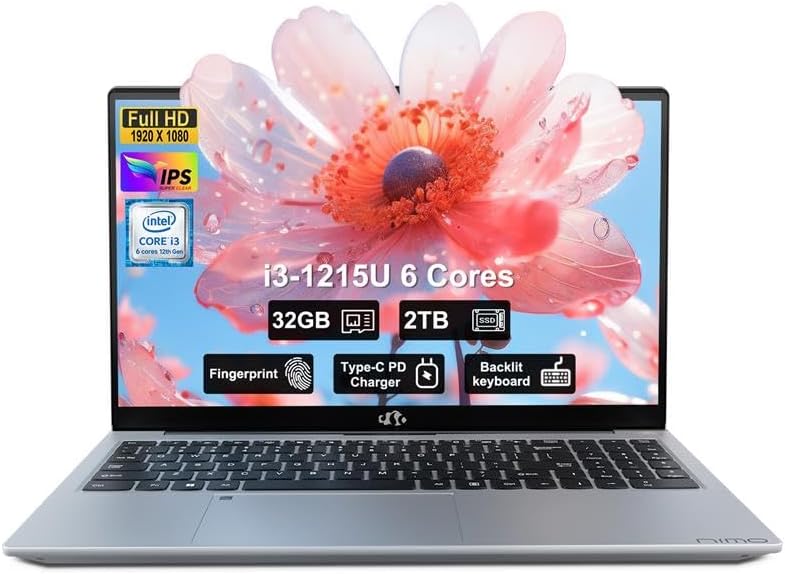
Слика: Фронт view of the NIMO 15.6-inch FHD Business Laptop, showcasinекран и тастатуру.
3.1. Портови и конектори
The NIMO N154 laptop features a variety of ports for connecting peripherals and external devices.

Image: Diagram illustrating the various ports on the left and right sides of the NIMO laptop, including USB, HDMI, Type-C, and audio jack.
- лева страна:
- Kensington Lock: For securing your laptop.
- Headphone Combo Jack: For audio output and microphone input.
- USB 3.0 Port (x2): For high-speed data transfer.
- USB 2.0 Port (x1): For connecting standard USB devices.
- Micro SD Card Reader: For expanding storage or transferring fileс са меморијских картица.
- Десна страна:
- Type-C Port (Charge Only): For connecting the 65W PD charger.
- USB 3.0 Port (x1): For high-speed data transfer.
- HDMI Port: For connecting to external displays.
- Type-C Port (Multifunction): Supports data transfer and display output.
- Charge LED Indicator: Shows charging status.
4. Подешавање
4.1. Прво укључивање и пуњење
- Raspakujte: Пажљиво извадите лаптоп и сву додатну опрему из паковања.
- Прикључите напајање: Plug the 65W Type-C PD Fast Charger into a power outlet and then connect the Type-C connector to the designated "Charge Only" Type-C port on the laptop.
- Напуните батерију: Allow the laptop to charge for at least 30 minutes before initial use, or until the charge LED indicates a full charge.
- Укључено: Open the laptop lid and press the power button, typically located on the top right of the keyboard or side.

Image: The 65W Type-C PD Fast Charger, illustrating its compact design and universal compatibility.
4.2. Подешавање система Windows 11
Follow the on-screen instructions to complete the Windows 11 initial setup:
- Изаберите свој регион и распоред тастатуре.
- Повежите се на Ви-Фи мрежу.
- Пријавите се са својим Microsoft налогом или креирајте нови.
- Подесите ПИН за брзо пријављивање.
- Review и прихватите подешавања приватности.
5. Упутство за употребу
5.1. Читач отиска прста
The integrated fingerprint sensor allows for secure and quick login without passwords.
- Подешавање: Navigate to Windows Settings > Accounts > Sign-in options > Fingerprint recognition (Windows Hello).
- Enroll Fingerprint: Follow the on-screen prompts to register your fingerprint. You may need to scan your finger multiple times from different angles.
- Употреба: To log in, simply place your registered finger on the fingerprint sensor when prompted.

Image: Close-up of the laptop's touchpad area showing the fingerprint reader, and a separate image of the webcam with a privacy shield.
5.2. Backlit Keyboard
The backlit keyboard enhances visibility in low-light conditions.
- Укључи/искључи позадинско осветљење: Use the dedicated function key (often Fn + Fx, where Fx is a key with a keyboard backlight icon) to cycle through backlight brightness levels or turn it off. Refer to your keyboard for the specific key combination.
5.3. Webcam Privacy Shield
The laptop includes a physical webcam privacy shield for enhanced security.
- Активирај/Деактивирај: Slide the physical switch located next to the webкамеру да бисте покрили или открили објектив камере.
5.4. Connecting External Displays
You can extend your workspace by connecting an external monitor or projector.
- Повежите кабл: Use an HDMI cable to connect your external display to the laptop's HDMI port, or a compatible Type-C to DisplayPort/HDMI adapter for the multifunction Type-C port.
- Configure Display: Притисните Windows тастер + P to open the Project menu. Select your preferred display mode (e.g., Duplicate, Extend, Second screen only).
6. Одржавање
6.1. Чишћење лаптопа
- Екран: Лагано користите меку крпу која не оставља длачице дampводом или средством за чишћење екрана. Не прскајте течност директно на екран.
- Тастатура и кућиште: Користите меку, суву крпу. За тврдокорну прљавштину, благоamp Може се користити крпа са благим раствором сапуна, водећи рачуна да течност не уђе у отворе.
- Портови: Користите компримовани ваздух да нежно очистите прашину из отвора.
6.2. Брига о батерији
- Избегавајте често потпуно пражњење батерије.
- Чувајте лаптоп на хладном и сувом месту ако га не користите дуже време.
- Не излажите лаптоп екстремним температурама.
6.3. Ажурирања софтвера
- Редовно проверавајте и инсталирајте ажурирања за Windows како бисте осигурали стабилност и безбедност система. Идите на Подешавања > Windows Update.
- Keep device drivers updated for optimal performance.
КСНУМКС. Решавање проблема
Овај одељак се бави уобичајеним проблемима на које можете наићи.
7.1. Лаптоп се не укључује
- Ensure the charger is securely connected to both the laptop and a working power outlet.
- Проверите да ли је утичница функционална тако што ћете укључити други уређај.
- Allow the laptop to charge for at least 30 minutes if the battery is completely drained.
- Try a hard reset by holding the power button for 15-20 seconds.
7.2. Проблеми са приказом (нема слике, треперење)
- If an external monitor is connected, disconnect it to see if the laptop's screen works.
- Подесите осветљеност екрана помоћу функционалних тастера (нпр. Фн + Ф5/Ф6).
- Поново покрените лаптоп.
- If connected to an external display, ensure the cable is properly seated and try a different cable or port.
7.3. Проблеми са повезивањем на Wi-Fi
- Ensure Wi-Fi is enabled in Windows Settings > Network & Internet > Wi-Fi.
- Рестартујте рутер и модем.
- Заборавите мрежу и поново се повежите.
- Update your Wi-Fi drivers.
7.4. Споре перформансе
- Затворите непотребне апликације које раде у позадини.
- Проверите у Менаџеру задатака (Ctrl+Shift+Esc) процесе који троше много процесора, РАМ-а или диска.
- Обезбедите довољно слободног простора на вашем SSD-у.
- Run a disk cleanup and defragmentation (for HDD, though this is SSD).
- Скенирајте за злонамерни софтвер или вирусе.
8. Спецификације
Detailed technical specifications for the NIMO N154 Laptop.

Image: Diagram illustrating the Intel Core i3-1215U processor with details on cores, threads, power consumption, and Turbo Boost frequency.

Image: Visual representation of 32GB DDR4 RAM and 2TB PCIe 4.0 SSD, highlighting dual RAM channel capability.
| Феатуре | Спецификација |
|---|---|
| Назив модела | NIMO N154 |
| Величина екрана | 15.6 инча |
| Резолуција екрана | 1920 x 1080 пиксела (FHD IPS) |
| Процесор | Intel Core i3-1215U (6-core, 8-thread, up to 4.4GHz) |
| РАМ | 32 GB DDR4 (3200 MHz) |
| Складиштење | 2 ТБ ПЦИе ССД |
| Грапхицс Цопроцессор | Интегрисана Интел Грапхицс |
| Оперативни систем | Виндовс 11 Хоме |
| Вирелесс Типе | 802.11a/b/g/n/ac (Wi-Fi 6) |
| УСБ портови | 2x USB 3.0, 1x USB 2.0, 2x Type-C (1x Charge Only, 1x Multifunction) |
| ХДМИ порт | 1к ХДМИ 2.1 |
| Посебне карактеристике | Backlit Keyboard, Fingerprint Reader, HD Audio, Memory Card Slot, Numeric Keypad, Webcam Privacy Shield |
| Трајање батерије (просечно) | 5 сата |
| Тежина артикла | 3.8 фунти |
| Димензије производа (ДкШкВ) | 14.07 к 8.98 к 0.76 инча |
| Боја | Сребро |
9. Гаранција и подршка
Nimo Direct Inc. is committed to customer satisfaction.
- Гаранција произвођача: Your NIMO laptop is covered by a comprehensive 2-Year Manufacturer's Warranty. This warranty covers defects in materials and workmanship under normal use.
- Политика враћања: We offer 90-Day Hassle-Free Returns. If you are not satisfied with your purchase, you may return it within 90 days of receipt.
- Корисничка подршка: Our dedicated US support team is available to provide swift issue resolution or immediate replacements. For assistance, please refer to the contact information provided on the NIMO official webсајт или вашу документацију о куповини.

Image: Illustration of NIMO's after-sales support, including partial US assembly, 90-day free returns, 2-year after-sales support, and 24/7 customer service.