
1. Увод
This manual provides essential information for the setup, operation, maintenance, and troubleshooting of your BNCF NewBook 11 2-in-1 Laptop. Designed for versatility, this device functions as both a laptop and a tablet, powered by an Intel N150 processor and running Windows 11 Pro. Please read this manual thoroughly to ensure optimal performance and longevity of your device.

Figure 1.1: BNCF NewBook 11 2-in-1 Laptop
2. Шта је у кутији
Upon opening your BNCF NewBook 11 package, verify that all the following items are included:
- BNCF NewBook 11 2-in-1 Laptop
- Магнетна тастатура
- Кицкстанд
- Адаптер за напајање (12В/3А)
- Кориснички приручник (овај документ)
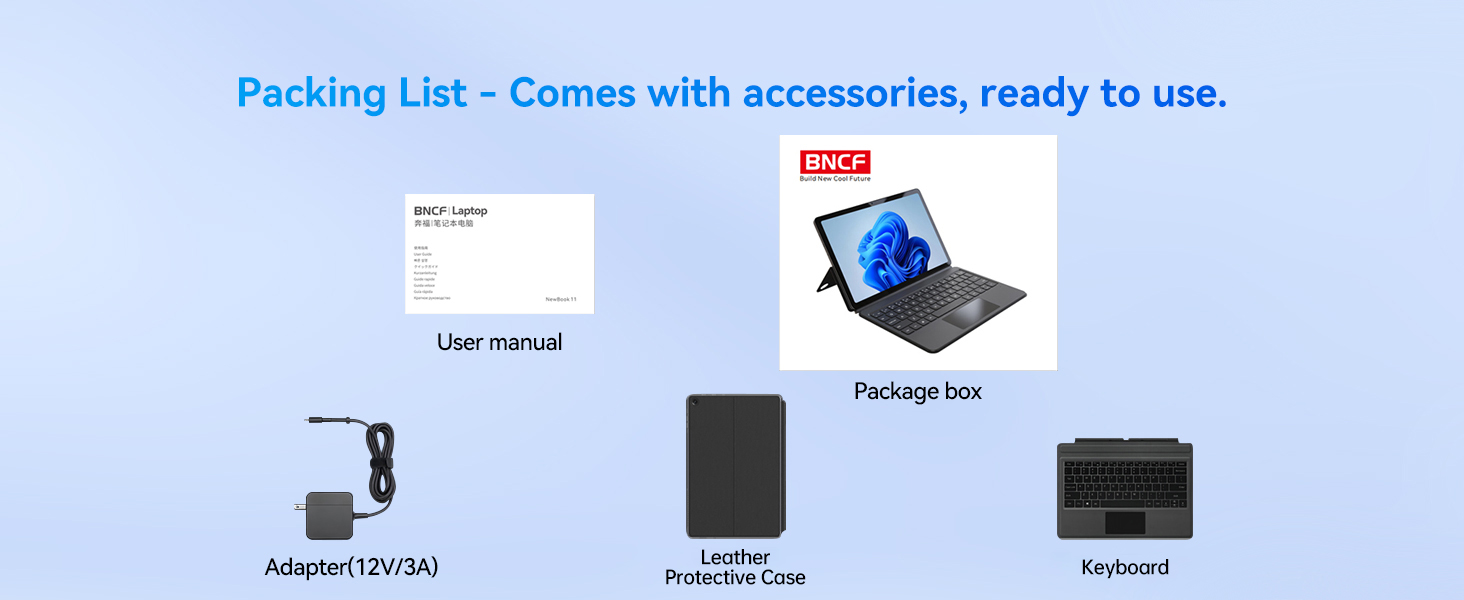
Слика 2.1: Садржај пакета
3. Производ је готовview
3.1 Кључне карактеристике
- процесор: Intel Alder Lake N150 Quad-core CPU (up to 3.6GHz Turbo) with Intel UHD Graphics.
- Оперативни систем: Виндоус 11 Про.
- Меморија и складиштење: 12GB DDR5 RAM and 256GB NVMe SSD.
- Приказ: 11-inch FHD IPS In-Cell Touchscreen (1920x1200 resolution).
- камере: Dual cameras (5MP front, 8MP rear).
- батерија: 34.2Wh with Type-C fast charging (PD 36W).
- Повезивање: Wi-Fi 6 (2.4/5GHz), Bluetooth 5.0, 2x Type-C ports (charging/data), 1x USB 3.0 port, Micro HDMI, 3.5mm audio jack.
- Дизајн: Durable 635g metal body (tablet only), total 1106g with keyboard and kickstand.
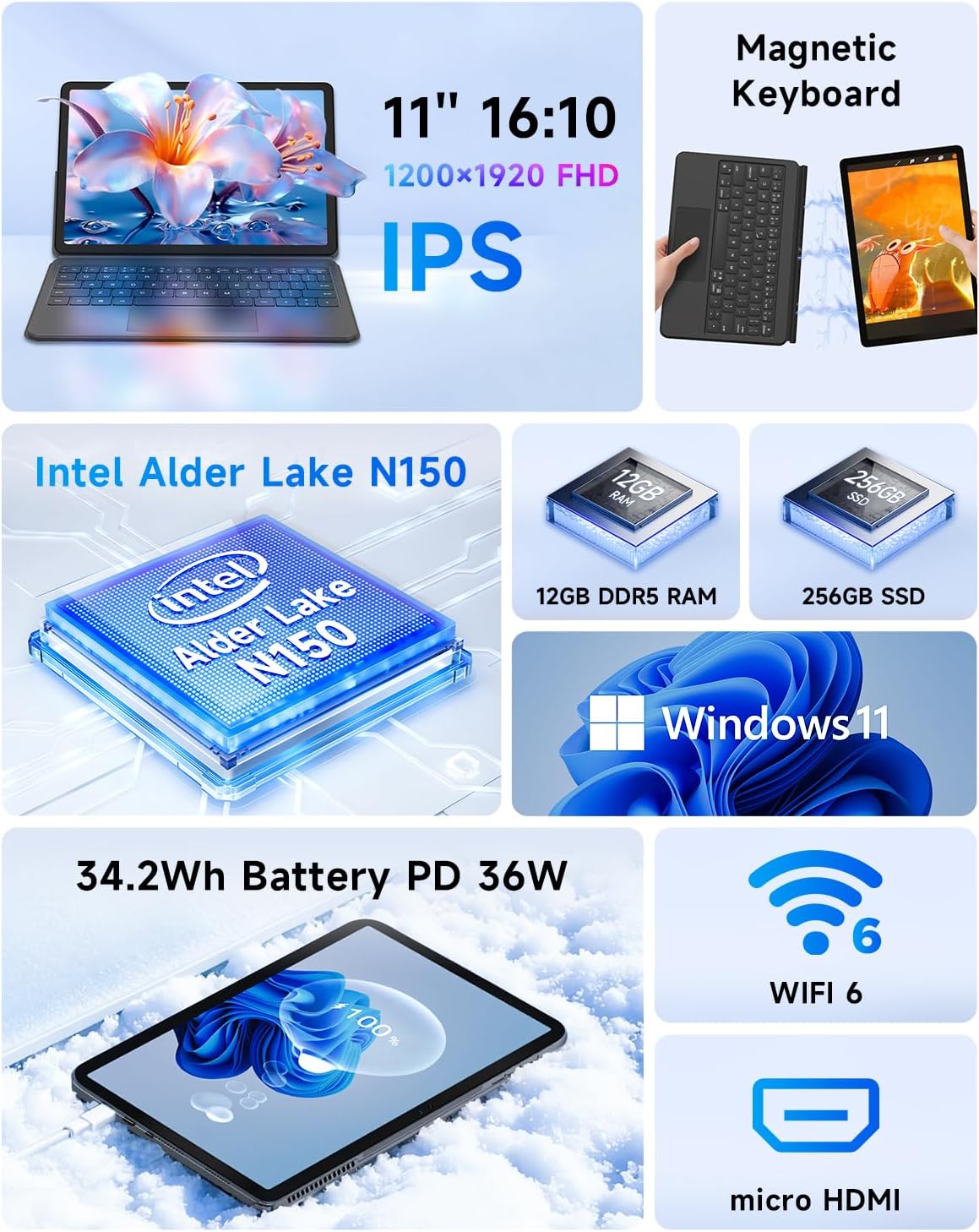
Слика 3.1: Кључне карактеристике изнадview
3.2 Портови и дугмад
Familiarize yourself with the location and function of the ports and buttons on your device:
- Дугме за напајање: Located on the top edge. Press to power on/off or sleep/wake.
- Дугмад за јачину звука: Located on the top edge, next to the power button.
- Type-C Ports: Two ports on the left side, supporting charging and data transfer.
- УСБ 3.0 порт: Стандардни УСБ порт за повезивање периферних уређаја.
- Микро HDMI порт: За повезивање са екстерним екранима.
- 3.5 мм прикључак за слушалице: За аудио излаз.
- говорници: Интегрисани стерео звучници.
- микрофон: Уграђен за аудио улаз.
- Предња камера: 5MP camera for video calls.
- Задња камера: 8МП камера за фотографије и видео записе.
- Keyboard Docking Connector: Magnetic connector at the bottom edge for attaching the keyboard.

Figure 3.2: Device Ports and Buttons
4. Подешавање
4.1 Почетно пуњење
Before first use, connect the provided power adapter to one of the Type-C ports on your device and plug it into a power outlet. Allow the device to charge for at least 30 minutes, or until the charging indicator shows a sufficient charge, before powering it on.
4.2 Attaching the Keyboard and Kickstand
The magnetic keyboard and kickstand can be easily attached to transform your tablet into a laptop. Align the magnetic connector on the keyboard with the docking port on the bottom edge of the tablet. The magnets will secure the connection. The kickstand attaches magnetically to the back of the tablet, allowing you to prop it up for comfortable viewкуцање или куцање.

Figure 4.1: Attaching the Magnetic Keyboard and Kickstand
4.3 Powering On and Initial Windows Setup
- Притисните и држите Дугме за напајање on the top edge until the screen illuminates.
- Пратите упутства на екрану да бисте завршили почетно подешавање система Windows 11 Pro, укључујући избор језика, мрежну везу и креирање корисничког налога.
- Connect to a Wi-Fi network to ensure your device can download necessary updates and drivers.
5. Упутство за употребу
5.1 Пребацивање између режима
Your BNCF NewBook 11 supports three primary modes:
- Режим лаптопа: With the magnetic keyboard and kickstand attached, use the device as a traditional laptop for typing and productivity.
- Режим таблета: Detach the keyboard and fold the kickstand for a lightweight, portable tablet experience, ideal for browsing or media consumption.
- Режим стајања: With the kickstand deployed and the keyboard detached or folded back, the tablet can stand upright, perfect for watching videos or presentations.
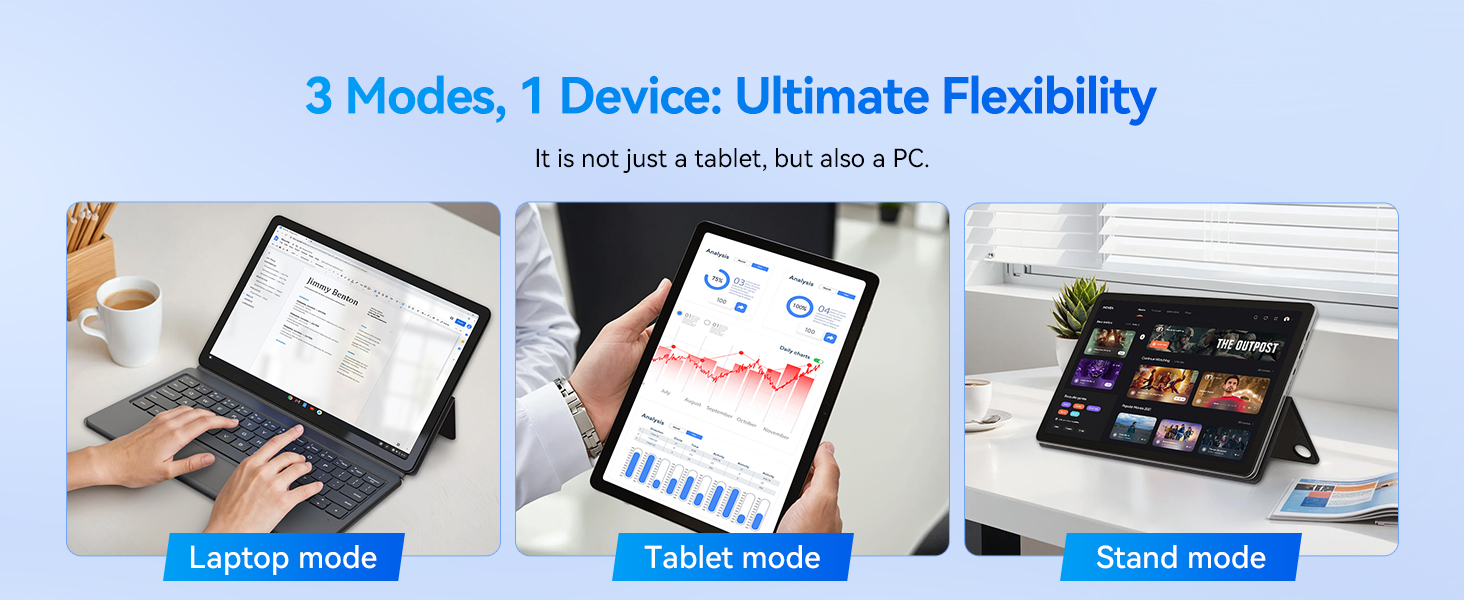
Figure 5.1: Flexible Usage Modes
5.2 Touchscreen and Gestures
The 11-inch FHD IPS In-Cell touchscreen supports multi-touch gestures. Common gestures include:
- Додирните: Изаберите ставку или отворите апликацију.
- Додирните и задржите: Access contextual menus.
- Зумирање штипкањем прстију: Увећајте или умањите слике и web странице.
- Превуците: Scroll through content or navigate interfaces.
5.3 Повезивање
- Ви-Фи 6: Повежите се на бежичне мреже за приступ интернету. Идите на Подешавања > Мрежа и интернет > Wi-Fi да управља везама.
- Блуетоотх КСНУМКС: Pair with wireless accessories like headphones or mice. Go to Подешавања > Bluetooth и уређаји.
- Микро ХДМИ: Use a Micro HDMI to HDMI cable to connect to external monitors or projectors. This supports 1080p HD output.
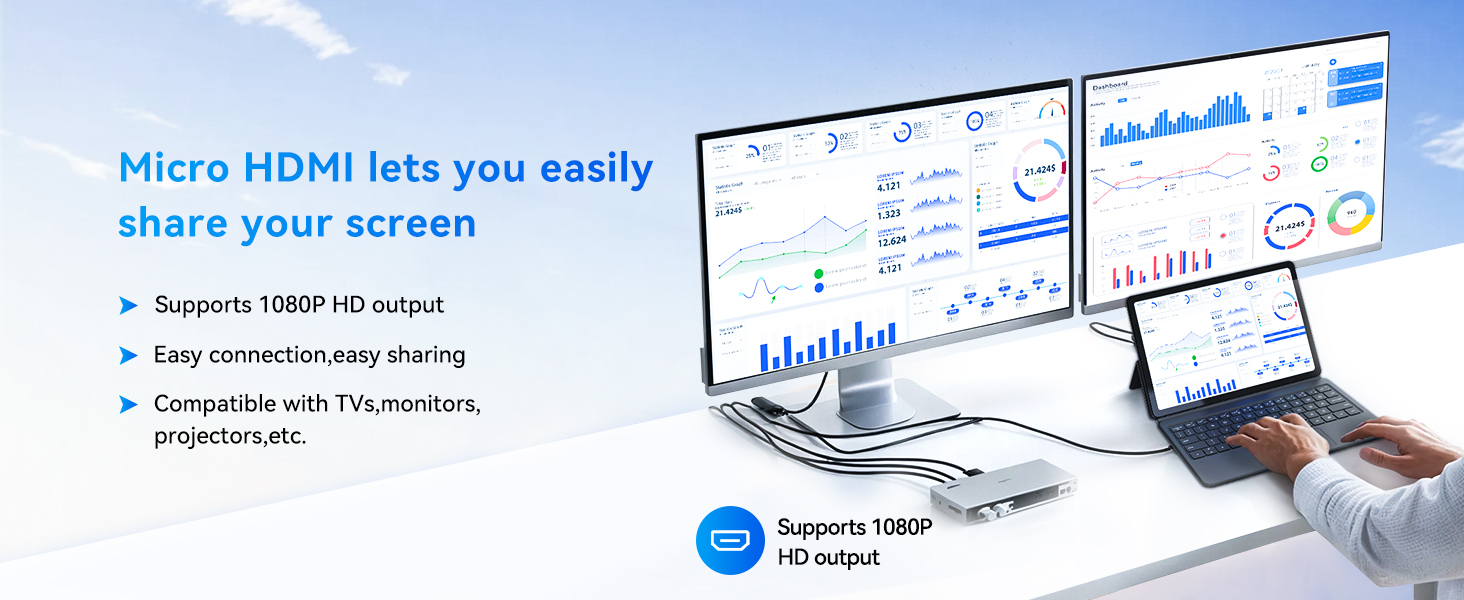
Figure 5.2: Micro HDMI Connectivity
5.4 Управљање батеријом
The device is equipped with a 34.2Wh battery and supports PD 36W fast charging via the Type-C port. To maximize battery life:
- Подесите осветљеност екрана на удобан ниво.
- Затворите неискоришћене апликације.
- Enable Battery Saver mode in Windows settings.
- Use the provided adapter for optimal charging speed.
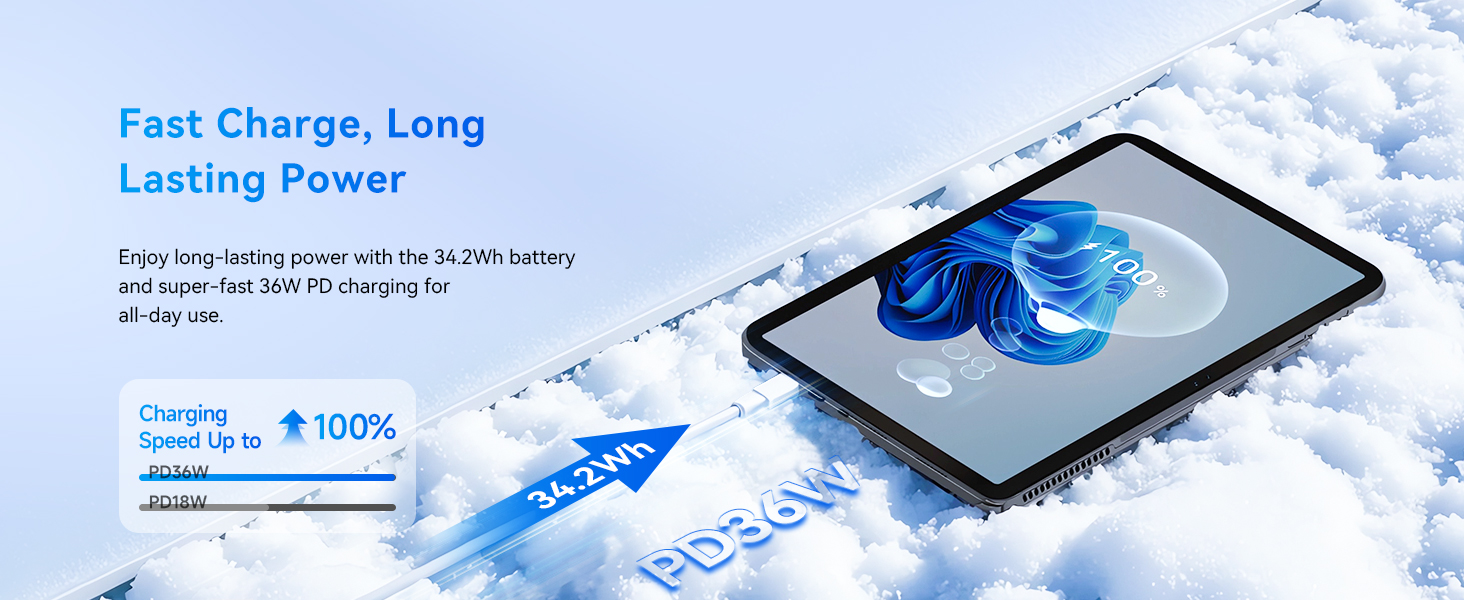
Figure 5.3: Fast Charging Feature
6. Одржавање
Proper maintenance ensures the longevity and optimal performance of your BNCF NewBook 11.
- Чишћење: Користите меку крпу која не оставља влакна за чишћење екрана и спољашњости. За тврдокорне мрље, благо обришитеampОбришите крпу водом или средством за чишћење екрана. Избегавајте јаке хемикалије.
- Складиштење: Уређај чувајте на хладном и сувом месту, даље од директне сунчеве светлости и екстремних температура.
- Ажурирања софтвера: Regularly check for and install Windows updates to ensure security and performance improvements. Go to Подешавања > Windows Update.
- Резервна копија података: Периодично правите резервне копије важних података на екстерни диск или складиште у облаку како бисте спречили губитак података.
- Систем за хлађење: The device features an active cooling system with a PC-level fan and copper heat pipe. Ensure the air vents are not obstructed to maintain efficient cooling.

Figure 6.1: Active Cooling System
КСНУМКС. Решавање проблема
This section addresses common issues you might encounter with your BNCF NewBook 11.
| Проблем | Могуће решење |
|---|---|
| Уређај се не укључује | Ensure the device is charged. Connect the power adapter and wait a few minutes before attempting to power on again. If unresponsive, perform a hard reset by holding the power button for 10-15 seconds. |
| Screen is blank or unresponsive | Check if the device is powered on. If it is, try restarting the device. If the touchscreen is unresponsive, use the keyboard/mouse or perform a hard reset. |
| Keyboard or trackpad not working | Ensure the magnetic keyboard is securely attached to the tablet's docking port. Detach and reattach the keyboard. Restart the device. |
| Проблеми са Wi-Fi или Bluetooth повезивањем | Check if Wi-Fi/Bluetooth is enabled in Windows settings. Restart your router/modem. Forget the network/device and reconnect. Update network drivers if necessary. |
| Споро перформансе | Close unnecessary applications. Check for background processes consuming resources (Task Manager). Ensure sufficient free storage space. Run Windows Update. |
| External display not detected via Micro HDMI | Ensure the Micro HDMI cable is securely connected to both the tablet and the external display. Verify the external display is set to the correct input source. Try restarting both devices. |
8. Спецификације
Detailed technical specifications for the BNCF NewBook 11 2-in-1 Laptop:
| Феатуре | Спецификација |
|---|---|
| Назив модела | NewBook 11 |
| Оперативни систем | Виндовс 11 Про |
| Процесор | Intel Alder Lake N150 (Quad-core, up to 3.6 GHz) |
| Грапхицс Цопроцессор | Intel UHD графика (интегрисана) |
| РАМ | 12ГБ ДДР5 |
| Хард Дриве | 256 ГБ НВМе ССД |
| Величина екрана | 11 инча |
| Резолуција екрана | 1920 x 1200 pixels (FHD IPS In-Cell) |
| Вирелесс Типе | Wi-Fi 6 (802.11a/b/g/n/ac), Bluetooth 5.0 |
| УСБ портови | 2x Type-C (charging/data), 1x USB 3.0 |
| Видео Оутпут | Мицро ХДМИ |
| Аудио | 3.5mm Headphone Jack, Dual Stereo Speakers |
| камере | 5МП напред, 8МП позади |
| Батерија | 34.2Wh, PD 36W Fast Charging |
| Тежина артикла | Tablet: 635g (1.4 lbs), Total with keyboard/kickstand: 1106g (2.44 lbs) |
| Димензије производа | 10.12 к 6.61 к 0.38 инча |
| Боја | Црно |
9. Гаранција и подршка
BNCF is committed to providing high-quality products and customer satisfaction.
9.1 Информације о гаранцији
Your BNCF NewBook 11 comes with a једногодишња гаранција. For tablets purchased from the BNCF Official Flagship Store, customers benefit from a 12-month free repair warranty and lifetime technical support. This warranty covers manufacturing defects and malfunctions under normal use.
9.2 Корисничка подршка
If you encounter any issues or have questions regarding your device, please contact BNCF customer support. You can expect a response within 24 hours. Our expertise is available to help solve problems, or to facilitate return or exchange services if necessary.
Figure 9.1: BNCF Warranty and Support
9.3 Планови заштите
Додатни планови заштите доступни су за куповину:
- Двогодишњи план заштите: Доступно за 52.99 долара.
- Двогодишњи план заштите: Доступно за 90.99 долара.
- Комплетна заштита: A monthly plan at $16.99/month, covering all eligible past and future purchases.