
BNCF NewBook 11
BNCF NewBook 11 2-in-1 Laptop User Manual
Model: NewBook 11 | Brand: BNCF
Увод
This manual provides essential information for setting up, operating, maintaining, and troubleshooting your BNCF NewBook 11 2-in-1 Laptop. Please read this guide thoroughly to ensure optimal performance and longevity of your device.
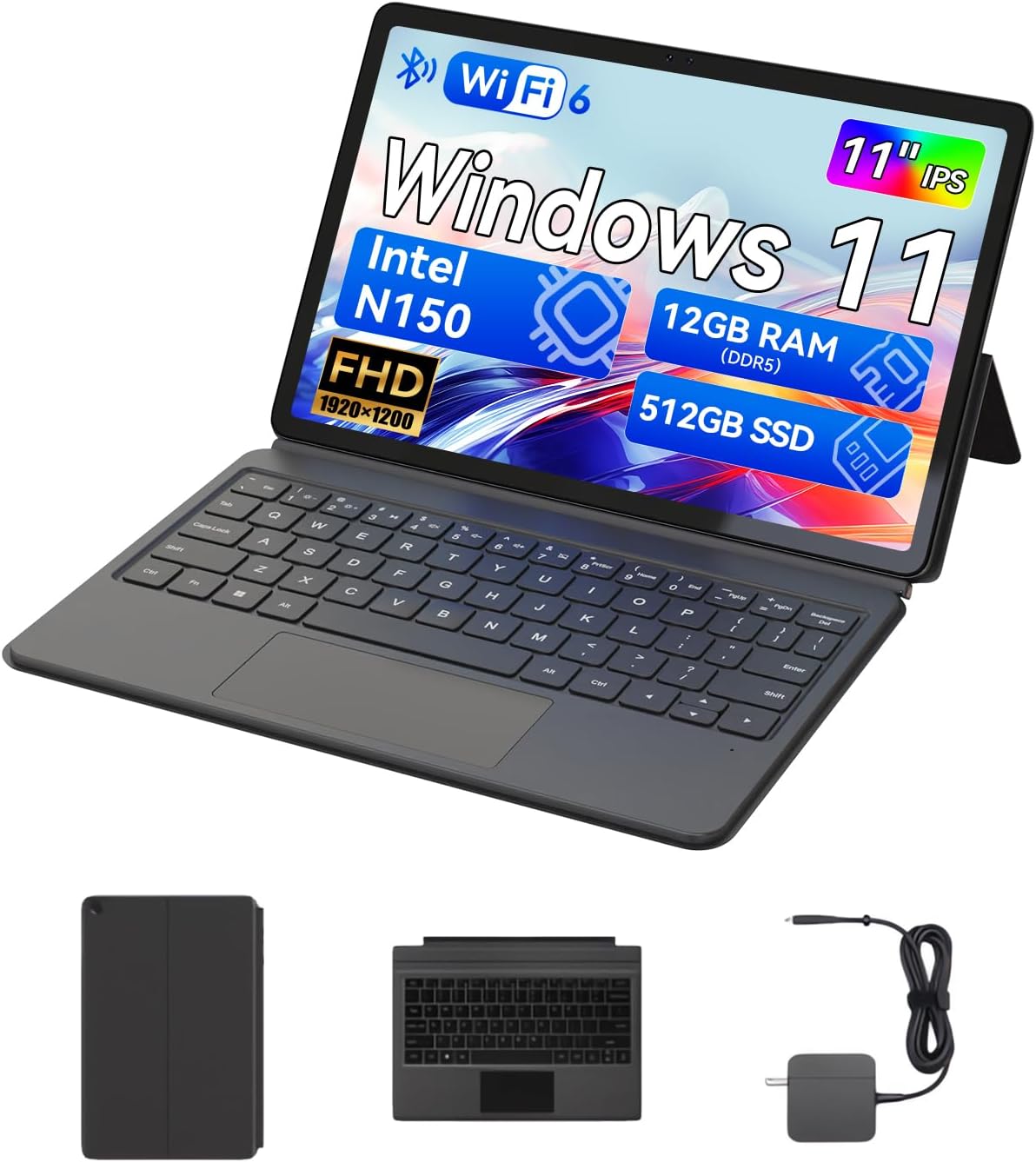
The BNCF NewBook 11 2-in-1 Laptop, shown here in its laptop configuration, featuring an 11-inch display, detachable keyboard, and kickstand.
1. Водич за подешавање
1.1 Распакивање и почетни преглед
Upon receiving your BNCF NewBook 11, carefully unpack all components. Ensure the following items are present:
- BNCF NewBook 11 2-in-1 Laptop
- Магнетна тастатура
- Кицкстанд
- Адаптер за напајање (12В/3А)
- Кориснички приручник (овај документ)
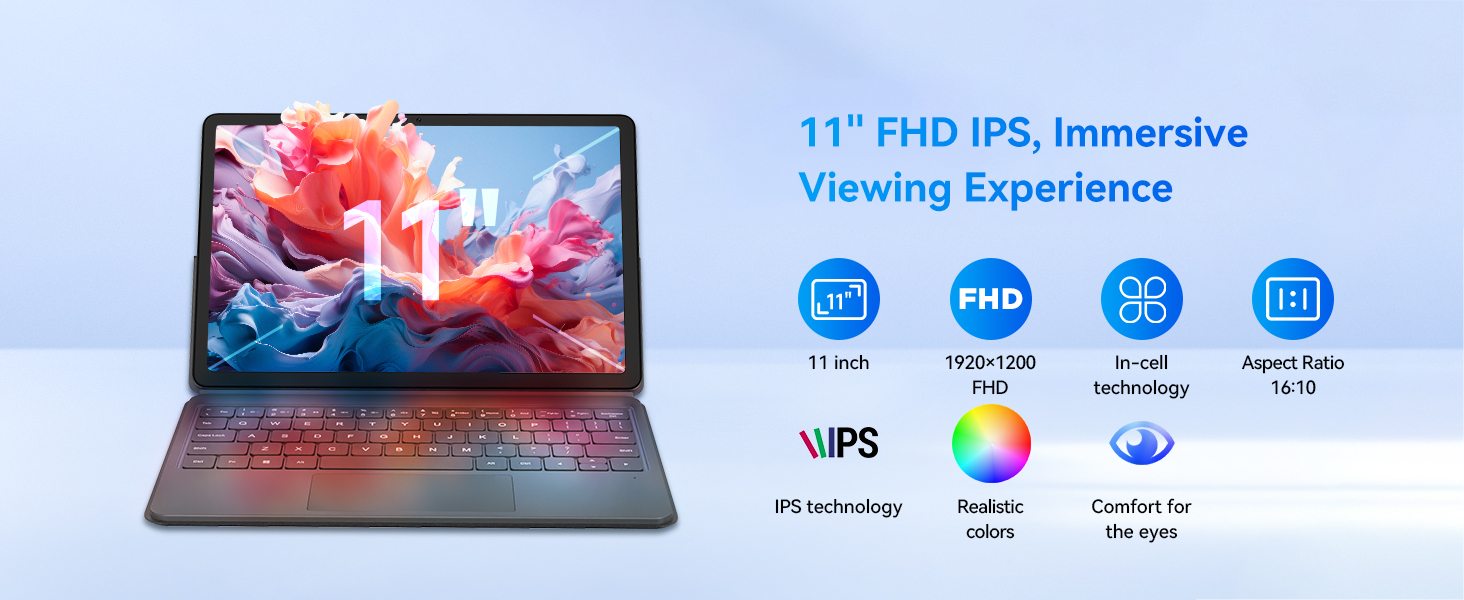
Illustration of the items included in the BNCF NewBook 11 package, including the main unit, keyboard, kickstand, and power adapter.
1.2 Пуњење уређаја
Before first use, fully charge your NewBook 11. Connect the provided power adapter to the Type-C charging port on the device and then to a power outlet. The charging indicator will illuminate.
1.3 Attaching the Keyboard and Kickstand
The magnetic keyboard and kickstand are designed for easy attachment and detachment:
- тастатура: Align the magnetic connector on the keyboard with the docking port at the bottom edge of the tablet. The magnets will secure it in place.
- Ногара: The kickstand attaches magnetically to the back of the tablet. Position it to achieve your desired viewing angle. Note that frequent adjustments may require re-aligning the kickstand.

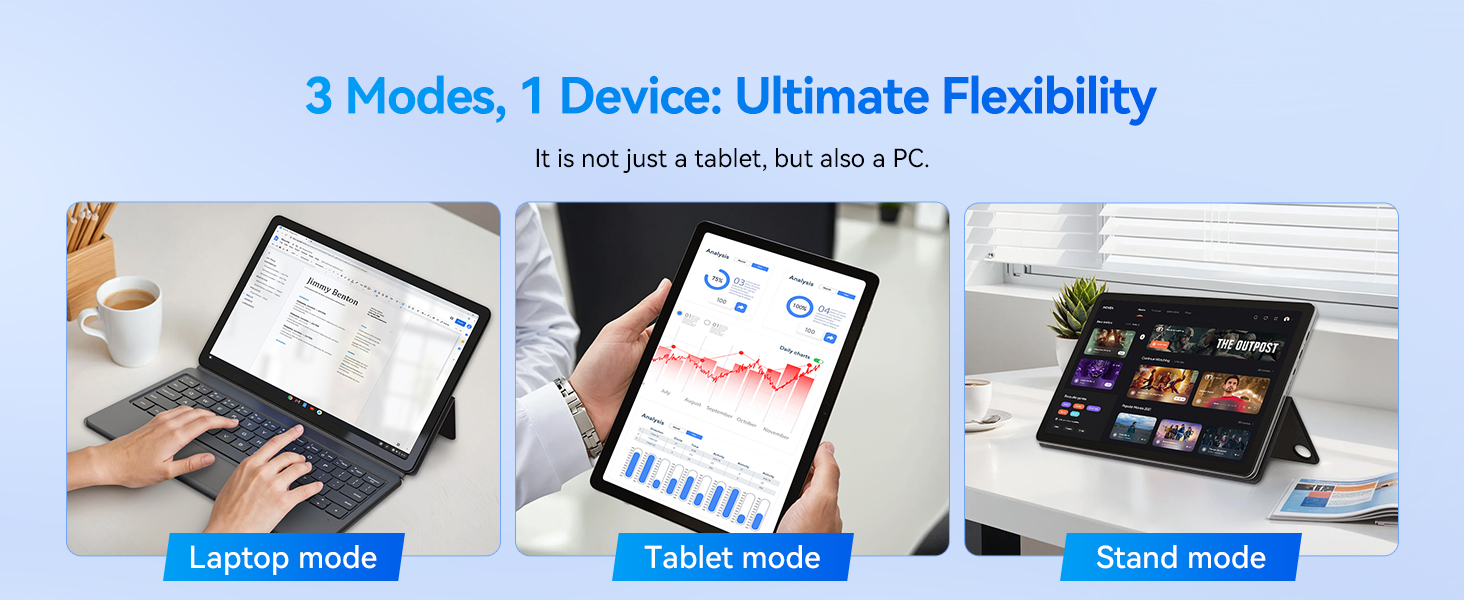
The BNCF NewBook 11 demonstrating its three flexible modes: laptop, tablet, and stand, enabled by the magnetic keyboard and kickstand.
1.4 Initial Power-On and Windows 11 Setup
Press and hold the power button located on the side of the device until the screen illuminates. Follow the on-screen instructions to complete the Windows 11 initial setup, including language selection, network connection, and user account creation.
2. Упутство за употребу
2.1 Функционалност 2 у 1
The BNCF NewBook 11 offers versatile usage modes:
- Режим лаптопа: With the keyboard and kickstand attached, use the device as a traditional laptop for productivity tasks.
- Режим таблета: Detach the keyboard to use the device as a standalone tablet for touch-based interactions, browsing, or media consumption.
- Режим стајања: Use the kickstand to prop up the tablet without the keyboard, ideal for watching videos or presentations.
2.2 Touchscreen and Display
The 11-inch FHD IPS In-Cell touchscreen (1920x1200 resolution) provides clear visuals and responsive touch input. Utilize multi-touch gestures for navigation within Windows 11.
The 11-inch FHD IPS In-Cell display of the NewBook 11, designed for clear and vibrant visuals.
2.3 Повезивање
The device features various ports and wireless options:
- USB-C Ports (2): One for charging/data, one full-featured.
- USB 3.0 Port (1): За повезивање периферних уређаја.
- Micro HDMI Port (1): For external display output (supports 1080P HD).
- 3.5mm Audio Jack (1): За слушалице или екстерне звучнике.
- Ви-Фи 6: For high-speed wireless internet connectivity (2.4/5GHz).
- Блуетоотх КСНУМКС: За повезивање бежичних додатака.
Детаљно view of the BNCF NewBook 11's ports and external features, highlighting its comprehensive connectivity options.
2.4 камере
The device includes dual cameras: a 5MP front camera and an 8MP rear camera, suitable for video calls and basic photography.
3. Одржавање и њега
3.1 Чишћење
- Екран: Користите меку крпу без влакана, посебно дизајнирану за електронику. DampАко је потребно, благо испрати водом или средством за чишћење екрана. Избегавати јаке хемикалије.
- Тело: Wipe the metal chassis with a soft, dry cloth.
3.2 Одржавање батерије
Да бисте продужили век трајања батерије:
- Избегавајте често потпуно пражњење батерије.
- Не излажите уређај екстремним температурама.
- Use only the provided BNCF power adapter for charging.
3.3 Систем хлађења
The NewBook 11 features an active cooling system with a PC-level fan and dual-copper heat pipe. Ensure the air vents are not obstructed to maintain optimal performance and prevent overheating.
An illustration of the internal active cooling system, showing the PC-level fan and copper heat pipe designed to maintain stable device temperature.
КСНУМКС. Решавање проблема
This section addresses common issues you might encounter with your BNCF NewBook 11.
4.1 Уређај се не укључује
- Ensure the device is fully charged. Connect the power adapter and wait a few minutes before attempting to power on again.
- Притисните и држите дугме за напајање 10-15 секунди да бисте извршили хард ресетовање.
4.2 Кратак век трајања батерије
- Adjust screen brightness to a lower setting.
- Затворите непотребне позадинске апликације.
- Ensure Wi-Fi and Bluetooth are turned off when not in use.
- Check for Windows updates, as power management improvements may be included.
4.3 Display Issues (e.g., Washed Out Colors)
- Check display settings in Windows 11 (Settings > System > Display) for color calibration options.
- Уверите се да су графички драјвери ажурирани.
4.4 Тастатура или тракпед не реагују
- Ensure the magnetic keyboard is securely attached to the tablet's docking port.
- Detach and reattach the keyboard.
- Поново покрените уређај.
- If issues persist, contact BNCF support.
4.5 General Performance Slowdown
- Затворите неискоришћене апликације и картице прегледача.
- Check for sufficient free storage space on the 512GB SSD.
- Покрените скенирање система за злонамерни софтвер.
- Ensure Windows 11 is updated to the latest version.
5. Спецификације
| Феатуре | Детаљ |
|---|---|
| Назив модела | NewBook 11 |
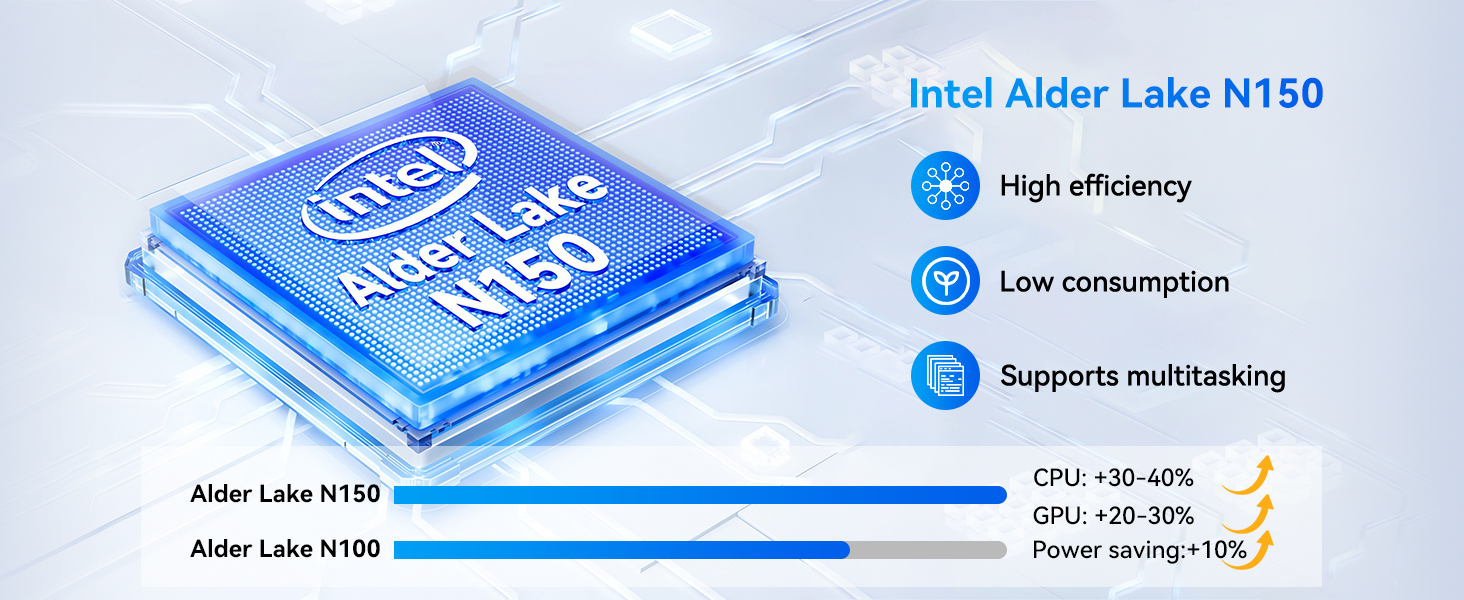
| Процесор | Intel Alder Lake N150 (Quad-core, up to 3.6 GHz) |
| Графика | Интел УХД графика |
| РАМ | 12ГБ ДДР5 |
| Складиштење | 512 ГБ НВМе ССД |
| Оперативни систем | Виндовс 11 Про |
| Дисплаи | 11-inch FHD IPS In-Cell Touchscreen (1920x1200 pixels) |
| камере | Front: 5MP, Rear: 8MP |
| Бежично повезивање | Wi-Fi 6 (2.4/5GHz), Bluetooth 5.0 |
| Портс | 2x Type-C (charging/data, full-featured), 1x USB 3.0, 1x Micro HDMI, 1x 3.5mm Audio Jack |
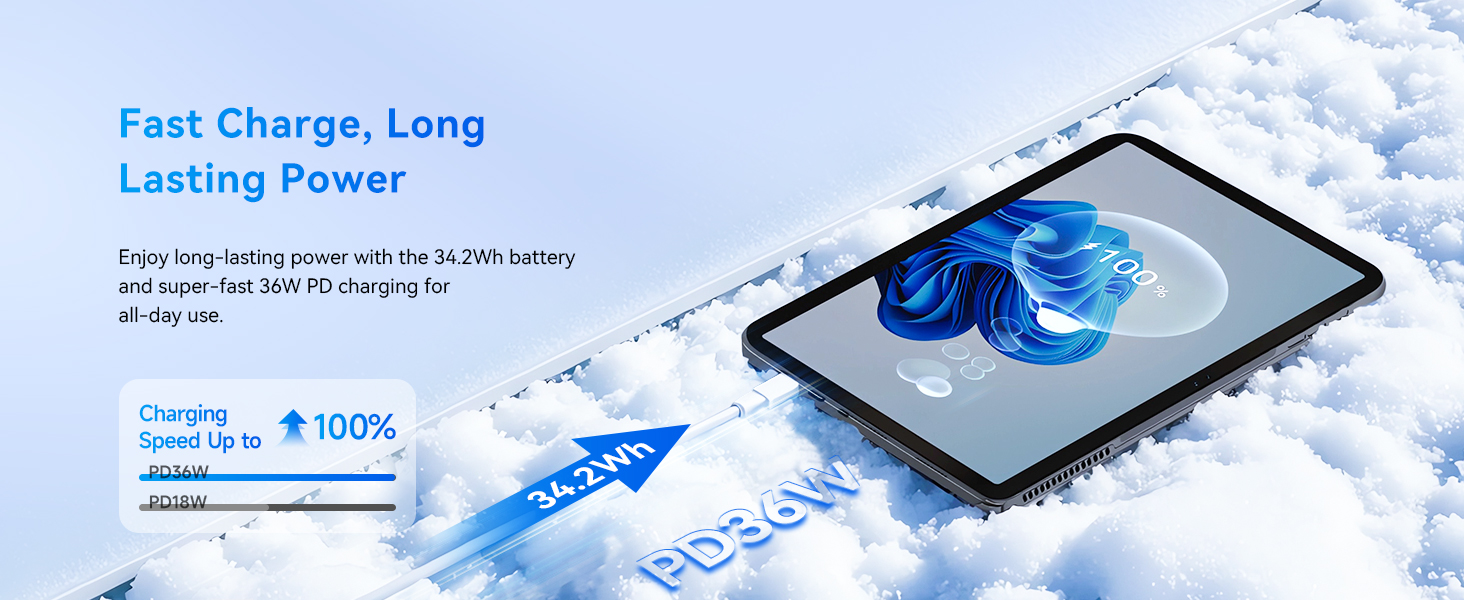
| Батерија | 34.2Wh, supports PD 36W fast charging |
| Димензије (таблет) | 10.12 к 6.61 к 0.38 инча |
| Тежина (таблет) | 635 г (1.4 лбс) |
| Weight (Total with Keyboard/Kickstand) | 1106 г (2.44 лбс) |
6. Гаранција и подршка
BNCF is committed to providing high-quality products and customer satisfaction.
6.1 Информације о гаранцији
Your BNCF NewBook 11 comes with a једногодишња гаранција. This warranty covers manufacturing defects and ensures that your device meets BNCF's quality standards. For specific details regarding the RMA (Return Merchandise Authorization) policy, please refer to the official BNCF webсајту или контактирајте корисничку подршку.
6.2 Техничка подршка
BNCF offers доживотна техничка подршка for its products. If you encounter any issues or have questions regarding your device, please contact BNCF customer service. You can expect a response within 24 hours.

BNCF provides a one-year warranty and dedicated support to ensure customer satisfaction.
Ask a question about this manual
Ask about setup, troubleshooting, compatibility, parts, safety, or missing instructions. Manuals+ will review the question and use this page’s manual context to help answer it.