
Увод
Thank you for choosing the KOORUI S3241XO 31.5-inch 4K OLED Gaming Monitor. This manual provides essential information for setting up, operating, and maintaining your monitor. Please read it thoroughly before use to ensure optimal performance and safety.
Безбедносне информације
- Не излажите монитор киши или влази како бисте спречили пожар или струјни удар.
- Не отварајте монитор цasinг. Унутра нема делова које корисник може сам да поправи. Сво сервисирање препустите квалификованом сервисном особљу.
- Поставите монитор на стабилну, равну површину како бисте спречили његов пад.
- Обезбедите одговарајућу вентилацију око монитора. Не блокирајте вентилационе отворе.
- Користите само адаптер за напајање и каблове које је обезбедио произвођач.
- Искључите монитор из утичнице током грмљавине или када га не користите дуже време.
- Avoid placing heavy objects on the power cord or monitor cables.
Садржај пакета
Проверите да ли су све ставке присутне у вашем пакету:
- KOORUI S3241XO 31.5-inch 4K OLED Gaming Monitor
- ХДМИ 2.1 кабл
- DisplayPort 1.4 Cable (1.8m)
- УСБ 3.0 АБ кабл
- Кабл типа Ц
- Кабл за напајање наизменичном струјом
- Повер Адаптер
- Упутство за употребу
Сетуп
1. Склоп монитора
Пратите ове кораке да бисте саставили постоље за монитор и причврстили га на плочу екрана.

Image: The KOORUI S3241XO monitor with its stand, showcasing the display and connectivity options.
2. Повезивање са уређајима
The monitor offers various connectivity options. Ensure your device supports the required output.
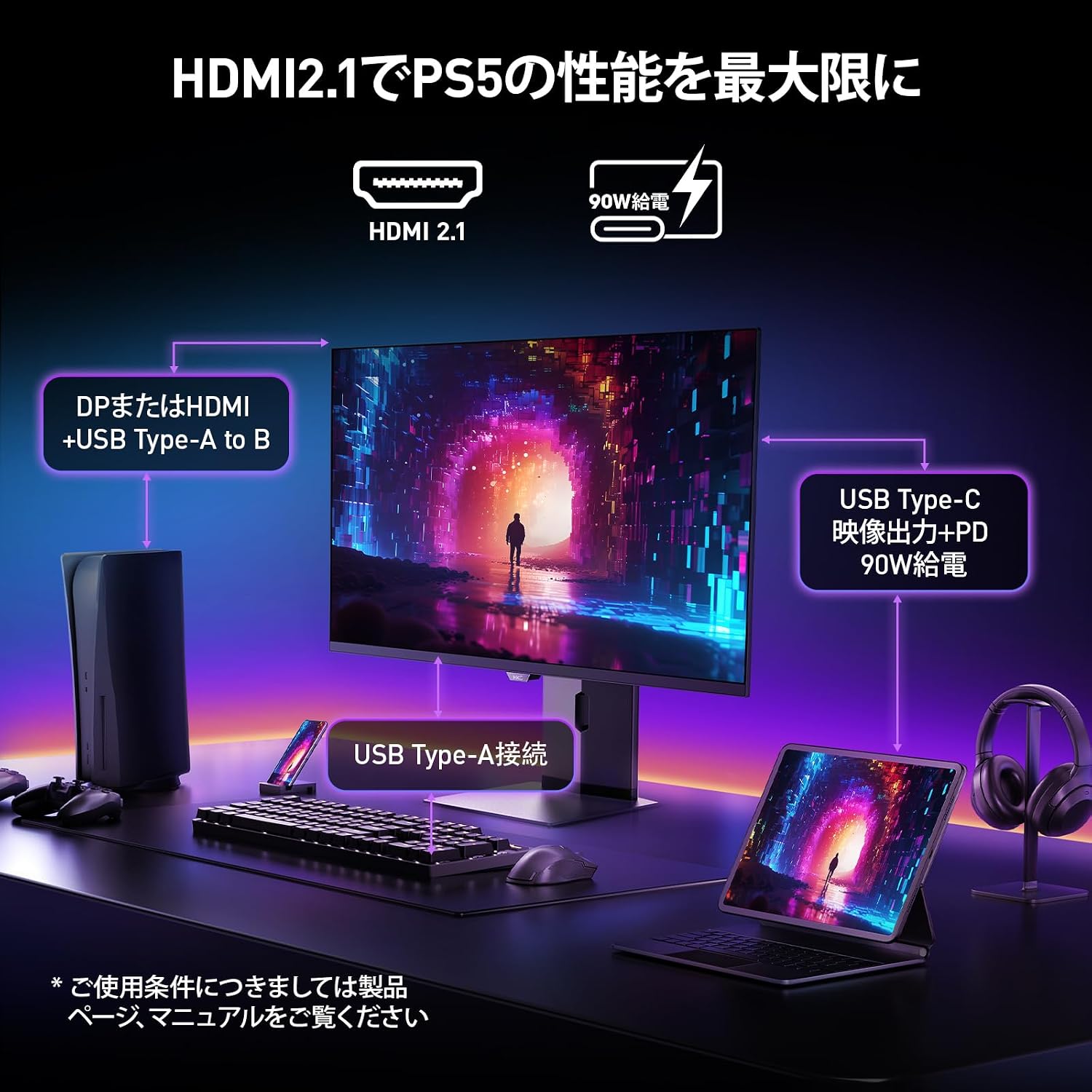
Image: A diagram illustrating how to connect various devices like a PS5, laptop, and peripherals to the monitor using HDMI 2.1, USB Type-C, and USB Type-A ports.
Порт Оверview:

Слика: Детаљна view of the monitor's rear input/output ports with numerical labels for identification.
- Кабл за напајање: Connect the AC power cable to the monitor and a power outlet.
- USB Type-B (Upstream): Connect to your computer to enable the monitor's USB-A ports.
- USB 3.1 тип-A (x2): For connecting USB peripherals.
- HDMI 2.1 (x2): Connect to devices supporting HDMI 2.1 for 4K 240Hz output.
- DisplayPort 1.4: Connect to devices supporting DisplayPort 1.4 for 4K 240Hz output.
- Type-C (with PD): Connect to compatible devices for video input and power delivery (up to 90W).
- Излаз за слушалице: За повезивање слушалица или екстерних звучника.
Упутство за употребу
1. Укључивање/искључивање
Press the power button, usually located on the back or bottom of the monitor, to turn it on or off.
2. Он-Сцреен Дисплаи (ОСД) мени
Use the joystick or buttons on the monitor to navigate the OSD menu. The OSD allows you to adjust various settings.
Кључна подешавања на екрану (OSD):
- Подешавања слике: Подесите осветљеност, контраст, оштрину и температуру боје.
- Режими боја: Select from various preset color modes, including a professional color mode for accurate color reproduction (99% DCI-P3, 100% sRGB, Delta E<2, True 10-bit color).
- Извор уноса: Manually select the input source (HDMI 1, HDMI 2, DisplayPort, Type-C).
- Карактеристике игара: Access specific gaming modes (RPG, FPS, RCG) and settings like FreeSync and G-Sync compatibility.
- Време одговора: The monitor features a 0.03ms (OD) response time for rapid image transitions.
- HDR True Black 400: Optimizes black levels for enhanced detail in dark scenes.
- DIC (Digital Image Control) Mode: Enable or disable DIC to prevent ghosting and improve image quality.

Image: Visual representation of the monitor's color accuracy and wide color gamut.

Image: Illustrates the difference in motion clarity at various refresh rates, highlighting the 240Hz 0.03ms response.

Image: Demonstrates the enhanced black levels and detail in dark scenes provided by the KOORUI QD OLED technology compared to a typical LCD.

Image: Shows the effect of Digital Image Control (DIC) mode on reducing ghosting for smoother visuals.
3. Ергономска подешавања
Постоље за монитор омогућава разна подешавања како би се оптимизовало ваше viewискуство:
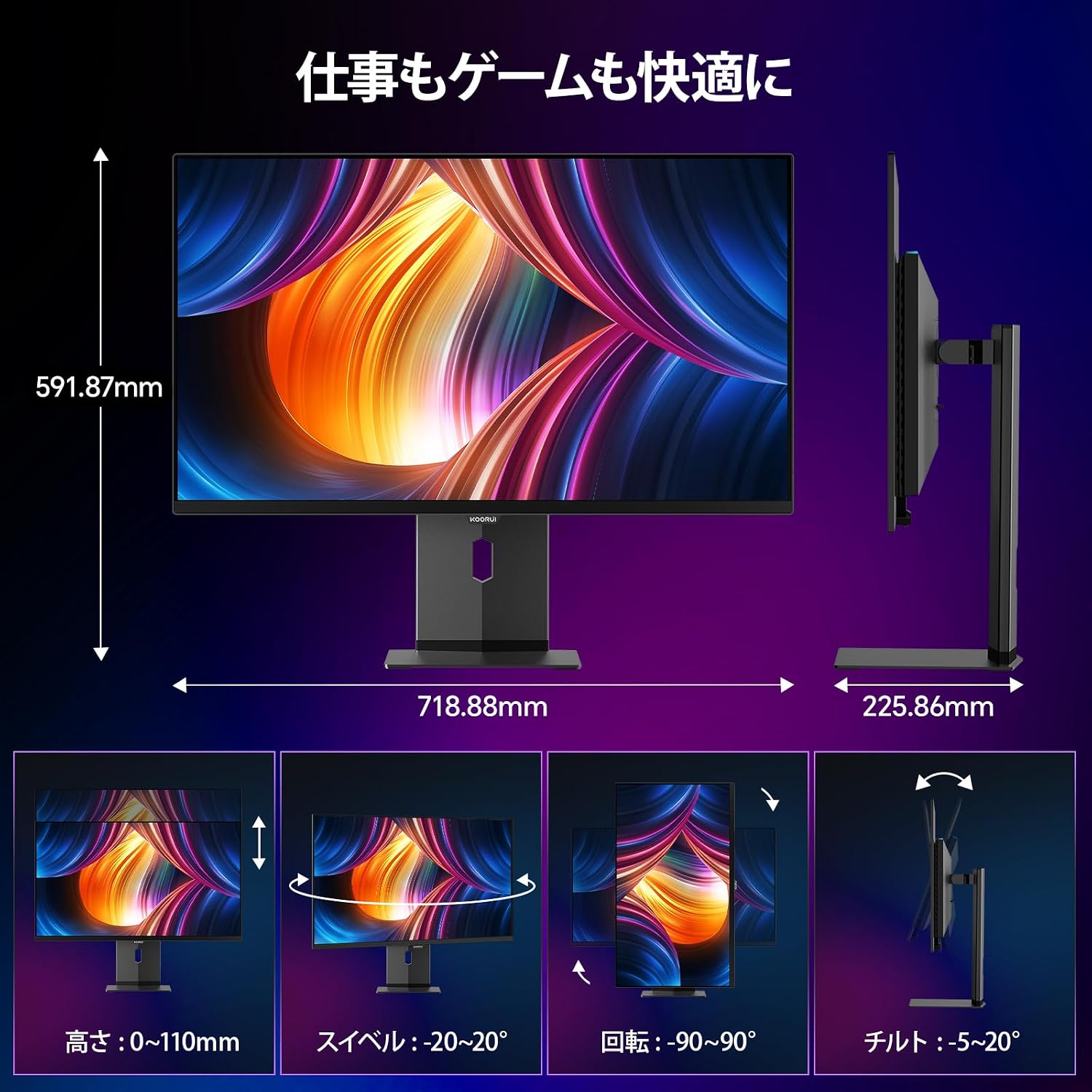
Image: Illustrations of the monitor's adjustable features: height, swivel, pivot (rotation), and tilt.
- Подешавање висине: Adjust the display height by up to 110mm.
- Нагиб: Tilt the screen from -5° to 20° for comfortable viewинг углова.
- Окретни: Swivel the monitor -20° to 20° horizontally.
- Окретање (ротација): Rotate the screen -90° to 90° for portrait or landscape orientation.
Одржавање
1. Чишћење монитора
- Увек искључите монитор пре чишћења.
- Лагано користите меку крпу која не оставља длачице дampводом или благим, неабразивним средством за чишћење екрана.
- Не прскајте средство за чишћење директно на екран.
- Avoid using benzene, thinner, or any volatile solvents, as they may damage the screen surface.
2. Карактеристике неге очију
Монитор укључује функције које смањују напрезање очију током дуже употребе:
- Hardware Blue Light Cut: Reduces harmful blue light emissions without affecting color accuracy.
- Flicker Guard: Елиминише треперење екрана за удобнији рад viewинг искуство.

Image: Demonstrates the effectiveness of hardware blue light reduction in preserving natural colors.

Image: Illustrates the difference between Flicker Guard off and on, showing reduced screen flickering.
3. Panel Protection Features
To prevent OLED burn-in, the monitor incorporates proprietary panel protection technologies:
- Померање пиксела: Periodically shifts pixels slightly to prevent static images from causing burn-in.
- Детекција траке задатака: Detects static elements like the taskbar and adjusts their brightness to minimize burn-in risk.
- Graphene Sheet + Custom Heatsink: Advanced thermal management to maintain optimal operating temperature.

Image: Visual explanation of pixel shift, taskbar detection, and thermal management for panel protection.
Решавање проблема
Ако наиђете на проблеме са монитором, погледајте следеће уобичајене проблеме и решења:
| Проблем | Могући узрок | Решење |
|---|---|---|
| Нема слике на екрану | Power cable disconnected, incorrect input source, device not powered on. | Check power connections, select correct input source via OSD, ensure connected device is on. |
| Image flickering | Flicker Guard disabled, cable issue, graphics card driver issue. | Enable Flicker Guard in OSD, try a different cable, update graphics drivers. |
| Лош квалитет боје | Incorrect color mode, cable issue. | Adjust color settings in OSD, try a different cable. |
| Нема звука из слушалица | Headphones not properly connected, audio settings on device/monitor. | Ensure headphones are fully plugged in, check audio output settings on your computer and monitor. |
| УСБ портови не раде | USB Type-B upstream cable not connected. | Connect the USB Type-B cable from the monitor to your computer. |
Спецификације
| Феатуре | Спецификација |
|---|---|
| Бранд | КООРУИ |
| Број модела | С3241КСО |
| Величина екрана | 31.5 инча |
| Панел Типе | OLED (QLED) |
| Резолуција | 4K UHD (3840 x 2160 пиксела) |
| Рефресх Рате | 240 Хз |
| Време одговора | 0.03 мс (односна ширина) |
| Аспецт Ратио | 16:9 |
| Однос контраста | 1,500,000:1 |
| Осветљеност | 280 цд/м² |
| Гамут боја | 99% DCI-P3, 100% sRGB |
| Дубина боје | True 10-bit (1.07 billion colors) |
| ХДР подршка | DisplayHDR400 True Black |
| Адаптиве Синц | FreeSync and G-Sync Compatible |
| Повезивање | 2x HDMI 2.1, 1x DisplayPort 1.4, 1x Type-C (with 90W PD), 2x USB-A 3.1, 1x USB-B, 1x Headphone Jack |
| Ергономија | Height Adjustment (110mm), Tilt (-5° to 20°), Swivel (-20° to 20°), Pivot (-90° to 90°) |
| ВЕСА Моунт | 100 к 100 мм |
| Димензије (Ш к В к Д) | Приближно 71.9 x 59.2 x 22.6 цм (са постољем) |
| Тежина | Прибл. 8.3 КГ |
| Потрошња енергије | 264 вати (макс.) |
Гаранција и подршка
The KOORUI S3241XO monitor comes with a Двогодишња гаранција произвођача. The LCD panel itself is covered by a 1-year warranty. For warranty claims or technical support, please contact KOORUI customer service.
KOORUI also offers a free recycling service for monitors. Please refer to the official KOORUI website or contact support for details on how to utilize this service.
За додатну помоћ, посетите KOORUI Brand Store.