
1. Увод
This manual provides detailed instructions for the setup, operation, maintenance, and troubleshooting of your NIMO Mini PC Desktop, Model DNB1. Please read this manual thoroughly before using the device to ensure proper functionality and to maximize your user experience. Keep this manual for future reference.

Image 1.1: The NIMO Mini PC Desktop DNB1, a compact and powerful computing device.
2. Шта је у кутији
Carefully unpack your NIMO Mini PC Desktop and verify that all items listed below are included:
- NIMO Mini PC Desktop (DNB1)
- Кориснички приручник (овај документ)
- Носач
- Повер Адаптер

Image 2.1: Contents of the NIMO Mini PC Desktop packaging, including the Mini PC, user manual, VESA mount, and power adapter.
3. Производ је готовview
The NIMO Mini PC Desktop DNB1 is designed for versatility and performance. Familiarize yourself with its various ports and features.
3.1. Front and Rear Panel Interfaces

Слика 3.1: Детаљно view of the NIMO Mini PC Desktop DNB1's interfaces, including USB, HDMI, LAN, Type-C, and power ports.
- ДЦ-ИН порт: Повезује се на адаптер за напајање.
- USB 3.2 Type-A Ports (x3): For connecting peripherals such as keyboards, mice, and external storage devices.
- HDMI 2.0 портови (x2): For connecting to displays, supporting up to 4K resolution.
- ЛАН порт (гигабитни етернет): За жичану мрежну везу.
- Аудио порт: За повезивање слушалица или екстерних звучника.
- Type-C Port (Multifunction): Supports data transfer and display output.
- Читач СД картица: За читање и писање на СД меморијске картице.
- Дугме за напајање: Да бисте укључили или искључили уређај.
- Дугме за ресетовање: To restart the device.
4. Водич за подешавање
Follow these steps to set up your NIMO Mini PC Desktop.
4.1. Почетна веза
- Повежите периферне уређаје: Connect your keyboard, mouse, and any other USB devices to the available USB 3.2 ports.
- Повежи екран(е): Connect your monitor(s) to the HDMI 2.0 ports. The Mini PC supports up to three 4K displays simultaneously.
- Повежи мрежу (опционо): For a wired internet connection, connect an Ethernet cable to the LAN port. For wireless, ensure your WiFi network is available during initial setup.
- Прикључите напајање: Plug the power adapter into the DC-IN port on the Mini PC, then plug the adapter into a power outlet.
4.2. VESA Mount Installation
The included VESA mount allows you to attach the Mini PC to the back of a compatible monitor or to a wall, saving desk space.
- Attach the VESA bracket to the back of your monitor using the provided screws. Ensure the monitor has VESA mounting holes (typically 75x75mm or 100x100mm).
- Slide the NIMO Mini PC Desktop onto the mounted bracket until it clicks securely into place.
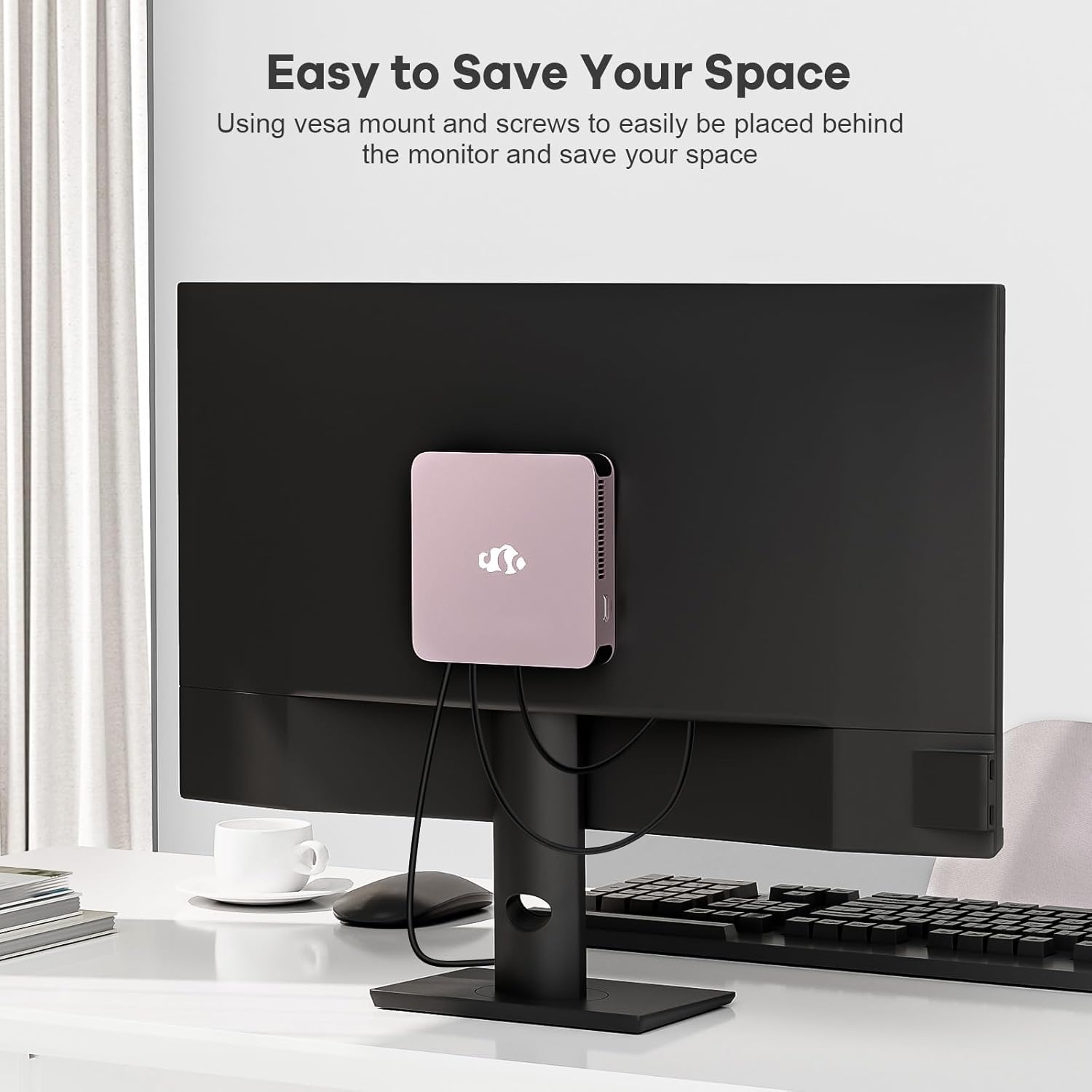
Image 4.1: The NIMO Mini PC Desktop DNB1 mounted on the back of a monitor using the VESA bracket, demonstrating space-saving placement.
5. Упутство за употребу
5.1. Укључивање/искључивање
- За укључивање: Press the Power Button once. The power indicator light will illuminate.
- За искључивање: From the operating system, select 'Shut Down'. Alternatively, press and hold the Power Button for 5-7 seconds to force a shutdown (use only when necessary).
5.2. Initial Boot and Windows 11 Setup
Upon first power-on, the system will guide you through the Windows 11 setup process. Follow the on-screen prompts to configure language, region, network, and user accounts.
5.3. Повезивање на мреже
- Жична веза: If an Ethernet cable is connected to the LAN port, the system will automatically detect and connect to the wired network.
- Wireless Connection (WiFi 6): Access the network settings in Windows 11, select your desired WiFi network, and enter the password.
- Блутут веза (Блутут 5.2): Enable Bluetooth in Windows 11 settings, search for devices, and pair with your Bluetooth peripherals.
5.4. Using Multiple Displays
The NIMO Mini PC supports up to three 4K displays. Connect your monitors to the available HDMI and Type-C ports. Windows 11 display settings allow you to extend, duplicate, or show only on one display.

Image 5.1: The NIMO Mini PC Desktop DNB1 supporting a triple monitor 4K display setup, enhancing productivity and multimedia experiences.
6. Одржавање
Правилно одржавање осигурава дуготрајност и оптималне перформансе вашег Мини рачунара.
- Чишћење: Use a soft, dry cloth to clean the exterior of the Mini PC. For dust in vents, use compressed air. Do not use liquid cleaners directly on the device.
- вентилација: Ensure the ventilation openings are not blocked to prevent overheating. Operate the device in a well-ventilated area.
- Ажурирања софтвера: Редовно ажурирајте оперативни систем Windows и управљачке програме како бисте одржали безбедност и перформансе.
- Резервна копија података: Периодично правите резервне копије важних података на екстерни диск или складиште у облаку.
КСНУМКС. Решавање проблема
Овај одељак се бави уобичајеним проблемима на које можете наићи.
7.1. Нема снаге
- Уверите се да је адаптер за напајање безбедно повезан и са Мини рачунаром и са исправном утичницом.
- Проверите да ли је утичница функционална тако што ћете укључити други уређај.
- Проверите адаптер за напајање да ли има видљивих оштећења.
7.2. Нема излаза на екран
- Confirm that the monitor is powered on and set to the correct input source (HDMI, Type-C).
- Check that the HDMI or Type-C cable is securely connected to both the Mini PC and the monitor.
- Пробајте други кабл за дисплеј или монитор ако је доступан.
7.3. Нема интернет везе
- Виред: Ensure the Ethernet cable is properly connected and your router/modem is working.
- бежични: Check WiFi settings in Windows 11, ensure WiFi is enabled, and you are connected to the correct network with the correct password. Restart your router/modem if necessary.
7.4. Peripherals Not Responding
- Покушајте да повежете периферни уређај са другим УСБ портом.
- Уверите се да су драјвери периферног уређаја инсталирани и ажурирани.
- Тестирајте периферни уређај на другом рачунару ако је могуће.
8. Спецификације
Detailed technical specifications for the NIMO Mini PC Desktop DNB1.
| Феатуре | Спецификација |
|---|---|
| Модел | ДНБ1 |
| Процесор | Intel 12th Gen N100 (up to 3.4 GHz) |
| Цорес/Тхреадс | 4 језгара / 4 нити |
| Графика | Интел УХД графика |
| РАМ | 16 ГБ ДДР5 |
| Складиштење | 512 ГБ ПЦИе ССД |
| Максимална резолуција екрана | 3840x2160 пиксела (4K) |
| Дисплаи Оутпут | 2x HDMI 2.0, 1x Type-C (supports triple display) |
| УСБ портови | 3x USB 3.2 Type-A, 1x USB Type-C |
| Мрежа | Gigabit Ethernet (LAN), WiFi 6 |
| Блуетоотх | Блуетоотх 5.2 |
| Оперативни систем | Виндовс 11 |
| Тежина артикла | 1.76 фунти |
| Извор напајања | DC |

Image 8.1: Summary of key features including Intel 12th Gen N100 processor, 4K Ultra HD support, Bluetooth 5.2, LPDDR5, WiFi 6, and PCIe SSD.
9. Гаранција и подршка
NIMO is committed to providing excellent customer service and product reliability.
- Политика враћања: You may request a return or exchange within 90 days of purchase.
- техничка подршка: The NIMO Mini PC Desktop comes with 2 years of technical support. If you encounter any issues, please contact our dedicated customer support team for assistance.
For support, please refer to the contact information provided with your purchase or visit the official NIMO webсајту.