
1. Увод
This manual provides comprehensive instructions for the WiMiUS K13 4K Google TV Projector. Designed for a superior visual experience, this projector integrates advanced features for both entertainment and professional use. Key functionalities include native 1080p resolution with 4K support, 1500 ANSI lumens brightness, automatic focus and keystone correction, and an integrated Google TV system for seamless access to a wide range of applications.
Please read this manual thoroughly before operating the device to ensure proper usage and to maximize its performance and longevity.
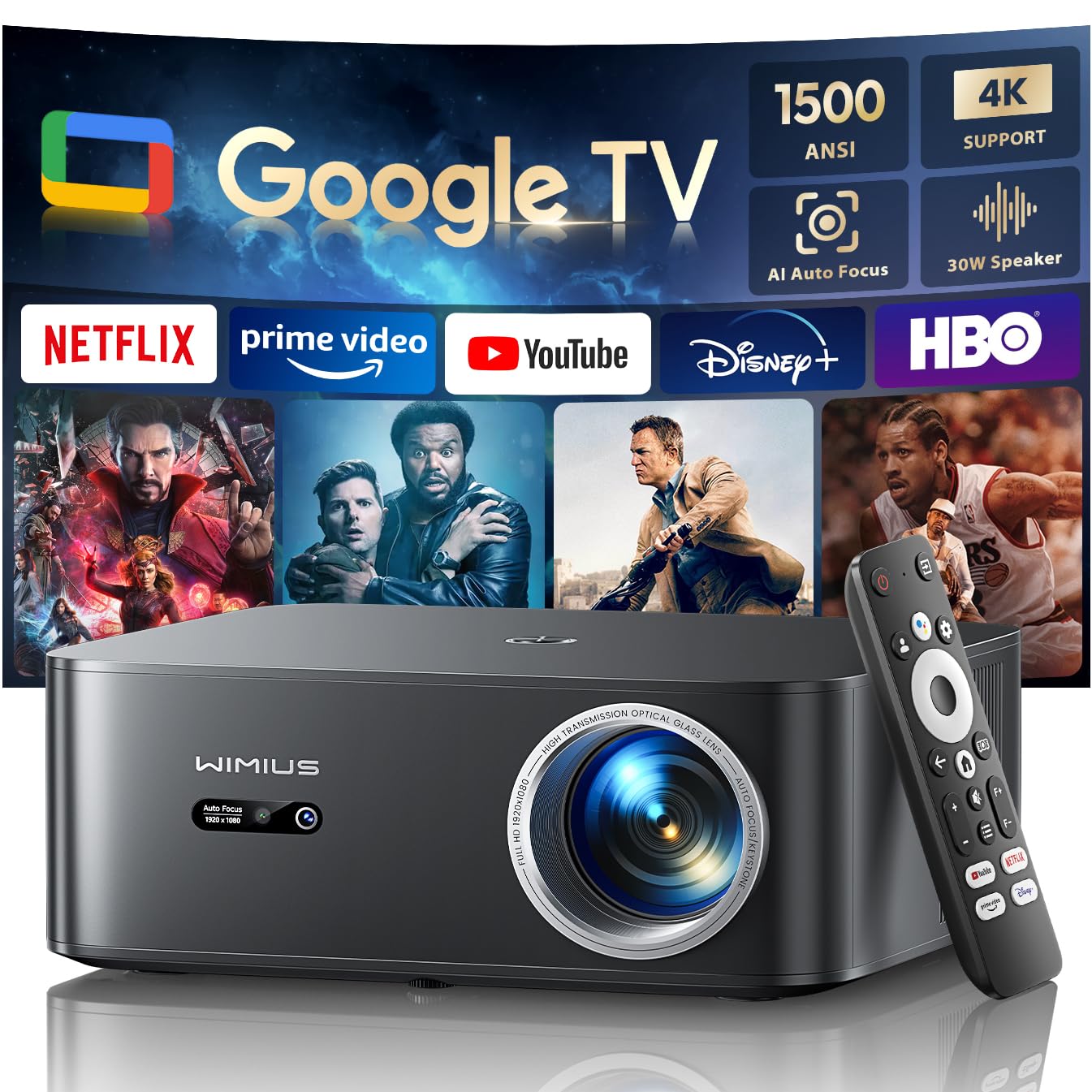
Figure 1: WiMiUS K13 4K Google TV Projector
2. Водич за подешавање
2.1 Распакивање и садржај пакета
Пажљиво извадите све компоненте из паковања. Проверите да ли су све ставке присутне:
- WiMiUS K13 Projector
- Даљински управљач (ААА батерије нису укључене)
- Повер Цабле
- ХДМИ кабл
- Упутство за употребу
2.2 Постављање
Position the projector on a stable, flat surface. For optimal image quality, ensure the projector lens is perpendicular to the projection surface. Recommended projection distance is 2.5 to 3 meters for a large screen size.
- Монтажа на сто: Place the projector on a table or stand.
- Монтажа на плафон/зид: The projector features M5 screw holes for compatible ceiling or wall mounts. Ensure the mount is securely installed and can support the projector's weight.
- Монтажа статива: The K13 projector does not have dedicated tripod mounting holes. Use a tripod equipped with a tray to support the projector.
2.3 Прикључак за напајање
Connect the power cable to the projector's power input port, then plug the other end into a power outlet. The power indicator light will illuminate.
2.4 Почетно укључивање и основно подешавање
Press the power button on the projector or remote control to turn on the device. Upon first use, follow the on-screen prompts to:
- Изаберите жељени језик.
- Connect to a Wi-Fi network (2.4G or 5G) for internet access.
- Log in with your Google account to access Google TV features and applications.
2.5 Automatic Focus and Keystone Correction
The WiMiUS K13 projector is equipped with automatic focus and keystone correction. After powering on or moving the projector, it will automatically adjust the image to achieve a clear, rectangular display. Manual adjustments are also available in the settings menu if needed.
3. Упутство за употребу
3.1 Remote Control and Google Voice Assistant
Use the provided remote control to navigate the Google TV interface. The remote includes dedicated buttons for popular streaming services like Netflix, Prime Video, YouTube, and Disney+. Utilize the integrated Google Voice Assistant by pressing the microphone button on the remote and speaking commands to search for content, adjust volume, or launch applications.
3.2 Google TV and Application Usage
The projector runs on an officially certified Android 11.0 Google TV system, providing access to over 10,000 applications from the Google Play Store. Navigate through the home screen to find installed apps or download new ones. Ensure a stable internet connection for optimal streaming performance.
3.3 Пресликавање екрана
Пројектор подржава бежично пресликавање екрана са различитих уређаја:
- AirPlay (iOS devices): Connect your iOS device and the projector to the same Wi-Fi network. Select the AirPlay option on your iOS device and choose the projector from the list of available devices.
- Miracast (Android/Windows devices): Enable Miracast or Screen Mirroring on your Android or Windows device. Select the projector from the detected devices.
3.4 Повезивање екстерних уређаја
The WiMiUS K13 offers multiple connectivity options:
- ХДМИ портови: Connect gaming consoles, laptops, Blu-ray players, or other HDMI-enabled devices. Select the corresponding HDMI input from the projector's source menu.
- УСБ портови: Insert USB drives to play media files (videos, photos, documents like PPT, Excel, Word).
- 3.5 мм аудио излаз: Connect external headphones or speakers via the audio jack.
3.5 Аудио излаз
The projector features integrated 20W speakers for clear audio. For enhanced sound, you can connect external audio systems:
- Блуетоотх КСНУМКС: Pair with Bluetooth speakers or headphones for wireless audio.
- ХДМИ АРЦ: Connect to a soundbar or AV receiver that supports HDMI ARC for simplified audio setup and control.
3.6 Функција зумирања
Adjust the screen size from 50% to 100% using the digital zoom function in the settings menu. This allows you to resize the image without physically moving the projector.

Figure 2: Outdoor movie experience with the WiMiUS K13 Projector

Figure 3: Outdoor sports viewing with the WiMiUS K13 Projector
4. Одржавање
4.1 Чишћење сочива
Gently clean the projector lens with a soft, lint-free cloth or a lens cleaning brush. Avoid using abrasive materials or harsh chemicals, which can damage the lens coating.
4.2 Ventilation Care
Ensure the projector's ventilation openings are clear and unobstructed to prevent overheating. Regularly check for dust accumulation and clean as necessary using a soft brush or compressed air.
4.3 Складиштење
Када се пројектор не користи дуже време, чувајте га на хладном, сувом и месту без прашине. Користите оригинално паковање или заштитну футролу да бисте спречили оштећења.
КСНУМКС. Решавање проблема
If you encounter issues with your WiMiUS K13 projector, refer to the following common problems and solutions:
| Проблем | Могући узрок | Решење |
|---|---|---|
| Нема приказане слике | Power cable disconnected, incorrect input source, device not powered on. | Check power connection, ensure projector is on, select correct HDMI/USB input. |
| Слика је мутна | Out of focus, lens dirty, projector moved. | Allow auto-focus to adjust, clean the lens, manually adjust focus if needed. |
| Слика је искривљена (трапезоидног облика) | Пројектор није нормалан у односу на платно. | Allow auto-keystone correction to adjust, manually adjust keystone in settings. |
| Нема звука | Volume too low, incorrect audio output selected, external device audio issue. | Increase volume, check audio output settings (internal, Bluetooth, HDMI ARC), verify external device audio. |
| Не могу да се повежем са Wi-Fi/Bluetooth-ом | Incorrect password, out of range, network issue. | Verify password, move closer to router/device, restart projector and router/device. |
| Даљински управљач не реагује | Слабе батерије, препрека, даљински управљач није упарен. | Замените батерије, уклоните препреке, поправите упаривање даљинског управљача ако је потребно. |
6. Спецификације
Detailed technical specifications for the WiMiUS K13 Projector:
| Феатуре | Детаљ |
|---|---|
| Бранд | ВиМиУС |
| Број модела ставке | К13 |
| Боја | Црно |
| Врста производа | Портабле Пројецтор |
| Резолуција екрана | 1920 x 1080 (Native Full HD) |
| Максимална резолуција екрана | 4096 x 2160 Pixels (4K Support) |
| Дисплаи Типе | ЛЦД |
| Осветљеност | КСНУМКС АНСИ Луменс |
| Технологија повезивања | HDMI, USB, 3.5mm Audio, Wi-Fi (6), Bluetooth (5.2) |
| Посебне карактеристике | Digital Keystone Correction, Built-in Speaker, Auto Focus, Built-in Wi-Fi, Google TV |
| Компатибилни уређаји | Tablet, Laptop, Game Console, Speaker, Smartphone, Television |
| Препоручена употреба производа | Home Cinema, Video Games, Professional, Education |
| Димензије производа | 28Д к 24.2В к 10.8Х центиметара |
| Форм Фацтор | Портабле |
| Тип монтаже | Table Mount (M5 screw holes for ceiling/wall mount) |
7. Гаранција и подршка
WiMiUS is committed to providing excellent customer service and support for your K13 projector:
- Служба за кориснике: 24/7 support is available for any inquiries or assistance you may need.
- Политика рефундирања: Enjoy a 1-year refund policy from the date of purchase.
- Repair Coverage: The projector is covered by a 3-year repair warranty.
- техничка подршка: За ваш производ је обезбеђена доживотна техничка подршка.
For any questions or support requests regarding your WiMiUS K13 projector, please contact our customer service team via email. We are dedicated to providing a prompt and satisfactory solution.