
1. Увод
This manual provides detailed instructions for the setup, operation, maintenance, and troubleshooting of your OMOTON Bluetooth Keyboard. Please read this manual thoroughly before using the product to ensure proper functionality and longevity.
2. Садржај пакета
Проверите да ли су све ставке присутне у пакету:
- 1 x OMOTON Bluetooth тастатура
- 1 x кабл за пуњење типа C
- 1 x Упутство за употребу (овај документ)
3. Карактеристике производа
- Компатибилност са више система: Supports iOS, Windows, and Android operating systems.
- Компактан и преносив: Ultra-thin design (6.6mm thickness) and lightweight (0.42 pounds) for easy transport. Dimensions: 9.7"L x 5.9"W x 0.2"H.
- Побољшано искуство куцања: Features large keycaps for comfortable and precise typing.
- Пуњива батерија: Built-in 500mAh lithium battery provides up to 200 hours of working time on a 2-3 hour charge.
- Позадинско осветљење са 7 боја: Adjustable backlight with 7 color options and 3 brightness levels for typing in various lighting conditions.
- Аутоматски режим спавања: Conserves battery by entering sleep mode after 30 minutes of inactivity.
4. Упутства за подешавање
4.1 Пуњење тастатуре
Before initial use, fully charge the keyboard. Connect the provided Type-C charge cable to the keyboard's charging port and to a USB power source. The charge indicator light will illuminate during charging and turn off when fully charged.
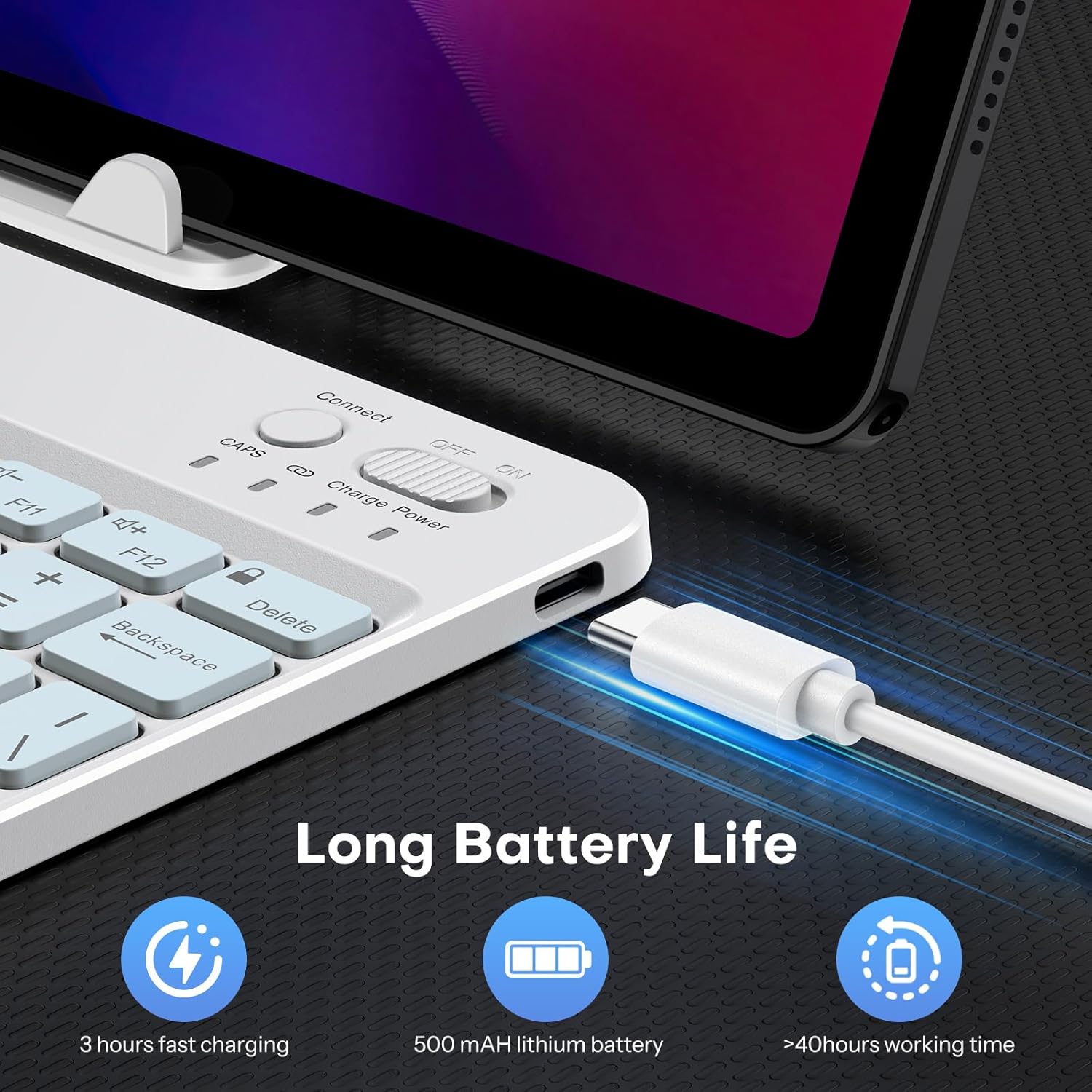
Image: Close-up of the keyboard showing the Type-C charging port and cable connected. The image highlights the charging process and the port location.
4.2 Блуетоотх упаривање
- Укључите тастатуру померањем прекидача за напајање у положај „УКЉУЧЕНО“. Индикаторска лампица напајања ће се накратко упалити.
- Press the 'Connect' button (usually located near the power switch) to enter pairing mode. The Bluetooth indicator light will flash, indicating it is ready to pair.
- On your device (tablet, phone, computer), enable Bluetooth and search for available devices.
- Select 'OMOTON Keyboard' (or similar name) from the list of found devices.
- Ако се то од вас затражи, унесите код за упаривање приказан на вашем уређају помоћу OMOTON тастатуре и притисните Enter.
- Once paired, the Bluetooth indicator light on the keyboard will stop flashing and remain solid for a few seconds, then turn off. The keyboard is now connected.

Слика: Изнад главе view of the OMOTON Bluetooth Keyboard, highlighting the power switch and the 'Connect' button, which are essential for initiating Bluetooth pairing.
4.3 Switching Operating Systems
The keyboard is compatible with multiple operating systems. It is crucial to switch to the correct system mode for optimal functionality. Press the following key combinations:
- ФН + А: For iOS / iPadOS / macOS devices
- FN + S: За Виндовс уређаје
- ФН + Д: За Андроид уређаје

Image: A visual guide on the keyboard showing the FN key combined with A, S, or D keys to switch between iOS, Windows, and Android operating system modes.
5. Упутство за употребу
5.1 Контрола позадинског осветљења
The keyboard features a 7-color adjustable backlight with 3 brightness levels.
- To turn the backlight on/off or adjust brightness, press the Fn кључ истовремено са lightbulb icon key (usually located near the right Ctrl key). Repeated presses will cycle through brightness levels or turn off the backlight.
- To change backlight colors, press the Fn кључ истовремено са color palette icon key (usually located next to the lightbulb icon key). Repeated presses will cycle through the 7 available colors.

Image: The OMOTON Bluetooth Keyboard displaying various backlight colors, illustrating the 7-color and 3-brightness level adjustment feature.
5.2 Аутоматски режим спавања
To conserve battery life, the keyboard will automatically enter sleep mode after 30 minutes of inactivity. To wake the keyboard, press any key. There may be a slight delay as the keyboard reconnects to your device.
5.3 Функцијски тастери
The top row of keys (F1-F12) can be used as standard function keys or as multimedia/shortcut keys. To access the secondary function (e.g., volume control, media playback), press the Fn тастер истовремено са жељеним функцијским тастером.
6. Одржавање
Да бисте осигурали дуготрајност и оптималне перформансе ваше OMOTON Bluetooth тастатуре, пратите ова упутства за одржавање:
- Чишћење: Користите меку, суву крпу која не оставља влакна за чишћење површине тастатуре. За тврдокорну прљавштину, благо обришитеampОбришите крпу водом или благим средством за чишћење. Избегавајте прекомерну влагу.
- Складиштење: Када се не користи, чувајте тастатуру на хладном и сувом месту, даље од директне сунчеве светлости и екстремних температура.
- Избегавајте течности: Do not expose the keyboard to liquids. Spills can cause permanent damage.
- Пажљиво рукујте: Avoid dropping the keyboard or subjecting it to strong impacts, as this can damage internal components.
КСНУМКС. Решавање проблема
7.1 Keyboard Keys Not Working or Responding
- Confirm Device's Operating System: Ensure you have selected the correct operating system mode on the keyboard. Press ФН+А за iOS, ФН+С за Windows, или ФН+Д за Андроид.
- Проверите Блуетоотх везу: Verify that the keyboard is properly paired and connected to your device. If not, re-initiate the pairing process (Section 4.2).
- Ниво батерије: Ensure the keyboard has sufficient battery charge. Recharge if necessary.
- Поново покрените уређаје: Try turning off and on both the keyboard and your device, then attempt to reconnect.

Image: A troubleshooting graphic explaining how to fix issues with keyboard keys not working, emphasizing confirming the device's operating system and switching modes.
7.2 Проблеми са Bluetooth везом
- Удаљеност: Ensure the keyboard is within the effective range of your device's Bluetooth signal (typically up to 10 meters).
- сметње: Удаљите се од других бежичних уређаја који могу изазвати сметње.
- Заборави уређај: On your device, 'forget' or 'remove' the keyboard from your Bluetooth device list, then attempt to pair again.
8. Спецификације
| Бранд | ОМОТОН |
| Модел | B0F65RJ45J |
| Технологија повезивања | Блуетоотх |
| Компатибилни уређаји | Tablet, Android, Windows, iOS |
| Распоред тастатуре | КВЕРТИ |
| Посебне карактеристике | Backlit (7 colors, 3 brightness levels), Ergonomic, Lightweight |
| Капацитет батерије | 500мАх литијумска батерија |
| Време пуњења | 2-3 сати |
| Радно време | До 200 сати |
| Димензије производа (Д к Ш к В) | 9.7" x 5.9" x 0.2" (247 mm x 150 mm x 6.6 mm) |
| Тежина | 0.42 фунти |
| Материјал | Пластика |

Image: A visual comparison of the OMOTON Bluetooth Keyboard's dimensions against a smartphone and a tablet, illustrating its compact and portable size.
9. Информације о гаранцији
The OMOTON Bluetooth Keyboard comes with a 12-месечна гаранција from the date of purchase. This warranty covers manufacturing defects and malfunctions under normal use. It does not cover damage caused by misuse, accidents, unauthorized modifications, or external factors.
Сачувајте доказ о куповини за гаранцијске захтеве.
10. Корисничка подршка
If you encounter any issues or have questions regarding your OMOTON Bluetooth Keyboard that are not addressed in this manual, please contact OMOTON customer support through the retailer's platform or the official OMOTON website. Our support team is available to assist you.
За више информација посетите OMOTON Store on Amazon.