
1. Производ је готовview
The Amazon Basics Multi-Touch Trackpad is a wireless input device designed for Windows PCs, offering enhanced navigation and control through multi-touch gestures. It features dual device connectivity and a rechargeable battery for convenience.
Кључне карактеристике:
- Multi-Touch Gestures: Supports up to four-finger gestures for intuitive control.
- Dual Device Control: Connects to two devices via Bluetooth with easy switching.
- Integrated Buttons: Built-in left and right mouse button functionality.
- Танак дизајн: Portable and sleek with colored indicator lights for enhanced functionality.
- Пуњива батерија: Equipped with a lithium battery, rechargeable via USB-C.
- Компатибилност: Designed for Windows OS. Not compatible with macOS, Chrome OS, or Linux.

Слика 1.1: Врх view of the Amazon Basics Multi-Touch Trackpad.
2. Подешавање и инсталација
2.1 Садржај пакета
Уверите се да су сви предмети присутни:
- Amazon Basics Multi-Touch Trackpad
- УСБ-Ц кабл за пуњење
- Кориснички приручник (овај документ)
2.2 Charging the Trackpad
- Locate the USB-C port on the trackpad.
- Connect the provided USB-C cable to the trackpad and the other end to a USB power source (e.g., computer USB port, USB wall adapter).
- The indicator light will show charging status. A full charge typically takes [X] hours (Note: Specific charging time not provided in source data, user should refer to product packaging or quick start guide for exact duration).
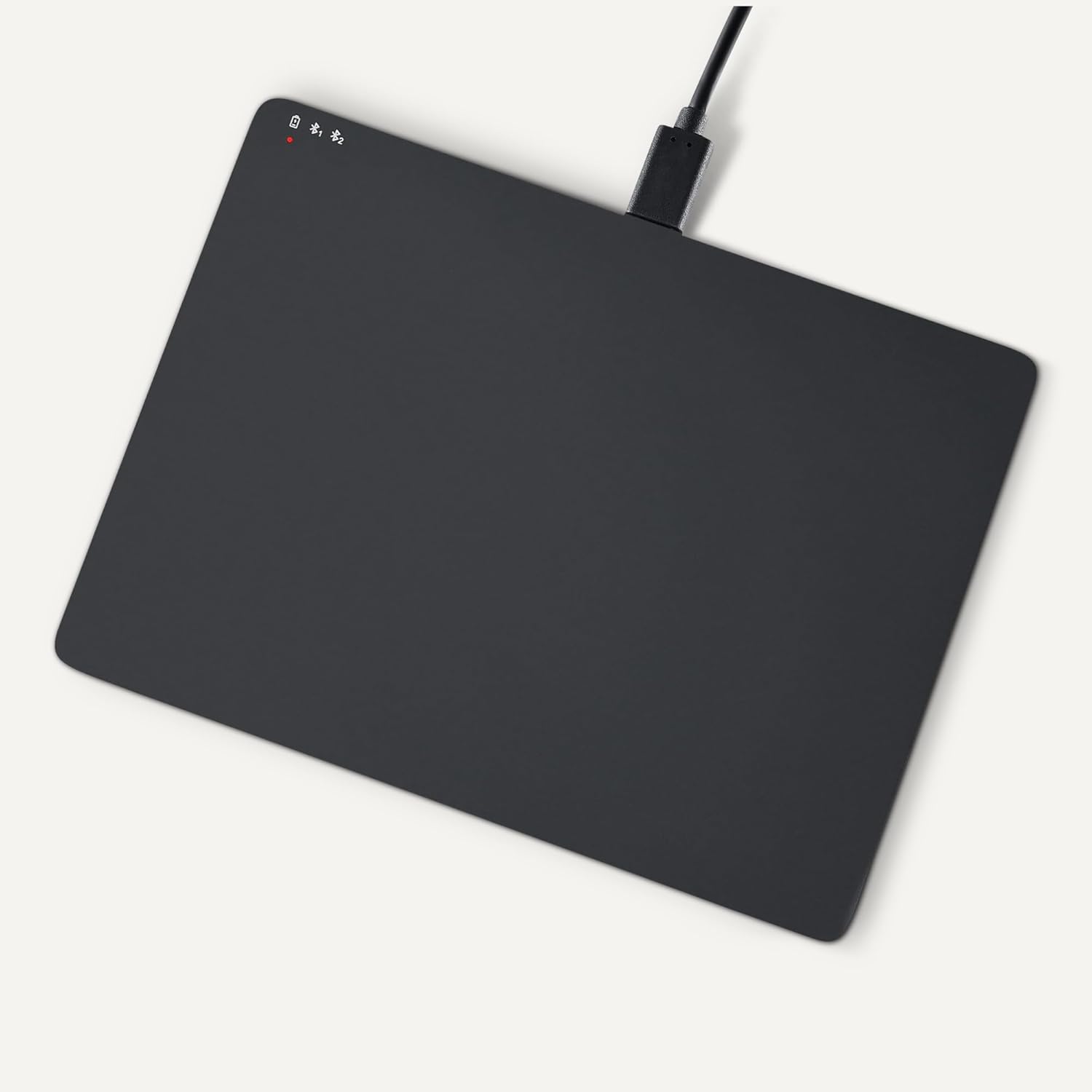
Image 2.1: Trackpad connected for charging via USB-C.
2.3 Укључивање/искључивање
Locate the power switch on the side of the trackpad. Slide it to the "ON" position to power on, and "OFF" to power off.

Слика 2.2: Бочна страна view illustrating the power switch and USB-C port.
2.4 Блуетоотх упаривање
- Ensure the trackpad is powered on.
- На вашем Windows рачунару идите на Подешавања > Уређаји > Блутут и други уређаји.
- Turn on Bluetooth and click "Add Bluetooth or other device".
- Select "Bluetooth" from the options.
- The trackpad should appear in the list of available devices (e.g., "Amazon Basics Trackpad"). Select it to pair.
- Follow any on-screen prompts to complete the pairing process. The indicator light on the trackpad will confirm successful connection.
3. Operating the Trackpad
3.1 Основна навигација
- Помери курсор: Slide one finger across the trackpad surface.
- Леви клик: Press down on the lower-left area of the trackpad or tap with one finger.
- Десни клик: Press down on the lower-right area of the trackpad or tap with two fingers (if configured in Windows settings).
3.2 Multi-Touch Gestures (Windows OS)
The trackpad supports various multi-touch gestures for enhanced productivity. These gestures are typically configured within Windows settings (Settings > Devices > Touchpad).
- Скролуј: Place two fingers on the trackpad and slide them up or down to scroll vertically, or left or right to scroll horizontally.
- Увећавање/умањивање: Place two fingers on the trackpad and pinch them together to zoom out, or spread them apart to zoom in.
- Show All Open Windows (Task View): Swipe three fingers upwards.
- Прикажи радну површину: Swipe three fingers downwards.
- Switch Between Open Windows: Swipe three fingers left or right.
- Отворени акциони центар: Tap with four fingers.
- Switch Desktops: Swipe four fingers left or right.
Note: Gesture functionality may vary based on your Windows version and specific settings. Refer to your Windows documentation for detailed customization options.
3.3 Dual Device Control
The trackpad can be paired with two different devices. To switch between connected devices:
- Ensure both devices are paired with the trackpad.
- Press the mode switch button located on the trackpad (refer to Image 2.2 for location).
- The indicator light will change to show which device is currently active.
4. Одржавање и њега
- Чишћење: Use a soft, dry, lint-free cloth to clean the trackpad surface. For stubborn marks, slightly dampНатопите крпу водом. Избегавајте јаке хемикалије или абразивне материјале.
- Складиштење: When not in use for extended periods, power off the trackpad to conserve battery life. Store in a cool, dry place.
- Одржавање батерије: To prolong battery life, avoid fully discharging the trackpad frequently. Recharge when the low battery indicator appears.
- Избегавајте течности: Keep the trackpad away from liquids and excessive moisture.
КСНУМКС. Решавање проблема
| Проблем | Могући узрок | Решење |
|---|---|---|
| Trackpad does not power on. | Батерија је испражњена. | Charge the trackpad using the provided USB-C cable. |
| Trackpad does not connect via Bluetooth. |
|
|
| Gestures are not working or inconsistent. |
|
|
| Trackpad is unresponsive. |
|
|
Ако проблем и даље постоји након што сте испробали ова решења, погледајте одељак Гаранција и подршка.
6. Спецификације
| Феатуре | Детаљ |
|---|---|
| Бранд | Амазон Басицс |
| Број модела | ТК053 |
| Повезивање | Блуетоотх |
| Димензије (ДкШкВ) | 6.39 к 4.78 к 0.42 инча |
| Тежина артикла | 9.2 унци (261.2 грама) |
| Боја | Црно |
| Батерија | 1 литијум-јонска батерија (укључена) |
| Порт за пуњење | УСБ-Ц |
| Компатибилност | Windows OS (Not compatible with macOS, Chrome OS, or Linux) |
| УПЦ | 840324434217 |
7. Гаранција и подршка
For warranty information and customer support, please refer to the official Amazon Basics website or the documentation included with your purchase. You can typically find support resources, FAQs, and contact information on the product's dedicated page on Amazon.com.
Подршка на мрежи: Visit the Amazon Basics Store