
Увод
This manual provides essential information for setting up, operating, and maintaining your NIMO 15.6" FHD Laptop Computer (Model NIMO N157). Please read this manual thoroughly before using your device to ensure optimal performance and longevity.
Шта је у кутији
- 1 x NIMO N157 Laptop
- 1 x Type-C 65W PD Fast Charger
- 1 x Упутство за употребу (овај документ)
- Windows 11 Home (pre-installed)
- 2 Years Warranty, 90 Days Return information
Водич за подешавање
1. Прво укључивање и пуњење
Before first use, ensure your NIMO laptop is fully charged. Connect the provided Type-C 65W PD Fast Charger to the laptop's Type-C charging port and a power outlet. The charge LED indicator will illuminate. A full charge is recommended for optimal battery calibration.

Image: NIMO laptop connected to its Type-C 65W GaN II PD charger. This charger provides fast charging capabilities.
2. Operating System Setup (Windows 11 Home)
Upon first power-on, the laptop will guide you through the Windows 11 Home setup process. Follow the on-screen instructions to configure language, region, network settings, and create a user account. An internet connection (Wi-Fi 6 supported) is recommended for the initial setup to download necessary updates.

Image: The NIMO laptop screen showing the Windows 11 desktop interface.
3. Подешавање читача отиска прста
For enhanced security and quick login, set up the integrated fingerprint reader. Navigate to Windows Settings > Accounts > Sign-in options and follow the prompts to register your fingerprint. This allows for secure one-touch login.

Слика: Крупни план view of the fingerprint reader on the NIMO laptop, illustrating its use for secure login.
Упутство за употребу
1. Keyboard and Backlight
The NIMO laptop features a full-size keyboard with a numeric keypad and a backlit function. To activate or adjust the keyboard backlight, use the dedicated function keys (Fn + Fx, refer to your keyboard layout for specific key). This feature allows for comfortable typing in low-light environments.
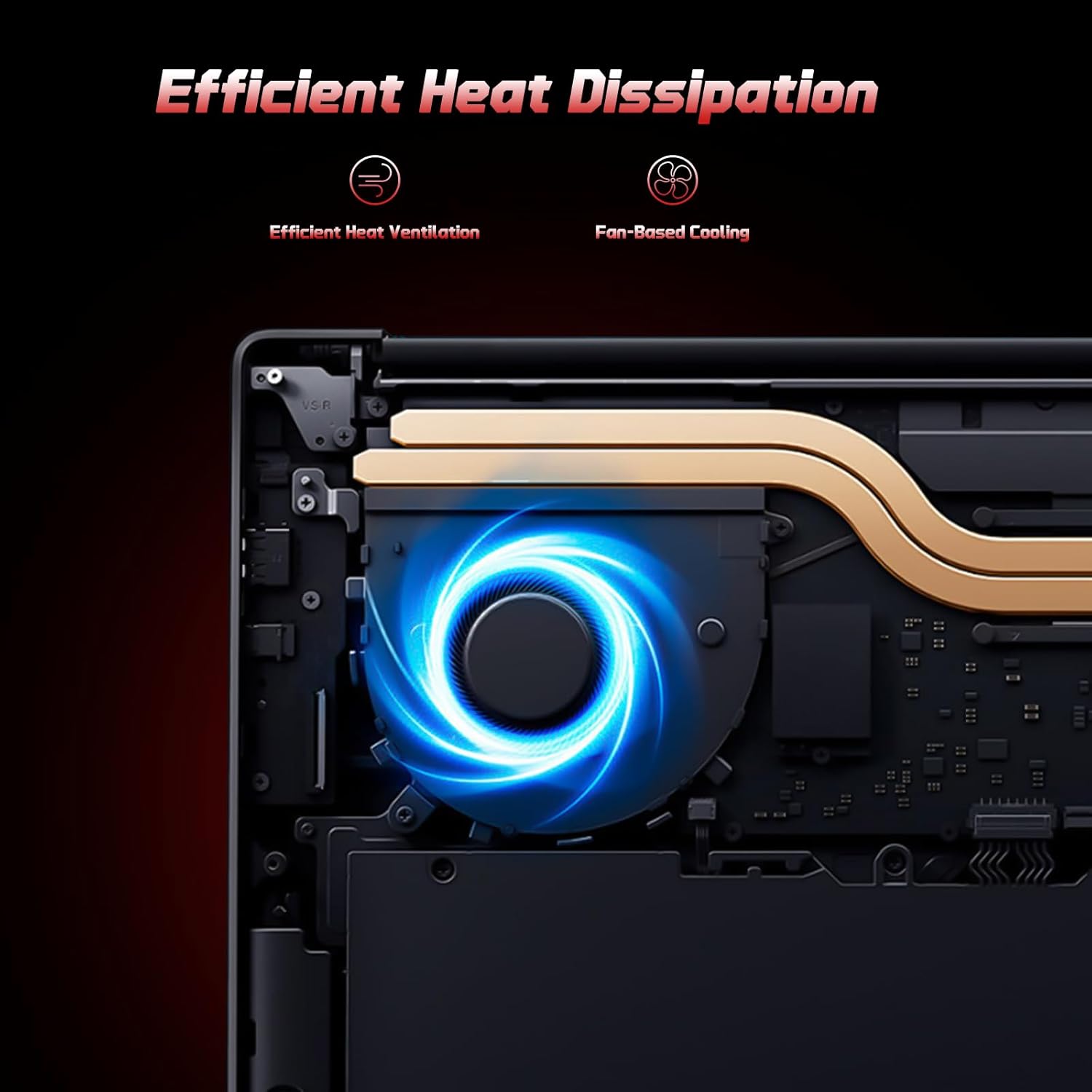
Image: A user typing on the NIMO laptop's backlit keyboard in a dim environment.
2. Повезивање периферних уређаја
The laptop is equipped with multiple ports for various peripherals:
- УСБ портови: Повежите УСБ уређаје као што су екстерни дискови, мишеви или тастатуре.
- ХДМИ порт: Повежите се са екстерним монитором или телевизором за проширени приказ.
- Type-C Ports: One port supports 65W PD fast charging, and another is a multifunction port for data transfer and display output.
- Мицро СД слот: Insert a Micro SD card for expandable storage.
- Слушалице: Повежите слушалице или спољне звучнике.
- Utor za Kensington Lock: За физичко обезбеђење.
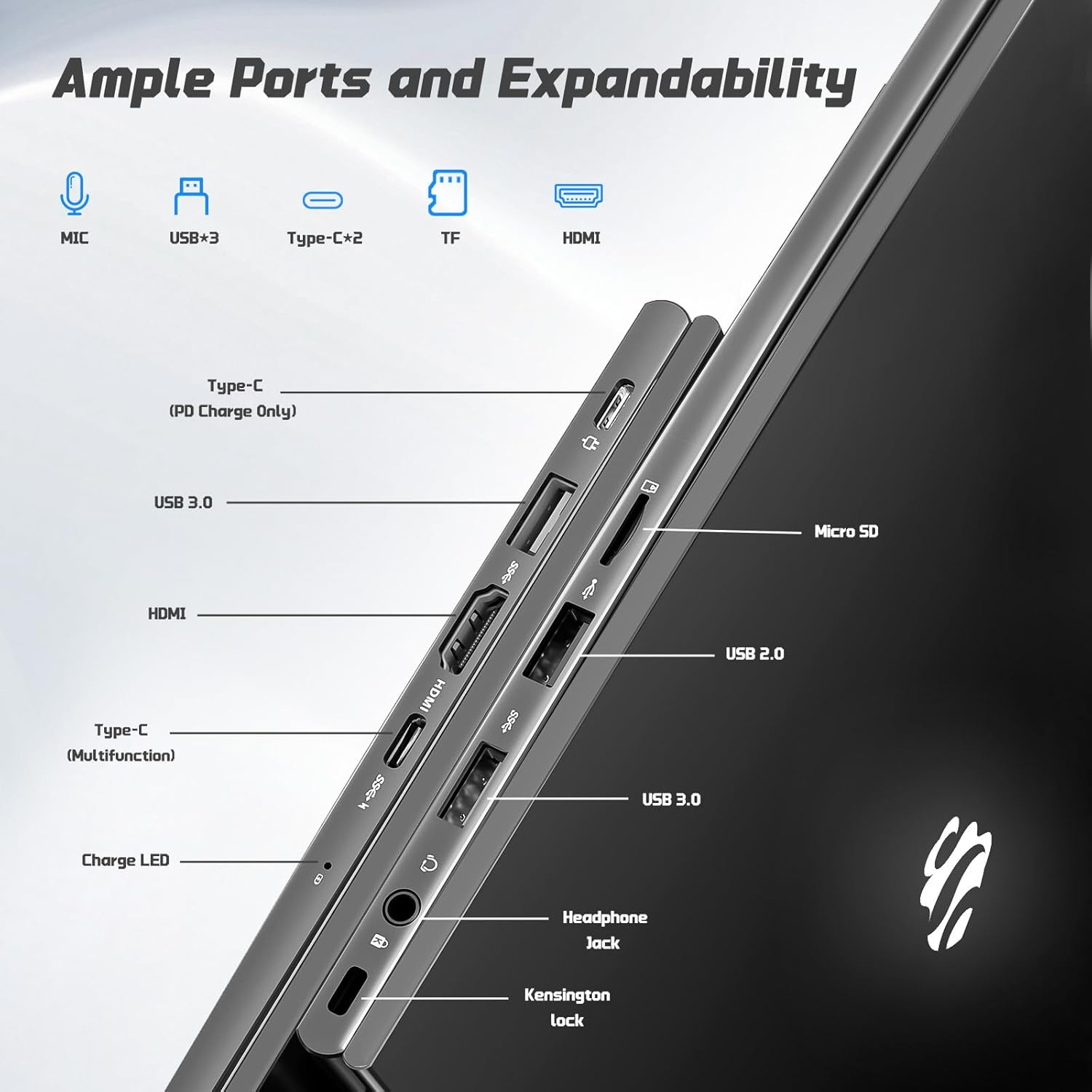
Слика: Са стране view of the NIMO laptop highlighting the available ports including USB, HDMI, Type-C, Micro SD, and headphone jack.
3. Webcam and Privacy
The integrated 2MP webcam is suitable for video calls and online meetings. For privacy, ensure the camera is covered or disabled when not in use, if a physical privacy shutter is present (refer to product images for confirmation).
Video: This video demonstrates the NIMO laptop's features, including the webcam and various ports. It shows the laptop being used for work, school, and play, highlighting the backlit keyboard and fingerprint unlock feature.
Video: This video showcases the NIMO laptop's versatility for different users, including students and professionals. It highlights the 15.6" FHD display, backlit keyboard, and multiple connectivity options.
Video: A comprehensive introduction to the NIMO 15.6" laptop, detailing its design, performance, and user experience for various tasks.
Video: This video emphasizes the efficiency and convenience of the NIMO laptop, showcasing its features that contribute to productivity and ease of use.
Video: This video highlights the NIMO 15.6" FHD laptop's suitability for students, home use, and work, demonstrating its performance in various daily scenarios.
Одржавање
1. Чишћење лаптопа
To clean the screen, use a soft, lint-free cloth specifically designed for electronics. For the keyboard and chassis, a slightly damp cloth with mild cleaning solution can be used. Avoid excessive moisture and abrasive materials. Ensure the laptop is powered off before cleaning.
2. Брига о батерији
The NIMO laptop features a 53.58 Watt Hours Lithium Polymer battery. To prolong battery life, avoid fully discharging the battery frequently. It is recommended to keep the battery charge between 20% and 80% when possible. Store the laptop in a cool, dry place when not in use for extended periods.
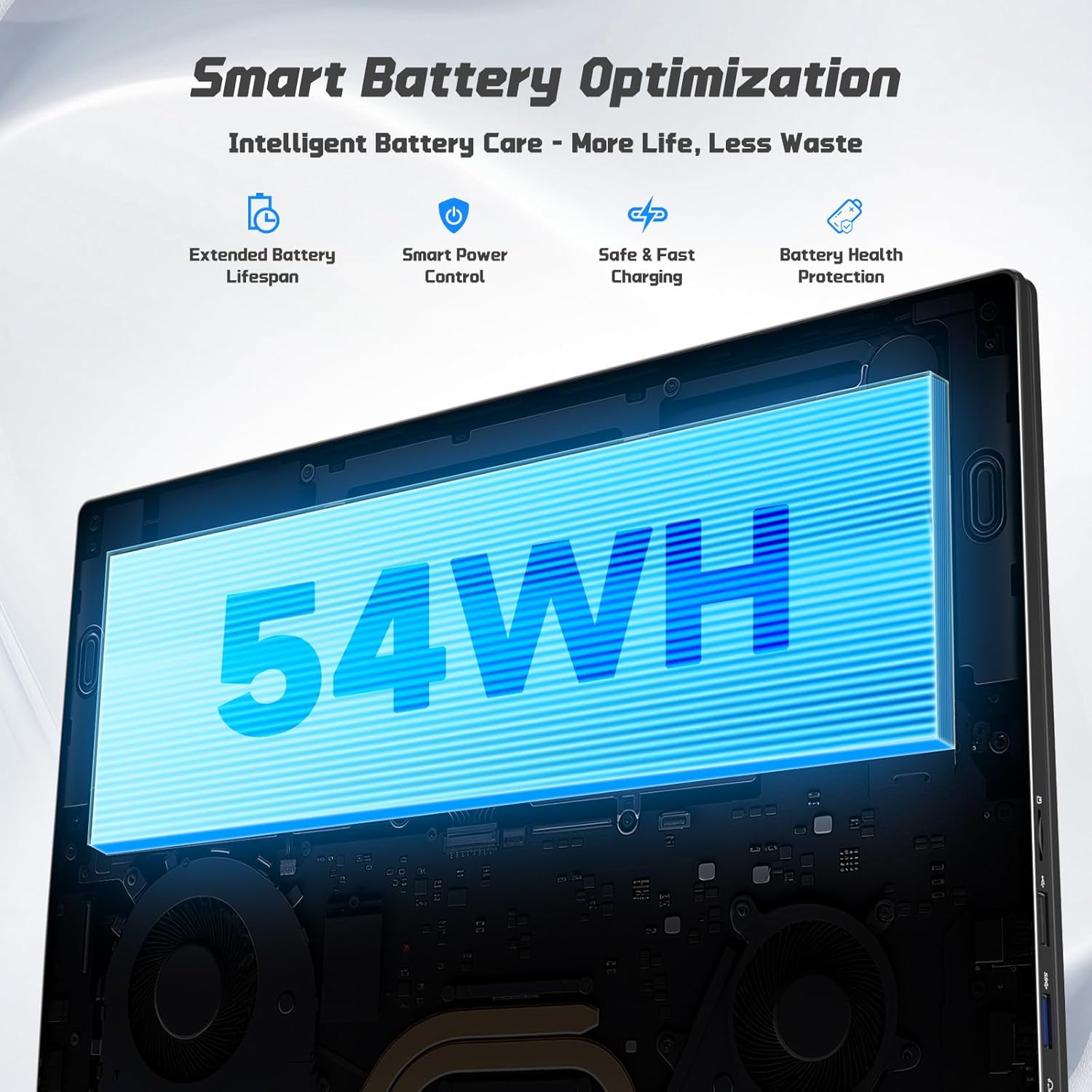
Image: Diagram illustrating the NIMO laptop's smart battery optimization features, including extended lifespan, smart power control, safe and fast charging, and battery health protection.
3. Ажурирања софтвера
Редовно проверавајте и инсталирајте ажурирања за Windows како бисте били сигурни да ваш систем има најновије безбедносне закрпе и побољшања перформанси. Идите на Подешавања > Windows Update да бисте управљали ажурирањима.
4. Расипање топлоте
The laptop is designed with efficient heat ventilation and fan-based cooling. To prevent overheating, ensure that the ventilation openings are not blocked during use. Avoid placing the laptop on soft surfaces like beds or couches that can obstruct airflow.
Слика: Интерна view of the NIMO laptop showing its efficient heat dissipation system with fan-based cooling.
Решавање проблема
1. Laptop Not Powering On
- Ensure the charger is securely connected to both the laptop and a working power outlet.
- Check the charge LED indicator. If it's not lit, try a different outlet or charger.
- Притисните и држите дугме за напајање 10-15 секунди да бисте извршили хард ресетовање.
2. Проблеми са екраном (нема приказа, треперење)
- Connect an external monitor via the HDMI port to check if the issue is with the laptop's display or graphics output.
- Поново покрените лаптоп.
- Ensure display drivers are up to date via Windows Update or NIMO's support webсајту.
3. Споре перформансе
- Затворите непотребне апликације које раде у позадини.
- Проверите и инсталирајте све чекајуће надоградње за Windows.
- Ensure sufficient free space on the 128GB SSD. Consider expanding storage using the Micro SD slot or upgrading the SSD if needed.
- Покрените скенирање вируса.
4. Проблеми са повезивањем на Wi-Fi или Bluetooth
- Ensure Wi-Fi and Bluetooth are enabled in Windows Settings.
- Поново покрените рутер/модем због проблема са Wi-Fi мрежом.
- Update network drivers via Windows Update or NIMO's support webсајту.
Спецификације
| Феатуре | Детаљ |
|---|---|
| Бранд | NIMO |
| Назив модела | NIMO N157G |
| Величина екрана | 15.6 инча |
| Резолуција екрана | 1920x1080 пиксела (FHD) |
| Дисплаи Типе | IPS LCD, Anti-glare |
| Процесор | Intel Pentium N150 (4-Core, up to 3.6 GHz) |
| РАМ | 4 GB DDR4 (прошириво до 16 GB) |
| Складиштење | 128 GB SSD (Expandable via Micro SD) |
| Оперативни систем | Виндовс 11 Хоме |
| Графика | Интегрисана Интел Грапхицс |
| Webцам | Предња камера од 2 МП |
| Повезивање | Wi-Fi 6, Bluetooth 5.3 |
| Портс | 2x USB 3.0, 1x USB 2.0, 2x Type-C (1x PD Charge Only, 1x Multifunction), 1x HDMI, 1x Micro SD Slot, 1x Headphone Jack, 1x Kensington Lock |
| Батерија | 53.58 Wh Lithium Polymer (Up to 12.75 hours life) |
| пуњач | 65W Type-C PD Fast Charger |
| Посебне карактеристике | Позадинско осветљење тастатуре, читач отиска прста, HD аудио, нумеричка тастатура |
| Димензије | 14.07 cm D x 8.98 cm Š x 0.76 cm Deb |
| Тежина | 3.75 фунти |
Гаранција и подршка
Your NIMO laptop comes with a 2-годишња гаранција from NIMO Direct Inc. Additionally, a 90-Day Hassle-Free Return Policy is provided. For any product-related questions, technical assistance, or warranty claims, please contact NIMO customer support.
Контакт информације:
- Емаил: сервице@нимопц.цом
- Подршка на мрежи: Refer to the official NIMO website for further support resources.
Please have your model number (NIMO N157) and purchase details ready when contacting support.