
Увод
This manual provides essential information for setting up, operating, maintaining, and troubleshooting your Acer AL15-33P laptop. Please read this guide thoroughly to ensure proper use and to maximize the lifespan of your device.
Сетуп
1. Распакивање и први преглед
Carefully remove the laptop and all accessories from the packaging. Check for any visible damage. The package should include the laptop, power adapter, and this user manual.

Фронт view of the Acer AL15-33P laptop with the screen displaying the Windows desktop.
2. Повезивање напајања
- Connect the AC adapter cable to the power adapter.
- Plug the DC output connector of the power adapter into the power input port on the side of your laptop.
- Укључите кабл за напајање наизменичном струјом у електричну утичницу.
Батерија ће почети аутоматски да се пуни. Препоручује се да потпуно напуните батерију пре прве употребе.
3. Почетно покретање и подешавање система Windows
- Отворите поклопац лаптопа.
- Press the power button, typically located on the keyboard deck or side, to turn on the laptop.
- Follow the on-screen instructions to complete the Windows 11 setup process. This includes selecting your region, language, accepting terms, and setting up a user account.
Управљање лаптопом
1. Коришћење тастатуре и тачпеда
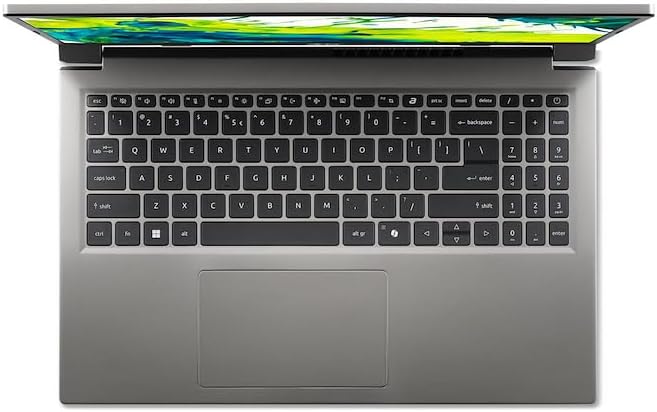
Одозго надоле view тастатуре и тачпеда лаптопа.
- тастатура: The laptop features a full-size keyboard. Use the function (Fn) key in combination with F-keys for special functions like adjusting brightness, volume, or enabling/disabling Wi-Fi.
- Тоуцхпад: The integrated touchpad supports multi-touch gestures. Tap to click, use two fingers to scroll, and pinch to zoom.
2. Повезивање периферних уређаја
Your Acer AL15-33P laptop is equipped with various ports for connecting external devices.

Right side of the laptop showing ports including USB and audio jack.

Left side of the laptop showing ports including power, USB-C, HDMI, and USB-A.
- УСБ портови: Повежите УСБ уређаје као што су екстерни чврсти дискови, мишеви или тастатуре.
- ХДМИ порт: Connect an external monitor or TV for a larger display.
- Аудио прикључак: Повежите слушалице или спољне звучнике.
- УСБ-Ц порт: For data transfer and potentially display output or charging, depending on the specific model configuration.
3. Бежично повезивање
- Ви-Фи: Да бисте се повезали на бежичну мрежу, кликните на икону Wi-Fi на траци задатака, изаберите мрежу и унесите лозинку ако је потребно.
- Блуетоотх: To pair Bluetooth devices, go to Windows Settings > Bluetooth & devices, and turn on Bluetooth.
4. Управљање напајањем
- Режим спавања: Затворите поклопац или изаберите „Спавање“ из менија „Старт“ да бисте лаптоп пребацили у стање мале потрошње енергије.
- Искључивање: To turn off the laptop completely, go to the Start menu, click the Power icon, and select 'Shut down'.
- Поново покрени: To restart the laptop, go to the Start menu, click the Power icon, and select 'Restart'.
Одржавање
1. Чишћење лаптопа
- Користите меку крпу која не оставља длачицеampводом или средством за чишћење екрана да бисте очистили екран.
- За тастатуру и кућиште користите меку крпу. Избегавајте јаке хемикалије или абразивне материјале.
- Повремено користите компримовани ваздух да бисте очистили прашину из отвора за хлађење како бисте спречили прегревање.
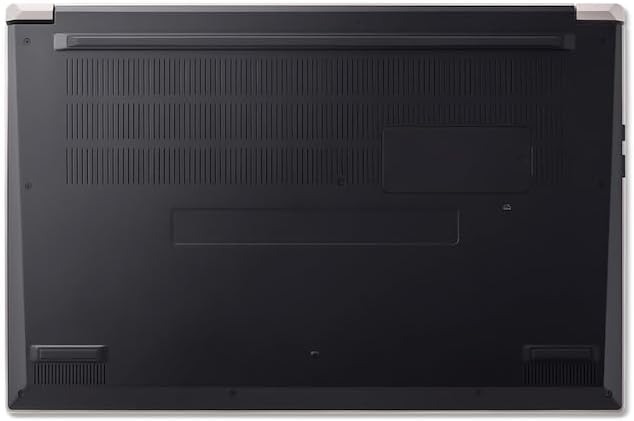
Дно view of the laptop, highlighting the ventilation grilles.
2. Брига о батерији
- Избегавајте често потпуно пражњење батерије.
- Ако складиштите лаптоп дуже време, уверите се да је батерија напуњена на приближно 50-70%.
- Operate the laptop in a moderate temperature environment.
3. Ажурирања софтвера
Regularly update your operating system and drivers to ensure optimal performance and security. Windows Update can be accessed via Settings > Windows Update.
4. Управљање складиштем
Периодично реview и обришите непотребне files to free up storage space. Utilize cloud storage or external drives for backups of important data.
Решавање проблема
This section addresses common issues you might encounter with your Acer AL15-33P laptop.
| Проблем | Могуће решење |
|---|---|
| Лаптоп се не укључује. | Ensure the power adapter is securely connected and the outlet is working. Try a different outlet. If the battery is completely drained, it may take a few minutes to show signs of life after plugging in. |
| Display is blank or black. | Check if the laptop is powered on. Try pressing Fn + F6 (or the corresponding display toggle key) to cycle through display modes. Connect an external monitor to check if the issue is with the laptop's screen. |
| Проблеми са Wi-Fi везом. | Ensure Wi-Fi is enabled (Fn + F3 or check Windows settings). Restart your router and modem. Check if other devices can connect to the Wi-Fi network. Update Wi-Fi drivers. |
| Лаптоп ради споро. | Close unnecessary applications. Check Task Manager for processes consuming high CPU or memory. Run a disk cleanup. Ensure Windows and drivers are up to date. |
Спецификације
The following are key specifications for the Acer AL15-33P model. Note that specific configurations may vary.
- Модел: Acer AL15-33P
- процесор: Intel Core i3-N355
- РАМ: 8ГБ
- Складиштење: 512 ГБ ССД
- Приказ: 15.6-инчни
- Оперативни систем: Виндовс 11
- Бренд: Ацер
Гаранција и подршка
Your Acer AL15-33P laptop comes with a standard manufacturer's warranty. Please refer to the warranty card included with your product for specific terms and conditions, including the warranty period and coverage details.
За техничку подршку, преузимање драјвера или упите о сервисирању, посетите званичну Acer подршку website or contact Acer customer service directly. Have your laptop's serial number ready when contacting support.
Ацер подршка Webсајт: www.acer.com/support