
Увод
This manual provides essential instructions for the setup, operation, maintenance, and troubleshooting of your Insignia 32-inch 1080p HD HDR LCD Fire TV Smart TV, model NS-32F401CA26. Please read this manual thoroughly before using your television to ensure proper and safe operation.
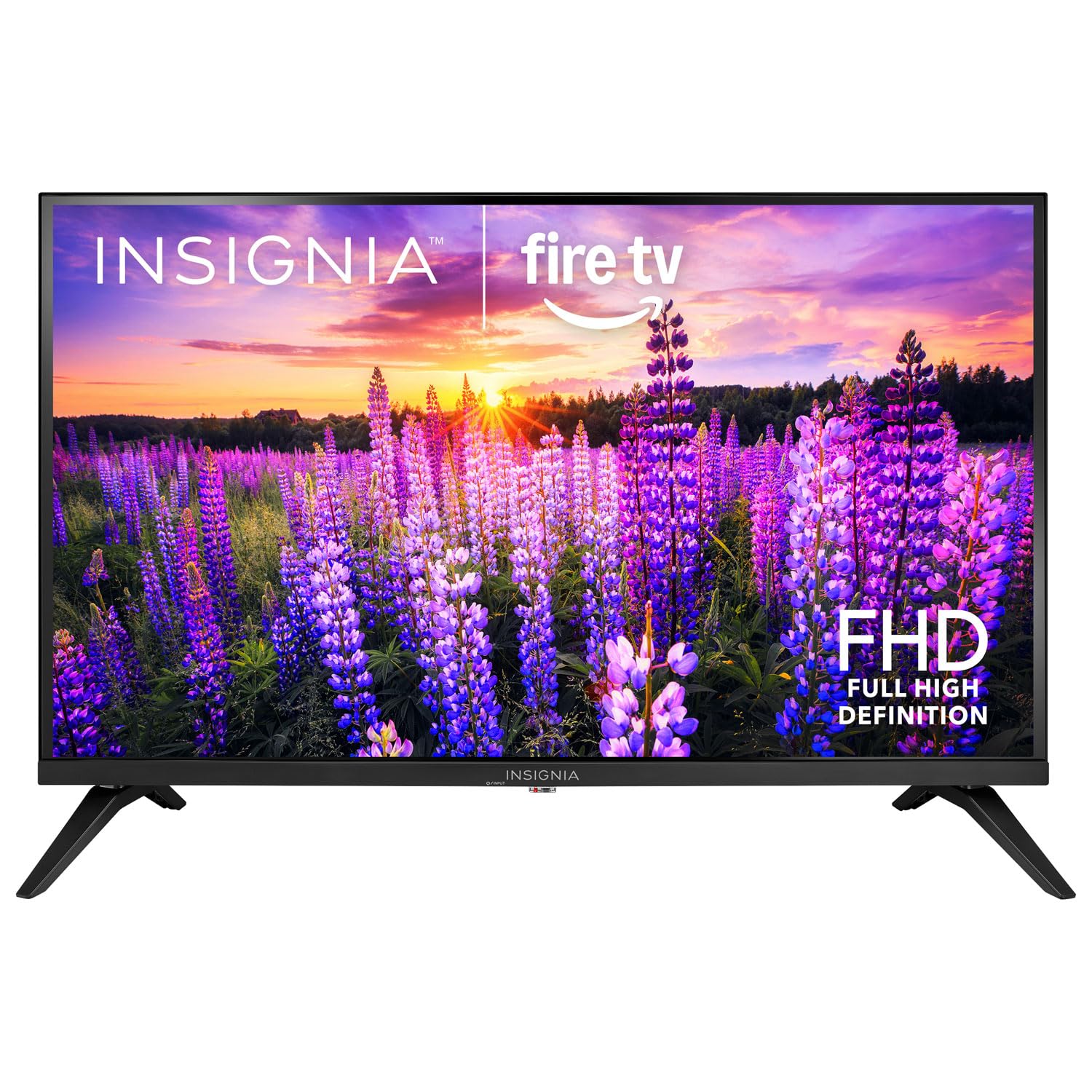
Слика: Фронт view of the Insignia 32-inch Fire TV Smart TV, showing the screen and a remote control.
1. Подешавање
1.1 Распакивање
Пажљиво извадите телевизор и сву додатну опрему из паковања. Сачувајте материјал за паковање за будући транспорт или складиштење.
1.2 Причвршћивање постоља или монтажа на зид
За монтажу постоља:
- Поставите телевизор лицем надоле на меку, чисту површину како бисте спречили оштећење екрана.
- Align the stand bases with the screw holes on the bottom of the TV.
- Причврстите постоља помоћу приложених вијака.
За зидну монтажу:
- This TV supports a VESA Mount Standard of 200 x 200 mm.
- Use a compatible wall mount kit (sold separately) and follow its installation instructions.
- Ensure the wall can support the weight of the TV and the mount.
1.3 Повезивање напајања
Plug the power cord into the TV's power input, then plug the other end into a working electrical outlet.
1.4 Повезивање екстерних уређаја
Your TV includes multiple ports for external devices:
- HDMI Ports (Total 2): Повежите Блу-реј плејере, играчке конзоле, кабловске/сателитске пријемнике.
- USB 3.0 Port (Total 1): Повежите УСБ уређаје за складиштење података за репродукцију медија.
- Улаз за антену/кабл: Connect an antenna for over-the-air broadcasts or a cable connection.
1.5 Initial Setup (Fire TV OS)
Upon first power-on, the TV will guide you through the Fire TV setup process:
- Упаривање даљинског управљача: Insert the included 2 AAA batteries into the remote. Follow on-screen instructions to pair the remote.
- Мрежна конекција: Изаберите своју Ви-Фи мрежу и унесите лозинку.
- Амазон налог: Log in with your Amazon account or create a new one.
- Скенирање канала: If using an antenna, the TV will scan for available channels.
- Ажурирања софтвера: The TV may download and install the latest software updates.
2. Управљање телевизором
2.1 Укључивање/искључивање
Притисните тастер Повер button on the remote control to turn the TV on or off.
2.2 Навигација кроз интерфејс Fire TV-а
Користите смерну тастатуру и Изаберите button on your remote to browse the Fire TV home screen, access apps, and navigate menus.
2.3 Коришћење гласовног даљинског управљача Alexa
Притисните и држите Алека button on your remote and speak into the microphone to:
- Тражи movies and TV shows.
- Launch applications (e.g., "Open Netflix").
- Control playback (e.g., "Pause", "Fast forward").
- Ask questions or get information.
2.4 Приступ апликацијама
Popular streaming services like Amazon Prime Video, Netflix, and YouTube are pre-installed. You can download additional apps from the Amazon Appstore.
2.5 Adjusting Picture and Sound Settings
Приступите Подешавања menu on the Fire TV home screen to adjust:
- слика: Brightness, contrast, color, aspect ratio (16:9).
- звук: Volume, sound mode, DTS Virtual-X settings.
- Приказ: Resolution (1080p), refresh rate (120 Hz).
2.6 Родитељски надзор
The TV includes parental control features. Navigate to the Подешавања мени, а затим изаберите Преференцес, а затим Родитељски надзор to set restrictions on content, purchases, and app usage. A PIN is required to enable or disable these controls.
3. Одржавање
3.1 Чишћење телевизора
- Екран: Нежно обришите екран меком крпом која не оставља влакна. За тврдокорне мрље, благо обришитеampОперите крпу водом или средством за чишћење екрана посебно намењеним за телевизоре. Не прскајте течност директно на екран.
- Тело: Обришите оквир и постоље телевизора меком, сувом крпом.
- Увек искључите телевизор из струје пре чишћења.
3.2 Ажурирања софтвера
Your Fire TV Smart TV automatically checks for and installs software updates when connected to the internet. You can manually check for updates in the Подешавања meni ispod Мој Фире ТВ > Абоут > Проверите ажурирања.
3.3 Замена батерије даљинског управљача
When the remote control's performance degrades, replace the two AAA batteries. Ensure correct polarity when inserting new batteries.
КСНУМКС. Решавање проблема
| Проблем | Могући узрок | Решење |
|---|---|---|
| Нема струје | Кабл за напајање није повезан; утичница не ради. | Ensure power cord is securely plugged into TV and a live outlet. Test outlet with another device. |
| Нема слике или звука | Incorrect input source; external device off or disconnected. | Притисните тастер Инпут button on the remote to select the correct source. Check connections of external devices. Ensure devices are powered on. |
| Даљински управљач не ради | Празне батерије; даљински управљач није упарен. | Replace batteries (2 AAA). Re-pair remote by holding the Хоме button for 10 seconds near the TV. |
| Проблеми са Ви-Фи везом | Нетачна лозинка; проблеми са рутером; ТВ је предалеко од рутера. | Verify Wi-Fi password. Restart your router and modem. Move TV closer to router or use a Wi-Fi extender. |
| Apps not loading or crashing | Temporary software glitch; insufficient memory. | Restart the TV. Clear app cache (Settings > Applications > Manage Installed Applications). Ensure sufficient storage. |
5. Спецификације
| Број модела | НС-32Ф401ЦА26 |
| Величина екрана | 32 инча |
| Дисплаи Тецхнологи | ЛЦД |
| Резолуција | 1080p (Full HD) |
| Рефресх Рате | 120 Хз |
| Подржан ХДР формат | ХДР10 |
| Аспецт Ратио | 16:9 |
| Технологија повезивања | Ви-Фи |
| ХДМИ портови | 2 |
| УСБ 3.0 портови | 1 |
| Подржане Интернет услуге | Amazon Prime Video, Netflix, YouTube, Alexa |
| Опис звучника | DTS Virtual-X virtual surround sound |
| Integrated Surround Sound Format | DTS Virtual-X |
| Контролни метод | Remote (with Alexa Voice) |
| Батерије су потребне | 2 ААА (укључено) |
| Димензије производа (Д x Ш x В) | 47.3 Д x 17.1 Ш x 71.9 В центиметара |
| VESA стандард за монтирање | 200 к 200 мм |
| Додатне карактеристике | Родитељски надзор |
6. Гаранција и подршка
For warranty information, please refer to the warranty card included with your product or visit the official Insignia support website. For technical assistance, product registration, or service inquiries, please contact Insignia customer support through their official channels.
Напомена: Конкретни услови гаранције и контакт подаци за подршку могу се разликовати у зависности од региона и подложни су променама.