
Увод
This manual provides essential information for the setup, operation, and maintenance of your Minifire MFG27C1 27-inch Curved Gaming Monitor. Please read this manual thoroughly before using the product and retain it for future reference.
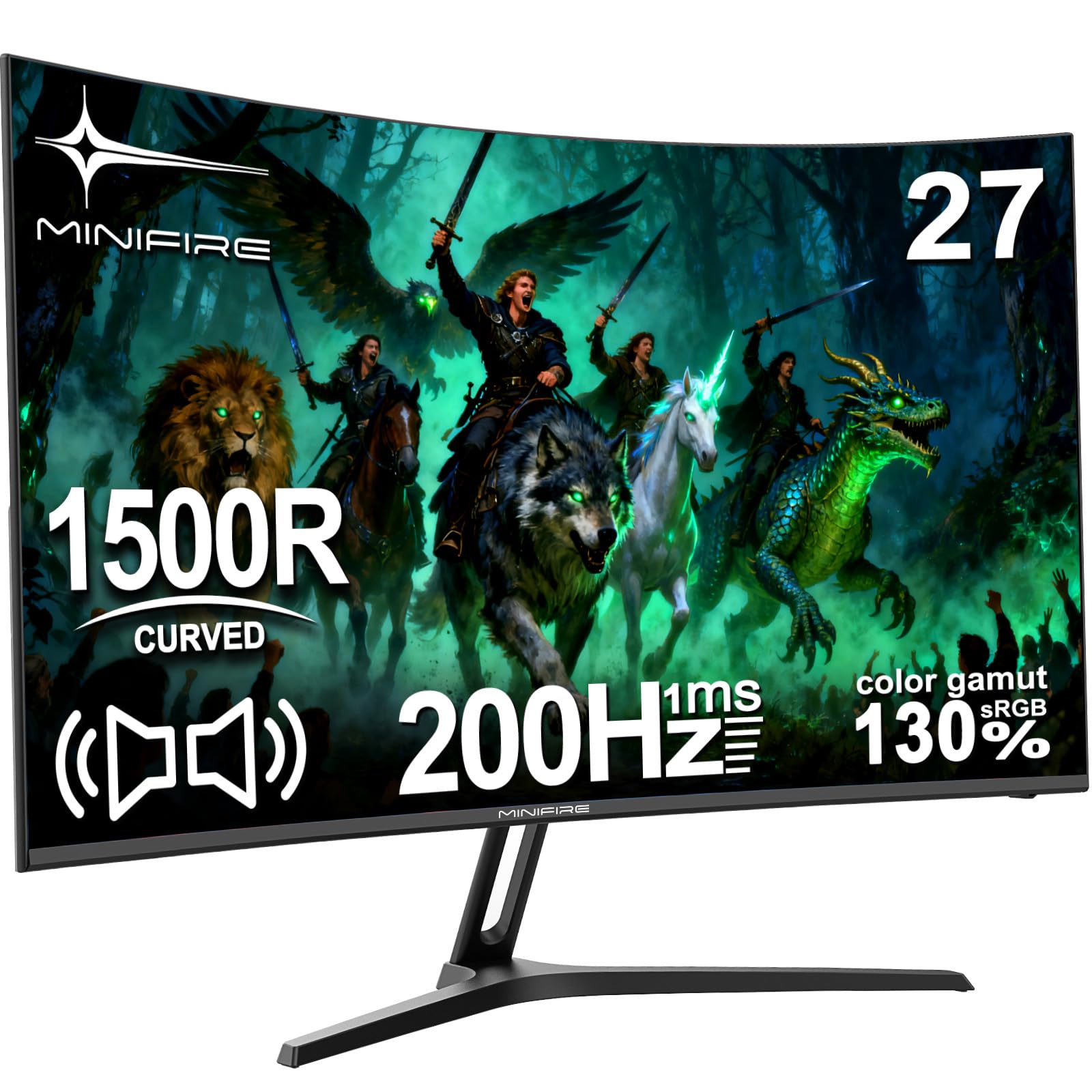
Image: The Minifire MFG27C1 27-inch Curved Gaming Monitor, showcasing its sleek design and curved screen.
Садржај пакета
Проверите да ли се све ставке наведене у наставку налазе у паковању вашег производа:
- Minifire MFG27C1 27-inch Curved Gaming Monitor
- ХДМИ кабл
- Адаптер/пуњач
- Monitor Stand components
- Кориснички приручник (овај документ)
Безбедносне информације
Да бисте осигурали безбедан рад и спречили оштећења, молимо вас да се придржавате следећих мера безбедности:
- Не излажите монитор киши или влази како бисте спречили пожар или струјни удар.
- Не отварајте монитор цasinг. Унутра нема делова које корисник може сам да поправи. Сво сервисирање препустите квалификованом особљу.
- Поставите монитор на стабилну, равну површину како бисте спречили његов пад.
- Обезбедите одговарајућу вентилацију око монитора. Не блокирајте вентилационе отворе.
- Користите само адаптер за напајање који се испоручује са монитором.
- Искључите кабл за напајање током грмљавине или када се не користи дуже време.
- Избегавајте постављање тешких предмета на кабл за напајање.
- Држите монитор даље од директне сунчеве светлости, извора топлоте и екстремних температура.
Сетуп
1. Састављање постоља
Attach the stand base to the stand neck, then secure the assembled stand to the back of the monitor. Ensure all screws are tightened securely.
2. Повезивање каблова
Connect the provided HDMI cable from your computer's graphics card to the HDMI 2.0 port on the monitor. For power, connect the power adapter to the DC input port on the monitor, then plug the adapter into a power outlet.
The monitor also features a DisplayPort 1.4 for alternative video input and a 3.5mm audio output for external speakers or headphones.

Слика: Детаљна view of the monitor's rear panel, highlighting the HDMI 2.0, DisplayPort 1.4, 3.5mm audio output, and DC power input ports, along with the joystick control button.
3. Прво укључивање
Press the power button located on the back of the monitor to turn it on. The monitor will automatically detect the active input source. If no signal is detected, ensure your computer is powered on and the video cable is securely connected.
Упутство за употребу
1. Укључивање/искључивање
Press the joystick button (power button) on the back of the monitor to turn it on. Press and hold the joystick button for a few seconds to turn it off.
2. Навигација кроз OSD мени
The monitor's On-Screen Display (OSD) menu is controlled using the joystick button on the back.
- Push the joystick button: Улази у OSD мени или потврђује избор.
- Померање џојстика горе/доле: Navigates through menu options or adjusts brightness/volume.
- Померање џојстика лево/десно: Navigates through menu options or adjusts contrast/input source.
Image: A diagram illustrating the joystick button functions for menu navigation, brightness, contrast, and input source selection.
3. Подешавање подешавања екрана
Приступите OSD менију да бисте подесили различита подешавања екрана:
- Осветљеност/контраст: Прилагодите ова подешавања својим жељама за оптимално viewинг.
- Подешавања боја: Измените температуру боје, гаму и друге параметре везане за боју.
- Режим слике: Select from predefined modes (e.g., Standard, Game, Movie) or customize your own.
- Извор уноса: Manually select between HDMI and DisplayPort inputs if auto-detection fails.
- Брзина освежавања: Ensure your graphics card settings match the monitor's 200Hz refresh rate for the smoothest experience.
- ФрееСинц: Enable FreeSync in the OSD menu and your graphics card control panel for tear-free gaming.
4. Аудио излаз
The monitor includes built-in speakers. You can also connect external speakers or headphones to the 3.5mm audio output port for enhanced audio.
Кључне карактеристике
1. Immersive Curved Display
The Minifire MFG27C1 features a 27-inch VA panel with a 1500R curvature, designed to provide an immersive viewing experience, especially for gaming. This curvature helps reduce eye strain and enhances peripheral vision.

Image: The monitor displaying a vibrant gaming scene, emphasizing its 1500R curvature for an immersive experience.
2. High Refresh Rate and Fast Response Time
Experience smooth, fluid visuals with a 200Hz refresh rate and a rapid 1ms (MPRT) response time. This combination minimizes motion blur and ghosting, crucial for fast-paced gaming.

Image: A graphic highlighting the monitor's 200Hz refresh rate and 1ms MPRT response time, with a racing car visual.
3. Vibrant Color Reproduction
The VA panel offers a 130% sRGB color gamut, delivering rich, accurate colors and deep blacks for a high contrast ratio (2000:1). This enhances visual fidelity for both gaming and multimedia content.

Слика: Монитор приказујеasing a colorful image, demonstrating its ability to display vivid details and a wide color spectrum.
4. AMD FreeSync технологија
With AMD FreeSync technology, the monitor synchronizes its refresh rate with your graphics card's frame rate, eliminating screen tearing and stuttering for a smoother gaming experience.

Image: A visual comparison demonstrating the benefits of FreeSync technology, showing a smooth image with FreeSync enabled versus stuttering and ghosting when disabled.
5. Карактеристике неге очију
The monitor incorporates features to protect your eyes during extended use, including anti-flicker technology, an anti-glare screen surface, and a low blue light mode to reduce eye strain.

Image: A graphic explaining the monitor's eye care features, including anti-flicker, anti-glare, and low blue light, with visual examples of their effects.
6. Game Assist Functions
Enhance your gaming performance with built-in game assist features such as Black Level Adjustment for improved visibility in dark scenes, Pinpoint Strike for aiming assistance, and an on-screen Timer.
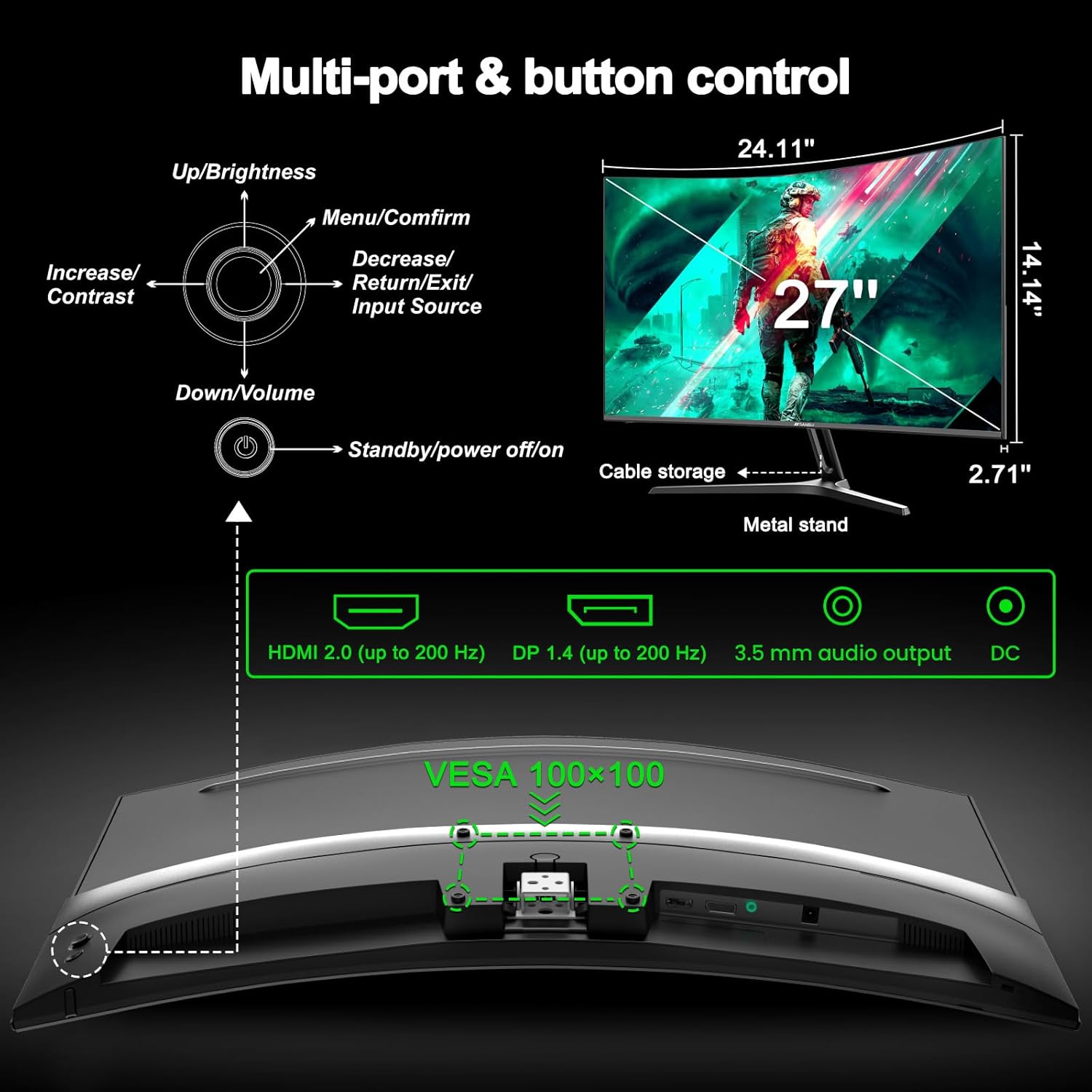
Image: A graphic detailing the monitor's game assist features, including Black Level Adjustment, Pinpoint aiming, and an on-screen Timer, shown in a first-person shooter context.
Одржавање
Чишћење монитора
Да бисте очистили екран монитора, нежно га обришите меком крпом која не оставља влакна. За тврдокорне мрље, дampБлаго навлажите крпу водом или неабразивним средством за чишћење екрана. Не прскајте средство за чишћење директно на екран.
За монитор цasinг, користите меку, суву крпу. Избегавајте употребу јаких хемикалија или абразивних материјала.
Складиштење
If storing the monitor for an extended period, disconnect all cables and pack it in its original packaging if possible. Store in a cool, dry place away from direct sunlight and extreme temperatures.
Решавање проблема
If you encounter issues with your Minifire MFG27C1 monitor, refer to the following common problems and solutions:
Но Повер
- Уверите се да је кабл за напајање безбедно прикључен и на монитор и на исправну утичницу.
- Проверите да ли адаптер за напајање исправно функционише.
- Чврсто притисните дугме за напајање.
Нема сигнала
- Check that the HDMI or DisplayPort cable is securely connected to both the monitor and your computer.
- Уверите се да је рачунар укључен и да није у режиму спавања.
- Изаберите исправан улазни извор помоћу OSD менија.
- Пробајте други видео кабл или порт ако је доступан.
Треперење или цепање слике
- Ensure AMD FreeSync is enabled in both the monitor's OSD menu and your graphics card settings.
- Verify that your graphics card drivers are up to date.
- Check the refresh rate setting in your operating system's display settings; it should be set to 200Hz.
No Sound from Built-in Speakers
- Check the volume level in the monitor's OSD menu and your computer's sound settings.
- Ensure the correct audio output device is selected in your computer's sound settings.
- If using HDMI/DisplayPort, ensure your graphics card is sending audio.
- If using the 3.5mm audio output, ensure external speakers/headphones are properly connected and powered.
Дугмад не реагују
- Unplug the monitor's power cable, wait 30 seconds, then plug it back in to reset the monitor.
- Ensure no objects are obstructing the buttons.
Спецификације
| Феатуре | Спецификација |
|---|---|
| Бранд | Minifire |
| Број модела | MFG27C1-200 |
| Величина екрана | 27 инча |
| Резолуција | FHD 1080p (1920 x 1080) |
| Аспецт Ратио | 16:9 |
| Панел Типе | VA |
| Површина екрана | Мат |
| Закривљеност | 1500Р |
| Рефресх Рате | 200 Хз |
| Време одговора | 1 millisecond (MPRT) |
| Однос контраста | 2000:1 |
| Цолор Гамут Валуе | 130% сРГБ |
| Адаптиве Синц Тецхнологи | ФрееСинц |
| Повезивање | HDMI 2.0 (up to 200 Hz), DisplayPort 1.4 (up to 200 Hz), 3.5mm Audio Output |
| Уграђени звучници | Да |
| Повер Волtage | 240 Волтс |
| Димензије артикла (Д к Ш к В) | 68.5 к 43.5 к 12.6 центиметара |
| Тежина артикла | 3.3 килограма |
| Боја | Црно |
For more detailed energy information, please refer to the EU EPREL database: https://eprel.ec.europa.eu/qr/2074259
Гаранција и подршка
Minifire is committed to providing high-quality products and customer satisfaction. Your Minifire MFG27C1 monitor comes with the following:
- 24 месеци гаранције: Enjoy peace of mind with a comprehensive 24-month warranty covering manufacturing defects.
- 14-Day Money-Back or Return Guarantee: If you are not satisfied with your purchase, you may be eligible for a return or refund within 14 days.
- Професионална корисничка служба: Our dedicated support team is available to assist you with any product-related inquiries.
- Доживотна бесплатна техничка подршка: Benefit from complimentary technical assistance for the lifetime of your product.
For further assistance, please visit the official Minifire webсајту или контактирајте наш тим за корисничку подршку.

Image: An infographic detailing the warranty and support services offered by Minifire, including a 24-month warranty and lifetime technical support.