
1. Увод
This manual provides essential instructions for setting up, operating, and maintaining your LEFFOT H618 Plus 4K Ultra HD Streaming Device. Please read this guide thoroughly before use to ensure proper functionality and to maximize your entertainment experience.
2. Безбедносне информације
- Уверите се да је уређај постављен на стабилну, равну површину како бисте спречили случајне падове.
- Не излажите уређај води, влази или екстремним температурама.
- Избегавајте блокирање вентилационих отвора да бисте спречили прегревање.
- Користите само приложени адаптер за напајање да бисте спречили оштећења.
- Држите уређај и додатну опрему ван домашаја деце.
- Не покушавајте сами да растављате или поправљате уређај. За помоћ контактирајте квалификовано сервисно особље.
3. Садржај пакета
Проверите да ли су све ставке присутне у пакету:
- LEFFOT H618 Plus Streaming Device
- Гласовни даљински управљач
- Повер Адаптер
- ХДМИ кабл
- Упутство за употребу

Слика 3.1: Садржај пакета
4. Упутства за подешавање
4.1 Повезивање уређаја
- Повезивање са ТВ-ом: Plug one end of the HDMI cable into the HDMI port on the LEFFOT H618 Plus device and the other end into an available HDMI input on your television.
- Прикључите напајање: Connect the power adapter to the DC port on the device and then plug the adapter into a wall outlet.
- Укључено: Уређај би требало да се аутоматски укључи. Ако се не укључи, притисните дугме за напајање на даљинском управљачу.

Figure 4.1: Connection Overview
4.2 Подешавање даљинског управљача
- Уметните батерије: Open the battery compartment on the back of the voice remote control and insert two AAA batteries (included), ensuring correct polarity.
- Упаривање: The remote control should automatically pair with the device upon first use. If not, follow the on-screen instructions or press and hold the pairing button (usually located inside the battery compartment or on the side of the remote) until the indicator light flashes.
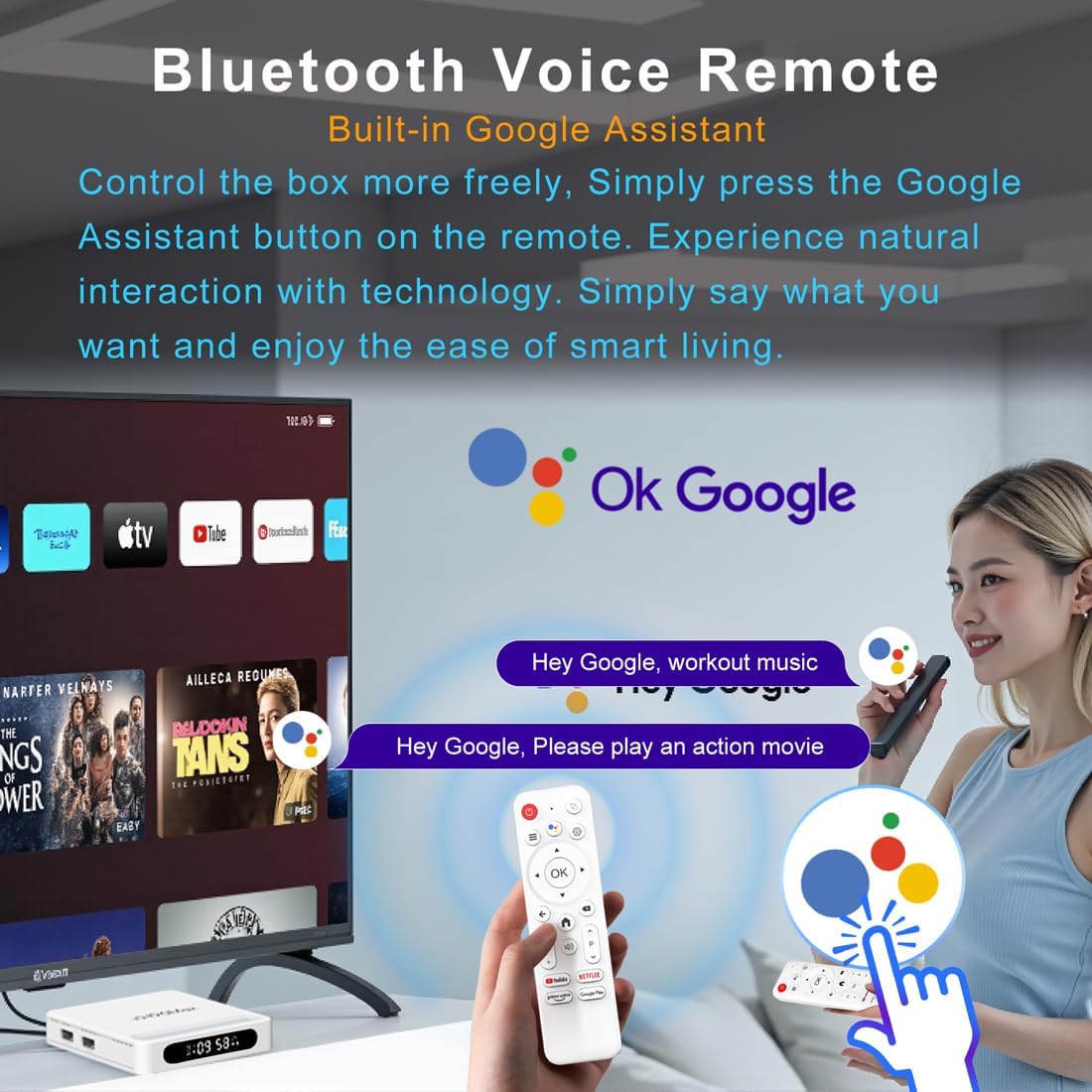
Слика 4.2: Даљинско управљање гласом
4.3 Initial Device Configuration
Follow the on-screen prompts to complete the initial setup, which typically includes:
- Избор језика.
- Connecting to a Wi-Fi network or Ethernet.
- Пријављивање помоћу вашег Google налога.
- Installing essential applications.
5. Упутство за употребу
5.1 Навигација и интерфејс
Use the directional pad (D-pad) on your remote to navigate through the Android TV interface. The 'OK' button confirms selections, 'Back' returns to the previous screen, and 'Home' takes you to the main screen.
5.2 Voice Remote with Google Assistant
Press the Google Assistant button on your remote and speak your commands. You can search for content, open apps, control playback, and more using your voice.
5.3 Приступ апликацијама
The device comes pre-loaded with Google Play, allowing access to over 5000+ applications. Navigate to the 'Apps' section on the home screen to browse, download, and manage your applications.

Figure 5.1: Accessing Apps via Google Play
5.4 4K UHD Playback and HDR10
The LEFFOT H618 Plus supports 8K@22fps decoding and 4K@60fps playback with HDR10. Ensure your television is 4K HDR compatible and that you are streaming 4K HDR content for the best visual experience.
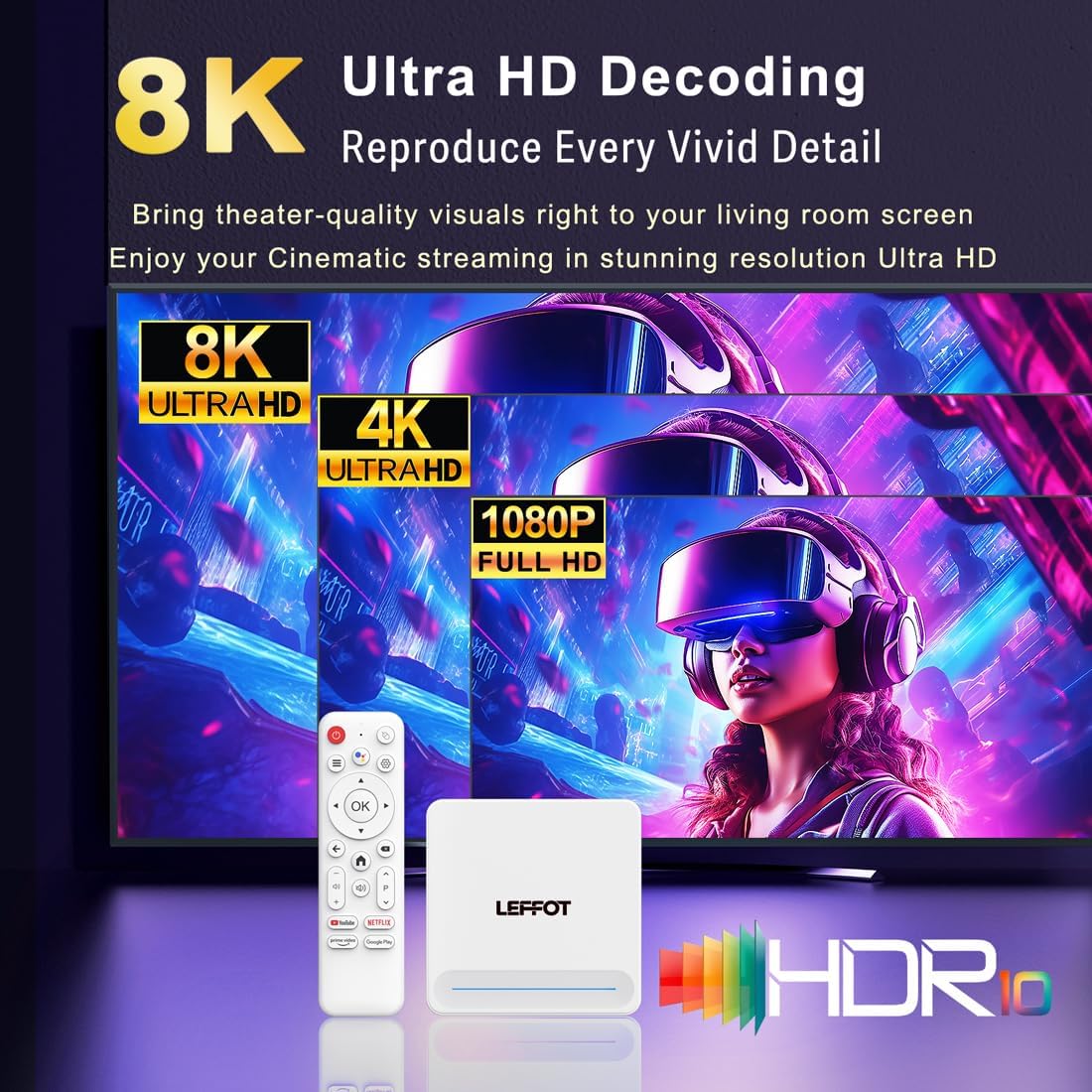
Figure 5.2: 4K UHD and HDR10 Visuals
5.5 Пренос екрана
Utilize the built-in Airplay and Miracast features to cast content from your smartphone or tablet directly to your TV screen.
6. Спецификације
| Феатуре | Опис |
|---|---|
| Бранд | ЛЕФОТ |
| Назив модела | Х618 Плус |
| Оперативни систем | Андроид 14 |
| ЦПУ | Allwinner H618 Quad-Core ARM Cortex A53 |
| ГПУ | Мали-Г31 МП2 |
| РАМ | 2ГБ |
| РОМ | 16ГБ |
| Видео Децодинг | 8K@22fps, 4K@60fps with HDR10 |
| Повезивање | Dual-band WiFi 6 (2.4G/5G), 100M Ethernet, Bluetooth 5.4 |
| Портс | HDMI 2.0a, USB 2.0 (x2), AV, DC |
| Посебне карактеристике | Voice Remote with Google Assistant, Airplay, Miracast |
| Димензије | 3.2 к 3.2 к 0.67 инча |
| Тежина | 4.1 унци |

Слика 6.1: Кључне карактеристике изнадview
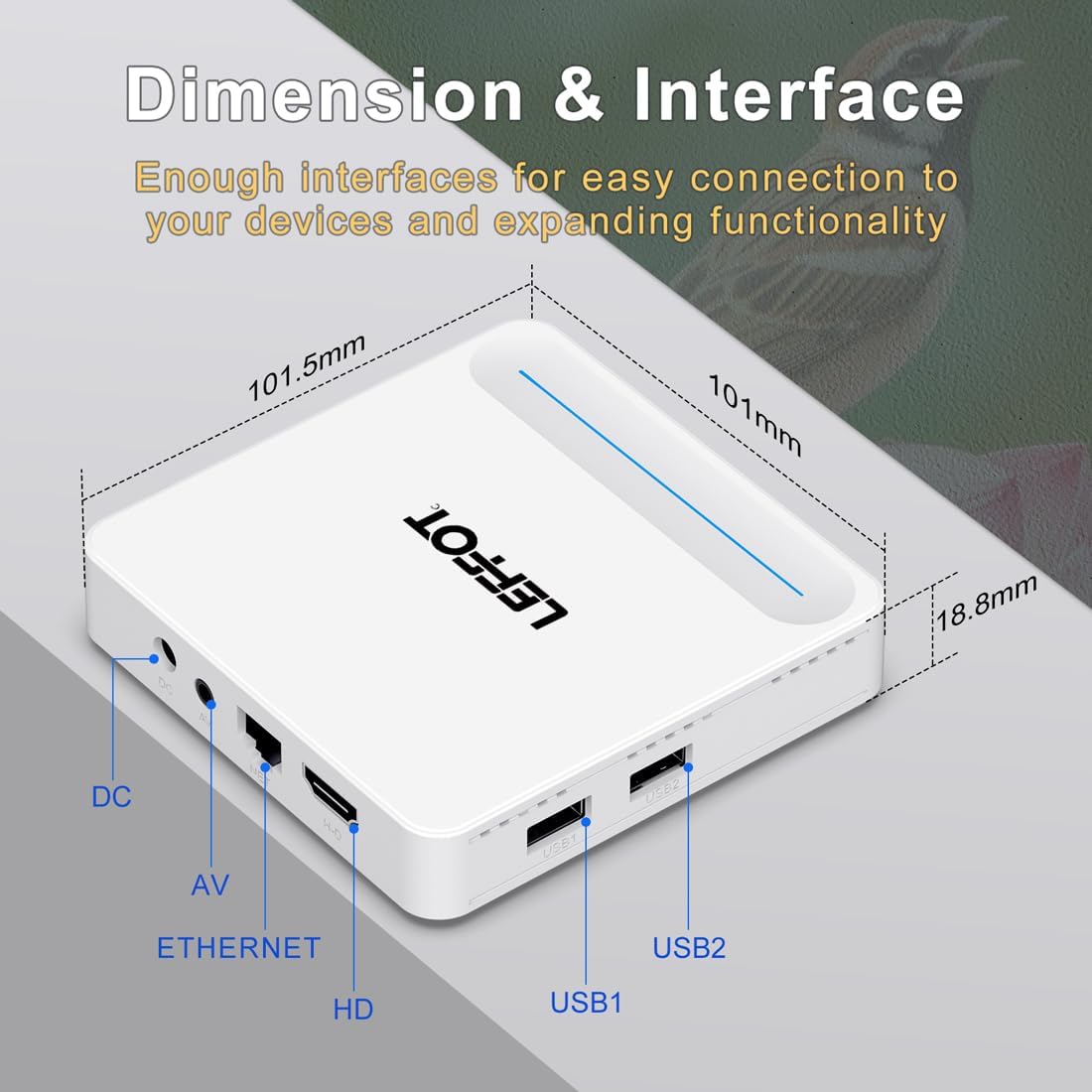
Figure 6.2: Device Dimensions and Interface
КСНУМКС. Решавање проблема
7.1 Нема напајања / Уређај се не укључује
- Проверите да ли је адаптер за напајање безбедно повезан са уређајем и утичницом.
- Ensure the power outlet is functional. Try plugging another device into the same outlet.
- Press the power button on the remote control or the device itself.
7.2 No Signal on TV Screen
- Verify that the HDMI cable is securely connected to both the device and the TV.
- Уверите се да је ваш телевизор подешен на исправан HDMI улазни извор.
- Try using a different HDMI cable or a different HDMI port on your TV.
- Restart the streaming device and your TV.
7.3 Даљински управљач не реагује
- Проверите и замените батерије у даљинском управљачу.
- Уверите се да нема препрека између даљинског управљача и уређаја.
- Re-pair the remote control with the device by following the instructions in Section 4.2.
7.4 Buffering or Slow Performance
- Check your internet connection speed. A stable and fast connection is crucial for streaming 4K content.
- If using Wi-Fi, try moving the device closer to your router or connecting via an Ethernet cable for a more stable connection.
- Close any unused applications running in the background on the device.
- Clear the cache of streaming applications.
- Restart your router, modem, and the streaming device.
8. Одржавање
- Редовно чистите уређај меком, сувом крпом. Не користите течна средства за чишћење или аеросоле.
- Keep the device free from dust and debris, especially around ventilation areas.
- Чувајте уређај на хладном и сувом месту када се не користи дуже време.
9. Гаранција и подршка
For warranty information and technical support, please refer to the documentation included with your purchase or visit the official LEFFOT webсајт. Сачувајте доказ о куповини за потребе гаранције.