
Увод
Thank you for choosing the Vibox IV-584 Gaming PC. This manual provides essential information for setting up, operating, maintaining, and troubleshooting your new computer. The Vibox IV-584 is a high-performance desktop PC designed for gaming and demanding tasks, featuring an AMD Ryzen 7 5700X processor, NVIDIA GeForce RTX 3050 graphics, 16GB of RAM, and a 500GB SSD, pre-installed with Windows 11 Home.
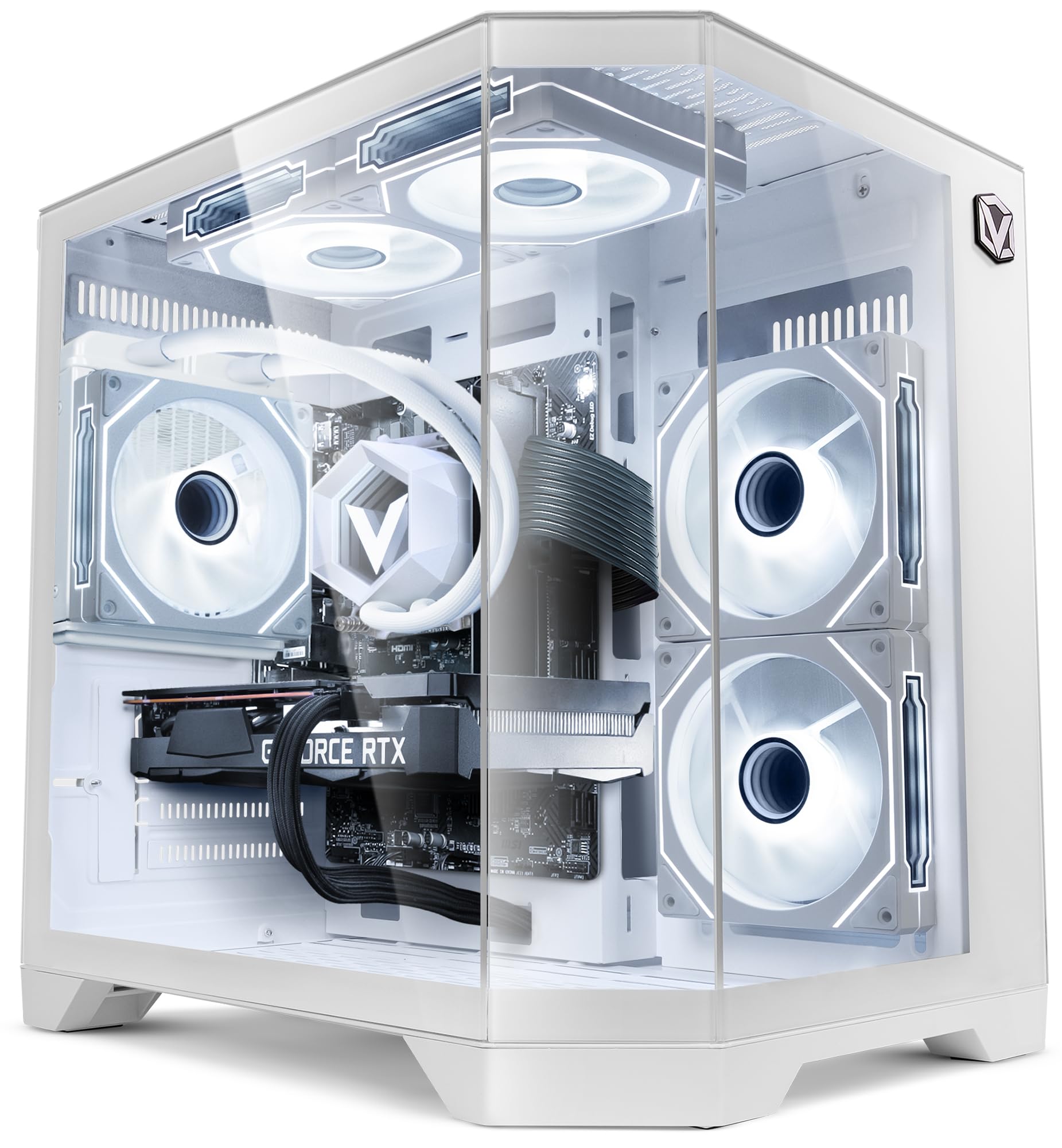
Image: The Vibox IV-584 Gaming PC, showcasing its internal components and sleek design.
1. Подешавање
Follow these steps to set up your Vibox IV-584 Gaming PC:
- Распакујте рачунар: Carefully remove the computer and all accessories from the packaging. Retain the packaging for future transport or warranty claims.
- Повежите периферне уређаје:
- Повежите монитор(е) са портовима графичке картице (HDMI или DisplayPort) који се налазе на задњој страни рачунара.
- Повежите тастатуру и миш са доступним УСБ портовима.
- Повежите све остале периферне уређаје као што су звучници, слушалице или екстерни дискови.
- Мрежна конекција:
- For a wired connection, connect an Ethernet cable from your router to the Ethernet port on the PC.
- For a wireless connection, ensure the included Wi-Fi adapter is installed (if not pre-installed) and follow Windows 11 instructions to connect to your network.
- Прикључак за напајање: Connect the power cable to the power supply unit (PSU) at the rear of the PC, then plug it into a wall outlet.
- Почетно покретање: Press the power button on the front of the PC. The system will boot into Windows 11. Follow the on-screen instructions for initial setup, including language, region, and user account creation.

Слика: Прекоview of the versatile connectivity ports, including USB 2.0, USB 3.0, power button, and audio jacks.
2. Управљање рачунаром
Your Vibox IV-584 comes with Windows 11 Home pre-installed, offering a modern and efficient operating environment.
- Windows 11 Basics: Familiarize yourself with the Windows 11 interface, including the Start Menu, Taskbar, and File Explorer. Microsoft provides extensive online resources for learning Windows 11.
- Играње: This PC is optimized for gaming. Ensure your graphics drivers are up to date for the best performance. You can download the latest drivers from the NVIDIA webсајту.
- Инсталација софтвера: Install your preferred games and applications. The 500GB SSD provides fast loading times for your operating system and frequently used software.
- Мрежна повезаност: Use the integrated Wi-Fi or Ethernet connection to access the internet, download games, and play online.

Image: Key features of Windows 11 Home, highlighting benefits for gaming such as faster loading times with DirectStorage, AutoHDR, and optimized CPU performance.
3. Одржавање
Редовно одржавање осигурава дуготрајност и оптималне перформансе вашег рачунара:
- Чишћење:
- Keep the exterior of the PC clean with a soft, dry cloth.
- Periodically clean dust from the air vents and fans using compressed air. Ensure the PC is powered off and unplugged before cleaning.
- Ажурирања софтвера: Regularly check for and install updates for Windows 11, graphics drivers (NVIDIA), and other installed software to ensure security and performance.
- Резервне копије система: Create regular backups of your important data to an external drive or cloud storage to prevent data loss.
- Течно хлађење: The PC features a liquid cooling system. This system is generally maintenance-free. Avoid opening the liquid cooling unit. Ensure proper airflow around the PC to aid cooling.

Image: An illustration demonstrating the optimized inverse airflow design for next-generation cooling within the PC chassis.
КСНУМКС. Решавање проблема
Here are solutions to some common issues:
- PC Does Not Power On:
- Проверите да ли је кабл за напајање безбедно повезан и са рачунаром и са зидном утичницом.
- Уверите се да је прекидач за напајање на напајању (на задњој страни рачунара) у положају „УКЉУЧЕНО“.
- Покушајте са другом утичницом.
- Нема приказа на монитору:
- Verify that the monitor is powered on and the video cable is securely connected to the graphics card (not the motherboard's integrated video ports).
- Уверите се да је на вашем монитору изабран исправан улазни извор.
- Try connecting the monitor to a different video port on the graphics card if available.
- Споре перформансе:
- Затворите непотребне позадинске апликације.
- Ensure Windows and graphics drivers are up to date.
- Проверите да ли постоји злонамерни софтвер или вируси.
- Monitor system temperatures to ensure the PC is not overheating.
- Проблеми са мрежном повезивањем:
- За жично повезивање, проверите статус етернет кабла и рутера.
- For Wi-Fi, ensure the adapter is properly installed and drivers are updated. Restart your router and PC.
- Покрените програм за решавање проблема са мрежом у систему Windows.
5. Спецификације
Detailed technical specifications for your Vibox IV-584 Gaming PC:
| Компонента | Спецификација |
|---|---|
| Бранд | Вибок |
| Број модела | ИВ-584 |
| Процесор | AMD Ryzen 7 5700X (8 Cores, up to 4.6 GHz) |
| графичка картица | NVIDIA GeForce RTX 3050 6GB GDDR6 |
| РАМ | 16GB DDR4 3200 MHz (Dual-channel) |
| Складиштење | 500 ГБ ССД |
| Оперативни систем | Виндовс 11 Хоме |
| Повезивање | Wi-Fi (300 Mbps adapter included), Ethernet |
| Портс | USB (various), HDMI, DisplayPort |
| Хлађење | Liquid Cooling, RGB Fans |
| Дизајн кућишта | Tempered Glass (3 panels), RGB Lighting |
| Димензије (Д к Ш к В) | Приближно 35 к 28 к 38 цм |
| Тип прикључка за напајање | Type C/EF - 2 pin (EU/FR-DE hybrid) |

Image: The Vibox AIO 120mm liquid cooling unit, designed for efficient and compact cooling.

Image: Vibox Hex RGB Infinity 120mm fans, offering multiple colors and RGB modes for customization.

Image: The PC case design featuring three tempered glass panels, showcasing its elegant and high-end look, along with approximate dimensions.
6. Гаранција и подршка
Your Vibox IV-584 Gaming PC comes with comprehensive warranty and support:
- Гаранција на производ: The PC includes a 2-year warranty on parts and lifetime labor warranty. Please refer to your purchase documentation for full terms and conditions.
- техничка подршка: For technical assistance, troubleshooting beyond this manual, or warranty claims, please contact Vibox customer support through their official webсајт или контакт информације које сте добили уз куповину.