
1. Увод
This manual provides essential information for setting up, operating, maintaining, and troubleshooting your VIBOX I-12 Gaming PC. This complete gaming system includes a 22-inch monitor, gaming keyboard, gaming mouse, headset, LED mouse pad, and a USB Wi-Fi 6 + Bluetooth 5.4 adapter. It is powered by an AMD Ryzen 3 3200G processor with integrated Radeon Vega 8 graphics, 16GB of DDR4 RAM, and a 500GB SSD, running on Windows 11 Home.
Please read this manual thoroughly before using your new PC to ensure optimal performance and longevity.
2. Подешавање
2.1 Распакивање и садржај
Пажљиво распакујте све компоненте из кутије. Уверите се да су присутне следеће ставке:
- VIBOX I-12 PC Tower
- Монитор од 22 инча
- Тастатура за игре
- Гаминг Моусе
- Слушалице
- ЛЕД подлога за миш
- USB Wi-Fi 6 AX900 and Bluetooth 5.4 Adapter
- Каблови за напајање (за рачунар и монитор)
- ХДМИ кабл
- Документација (овај приручник)

Image: The VIBOX I-12 Gaming PC tower, showcasing its internal components and white chassis.
2.2 Повезивање периферних уређаја
- Монитор: Connect the 22-inch monitor to the PC tower using the provided HDMI cable. Ensure both ends are securely plugged in.
- Тастатура и миш: Connect the gaming keyboard and mouse to the available USB ports on the rear or front of the PC tower.
- слушалице: Plug your headset into the audio jacks (headphone and microphone) on the front or rear of the PC.
- Wi-Fi/Bluetooth Adapter: Insert the USB Wi-Fi 6 + Bluetooth 5.4 adapter into an available USB port.
- Снага: Connect the power cable to the PC tower and then to a wall outlet. Connect the monitor's power cable to the monitor and a wall outlet. The PC uses a Type C/EF – 2 pin (European/hybrid FR-DE plug) power connection.

Слика: Крупни план view of the PC's versatile connectivity panel, highlighting USB 3.0, USB 2.0, headphone jack, RGB change button, and power button.
2.3 Почетно укључивање
Once all connections are secure, press the power button on the front of the PC tower. The system will boot up, and Windows 11 Home will guide you through the initial setup process, including language selection, network connection, and user account creation.
3. Управљање рачунаром
3.1 Windows 11 Home
Your VIBOX I-12 PC comes pre-installed with Windows 11 Home, optimized for gaming. Key features include:
- DirectStorage: For faster game loading times.
- Аутоматски HDR: Enhances graphics for supported games.
- Xbox Game Pass Integration: Seamless access to a library of games.
- Optimized CPU Performance: Ensures smooth gameplay and multitasking.
- Windows Defender & Windows Hello: Enhanced security features.
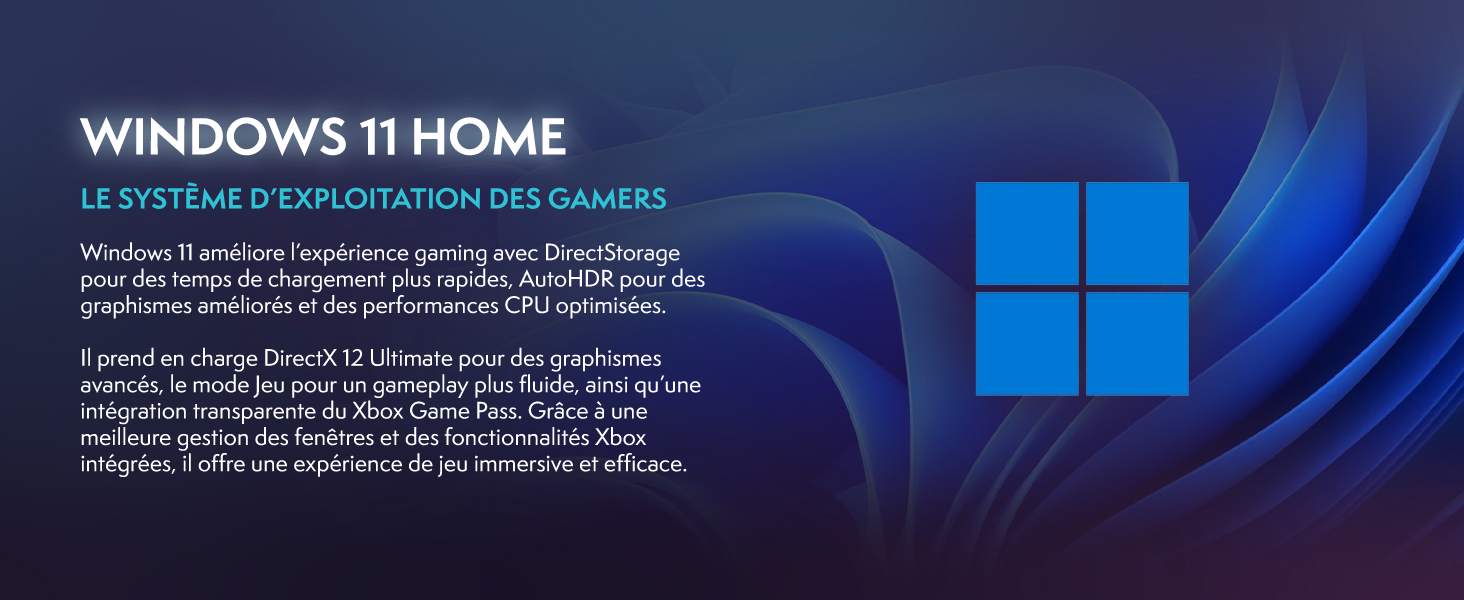
Image: Promotional image for Windows 11 Home, highlighting its gaming-centric features like DirectStorage and Auto HDR.
3.2 Перформансе у играма
The AMD Ryzen 3 3200G processor with integrated Radeon Vega 8 graphics provides solid performance for popular games at 1080p resolution. Performance may vary depending on game settings and specific titles.

Image: Performance comparison for Minecraft and Fortnite, showing average FPS at 1920x1080 resolution with different graphics settings.

Image: Performance comparison for Counter-Strike 2 and Grand Theft Auto V, showing average FPS at 1920x1080 resolution with different graphics settings.
3.3 Повезивање
The VIBOX I-12 offers comprehensive connectivity options:
- бежични: Integrated Wi-Fi 6 (802.11ax) and Bluetooth 5.4 for high-speed wireless networking and peripheral connections.
- Виред: Ethernet port for stable wired internet connection.
- УСБ портови: Multiple USB 3.0 and USB 2.0 ports for various peripherals.
- Видео излаз: HDMI port for display connection.
4. Одржавање
4.1 Генерално чишћење
To ensure optimal performance and longevity, regularly clean your PC. Use a soft, dry cloth to wipe down the exterior. For dust accumulation, especially on vents and fans, use compressed air. Увек искључите рачунар и искључите га из струје пре чишћења.
4.2 Систем хлађења
The VIBOX I-12 features a mesh design and 6 Hex RGB 120mm fans for exceptional airflow and cooling. Periodically check the fan vents for dust buildup, which can impede airflow and lead to overheating. The tempered glass side panel is articulated and magnetic, allowing for easy access to internal components for cleaning and maintenance.

Image: Diagram illustrating the exceptional airflow and next-generation cooling design of the VIBOX I-12 PC tower.
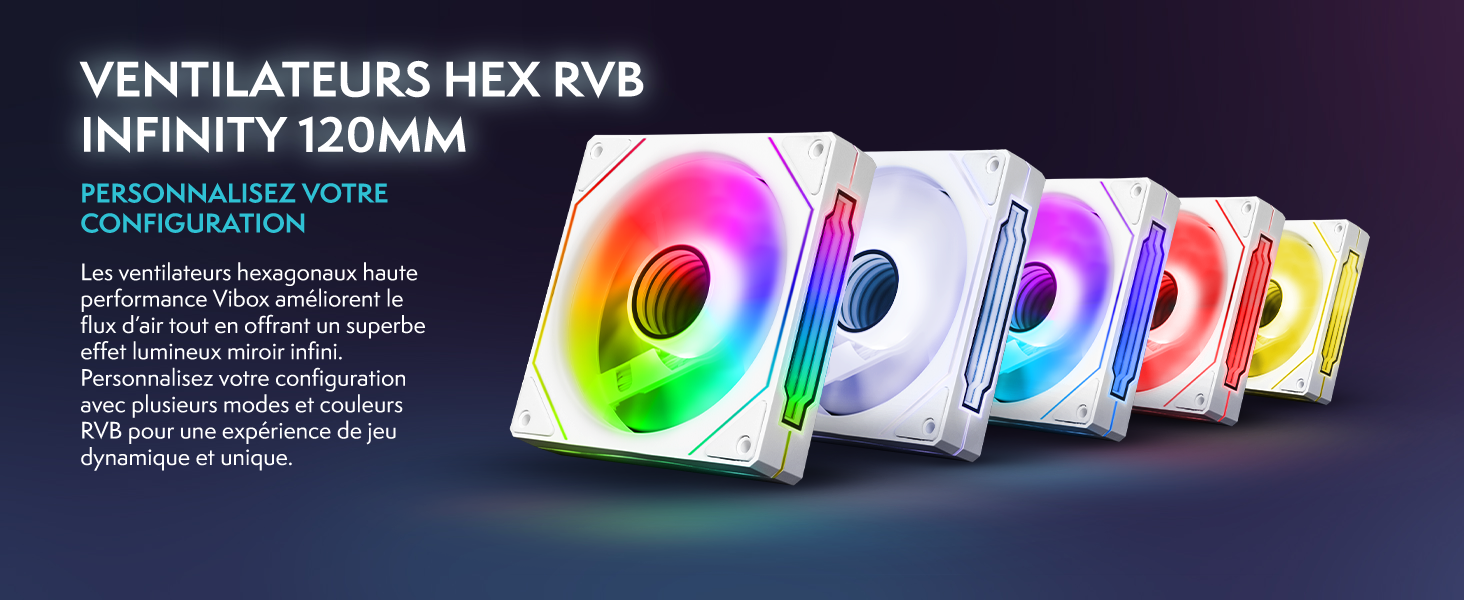
Image: Five 120mm RGB Infinity fans, showcasing customizable lighting options.
КСНУМКС. Решавање проблема
This section addresses common issues you might encounter. If you experience problems not covered here, please contact VIBOX support.
5.1 Нема напајања / Систем се не покреће
- Проверите прикључке за напајање: Ensure all power cables (PC and monitor) are securely plugged into both the device and the wall outlet.
- Wall Socket: Test the wall socket with another device to confirm it is functional.
- Дугме за напајање: Ensure the power button on the PC tower is fully pressed.
5.2 Нема приказа на монитору
- Кабловска веза: Verify the HDMI cable is firmly connected to both the PC's video output port and the monitor's input port.
- Снага монитора: Ensure the monitor is powered on and its power indicator light is active.
- Извор уноса: Check the monitor's input source settings (e.g., HDMI 1, HDMI 2) to ensure it matches the port you're using.
5.3 Peripherals Not Responding (Keyboard/Mouse)
- УСБ портови: Try connecting the keyboard and mouse to different USB ports on the PC.
- Поново покрени: Поново покрените рачунар.
- Возачи: Ensure Windows has installed the necessary drivers. This usually happens automatically.
5.4 Wi-Fi or Bluetooth Issues
- Адаптерска веза: Ensure the USB Wi-Fi/Bluetooth adapter is securely plugged into a USB port.
- Возачи: Verify that the drivers for the adapter are correctly installed. Windows 11 typically handles this automatically.
- Подешавања мреже: Check Windows network settings to ensure Wi-Fi and Bluetooth are enabled.
6. Спецификације
| Компонента | Детаљ |
|---|---|
| Бранд | VIBOX |
| Број модела | И-12 |
| Оперативни систем | Виндовс 11 Хоме |
| процесор (ЦПУ) | AMD Ryzen 3 3200G (4 Cores, 3.6 GHz Base, 4.0 GHz Max Boost) |
| Graphics (GPU) | Integrated Radeon Vega 8 Graphics (2GB Shared Memory) |
| РАМ | 16 GB DDR4 (2666 MHz) |
| Складиштење | 500 ГБ ССД |
| Монитор | 22-inch LED (1920x1080 Pixels, 16:9 Aspect Ratio) |
| Бежично повезивање | Wi-Fi 6 (802.11ac/n), Bluetooth 5.4 |
| Жичано повезивање | Ethernet, HDMI (1 port), USB (4 total ports) |
| Метод хлађења | Air (6 Hex RGB 120mm fans) |
| Dimensions (PC Tower) | 40 к 21 к 45 цм |
| Тип прикључка за напајање | Type C/EF – 2 pin (European/hybrid FR-DE) |
| Укључени периферни уређаји | 22" Monitor, Gaming Keyboard (AZERTY layout), Gaming Mouse, Headset, LED Mouse Pad, USB Wi-Fi/Bluetooth Adapter |
7. Гаранција и подршка
7.1 Информације о гаранцији
Your VIBOX I-12 Gaming PC comes with a comprehensive warranty:
- делови: 2 године
- рад: Животни вијек
Please retain your proof of purchase for warranty claims. The warranty covers manufacturing defects and hardware failures under normal use conditions.
7.2 Корисничка подршка
For technical assistance, troubleshooting, or warranty inquiries, please contact VIBOX Gaming customer support. You can find more information and contact details on the official VIBOX webсајт или преко њихове странице продавнице на Амазону: