
1. Увод
Thank you for choosing the Zeuslap Z13KT 13.3-inch Portable Touchscreen Monitor. This device is designed to enhance your productivity and entertainment experience with its high-resolution 2K IPS display, 100% sRGB color gamut, and responsive touch functionality. This manual provides essential information for the safe and efficient use of your monitor, including setup, operation, maintenance, and troubleshooting.
2. Безбедносне информације
- Пажљиво прочитајте сва упутства пре употребе монитора.
- Не излажите монитор киши, влази или екстремним температурама.
- Избегавајте постављање монитора у близини извора топлоте или на директној сунчевој светлости.
- Користите само адаптер за напајање и каблове које је обезбедио или препоручио произвођач.
- Не покушавајте сами да растављате или поправљате монитор. Све сервисирање препустите квалификованом особљу.
- Clean the monitor with a soft, dry cloth. Avoid using liquid cleaners or aerosols.
- Држите монитор даље од јаких магнетних поља.
3. Садржај пакета
Молимо вас да проверите садржај пакета након распакивања. Ако неке ставке недостају или су оштећене, обратите се продавцу.
- Zeuslap Z13KT Portable Monitor
- USB-C to USB-C Cable (for power and video/touch)
- Mini HDMI to HDMI Cable (for video)
- USB-A to USB-C Cable (for power)
- Адаптер за напајање (ако је укључен)
- Protective Cover/Stand
- Кориснички приручник (овај документ)
4. Производ је готовview
Familiarize yourself with the monitor's components and ports.
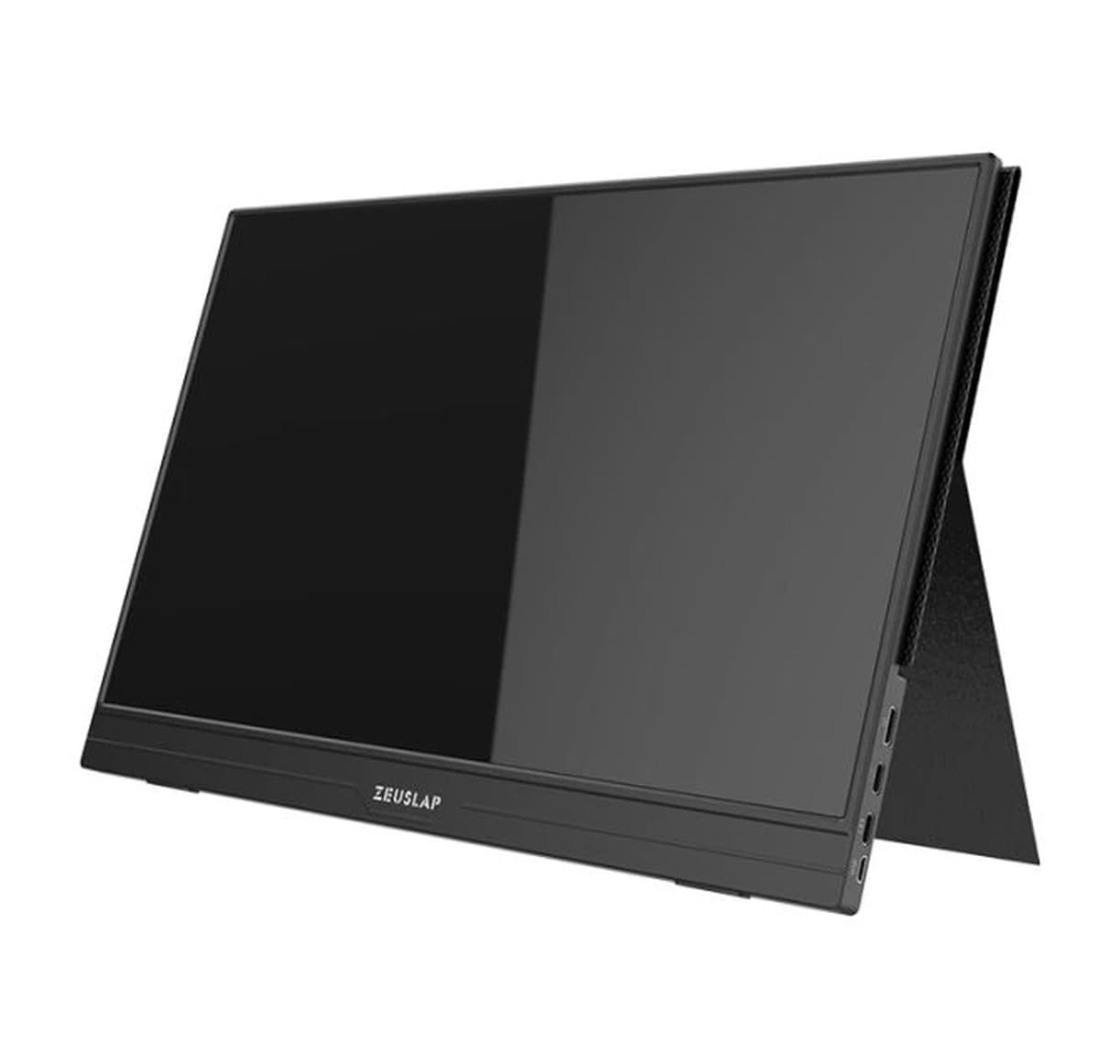
Слика 4.1: Фронт view of the Zeuslap Z13KT portable monitor, showcasing its slim design and screen.
4.1. Monitor Components
- 13.3-inch 2K IPS Touchscreen: Main display area with touch input capability.
- Дугме за напајање: Turns the monitor on/off and can be used to access the OSD menu.
- Menu/Navigation Buttons: For navigating the On-Screen Display (OSD) menu.
- говорници: Интегрисани аудио излаз.
4.2. Доступни портови
- USB-C Port (Full-featured): For power, video signal, and touch data transmission from compatible devices (e.g., laptops, smartphones).
- USB-C Port (Power Only): For connecting to an external power adapter to supply power to the monitor.
- Мини ХДМИ порт: For video signal input from devices like gaming consoles, cameras, or older laptops.
- 3.5 мм аудио прикључак: За повезивање екстерних слушалица или звучника.
5. Подешавање
Follow these steps to connect your Zeuslap Z13KT monitor to your device.
5.1. Connecting to a Laptop/PC (USB-C with DisplayPort Alt Mode)
- Ensure your laptop's USB-C port supports DisplayPort Alternate Mode (DP Alt Mode) and power delivery.
- Connect one end of the provided USB-C to USB-C cable to the full-featured USB-C port on the monitor.
- Connect the other end of the USB-C to USB-C cable to your laptop's compatible USB-C port.
- The monitor should automatically detect the signal and power on. If not, press the monitor's power button.
- For touch functionality, ensure the USB-C connection is established correctly.
5.2. Connecting to a Laptop/PC (HDMI + USB for Power/Touch)
- Connect one end of the Mini HDMI to HDMI cable to the Mini HDMI port on the monitor.
- Connect the other end of the HDMI cable to your laptop's HDMI port.
- For power, connect the USB-A to USB-C cable from your laptop's USB-A port (or a power adapter) to the power-only USB-C port on the monitor.
- For touch functionality, if your laptop has a USB-A port, connect the USB-A end of the USB-A to USB-C cable to your laptop and the USB-C end to the full-featured USB-C port on the monitor. This will provide touch data.
- The monitor should power on and display the image.
5.3. Connecting to a Smartphone (USB-C with DisplayPort Alt Mode)
Note: Not all smartphones support video output via USB-C. Check your phone's specifications.
- Connect one end of the USB-C to USB-C cable to the full-featured USB-C port on the monitor.
- Connect the other end of the USB-C to USB-C cable to your compatible smartphone's USB-C port.
- The monitor will draw power from the phone. For extended use or if the phone cannot supply enough power, connect an external power adapter to the monitor's power-only USB-C port.
- The monitor should display your phone's screen, and touch functionality should be active.
6. Упутство за употребу
6.1. Укључивање/искључивање
- За укључивање: Притисните дугме за напајање.
- За искључивање: Притисните и држите дугме за напајање 3 секунде.
6.2. Он-Сцреен Дисплаи (ОСД) мени
ОСД мени вам омогућава да прилагодите различита подешавања монитора.
- Приступ OSD-у: Press the Menu button (or short press the Power button, depending on model variation).
- Навигација: Use the navigation buttons (or touch gestures if enabled) to move through menu options.
- Избор: Press the Menu button (or tap) to select an option.
- Излаз: Navigate to the "Exit" option or wait for the OSD to time out.
6.3. Уобичајена подешавања OSD-а
- Осветљеност/контраст: Подесите нивое осветљености и контраста екрана.
- Подешавања боја: Промените температуру боје, нијансу и засићеност.
- Извор уноса: Ручно бирајте између USB-C и Mini HDMI улаза.
- Размера: Change the display aspect ratio (e.g., 16:9, 4:3).
- Волумен: Adjust the built-in speaker volume.
- Језик: Изаберите језик OSD менија.
6.4. Функционалност екрана осетљивог на додир
The monitor supports multi-touch gestures. Ensure your device (laptop/smartphone) is compatible and connected via a full-featured USB-C cable for touch input to function.
- Додирните: Еквивалентно клику мишем.
- Превуците: За скроловање или навигацију.
- Зумирање штипкањем прстију: For zooming in or out on content.
7. Одржавање
7.1. Чишћење монитора
- Увек искључите монитор и извуците га из струје пре чишћења.
- Користите меку крпу која не оставља влакна да нежно обришете екран и цasing.
- За тврдокорне мрље, лагано обришитеampОчистите крпу водом или средством за чишћење екрана. Не прскајте течност директно на екран.
- Избегавајте употребу абразивних средстава за чишћење, алкохола или раствора на бази амонијака, јер могу оштетити површину екрана.
7.2. Складиштење
- When not in use, store the monitor in a cool, dry place.
- Use the provided protective cover to prevent scratches and dust accumulation.
- Избегавајте постављање тешких предмета на монитор.
КСНУМКС. Решавање проблема
Ако наиђете на проблеме са монитором, погледајте следеће уобичајене проблеме и решења.
| Проблем | Могући узрок | Решење |
|---|---|---|
| Нема дисплеја/Нема сигнала |
|
|
| Екран осетљив на додир не ради |
|
|
| Треперење или нестабилан приказ |
|
|
| Нема звука из звучника монитора |
|
|
9. Спецификације
| Феатуре | Детаљ |
|---|---|
| Модел | ZL-Z13KT |
| Величина екрана | 13.3 инча |
| Резолуција | 2560 к 1600 (2К) |
| Рефресх Рате | 60Хз |
| Панел Типе | ИПС |
| Гамут боја | 100% сРГБ |
| Осветљеност | 300 цд/м² |
| Тоуцхсцреен | Да |
| Повезивање | 2x USB-C (1x Full-featured, 1x Power), 1x Mini HDMI, 1x 3.5mm Audio Jack |
| Повер Инпут | USB-C (5V-20V) |
10. Гаранција и подршка
Specific warranty information for the Zeuslap Z13KT monitor is not available in the provided product data. Please refer to the warranty card included with your product or visit the official ZEUSLAP webсајт за детаљне услове гаранције.
For technical support, product inquiries, or service requests, please contact your retailer or the manufacturer directly through their official support channels.