
Увод
This manual provides detailed instructions for the setup, operation, and maintenance of your HANNspree HT240CUA 23.8-inch Multitouch Monitor. Please read this manual thoroughly before using the product to ensure proper functionality and to prevent damage.
Садржај пакета
Verify that all items listed below are included in your product package. If any items are missing or damaged, please contact your retailer.
- HANNspree HT240CUA Multitouch Monitor
- Повер Суппли
- Кабл за напајање (1.5 м)
- ХДМИ кабл
- УСБ АЦ кабл
- Гарантни лист
- Водич за брзи почетак
Производ је завршенview
The HANNspree HT240CUA is a 23.8-inch multitouch monitor designed for versatile use in various environments. It features PCAP touch technology with 10 touch points, Full HD resolution, optical bonding, and a durable 7H tempered glass surface.
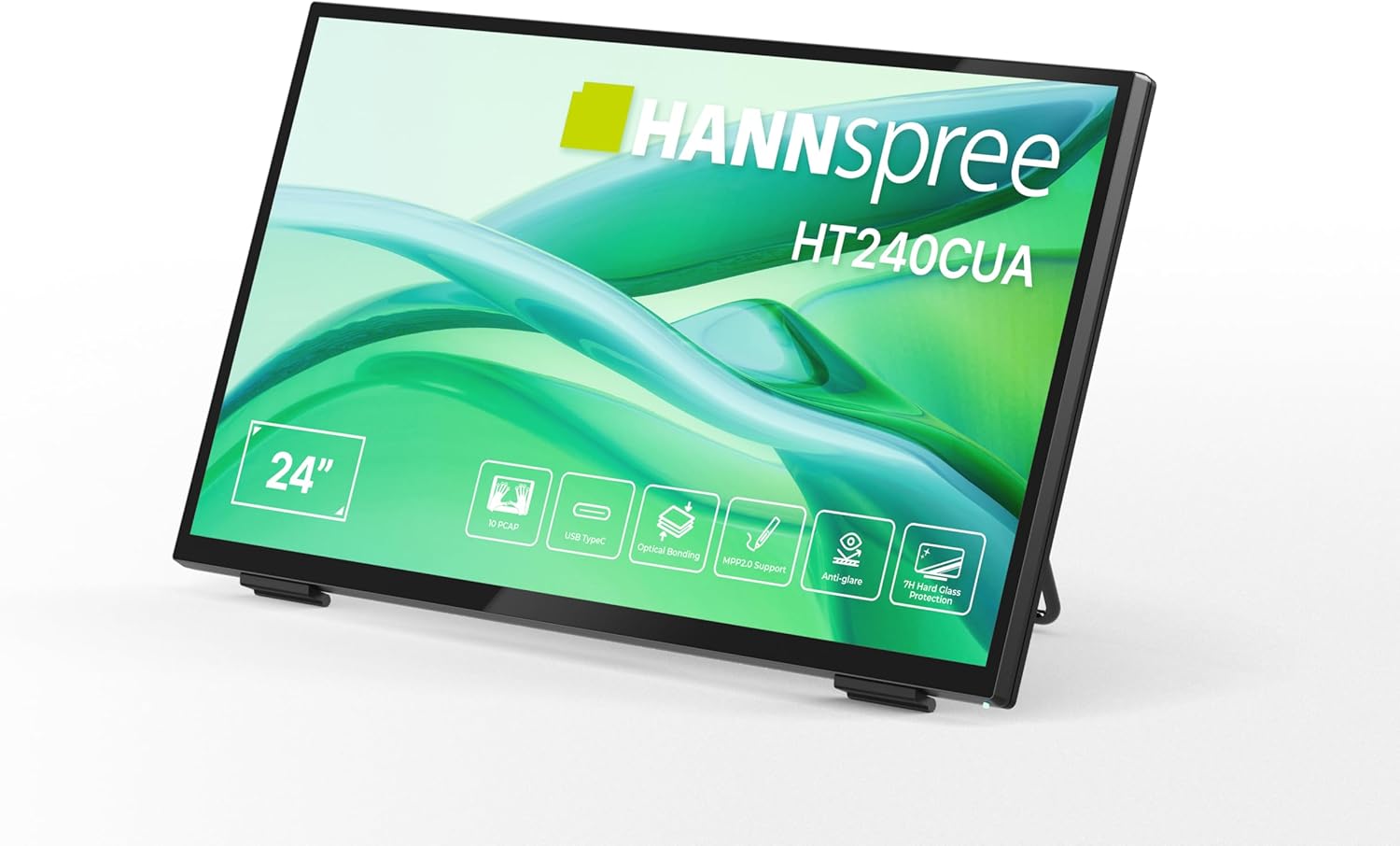
Фронт view of the HANNspree HT240CUA monitor, showcasinњегов елегантан дизајн и екран од 24 инча.

Позади view of the HANNspree HT240CUA monitor, highlighting the various input/output ports including USB Type-C, HDMI, and DisplayPort.
Сетуп
- Unpacking the Monitor: Пажљиво извадите монитор и сву додатну опрему из паковања. Поставите монитор на стабилну, равну површину.
- Повезивање напајања:
- Повежите кабл за напајање са напајањем.
- Plug the power supply into the DC IN port on the back of the monitor.
- Укључите други крај кабла за напајање у уземљену електричну утичницу.
- Повезивање са рачунаром:
- УСБ тип-Ц веза: For video, audio, and touch functionality with a single cable, connect the supplied USB A-C cable to the USB Type-C port on the monitor and to a compatible USB Type-C port on your computer.
- ХДМИ веза: Connect one end of the HDMI cable to the HDMI port on the monitor and the other end to the HDMI output port on your computer.
- ДисплаиПорт веза: Connect a DisplayPort cable (not included) to the DP port on the monitor and to the DisplayPort output on your computer.
- ВГА конекција: Connect a VGA cable (not included) to the VGA port on the monitor and to the VGA output on your computer.

Diagram illustrating the versatile connectivity options available on the HANNspree HT240CUA monitor, including USB-C, DisplayPort, HDMI, and VGA.
- Adjusting the Stand: The monitor features an ergonomically adjustable stand with a tilt angle of 15-70 degrees. Adjust the stand to your preferred viewугао уласка.
- VESA Mounting (Optional): The monitor supports VESA mount 100 x 100 mm for alternative mounting solutions, such as wall mounts or mini PC attachments.
Упутство за употребу
Укључивање/искључивање
Press the power button located on the side of the monitor to turn it on or off.
Using the Multitouch Functionality
The HT240CUA supports 10-point PCAP multitouch. Ensure your operating system is configured for touch input.

Image showing the HANNspree HT240CUA monitor in use with 10-point multitouch functionality, allowing for smooth and precise interactions.
MPP 2.0 Stylus Support
The monitor supports MPP 2.0 compatible styluses (pen not included) for a pen-like writing and drawing experience with precise accuracy and low latency.
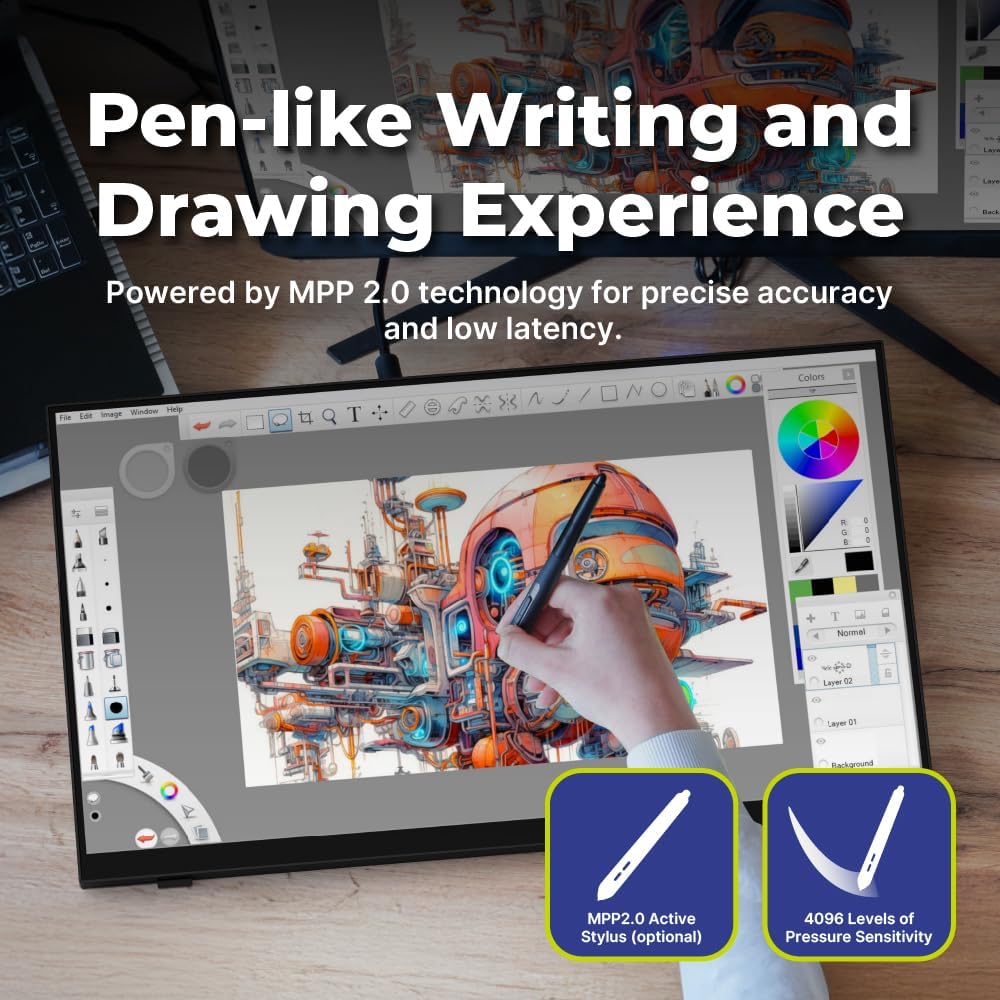
Illustration of the HANNspree HT240CUA monitor's support for MPP 2.0 styluses, enabling a natural writing and drawing experience.
Он-Сцреен Дисплаи (ОСД) мени
Use the buttons on the side of the monitor to navigate and adjust settings in the OSD menu. Common settings include brightness, contrast, input source selection, and color temperature.
- Дугме МЕНУ: Отвара ОСД мени.
- Тастери ГОРЕ/ДОЛЕ: Крећите се кроз опције менија.
- Дугме ЕНТЕР: Бира опцију или потврђује подешавање.
- Дугме ЕКСИТ: Излази из тренутног менија или OSD-а.
Одржавање
Чишћење монитора
Да бисте очистили екран монитора и цasing:
- Искључите монитор и искључите кабл за напајање.
- Лагано користите меку крпу која не оставља длачице дampиспрати водом или неабразивним средством за чишћење екрана.
- Нежно обришите екран и цasing. Avoid applying excessive pressure.
- Do not use alcohol, benzene, thinners, or other harsh chemicals, as these may damage the screen surface or casing.
Складиштење
Када складиштите монитор на дуже време, уверите се да је искључен из струје и да је складиштен на хладном и сувом месту, даље од директне сунчеве светлости и екстремних температура.
Решавање проблема
Ако наиђете на проблеме са монитором, погледајте следеће уобичајене проблеме и решења.
Но Повер
- Уверите се да је кабл за напајање безбедно повезан са монитором и електричном утичницом.
- Проверите да ли утичница исправно функционише тако што ћете укључити други уређај.
- Проверите адаптер за напајање да ли има видљивих оштећења.
Нема слике на екрану
- Confirm that the monitor is powered on.
- Check the video cable (HDMI, DisplayPort, USB-C, VGA) connections at both the monitor and the computer.
- Уверите се да је изабран исправан улазни извор у OSD менију монитора.
- Тестирајте монитор са другим рачунаром или видео извором ако је могуће.
Touch Functionality Not Working
- For USB Type-C connections, ensure the cable supports data transfer for touch.
- If using HDMI/DP/VGA, ensure a separate USB cable is connected from the monitor's USB upstream port to your computer for touch data.
- Check your computer's operating system settings for touch screen calibration or driver issues.
- Restart both the monitor and the computer.
Проблеми са квалитетом слике
- Подесите осветљеност, контраст и боје преко OSD менија.
- Уверите се да је резолуција екрана на рачунару подешена на нативну резолуцију монитора (1920 x 1080).
- Проверите да ли има физичких оштећења на екрану или кабловима.
Спецификације
| Феатуре | Спецификација |
|---|---|
| Величина екрана | 23.8 инча |
| Резолуција | 1920 к 1080 (Фулл ХД) |
| Аспецт Ратио | 16:9 |
| Тоуцх Тецхнологи | PCAP, 10-point multitouch |
| Сурфаце Харднесс | 7Х каљено стакло |
| Осветљеност | 270 цд/м² |
| Повезивање | USB Type-C (Video/Audio/Touch), HDMI, DisplayPort, VGA, USB Hub 3.0 (2x) |
| Звучници | Интегрисано |
| Угао нагиба | 15-70 степени |
| ВЕСА Моунт | 100 к 100 мм |
| Подршка за оловку | MPP 2.0 (pen not included) |
| Димензије производа (Д к Ш к В) | 21.65 к 13.12 к 1.94 инча |
| Тежина артикла | 12.39 фунти |
Гаранција и подршка
For warranty information, please refer to the included Warranty Card in your package. For technical support or service inquiries, please visit the official HANNspree webсајту или се обратите њиховом одељењу за корисничку подршку.
Keep your purchase receipt and product serial number (found on the back of the monitor) readily available when contacting support.