
1. Увод
This manual provides instructions for the assembly, operation, and maintenance of the MONTECH X5M Micro ATX Gaming PC Case. The X5M is designed for high airflow and features pre-installed ARGB fans, a glass side panel, and an integrated GPU holder.
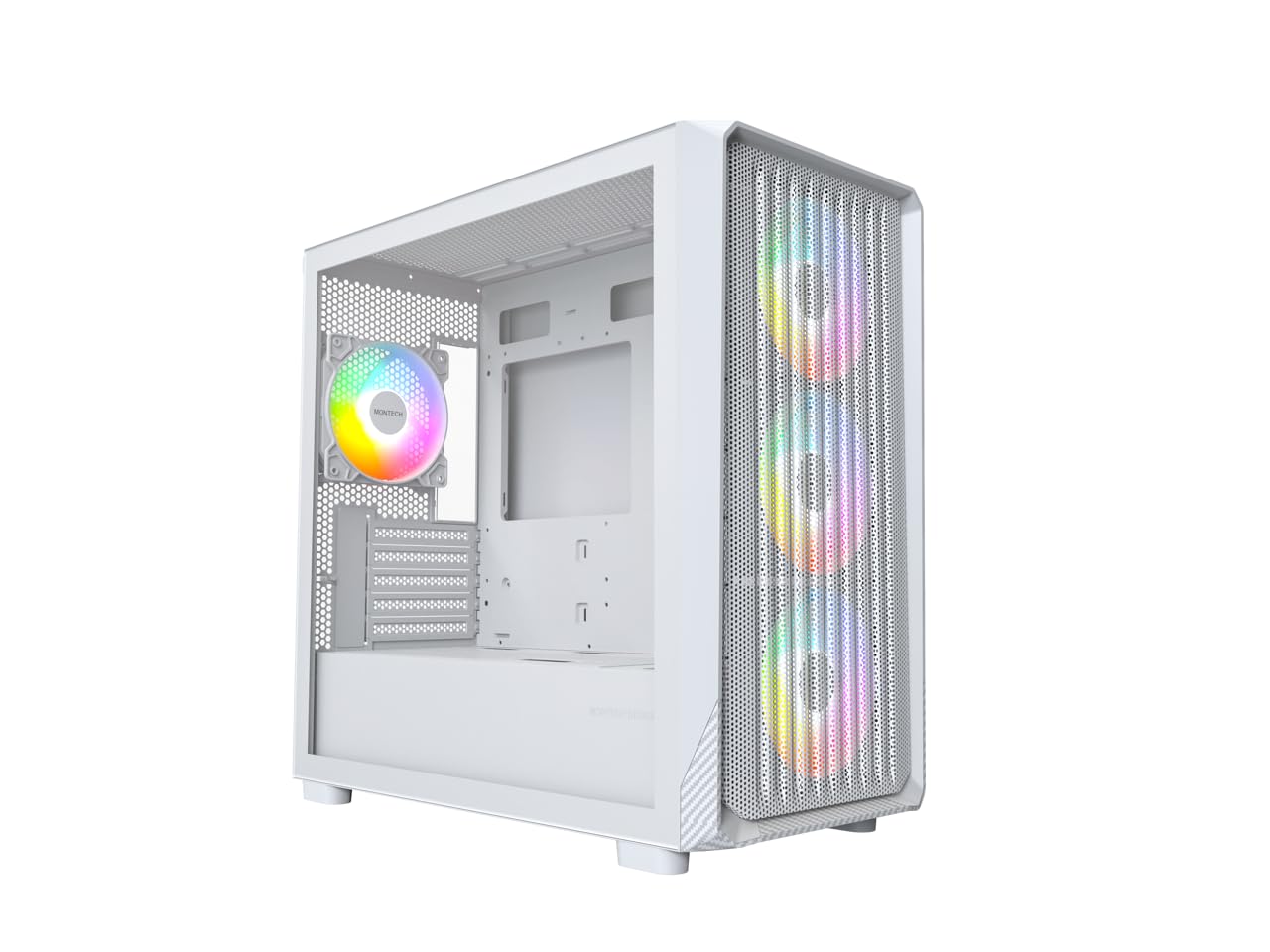
Figure 1: MONTECH X5M Micro ATX Gaming PC Case (White variant).
2. Кључне карактеристике
- Integrated GPU Holder: An adjustable GPU support stand is included to provide physical support for graphics cards.
- High Airflow Design: Optimized structure for efficient cooling.
- Унапред инсталирани ARGB вентилатори: Four 120mm ARGB fans are pre-installed for immediate cooling and customizable lighting.
- Бочна плоча од каљеног стакла: Пружа јасан view унутрашњих компоненти.
- Carbon Fiber Print Accents: Aesthetic detailing on the front panel.
- Свестрано повезивање: Front I/O panel includes USB 2.0, USB 3.0, USB Type-C, and audio ports.

Слика 2: Завршеноview of the MONTECH X5M case highlighting internal layout and ARGB fans.
3. Спецификације
| Бранд | Montech |
| Назив модела | Кс5М |
| Тип случаја | Мицро АТКС Мид Товер |
| Компатибилност матичне плоче | Мицро АТКС |
| Унапред инсталирани вентилатори | 4 к 120 мм АРГБ вентилатора |
| Подршка за дужину графичког процесора | До 405 мм |
| CPU Cooler Height Support | До 165 мм |
| PSU Length Support | До 230 мм |
| Стораге Баис | Up to 2 HDDs & 4 SSDs |
| Предњи И / О портови | 1x USB 2.0, 1x USB 3.0, 1x USB Type-C, Mic & Audio, LED Button, Power Button |
| Метод хлађења | Ваздух |
| АИО подршка за радијаторе | Top: Up to 360mm; Front: Up to 360mm |
| Материјал | Plastic with Carbon Fiber Accents, Tempered Glass |
| Тежина артикла | 14.3 фунти (6.49 кг) |

Figure 3: Close-up of the carbon fiber print detailing on the front panel of the X5M case.
4. Подешавање и инсталација
Follow these steps for installing components into your MONTECH X5M PC case. Ensure your system is powered off and unplugged before beginning any installation.
4.1. Припрема случаја
- Carefully remove the tempered glass side panel by unscrewing the thumb screws and sliding it off.
- Remove the rear side panel to access the cable management area.
4.2. Инсталација матичне плоче
- Инсталирајте И/О штит (ако није претходно причвршћен за матичну плочу) у задњи отвор кућишта.
- Align your Micro ATX motherboard with the standoffs inside the case.
- Причврстите матичну плочу помоћу приложених вијака.
4.3. Инсталација јединице за напајање (PSU)
- Place the PSU into the dedicated compartment at the bottom rear of the case.
- Причврстите напајање завртњима са задње стране кућишта.
4.4. Storage Device Installation (HDDs/SSDs)
The X5M supports up to 2 HDDs and 4 SSDs.
- 2.5" SSD дискови: Mount SSDs onto the designated brackets behind the motherboard tray or on the PSU shroud.
- 3.5" HDD-ови: Install HDDs into the drive cage located under the PSU shroud.
4.5. Инсталација графичке картице (GPU)
- Уклоните потребне поклопце PCIe слотова са задње стране кућишта.
- Insert the GPU into the appropriate PCIe slot on your motherboard.
- Secure the GPU with screws.
- Adjust the integrated GPU support stand to provide stability for your graphics card.
4.6. Уградња вентилатора и радијатора
The X5M comes with four 120mm ARGB fans pre-installed. Additional fans or AIO radiators can be installed as follows:
- Врх: Supports 3x 120mm or 2x 140mm fans, or AIO radiators up to 360mm.
- Фронт: Supports 3x 120mm or 2x 140mm fans, or AIO radiators up to 360mm.
- позади: Supports 1x 120mm fan.
- Плашта за напајање: Supports 2x 120mm fans.

Figure 4: Illustration of airflow within the MONTECH X5M case and the pre-installed ARGB fans.

Figure 5: Diagram detailing fan and radiator support locations and sizes within the X5M case.
4.7. Менаџмент каблова
Користите изрезе за усмеравање каблова и тачке за везивање иза лежишта матичне плоче да бисте организовали каблове. Ово побољшава проток ваздуха и естетику.
4.8. Front I/O Panel Connections
Connect the front panel cables (USB 2.0, USB 3.0, USB Type-C, HD Audio, Power Switch, Reset Switch, LED) to the corresponding headers on your motherboard. Refer to your motherboard manual for specific header locations.

Figure 6: Front I/O panel of the MONTECH X5M, showing USB 2.0, USB 3.0, USB Type-C, Mic & Audio jacks, LED button, and Power button.
5. Операција
5.1. Укључивање
After all components are installed and cables connected, replace the side panels. Connect your monitor, keyboard, mouse, and power cable. Press the Power Button on the front I/O panel to start your system.
5.2. ARGB контрола вентилатора
Унапред инсталирани ARGB вентилатори могу се контролисати на два начина:
- Dedicated LED Button: Use the LED button on the front I/O panel to cycle through 25 built-in lighting modes.
- Синхронизација матичне плоче: Connect the ARGB cables to a compatible 5V 3-pin ARGB header on your motherboard. Use your motherboard's RGB software (e.g., ASUS Aura Sync, MSI Mystic Light Sync, GIGABYTE RGB Fusion, ASRock Polychrome Sync) to synchronize and customize lighting effects.
6. Одржавање
Редовно одржавање помаже у обезбеђивању оптималних перформанси и дугог века трајања компоненти вашег рачунара.
- Чишћење филтера за прашину: Periodically remove and clean the dust filters (located on the top, front, and bottom) to maintain optimal airflow. Use compressed air or a soft brush.
- Спољно чишћење: Обришите спољашње површине меком, дamp тканина. Избегавајте абразивна средства за чишћење.
- Унутрашње чишћење: With the system powered off and unplugged, use compressed air to remove dust from internal components and fans.
КСНУМКС. Решавање проблема
- Систем се не укључује:
- Ensure the power cable is securely connected to the PSU and the wall outlet.
- Проверите да ли је прекидач напајања у положају „УКЉУЧЕНО“.
- Verify all front panel connectors (especially the Power Switch) are correctly attached to the motherboard.
- Confirm the 24-pin ATX and 8-pin CPU power cables are securely connected to the motherboard.
- Вентилатори се не окрећу / RGB се не пали:
- Check that all fan power cables are securely connected to the fan hub or motherboard headers.
- Ensure ARGB cables are properly connected to the fan hub or a compatible 5V 3-pin ARGB header on the motherboard.
- If using motherboard synchronization, verify that the RGB software is installed and configured correctly.
- Try cycling through modes using the dedicated LED button on the front panel.
- Нема излаза на екран:
- Ensure your monitor cable is connected to the graphics card (GPU) and not the motherboard's integrated graphics port (unless you are using integrated graphics).
- Поново поставите графичку картицу у њен PCIe слот.
- Check that the GPU power cables are securely connected.
8. Гаранција и подршка
8.1. Информације о гаранцији
The MONTECH X5M PC Case comes with a 1 године гаранције произвођача. This warranty covers defects in materials and workmanship under normal use. For specific terms and conditions, please refer to the official Montech webсајту или контактирајте корисничку подршку.
8.2. Корисничка подршка
For further assistance, technical support, or warranty claims, please visit the official Montech website or contact their customer service department. You can find contact information on the Montech webсајт: www.montechpc.com


